
MCP servers
MCP servers
The Model Context Protocol (MCP) is an open standard many companies use to offer their tools to AI agents. If a service has a remote MCP server — Linear, Notion, Sentry, Stripe, Atlassian, Hugging Face, or one your own team runs — you can connect it to your agents in a minute.
BetterClaw connects to the server for your agents and stores its sign-in or API key encrypted, separately from your Secrets. Agents only ever see the server's tools, never its credentials.
Add an MCP server from Connectors
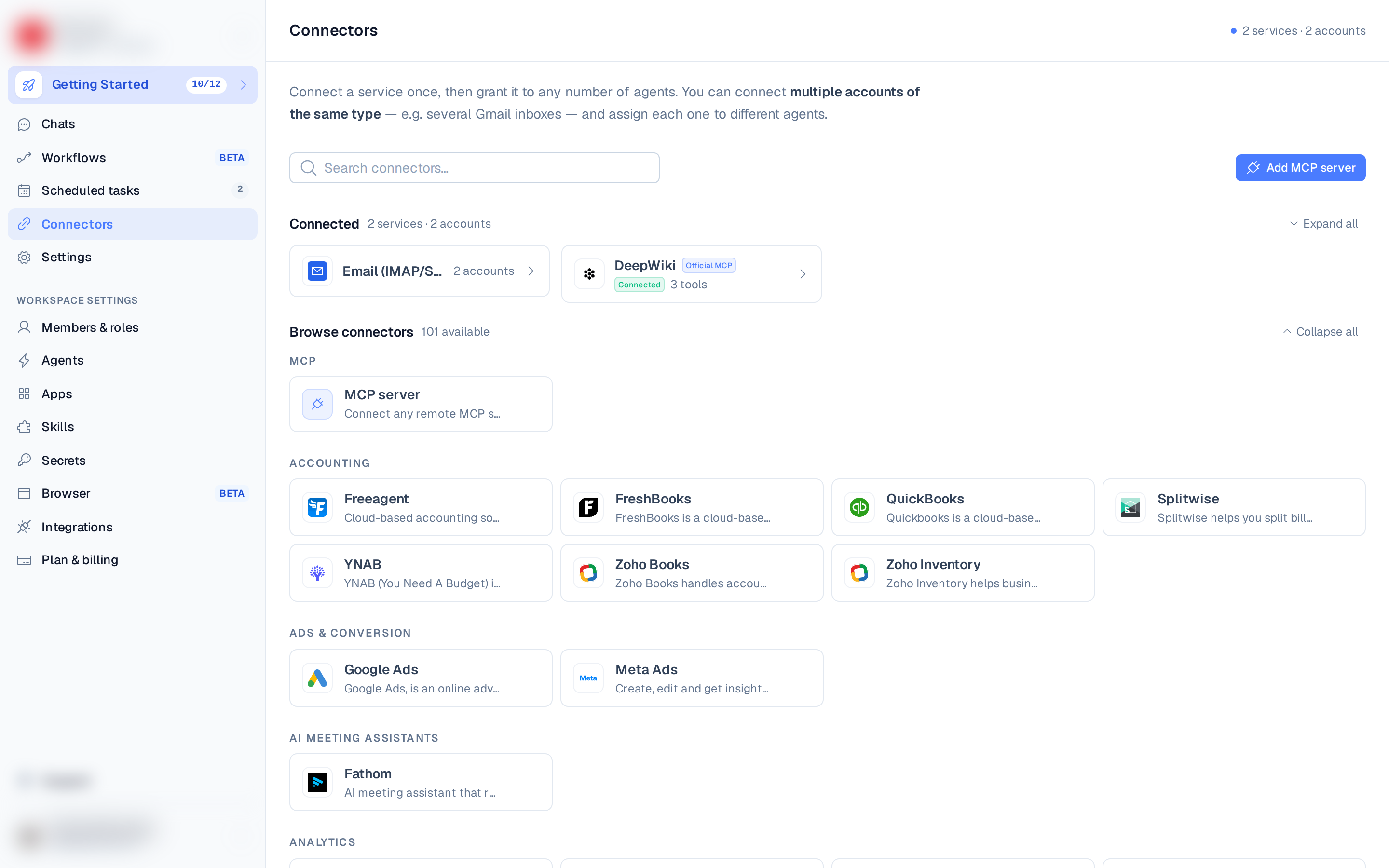
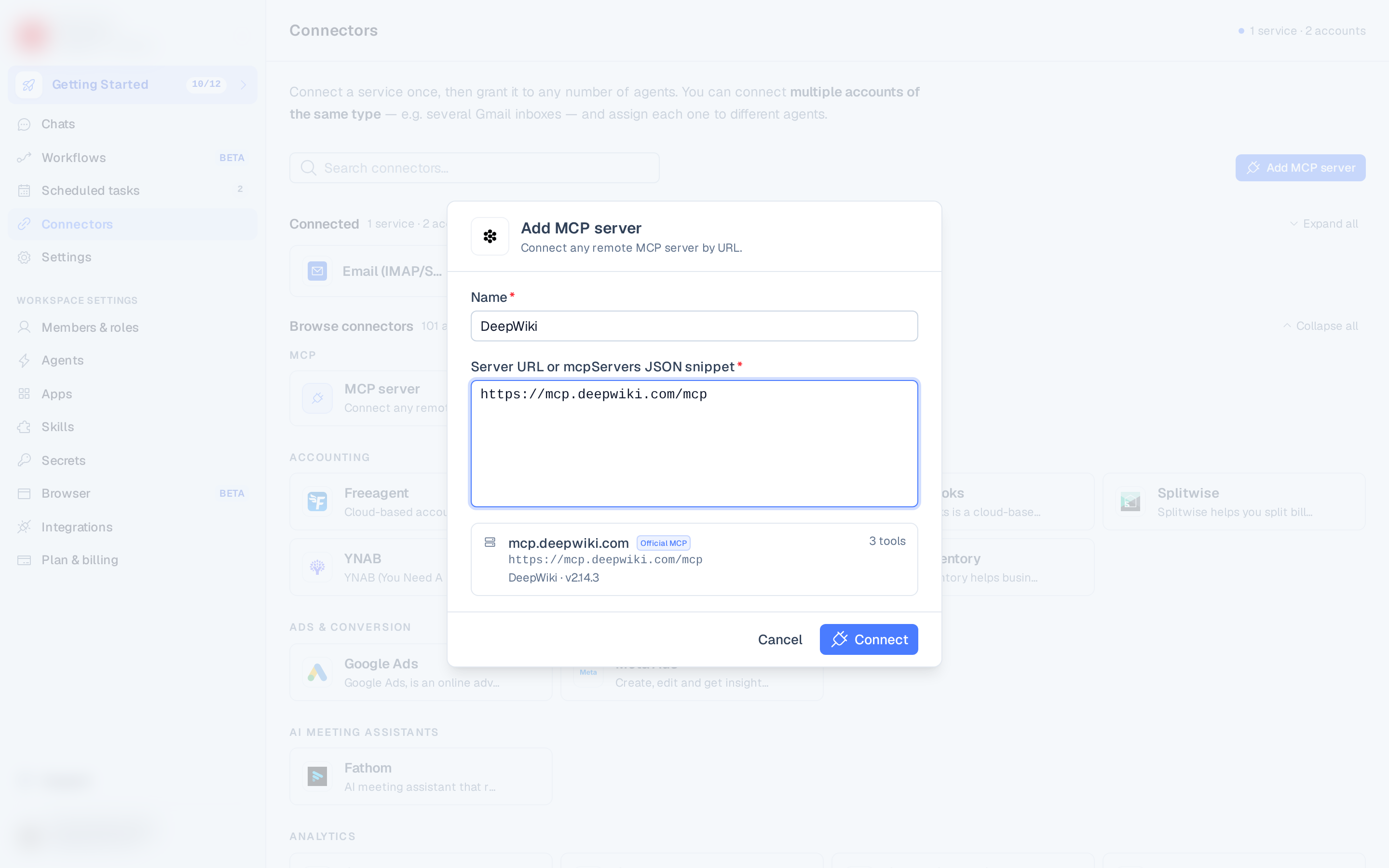
- Open Connectors and choose Add MCP server (or the MCP server card under Browse connectors).
- In Server URL or mcpServers JSON snippet, paste one of:
- the server's URL — for example
https://mcp.linear.app/mcp; - an
mcpServerssnippet copied from Claude Desktop, Cursor or VS Code. Servers launched throughmcp-remotework too, and any header the snippet sets (such as an API key) is used automatically. If the snippet lists several servers, only the first is added; - the name of a well-known service, such as
Linear, which fills in its official URL.
- the server's URL — for example
- BetterClaw checks the server as soon as you paste and shows what it found below the box: the server's host (with an Official MCP badge for well-known services) and, for servers that sign in with OAuth, Signs in with and the sign-in host. If that host differs from the server's, only continue if you trust both.
- The Name is filled in from the server; you can change it.
- Choose Connect:
- OAuth servers open a sign-in window. Approve access and the window closes by itself. If you close it before finishing, the server stays Pending and its page shows a Finish connecting banner with a Sign in button. OAuth only works with services that allow automatic app registration — for others, use an API key.
- API-key servers ask for the Header name (
Authorizationby default) and the Header value — type the whole value the server expects, for exampleBearer sk-…. - Open servers connect straight away.
BetterClaw gives each server a fixed handle. Its tools are named after it
(mcp__linear__list_issues) and workflows refer to it as mcp.linear. The handle is shown on
the server's page.
A server added from Connectors is given to every agent you have when it connects. Agents you create later don't get it automatically — give them access from the server's page. Each MCP server counts as one connector on your plan, whatever its status.
https:// URL) are supported. Servers that run
locally as a command (stdio) can't be reached from your agents, and neither can addresses on a
private network.Add an MCP server by chatting
Ask your agent: "Connect the Linear MCP server", or paste a URL or mcpServers snippet into
the chat. The agent shows a Connect card. Click it, then sign in — or, if the server needs a
key, enter it in the card. Never paste keys into the chat itself. Once it's connected, the agent
carries on with what you asked.
A server connected from chat is available only to the agent you were talking to. You can give other agents access from the server's page. If the server is already connected but this agent can't use it, the card offers Give access instead; Dismiss drops the request.
This works in a live chat only — not from scheduled tasks or workflows.
Using MCP tools
Agents call MCP tools on their own whenever a task needs them. A few things to know:
- Images and files a tool returns are saved and shown to you as downloadable files, in the chat or on the workflow run. Results larger than 30 MB are refused.
- Long results are shortened for the model; the full text stays in the agent's workspace.
- Long-running calls (up to 24 hours) show in the chat with a running timer and a Cancel button. Cancelling stops that one call; the agent continues its reply.
- A server with more than 15 tools doesn't load them all up front — the agent searches for the ones it needs.
- When a well-known service is connected both through its official MCP server and as a regular connector, agents use the MCP server for it. The regular connector's page links to the MCP server.
Managing a server
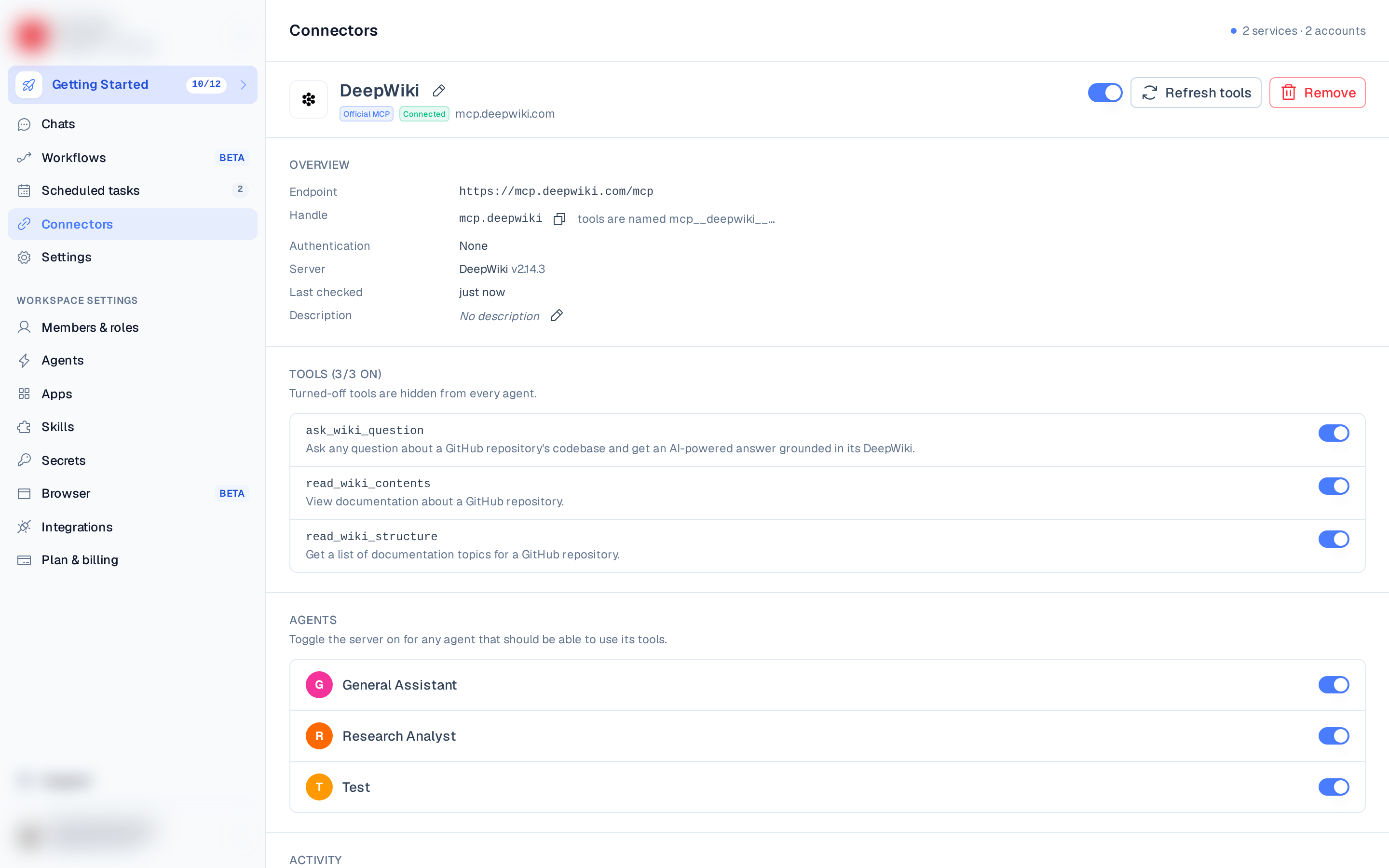
Open a server from Connectors to:
- See its status: Connected, Pending, Needs sign-in, Unreachable, Tools changed or Off.
- Turn it off for all agents with the switch at the top, rename it, or edit its Description — agents read the description to decide when to use the server.
- Turn individual tools off — they're hidden from every agent. Tools are marked Read-only or Destructive when the server's author says so.
- Choose which agents can use the server.
- Refresh tools, Reconnect (OAuth servers) or Update key (API-key servers).
- See activity: calls and errors in the last 30 days, recent calls, and which workflows use the server.
- Remove it. If workflows use it, they're listed before you confirm. Agents stop using it from their next tool call.
When a server changes its tools
If a server adds, removes or changes tools, BetterClaw pauses it and shows what changed. Agents can't use it until you choose Review & approve. This protects you from a server quietly gaining new abilities. Changes are picked up when you Refresh tools, or in the background while the server is in use.
MCP servers in workflows
A workflow section can use an MCP server by listing it in its connectors as
connector:mcp.<handle> — the connector picker lists your connected MCP servers at the top,
with an Add MCP server shortcut. A section may only call the MCP servers it lists, and a
dry run only calls tools the server marks as read-only. Those labels come from the server's
author, so check them (the Read-only badges on the server's tool list) before relying on a
dry run — and turn off any tool you don't want an agent to run.
Before a run starts, BetterClaw checks that every MCP server it needs is connected and available to the workflow's agent, so an expired sign-in stops the run up front rather than half-way through. Files an MCP tool returns during a run appear under Files on that section.