Recurring tasks
Recurring tasks
A recurring task runs automatically on a schedule you define, then keeps a history of every run. Under the hood the schedule is a cron expression, but you don't have to write one by hand — the scheduler builds it for you and shows the next run before you commit.
Schedules fire in the timezone you choose, which defaults to the agent's timezone. So "9am" means 9am in that zone, regardless of where the machine runs.
Create a recurring task
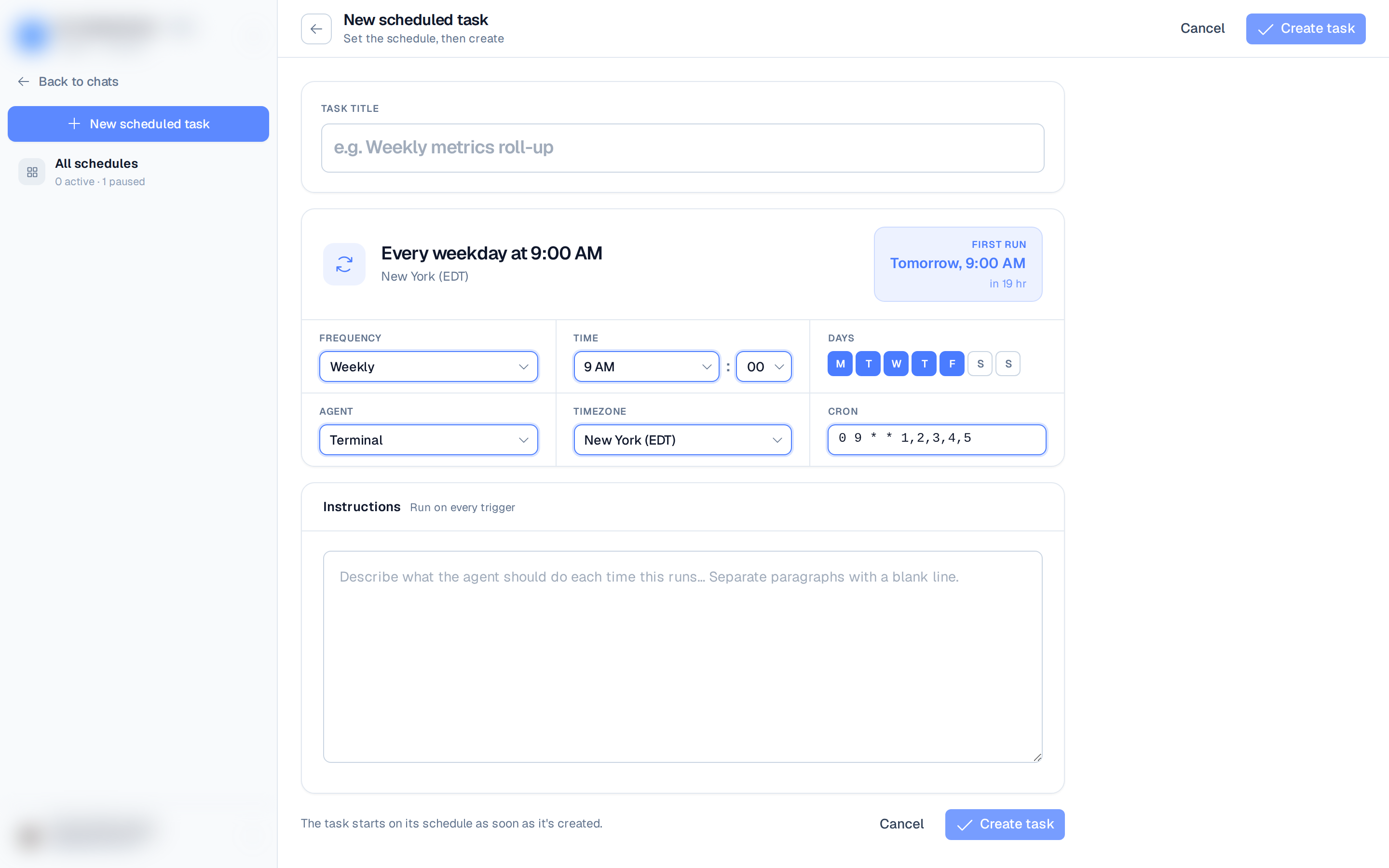
From Scheduled tasks, click New scheduled task to open the full scheduler (or tick Recurring task in the quick New task dialog).
- Give the task a title and write the instructions that run on every trigger.
- Pick a frequency: Hourly, Daily, Weekly, Monthly, or Custom.
- Set the time, and the days for weekly/monthly schedules.
- Choose the agent and confirm the timezone.
- Review the live cron expression and the First run preview, then click Create task.
The task starts on its schedule as soon as it's created.
Schedule limits by plan
The available frequencies depend on your workspace plan:
| Plan | Minimum frequency |
|---|---|
| Free | Daily (at most once per day) |
| Pro | Hourly (as often as every hour) |
In the quick New task dialog, frequencies finer than your plan allows are hidden from the picker. See Plans.
Manage a schedule
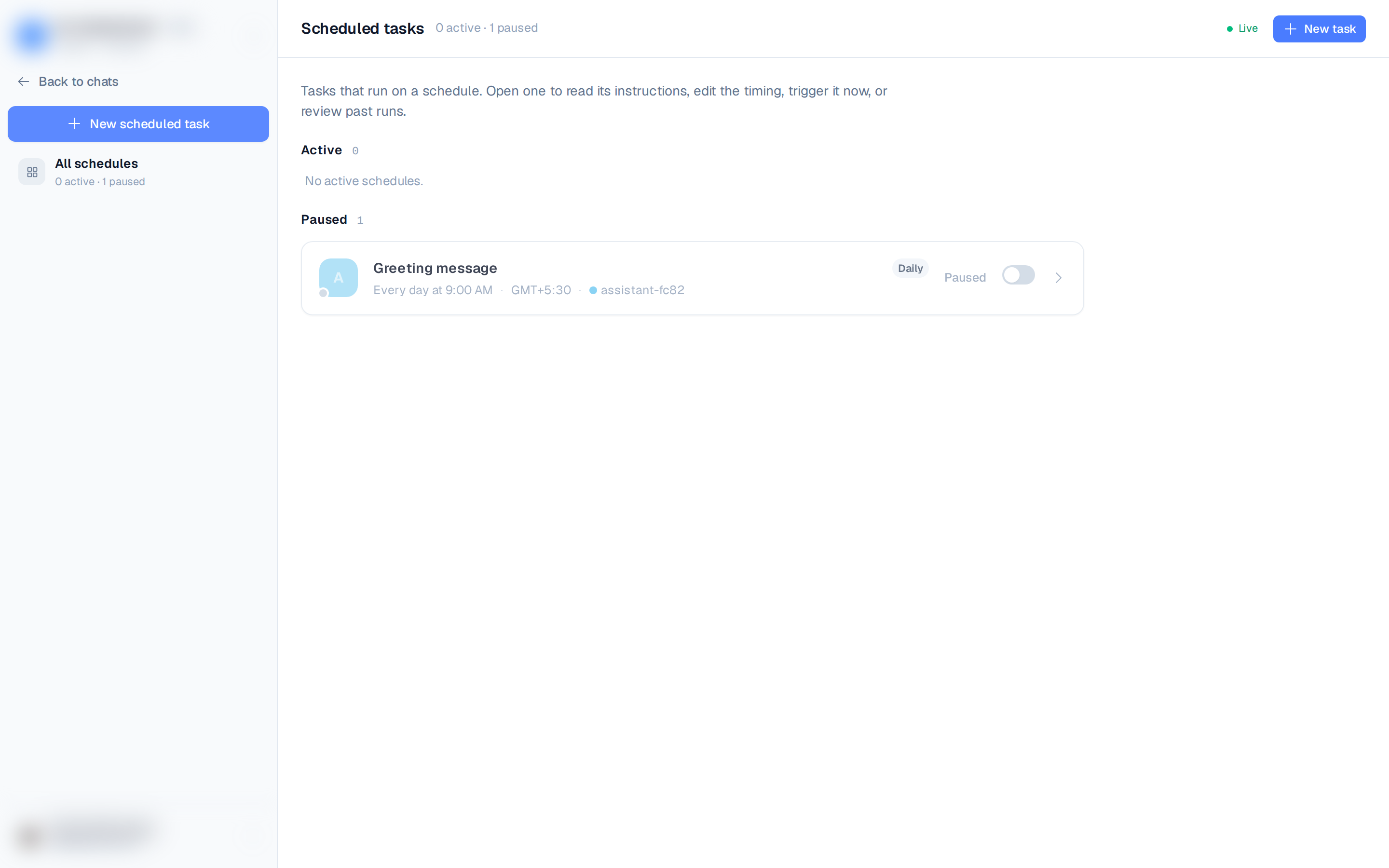
Open a recurring task to see its schedule card (cadence, time, days, agent, timezone, cron, and next run) and its run history. From here you can:
- Run now — trigger an extra run immediately, on top of the schedule.
- Pause / resume — flip the toggle; a paused schedule stops firing until you resume it.
- Edit schedule — change the cron expression or timezone (presets or a custom expression).
- Edit instructions — changes apply from the next run.
- Open a run — jump into the chat for any past execution to see what the agent did.
- Delete a run — remove an entry from the run history.