
Chats overview
Chats
Chats are the primary surface in BetterClaw. Each chat is a real-time conversation with an agent: your messages stream a reply back as the agent thinks and works, and any files it produces show up inline as deliverables you can preview and download.
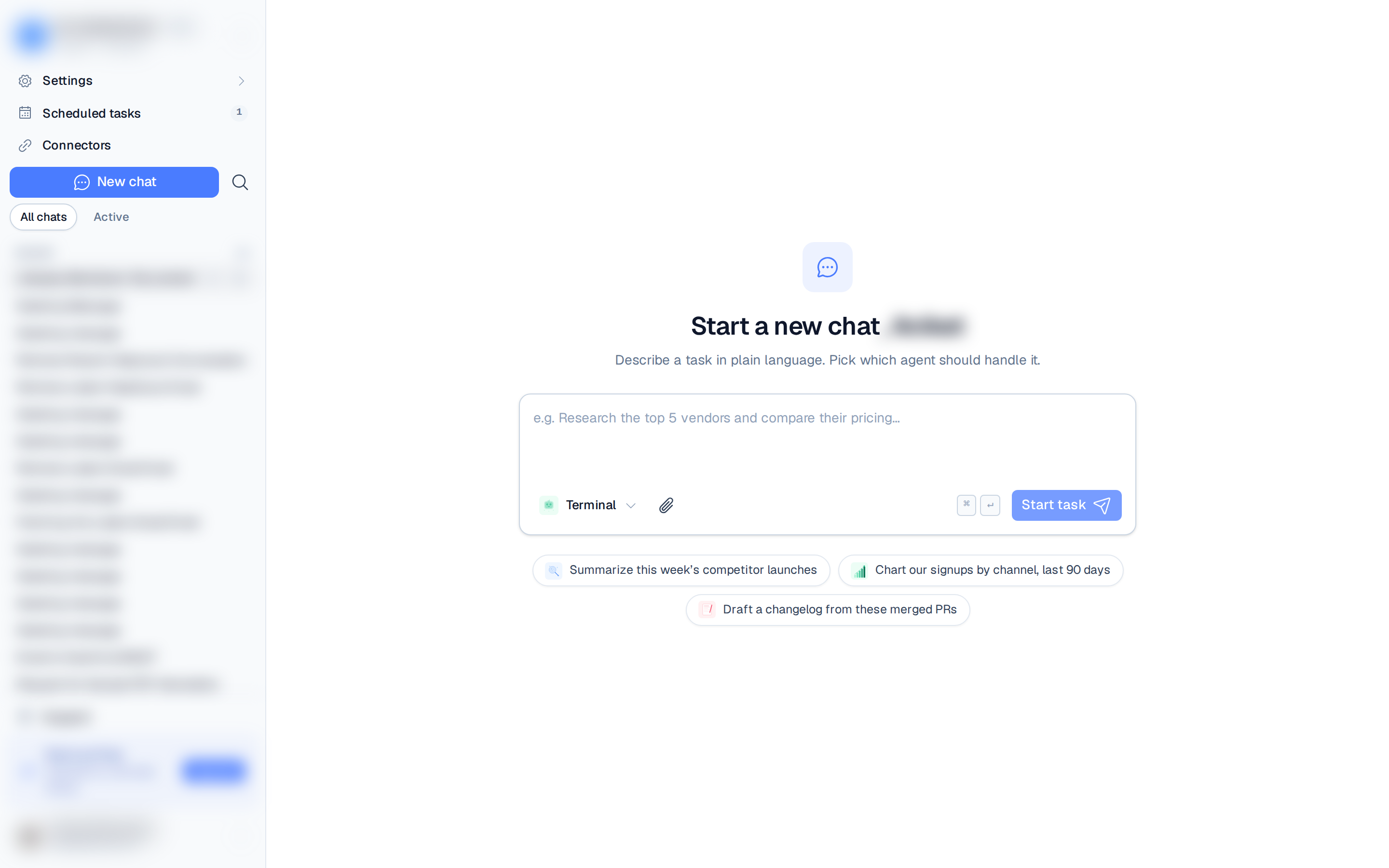
The left rail is your home base. From top to bottom it holds the workspace switcher, the Chats, Scheduled tasks, Connectors and Settings links, the New chat button and chat search, All chats / Active filters, your Pinned and Recent chats, and your user menu.
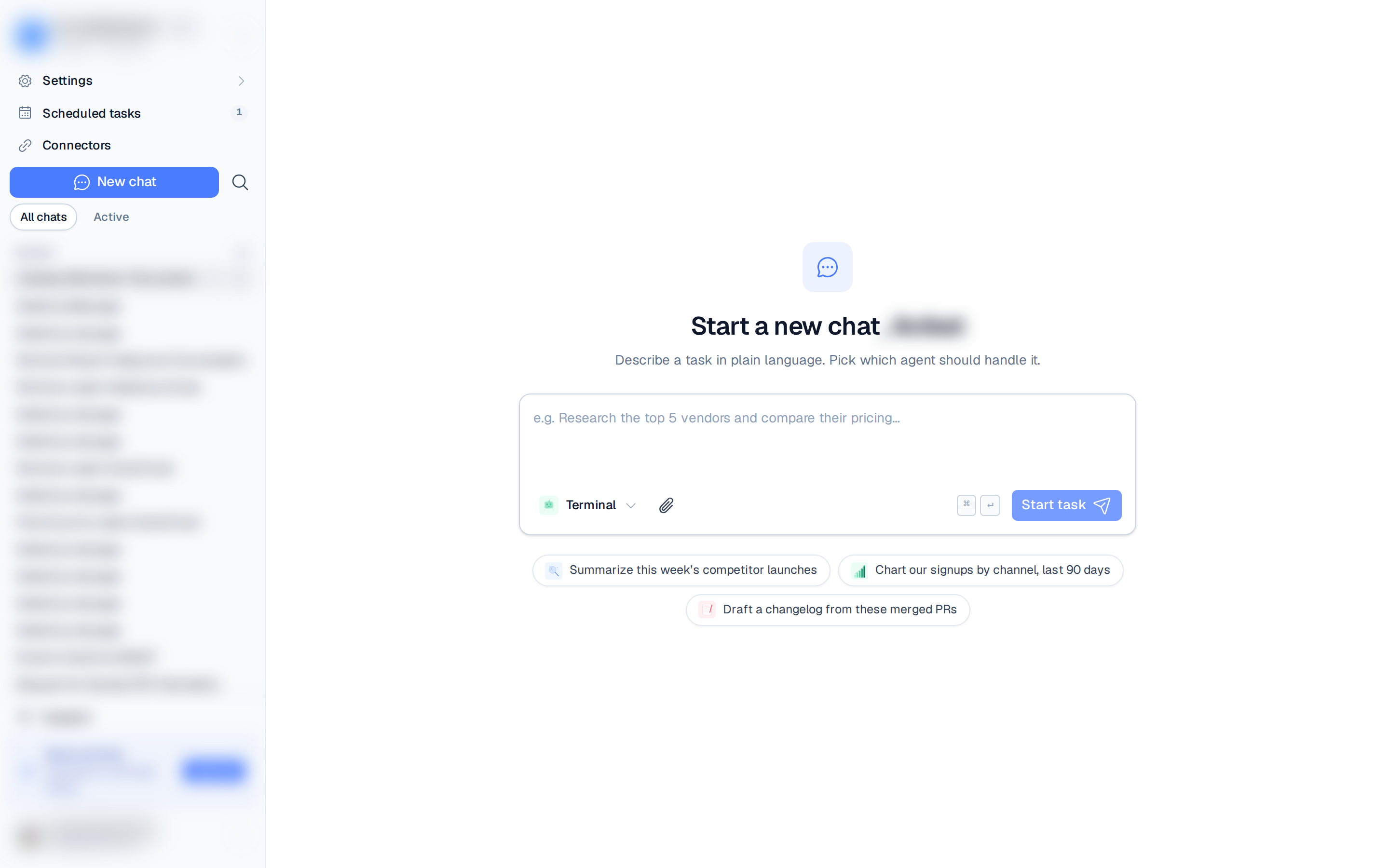
Start a new chat
The home screen (/) is where you start. Describe a task in plain language, pick which
agent should handle it, and send.
- Click New chat in the left rail (or open
/). - Type your request, for example "Research the top 5 vendors and compare their pricing."
- Use the agent picker to choose which agent runs it.
- Press Start task or hit
⌘/Ctrl+Enter.
The chat opens immediately at /chats/:id and the agent begins streaming its reply.
The conversation
- Streaming replies — the agent's response appears token by token as it's generated.
- Thinking indicator — while the agent reasons, a Thinking… line shows its live reasoning and elapsed time. After it finishes you can expand Thought for Xs to review the steps it took.
- Plan checklist — for multi-step work, a live Plan list appears under the thinking indicator and checks items off (Plan · 2/5) as the agent completes them, so you can follow what it's doing in real time.
- Queue a follow-up — you don't have to wait for a reply to finish. Send another message mid-turn and it queues (the send button reads Queue) to be answered right after the current reply, instead of being blocked.
- Stop — click the stop button in the composer (or press
Esc) to halt a streaming reply. - Copy & retry — hover any agent message to copy it or retry the previous request.
- Prompt history — with the message box empty, press the Up / Down arrows to recall and tweak your earlier prompts.
``` to auto-insert a fenced code block, and
press Shift + Enter to jump back out of the fence.Attachments & file viewers
- Add files by drag-and-drop anywhere, paste from the clipboard, or the paperclip picker in the composer.
- Files the agent returns appear as deliverable cards. Click one to open it in a resizable side viewer that previews PDF, DOCX, images, spreadsheets (XLSX/CSV), audio, video, Markdown, and plain text inline — without leaving the chat.
- Download any file with the download button on its card or in the viewer.
See Results & deliverables for more on the file viewer and downloads.
Manage a chat
Click the chat title to rename it, or use the … menu in the chat header:
- Rename chat
- Share chat — generate a read-only public link.
- Save as a reusable skill — turn the workflow into a skill.
- Delete chat
Use the pin button to keep important chats at the top of the rail, and the Summary toggle to show or hide the at-a-glance panel (agent, live status, last activity, and every file produced).
Sharing
Share a read-only link to any chat. See Sharing chats.
Turn a chat into a skill
A useful chat can be saved as a reusable skill so your agents can repeat the workflow later. Open the ⋯ menu in the chat header and choose Save as a reusable skill. See Save a chat as a skill for the full flow.
History & retention
Chat history is retained by plan: 7 days on Free, 90 days on Pro. See Plans.