
Tasks overview
Tasks
A task is a unit of work you hand to an agent without sitting in a live chat. You write the instructions once; the agent runs them and reports progress and deliverables. Each run gets its own chat, so you can always open it and read exactly what the agent did.
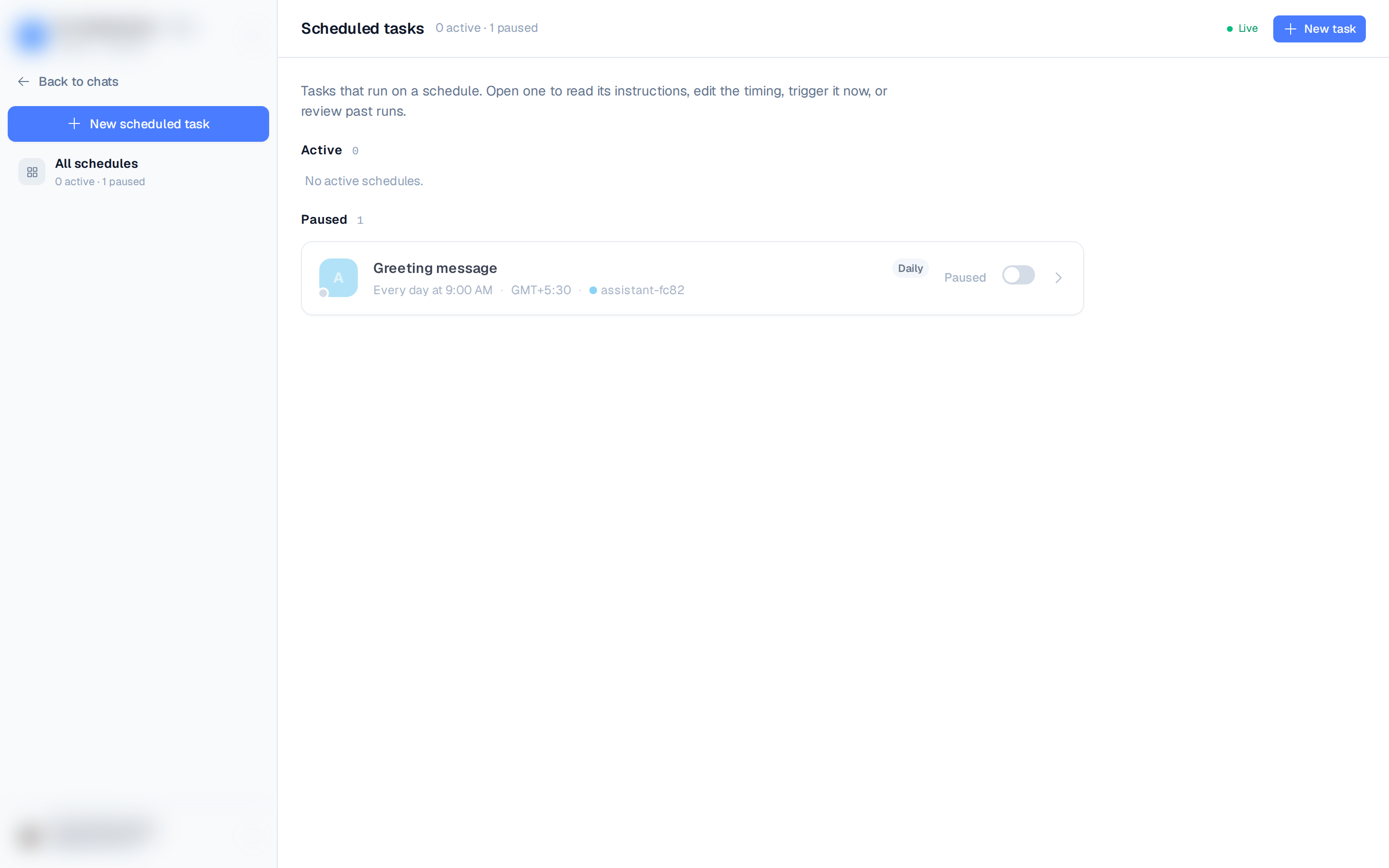
Tasks live under Scheduled tasks in the left rail (the /tasks route). The overview lists
your recurring schedules — split into Active and Paused — with their cadence, next
run, and agent. A Live / Offline pill shows whether the list is receiving real-time updates.
One-time vs recurring
Every task is one of two kinds:
Create a task
Both New task (on the overview) and New scheduled task (in the sidebar) open the full
scheduler for a recurring task. For a quick one-time task, press c — that opens a
compact dialog with a Recurring task toggle (leave it off for a one-time run).
- Open Scheduled tasks from the left rail.
- Click New task for the scheduler, or press
cfor the one-time quick dialog. - Write the instructions — what the agent should do. The quick dialog also lets you attach input files for a one-time run — recurring tasks don't accept attachments.
- Pick the agent that will run it.
- To make it recurring, set a schedule (in the quick dialog, tick Recurring task first). See Recurring tasks.
- Save. The one-time dialog offers Save to Backlog or Create & Start; a recurring task is Create & Schedule and begins on its next scheduled time.
How a one-time task runs
When you create a one-time task you choose how it starts — Create & Start runs it right away, or Save to Backlog parks it without running. From the task's detail view you can move it between states:
- Backlog — captured but not started. Click Move to Ready to queue it for the agent.
- Ready — queued; the agent picks it up. You can Move to Backlog to park it again.
- Running → Success / Failure — a task that failed can be re-queued with Move to Ready.
Each run happens in its own chat, which you can open from the task. The task's own detail view is where you follow it live:
- A progress bar with live status while the agent works.
- A Result section with any deliverables once it finishes.
- A collapsible Timeline of the agent's progress updates.
How a recurring task runs
A recurring task fires on its schedule and keeps a run history. From its detail view you can Run now, pause/resume with the toggle, edit the schedule or instructions, and open any past run's chat. See Recurring tasks.
Results
Open any task to read the agent's progress and download what it produced. See Results & deliverables.