Agent settings
Agent settings
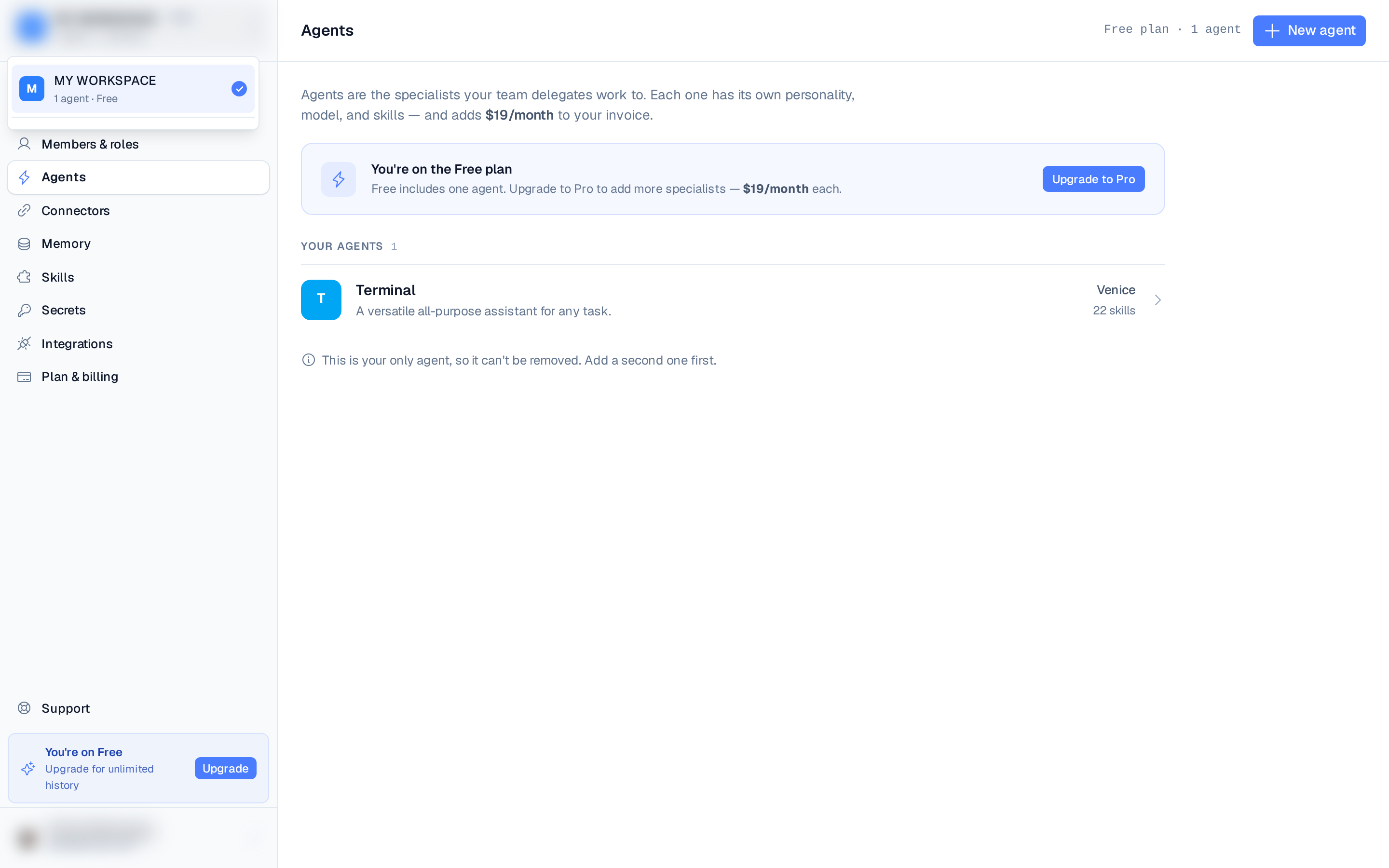
Open Settings ▸ Agents, then select an agent to open its editor. The editor has tabs for Personality, Model, Skills, Secrets, Memory, Network, and Usage. Changes save per tab.
Personality
The Personality tab holds the agent's display name and its soul.md — plain-text rules
that shape how the agent thinks, writes, and behaves. Write it like a job description.
Model
The Model tab sets this agent's LLM. You pick a provider (Anthropic is recommended), then a model, and supply an API key for that provider. Saving redeploys the agent's service with the new settings.
- Models are listed newest-first. Anthropic leads with Claude Fable 5.1
(
anthropic/claude-fable-5-1) and Claude Opus 5.5, then Claude Fable 5 (anthropic/claude-fable-5, native 1M context), Opus 5 / 4.8 / 4.7 / 4.6 / 4.5, the Sonnet family — where Claude Sonnet 5 (native 1M context) is the default selection — and the Haiku family. - Changing only the model reuses the stored key — you don't need to re-paste it. Switching provider requires a fresh key, since a key for one provider won't authenticate against another.
- Reset to Default clears the custom provider and key. The agent falls back to the managed OpenRouter default (Kimi K2.5); workspaces created before the managed-key rollout reuse their provisioning key.
The same per-agent provider / model / API-key controls are also available on the workspace Settings page under the LLM tab — pick the agent from the selector there. For the full provider catalog, bring-your-own-key details, and how managed credits work, see LLM configuration.
Timezone
Timezone isn't a separate tab — it's a card at the bottom of the Model tab. Each agent runs
its machine in a specific timezone (an IANA name such as Asia/Kolkata). The timezone drives
how the agent interprets "today" and sets the default for new recurring tasks.
Saving a timezone restarts the agent.
Skills, secrets, and network
The Skills tab toggles which installed skills this agent may use; each enabled skill shows a sync status (Pending / Syncing / Synced / Failed), with a Retry on failure. The Secrets tab grants the agent the credentials it needs. The Usage tab shows the agent's machine runtime over the trailing 30 days — a live-session indicator, a session count, average and longest run, and a dated activity log.
The Memory tab has a switch to turn the agent's memory on or off — new agents start with it on — and, while it's on, lets you search, compact, and purge what the agent remembers. Toggling it restarts the agent. See Memory for details.
The Network tab lets you route the agent's browser traffic through a residential IP so sites are less likely to block it — see Residential proxy for the full walkthrough. Residential proxy usage requires the workspace owner's Pro, Business, or Enterprise plan; Free and Starter workspaces see an upgrade prompt. Toggling it restarts the agent. See Skills and Secrets for details.
Lifecycle
When a workspace is provisioning, restarting, or recovering, its agents pass through initializing before returning to running. A running agent is online and able to handle chats, tasks, and messages from your connected integrations. Saving a model or timezone change briefly redeploys (or restarts) the agent.
Deleting an agent
In the agent editor, open the ⋯ menu and choose Remove agent. Removing an agent stops it right away and drops its cost from your next billing cycle; its chats and files stay in the workspace. Every workspace needs at least one agent, so the last remaining agent can't be removed — add another first.