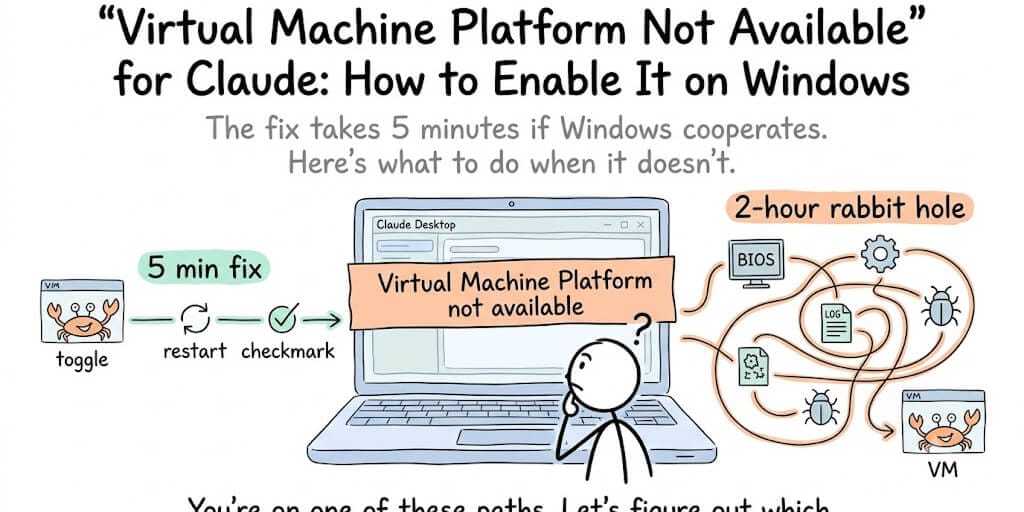
The fix takes 5 minutes if Windows cooperates. Here's what to do when it doesn't.
You open Claude Desktop, click on the Cowork tab, and instead of a workspace you get "Virtual Machine Platform not available," or "Claude's workspace requires the Virtual Machine Platform on Windows. Enable this feature, then restart." You restart. Same error. You restart again. Same error.
Here's the weird part. Some people fix this in two minutes by toggling one Windows setting. Others have Hyper-V fully enabled, every virtualization feature turned on, and they're still stuck because of a detection bug in Claude Desktop that misclassifies their hardware as unsupported. And Windows Home users get a third version of the problem entirely.
This post covers all three. The quick fix that works for most people, the deeper fixes for when Windows says virtualization is enabled but Claude refuses to believe it, and the honest answer for Windows Home.
"Claude's workspace requires the Virtual Machine Platform on Windows. Enable this feature, then restart."
This is the most common version of the error, shown under the heading "Virtual Machine Platform not available". It means the Windows feature is off. Start with Fix 1. A related version says the feature is there "but the virtualization service isn't responding. Restart your computer to resolve this." For that one, use Restart (not Shut down) first.
Which error are you seeing?
Claude shows several other messages for the same underlying problem. Find yours, then jump to the fix.
"Claude's workspace requires hardware virtualization"
The full message reads "Enable virtualization in your computer's BIOS/UEFI settings, then restart." Windows can't see hardware virtualization at all, so it is switched off in firmware. Go to Fix 3. On a virtual machine or VDI desktop, this also appears when nested virtualization is off, and Anthropic does not support that setup.
HRESULT 0x80370102 (hypervisor not running)
Usually logged as HcsWaitForOperationResult failed with HRESULT 0x80370102, sometimes next to "Hyper-V is not installed on the host". The hypervisor is not running at boot. Check BIOS virtualization (Fix 3), then run bcdedit /enum | findstr hypervisorlaunchtype in an admin prompt. If it doesn't say Auto, run bcdedit /set hypervisorlaunchtype auto and restart. Other virtualization software such as VMware or VirtualBox can change this setting. Some Windows 11 Pro users see this error with Hyper-V fully working, which points to the same detection problem as Fix 4. For the exact "HRESULT 0x80370102" message, see the Cowork HRESULT 0x80370102 decoder.
"Claude's workspace service isn't running"
The full message says "Restart your computer to restore it. Reinstalling won't help." This is not a virtualization setting. CoworkVMService stopped. Update Claude Desktop first: since early September 2026 the app restarts the service itself. If it still appears, restart the computer. Our Cowork troubleshooting guide has the service commands.
Why Claude Cowork needs a virtual machine at all
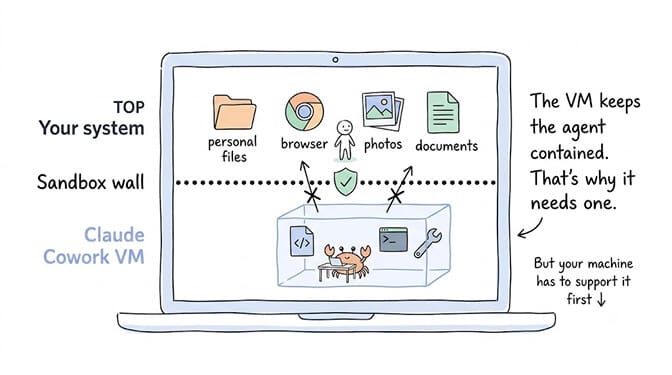
Claude Cowork runs your agent's workspace inside a sandboxed virtual machine on your local computer. This is a security decision. The VM isolates the agent's file access, network activity, and tool execution from the rest of your system, so a misbehaving agent can't accidentally (or maliciously) touch files outside its sandbox. That sandbox depends on a Windows component called Virtual Machine Platform, the same underlying feature WSL2 and Docker Desktop use. If Docker Desktop shows its own version of this error, the Docker Desktop Virtual Machine Platform fix covers it.
The tradeoff: your machine needs to support hardware virtualization, and Windows needs to have the right features turned on. If either condition isn't met, you get the error.
The "Virtual Machine Platform not available" error almost always means one of four things: the Windows feature isn't enabled, virtualization is disabled in your BIOS, Claude's VM detection has a known bug, or you're on Windows Home and missing parts of the Hyper-V stack. Fix them in that order. Only move to the next fix if the previous one didn't resolve it.
Fix 1: Enable Virtual Machine Platform (Windows 11 and 10, including Home)
This is the fix for the majority of people who see this error. The feature is installed on most Windows machines but not turned on by default, and it's the one Anthropic's Windows deployment doc names as Cowork's requirement.
The fast way (PowerShell): right-click Start, select Terminal (Admin) or Windows PowerShell (Admin), and run:
Enable-WindowsOptionalFeature -Online -FeatureName VirtualMachinePlatform -All
Then restart your PC. Use Restart, not Shut down and power on. Reopen Claude Desktop and try the Cowork tab.
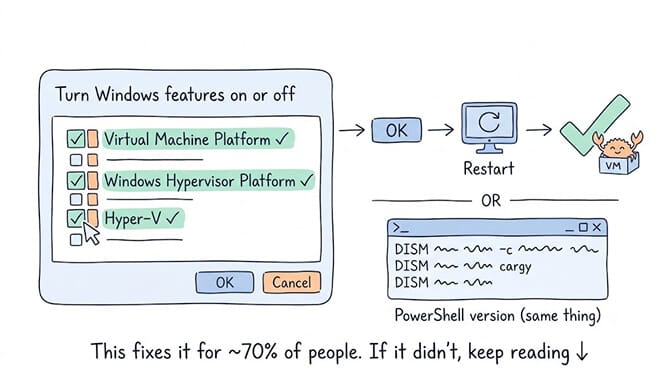
The clickable way (no commands): press Win+S, type "Turn Windows features on or off," and open it. Scroll to Virtual Machine Platform and tick the box. Click OK, let it install, and restart when prompted.
On Windows 11 25H2 and later: Microsoft moved the settings. If you can't find "Turn Windows features on or off," go to Settings → System → Virtual Workspaces. The Virtual Machine Platform toggle is there now.
How to verify it worked
Open PowerShell and run:
Get-WindowsOptionalFeature -Online -FeatureName VirtualMachinePlatform
If State shows Enabled, the feature is on. If it still shows Disabled after the restart, something deeper is wrong, and you need Fix 3 (BIOS).
Fix 2: Enable Hyper-V and Windows Hypervisor Platform (if the error persists)
If Cowork still complains after enabling Virtual Machine Platform alone, enable the rest of the virtualization stack. In an admin PowerShell:
dism.exe /online /enable-feature /featurename:HypervisorPlatform /all /norestart
dism.exe /online /enable-feature /featurename:Microsoft-Hyper-V-All /all /norestart
Or tick Windows Hypervisor Platform and Hyper-V in Turn Windows features on or off. Restart afterward.
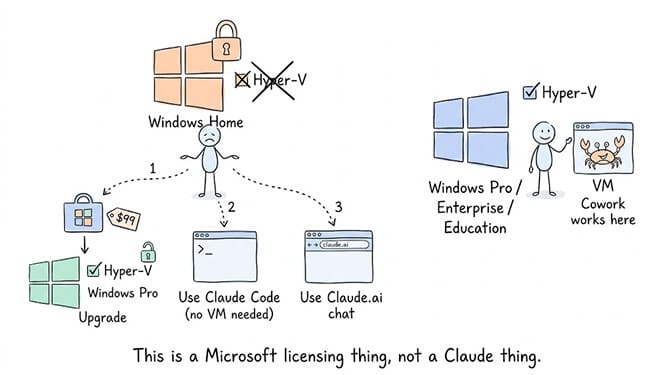
Here's the part that catches Windows Home users: full Hyper-V is only available on Windows Pro, Enterprise, and Education. On Home the Hyper-V command fails and the checkbox isn't listed. Skip to the Windows Home section below.
On ARM64 Windows (Snapdragon, Surface Pro)
Cowork supports Arm64 hardware as well as x64, on Windows 10 version 2004 or later. It does not run in Windows S mode. Install the Windows arm64 build from claude.com/download rather than the x64 one.
The ARM64 failure people hit most often is "Missing HCS services: vfpext" that won't go away. GitHub issue #78866 reported it persisting on a Surface Pro 11th Edition (Snapdragon) running Windows 11 Pro ARM64, even after a full Hyper-V repair. It was closed on 25 July 2026 as a duplicate. The fix in that thread was to tick three boxes in Turn Windows features on or off: Containers, Virtual Machine Platform and Windows Hypervisor Platform, then restart. The BIOS steps in Fix 3 are written for Intel and AMD machines. For more on the HCS services, see Claude Cowork not working on Windows.
Fix 3: Enable virtualization in your BIOS/UEFI
If the first two fixes didn't work, or Windows wouldn't let you enable the features, your CPU's virtualization support is probably turned off at the hardware level. This is common on laptops that shipped with virtualization disabled by default.
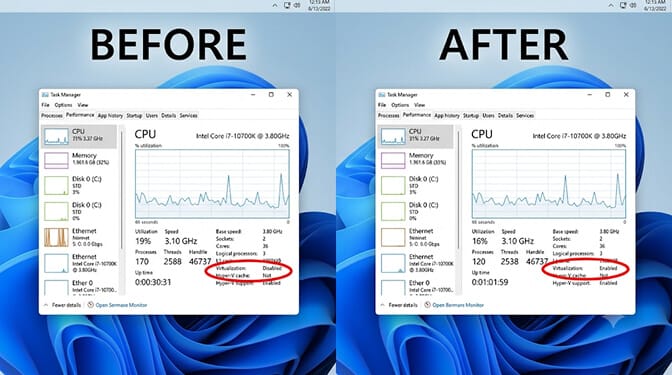
How to check without entering BIOS: open Task Manager (Ctrl+Shift+Esc), click the Performance tab, click CPU. Look for "Virtualization" in the bottom-right area. If it says Disabled, you need to enable it in BIOS.
How to enter BIOS/UEFI: restart your computer and press the BIOS key during boot. The key varies by manufacturer: F2 for most Dell and Lenovo laptops, F10 for HP, Del for most desktops, F12 or Esc for some Asus boards. The key usually shows briefly on the boot screen, and your manufacturer's website will list it if not.
In BIOS, look for one of these settings (the name varies by manufacturer):
- Intel: "Intel Virtualization Technology," "Intel VT-x," or "VT-x"
- AMD: "SVM Mode" or "AMD-V"
It's usually under Advanced, CPU Configuration, or Security. Set it to Enabled. Save and exit. Your computer will restart.
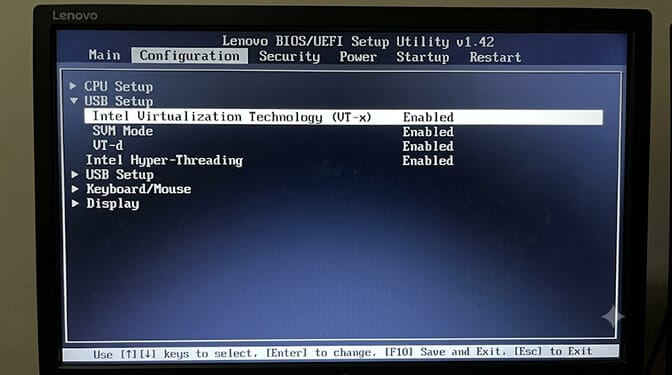
After the restart, check Task Manager again: "Virtualization" should read Enabled. Then go back to Fix 1 and enable the Windows feature if it wouldn't turn on before.
If your BIOS doesn't have a virtualization option at all, your CPU may be too old to support it. Any Intel Core i-series from 4th generation (Haswell, 2013) onward supports VT-x. Any AMD Ryzen supports SVM. If you're on something older than that, Cowork won't work on this machine.
Fix 4: The "yukonSilver not supported" bug
Stay with me here, because this is the one that catches people who did everything right and are still stuck.
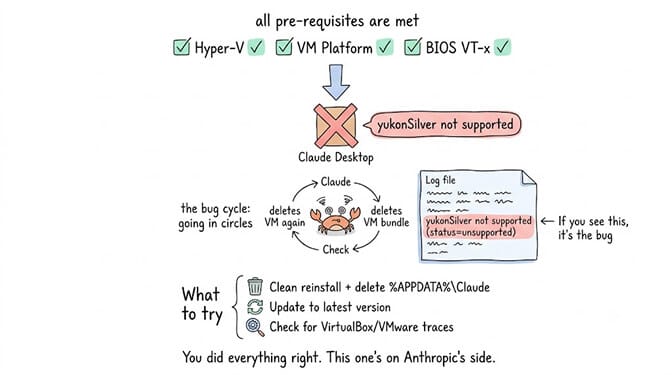
Multiple GitHub issues filed against Claude Desktop (#25136, #32004, #32837) report that even with Hyper-V fully enabled, Virtual Machine Platform enabled, and the CoworkVMService running correctly, Claude's VM detection classifies the system as "yukonSilver not supported" and enters a loop, deleting and rechecking for the VM bundle on every launch without ever initializing it.
"yukonSilver" is Claude's internal codename for its VM configuration on Windows. The bug is in the platform detection logic: it incorrectly classifies fully capable x64 Windows 11 Pro systems as unsupported.
How to tell if this is your problem: navigate to %APPDATA%\Claude\logs\ and open cowork_vm_node.log. If you see repeated lines saying yukonSilver not supported (status=unsupported), you're hitting this specific bug.
This has been reported across Windows 11 Pro, Enterprise, and Education editions on builds 25H2 and later, with all virtualization features confirmed enabled via both the GUI and PowerShell verification.
What to try:
Check for conflicting hypervisors. If you previously had VirtualBox or VMware installed, traces of their hypervisor drivers can interfere with Windows' native Hyper-V even after uninstallation. Run systeminfo in a command prompt and look for the Hyper-V Requirements section. If it says "A hypervisor has been detected. Features required for Hyper-V will not be displayed," another hypervisor layer may still be active.
Try uninstalling and cleanly reinstalling Claude Desktop. Delete the %APPDATA%\Claude folder entirely before reinstalling, so the VM detection runs fresh without cached state from a previous failed attempt.
Update Claude Desktop to the latest version. This is a known, actively tracked bug across multiple GitHub issues, and Anthropic has been working on fixes to the platform detection logic. Running an older version means running older detection code.
If none of that works, the honest answer is that this is an Anthropic-side bug, not something you can fix with Windows settings. The workarounds while waiting for a fix are Cowork on the web at claude.ai (cloud sessions, no local VM), Cowork on a Mac if you have one (macOS uses Apple's Virtualization Framework instead of Hyper-V), or Claude Code in the terminal, which doesn't require the VM at all.
If your symptom is a missing Cowork tab rather than an explicit VM error, or the VM starts and then dies after a reboot, those are separate failure modes. Our full breakdown of Claude Cowork not working on Windows covers the CoworkVMService startup problem, the Host Compute Service stack, and the 172.16.0.0/24 network conflicts with Docker and VPNs.
Claude Cowork on Windows 11 Home (and Windows 10 Home)
This is where a lot of advice on the internet gets it slightly wrong, in both directions.
What Anthropic documents: Anthropic's "Deploy Claude Desktop for Windows" article says Cowork requires Virtual Machine Platform. It doesn't name a Windows edition requirement, and Home does include Virtual Machine Platform and Windows Hypervisor Platform. So "you need Windows Pro for Cowork" is not what the docs say, and it's worth trying Home before you pay for an upgrade.
The reality: Home is missing full Hyper-V (there's no vmms Hyper-V Virtual Machine Management service) and parts of the Host Compute Service stack. Multiple GitHub issues (#60262, #29887) document Home users with Virtual Machine Platform fully enabled, CoworkVMService running, and hardware virtualization confirmed in Task Manager, where Cowork still fails to initialize. The VM never starts, sometimes with a mount error and sometimes with no logs at all, even though every checkbox looked fine.
What to try on Home
- Enable Virtual Machine Platform (Fix 1) and Windows Hypervisor Platform (the checkbox in Turn Windows features on or off). Leave Hyper-V alone, because it isn't listed on Home.
- Confirm virtualization is on in BIOS (Fix 3).
- In an admin PowerShell, run
bcdedit /set hypervisorlaunchtype auto, then restart. This combination works for some Home users, particularly on newer Windows 11 builds. - Check the three services Anthropic lists as Cowork dependencies:
Get-Service vmcompute, hns, vfpext | Select Name, Status
Don't use Get-Service vmms to judge this. Home never has vmms, so it tells you nothing about whether Cowork can run. If vmcompute, hns or vfpext are missing even after re-enabling Virtual Machine Platform and restarting, Home's missing pieces are the likely cause. Our missing HCS services fix covers the stubborn cases.
One caveat worth knowing: Anthropic's downloadable Cowork readiness checker can falsely report "ready" on Windows 11 Home, because Windows 11 internally still reports its version as 10.0 and the checker misidentifies the OS (GitHub #50621). Trust the service check over the checker.
If Cowork still fails on Home
- Use Cowork on the web. Since July 7, 2026, Cowork also runs at claude.ai (and on iOS, Android, and in the Chrome side panel) as cloud sessions, which need no local VM and have no Windows edition requirement. Local file access still requires the desktop app to be open.
- Upgrade to Windows Pro. Microsoft sells the upgrade for around $99 in the Microsoft Store. It gives you full Hyper-V and the complete HCS stack, and it's the permanent fix for the desktop app.
- Use Claude Code instead of Cowork. Claude Code runs in your terminal without requiring a VM. You lose the visual Cowork workspace but keep all the AI coding capabilities.
- Use Claude.ai chat. If your workflow doesn't require the sandboxed file-system access that Cowork provides, the web chat interface works on any OS without virtualization requirements.
The honest version: Cowork on Windows Home is a gray area. It works for some people and fails for others. If you're on Home and the steps above don't resolve it, don't spend three hours debugging. Pick one of the options above.
Do you need admin rights to fix this?
Yes. Enabling Virtual Machine Platform modifies Windows system features, so it needs administrator permission, and the Claude installer needs admin rights to register CoworkVMService, the Windows service that runs the Cowork VM. Anthropic's documentation is explicit: users without admin access can still install Claude, but Cowork on desktop will not be available.
On a personal machine: right-click PowerShell and choose "Run as administrator" before running the commands above.
On a managed work or school machine: you can't enable it yourself. Send your IT administrator Fixes 1 to 3 from this page. For Cowork to work for standard users, they also need to provision the Claude MSIX machine-wide with Add-AppxProvisionedPackage, not deploy it per user through Intune. Our Cowork Windows setup guide has the exact commands to send them.
If the idea of troubleshooting Windows virtualization settings, BIOS configurations, and VM detection bugs just to get an AI agent running sounds like the wrong use of your afternoon, that's a feeling we understand well. We built BetterClaw specifically so you never have to touch Hyper-V, Docker, or any local VM setup to run an AI agent. Everything runs on managed infrastructure. If you want your agents to use AI models on your own PC, the BetterClaw desktop app for Windows, macOS and Linux is a regular app that needs no Virtual Machine Platform, WSL or Docker.
No Hyper-V. No BIOS. No Windows edition restrictions.
Your agent runs on managed cloud infrastructure and deploys from any machine with a browser. Free plan with 1 agent and 100 credits a month; Pro is $49/month for 5 agents. Start free → No credit card · Unlimited skills · Deploy in ~60 seconds
Cowork worked, then broke after the September 2026 Windows update
That isn't a Virtual Machine Platform problem, and nothing on this page will fix it. The September 8, 2026 Windows security updates (KB5124008 on Windows 11 24H2/25H2, KB5124012 on 26H1) broke the Plan9 folder sharing Cowork's VM uses to reach your files, which Microsoft confirmed affects Claude Cowork and WSL. The VM starts, but tasks fail or the workspace doesn't start. Microsoft fixed it on September 14 with KB5129195 (24H2/25H2), KB5129194 (26H1) and KB5129242 (23H2): run Windows Update, install, and restart. See the full walkthrough.
Still stuck? Other errors that look like this one
- Cowork worked until a Windows update in September 2026: a Windows bug, fixed by Microsoft on September 14. See the section above.
- Everything is enabled but Cowork still won't start: run Claude's readiness check. Our readiness check walkthrough explains what each of the six tests checks and the fix for each failure.
- "Missing HCS services: hns, vmcompute, vfpext": related but distinct. See the HCS services fix guide.
- "Cowork requires Claude Desktop to be installed via a modern installer": the problem is the installer format, not virtualization. Our modern installer fix covers the switch to MSIX.
- Cowork starts but you're hitting usage limits: that's a separate problem with a separate fix, covered in our Claude rate limit guide.
Quick reference: the troubleshooting order
Step 1: Enable Virtual Machine Platform (PowerShell or Windows Features). Restart, not Shut down. Verify with Get-WindowsOptionalFeature.
Step 2: Still failing on Pro, Enterprise or Education? Enable Windows Hypervisor Platform and Hyper-V. Restart.
Step 3: If the features won't enable or the error persists, check Task Manager for virtualization status. If disabled, enter BIOS and enable VT-x (Intel) or SVM Mode (AMD). Restart, then redo Step 1.
Step 4: If everything is enabled but Claude still shows the error, check %APPDATA%\Claude\logs\cowork_vm_node.log for "yukonSilver not supported." If present, delete the %APPDATA%\Claude folder and cleanly reinstall Claude Desktop.
Step 5: On Windows Home, run Get-Service vmcompute, hns, vfpext. If they're missing after all of the above, use Cowork on the web at claude.ai, upgrade to Pro, or use Claude Code.
The honest takeaway
The Virtual Machine Platform error is one of those problems that's either a 5-minute fix or a 2-hour rabbit hole, with almost nothing in between. If you're in the 5-minute camp, the Windows feature toggle handles it. If you're in the 2-hour camp, you're probably hitting the yukonSilver detection bug, which is on Anthropic's side to fix, or Windows Home's missing Hyper-V pieces.
Either way, the underlying pattern is worth noticing: running AI agents locally means depending on your specific hardware, your specific OS edition, and your specific BIOS settings all working together. Every one of those is a seam where something can break. If that dependency chain concerns you more than the problem du jour, give BetterClaw a try. Free plan with 1 agent and 100 credits a month. $49/month for Pro. No VMs required. No BIOS changes. No Windows edition restrictions. Your first agent deploys in about 60 seconds, on any machine with a browser.
Frequently Asked Questions
What does "Virtual Machine Platform not available" mean for Claude?
It means Claude Cowork can't start its sandboxed VM workspace because the Windows virtualization feature it depends on isn't enabled or isn't detected. The fix is usually enabling Virtual Machine Platform in Windows Features and restarting. If that fails, check BIOS virtualization. There's also a known detection bug where Claude misclassifies properly configured systems as unsupported ("yukonSilver not supported" in the logs).
Does Claude Cowork need Hyper-V or just Virtual Machine Platform?
Virtual Machine Platform is what Anthropic documents as the requirement, and it's the first thing to enable. It's available on all Windows editions, including Home. If the error persists after enabling it and restarting, enable Windows Hypervisor Platform and full Hyper-V too (Hyper-V is Pro, Enterprise and Education only).
How do I enable Virtual Machine Platform for Claude Cowork?
Run Enable-WindowsOptionalFeature -Online -FeatureName VirtualMachinePlatform -All in an admin PowerShell and restart. Or open "Turn Windows features on or off," tick Virtual Machine Platform, click OK and restart. On Windows 11 25H2 and later, the toggle is under Settings → System → Virtual Workspaces. Verify with Get-WindowsOptionalFeature -Online -FeatureName VirtualMachinePlatform: State should read Enabled.
I enabled it and restarted but nothing changed. What's wrong?
Two common causes. First, make sure you used Restart, not Shut down and power on. With Windows Fast Startup enabled, a shutdown cycle can leave the virtualization services uninitialized. Second, check BIOS virtualization (Fix 3). The Windows feature can show "Enabled" while hardware support is still off at the firmware level. If both are fine, check the log for the yukonSilver bug.
Can I use Claude Cowork on Windows Home?
Possibly, but don't count on it. Anthropic's documented requirement is Virtual Machine Platform, which Windows Home includes, and Anthropic doesn't name an edition requirement. In practice, many Home users report Cowork failing because Home lacks full Hyper-V and parts of the HCS stack. Enable Virtual Machine Platform and Windows Hypervisor Platform, confirm BIOS virtualization, and restart. If Get-Service vmcompute, hns, vfpext still shows services missing, your options are Cowork on the web at claude.ai (cloud sessions, no local VM), upgrading to Windows Pro (about $99) for the desktop app, or Claude Code in the terminal.
Will enabling Virtual Machine Platform slow down my PC?
No noticeable impact on everyday performance. It's the same lightweight component WSL2 and Docker Desktop use. The Cowork VM itself consumes about 1.8 GB of RAM when running, but the Virtual Machine Platform feature adds no overhead when a VM isn't active.
Do I need admin rights to enable Virtual Machine Platform?
Yes. Enabling the feature modifies Windows system components, and the Claude installer needs admin rights to register CoworkVMService. Anthropic's documentation confirms that users without admin access can install Claude, but Cowork on desktop will not be available to them. On a managed machine, your IT administrator has to enable the feature and provision Claude machine-wide.
How long does it take to fix the Claude VM error?
If the fix is just enabling the Windows feature, about 5 minutes including the restart. If you need to enter BIOS to enable virtualization, add another 5 to 10 minutes. If you're hitting the yukonSilver detection bug, the fix may require waiting for an update from Anthropic, as it's a known issue in Claude Desktop's platform detection.
Why does Claude Cowork need a virtual machine?
Cowork runs your agent's workspace inside a sandboxed VM to isolate its file access and tool execution from the rest of your system. This is a security measure that prevents an agent from accessing files or network resources outside its designated workspace, which matters when the agent is running autonomously and interacting with tools on your behalf.