
Auto Invoice and Receipt Tracker with CSV Export
A BetterClaw agent that scans your Gmail for invoices, receipts, and subscription charges, extracts the key details, and emails you a clean CSV every week or month. Hand it straight to your accountant.
BetterClaw is an AI agent platform that scans your Gmail inbox on a schedule, identifies every invoice, receipt, and payment confirmation, extracts vendor name, date, amount, and category, and generates a clean CSV file. The CSV is emailed to your inbox along with a summary of total spend and top vendors. Setup takes about 10 minutes. There is a free tier with 1 agent and 100 credits a month (bring your own AI model API key) and a Pro plan at $49 per month with 5 agents and 12,000 credits. No more digging through 30 emails at month-end. Open one email, download the CSV, send it to your accountant.
- Solo founders and bootstrapped startups who handle their own bookkeeping and dread month-end receipt hunting.
- Freelancers and consultants tracking SaaS subscriptions, software costs, and client-billable expenses across multiple vendors.
- Agencies and small teams that need a clean expense log for their accountant, without paying for Expensify, Dext, or Receipt Bank.
What the agent does and what it leaves alone.
Automatic CSV every run
Every scheduled run produces a clean CSV with date, vendor, amount, currency, category, recurring flag, and email subject. Download once, import anywhere: QuickBooks, Xero, Zoho Books, or a plain spreadsheet.
Smart invoice detection
The agent looks for invoices, receipts, payment confirmations, subscription renewals, and order receipts. It skips quotes, estimates, and shipping notifications that have no charge attached. Promotional emails and marketing offers are ignored.
Categorizes spend automatically
Each row is tagged with a category like Software, Hosting, Marketing, Travel, Food, or Office. You can refine categories in the prompt over time so they match your bookkeeping needs.
Recurring subscription detection
The agent flags emails that look like subscription renewals so you can spot recurring spend at a glance. Surface the SaaS subscriptions you forgot you were paying for.
Weekly or monthly cadence
Run weekly on Sunday evenings to keep your books current, or monthly on the last day of the month for a clean accounting cycle. Both work, pick what fits your flow.
BYOK and yours to tune
Bring your own AI model API key. Tweak the prompt, change the date range, add custom categories, or whitelist specific vendors. The recipe is yours to shape.
Live in 14 short steps. About 10 minutes.
Copy the prompt, install two skills, schedule the task, and trigger your first run. Screenshots will be added soon.
- 1
Add your Gmail credentials
Open Secrets in the BetterClaw dashboard and add your Gmail credentials. The full walkthrough lives in our Gmail connection guide. Connect Gmail guide
- 2
Install the Gmail skills
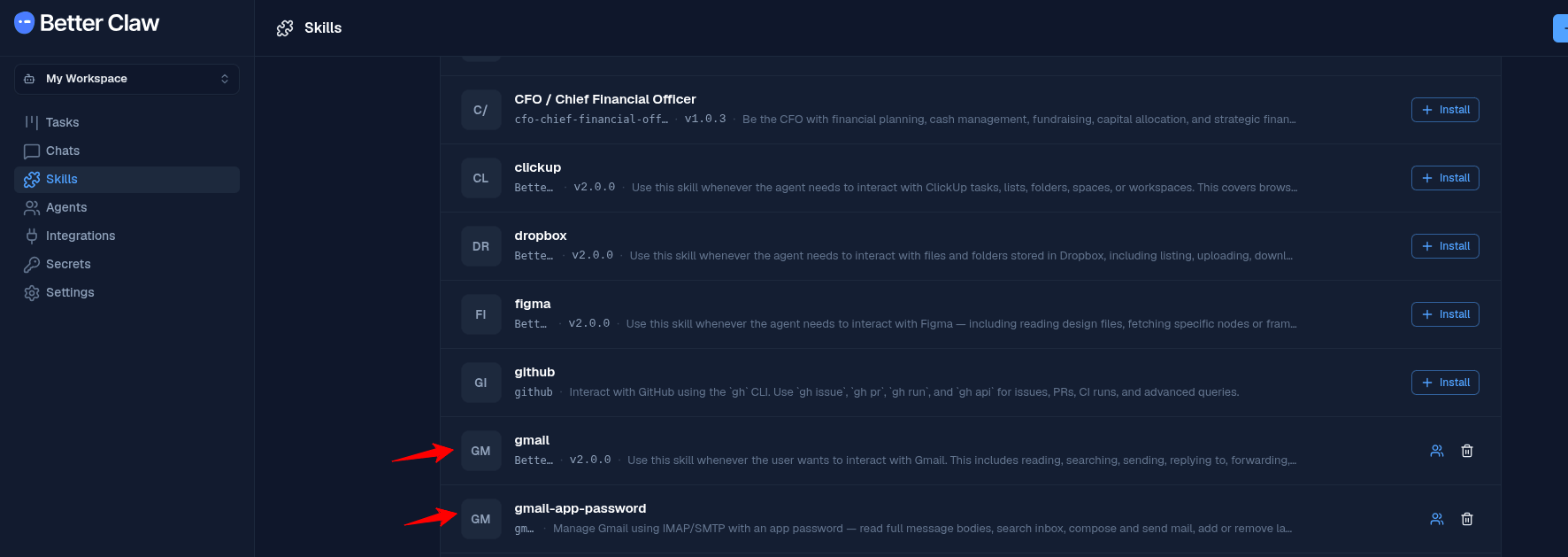
Open Skills and install two skills: gmail and gmail-app-password. Enable both for the agent that will run this task.
- 3
Open Tasks and create a new task
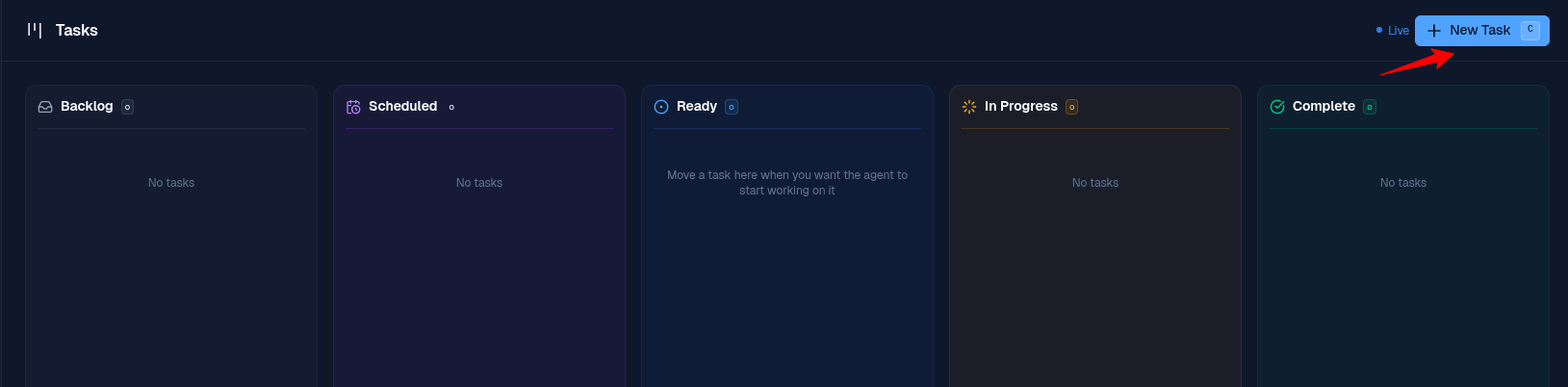
In the dashboard sidebar, click Tasks. Then click the New Task button in the top right.
- 4
Write a simple prompt and paste it as instructions
You do not need code or fancy syntax. Plain English is enough. Describe what you want the agent to do, when, and how. Paste it into the Instructions field of the Create Task modal. The example below is the exact prompt that powers this recipe, but feel free to write your own and automate your own bookkeeping the same way.
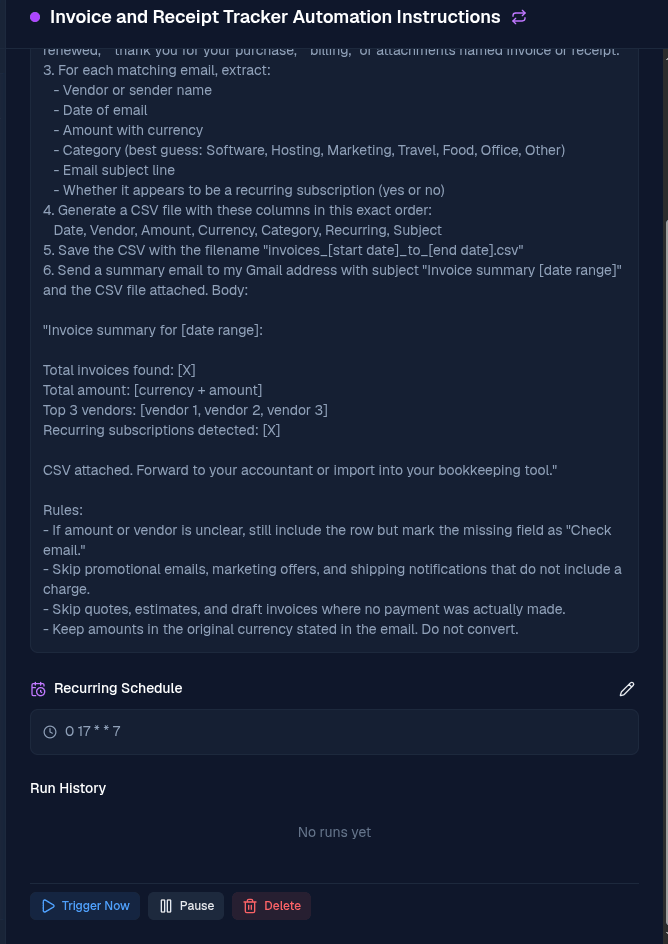
Example promptYou are my invoice and receipt tracker. Run on schedule. Steps: 1. Scan my Gmail inbox for emails received in the last 7 days (or 30 days if running monthly) that contain invoices, receipts, or payment confirmations. 2. Look for signals like: "invoice," "receipt," "payment received," "your order," "subscription renewed," "thank you for your purchase," "billing," or attachments named invoice or receipt. 3. For each matching email, extract: - Vendor or sender name - Date of email - Amount with currency - Category (best guess: Software, Hosting, Marketing, Travel, Food, Office, Other) - Email subject line - Whether it appears to be a recurring subscription (yes or no) 4. Generate a CSV file with these columns in this exact order: Date, Vendor, Amount, Currency, Category, Recurring, Subject 5. Save the CSV with the filename "invoices_[start date]_to_[end date].csv" 6. Send a summary email to my Gmail address with subject "Invoice summary [date range]" and the CSV file attached. Body: "Invoice summary for [date range]: Total invoices found: [X] Total amount: [currency + amount] Top 3 vendors: [vendor 1, vendor 2, vendor 3] Recurring subscriptions detected: [X] CSV attached. Forward to your accountant or import into your bookkeeping tool." Rules: - If amount or vendor is unclear, still include the row but mark the missing field as "Check email." - Skip promotional emails, marketing offers, and shipping notifications that do not include a charge. - Skip quotes, estimates, and draft invoices where no payment was actually made. - Keep amounts in the original currency stated in the email. Do not convert.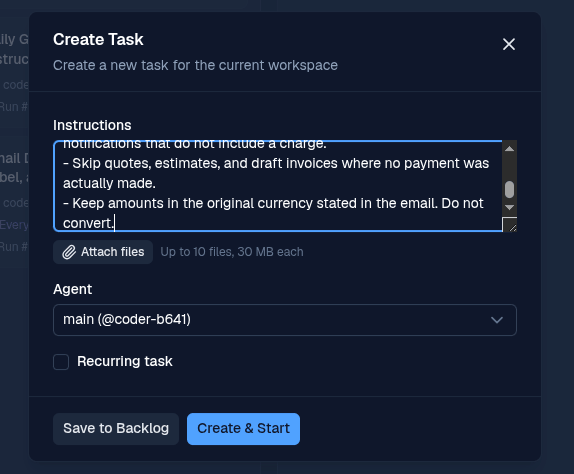
- 5
Turn on Recurring task
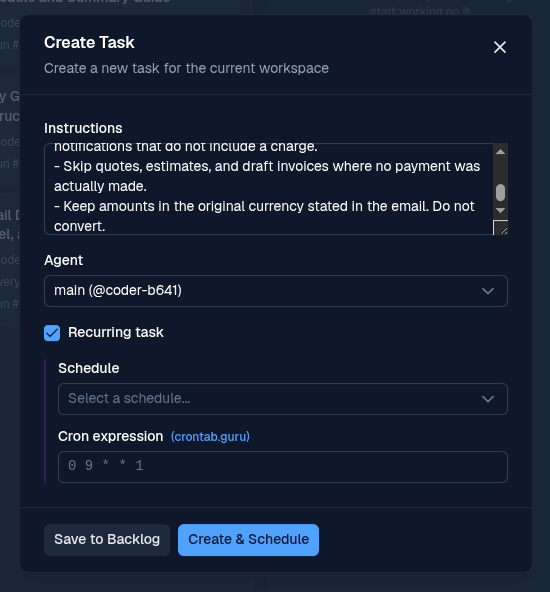
Tick the Recurring task checkbox. Pick a preset schedule, or choose Custom if you want a specific cadence like weekly on Sunday evening or monthly on the last day of the month.
- 6
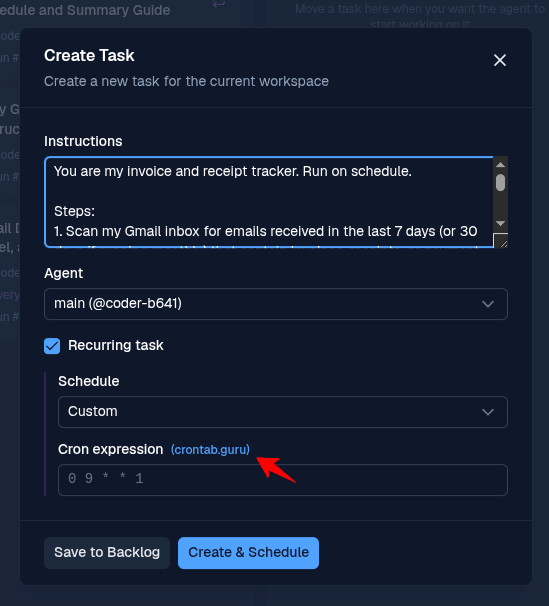
Choose Custom and open crontab.guru
Set the schedule to Custom. Click the crontab.guru link next to Cron expression to build the exact time you want in a friendly editor.
- 7
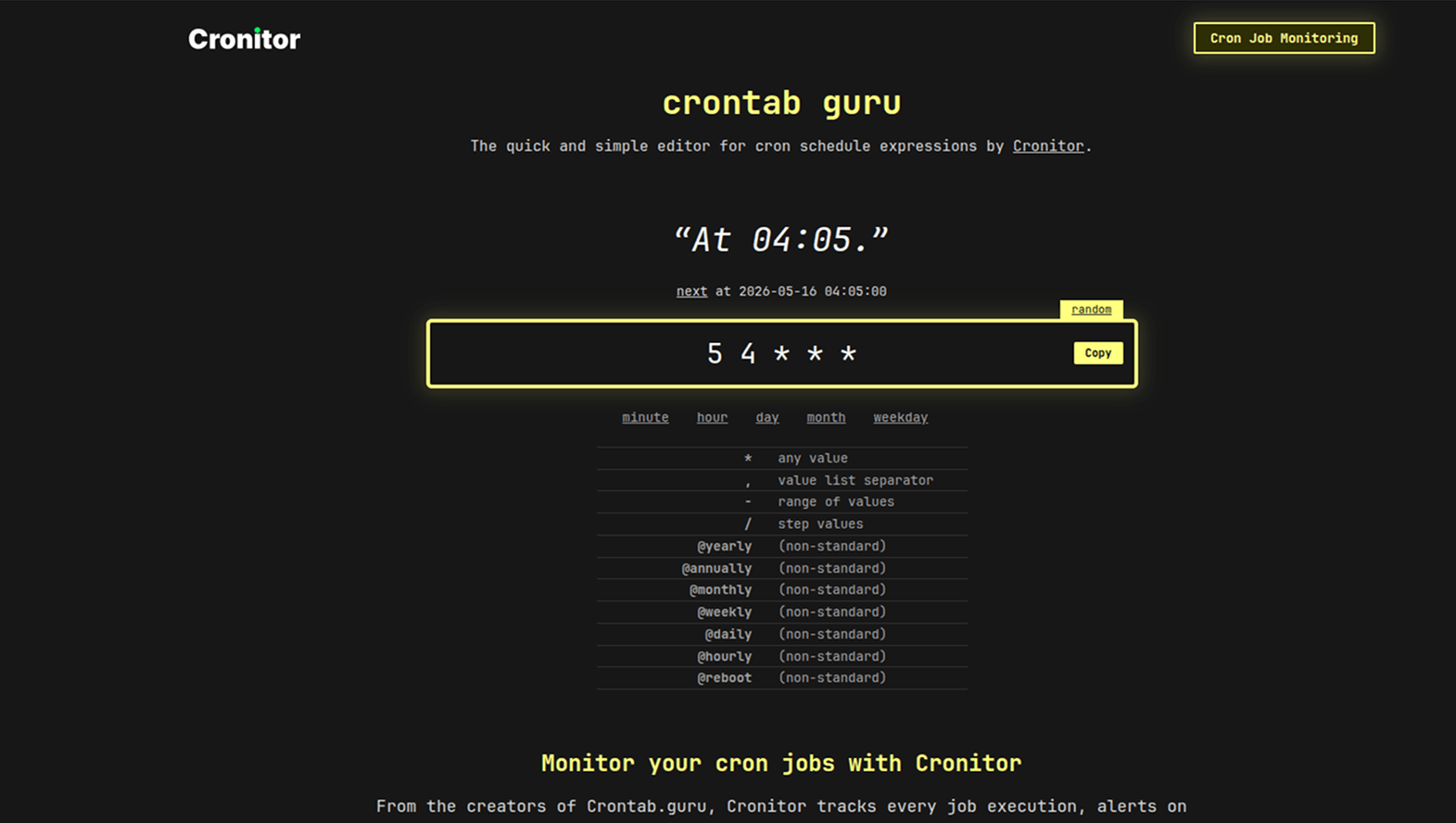
Build your cron expression
crontab.guru shows the schedule in plain English as you edit. For weekly Sunday at 8pm use 0 20 * * 0. For monthly on the 1st at 9am use 0 9 1 * *.
- 8
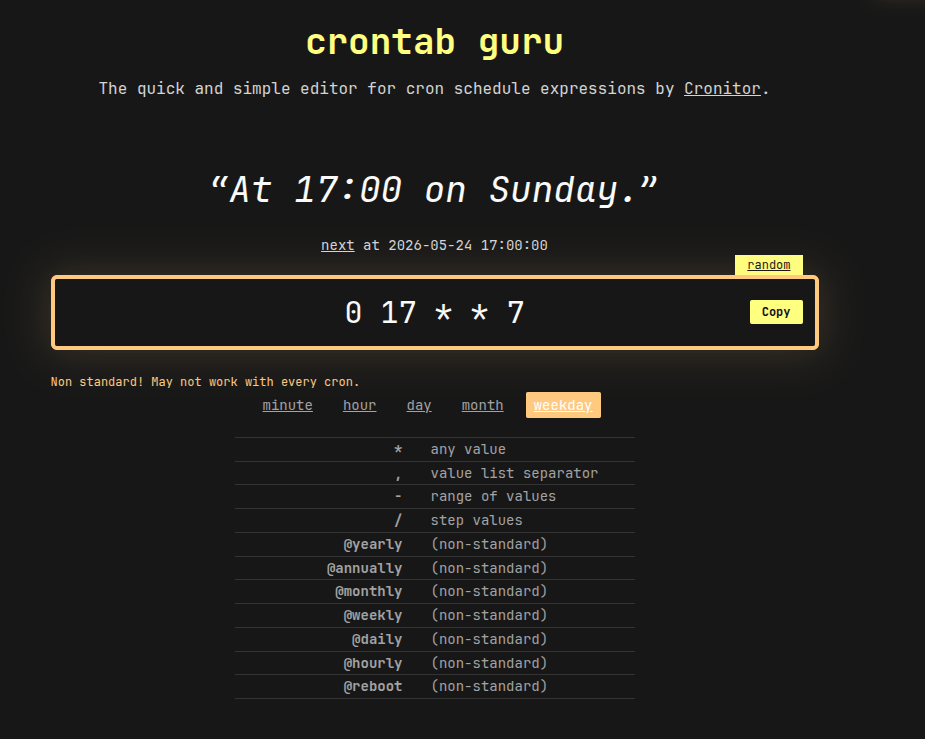
Copy the cron expression
Once the description shows your chosen time, click Copy. The example below uses 0 17 * * 7 for every Sunday at 5pm, which reads as "At 17:00 on Sunday" in plain English.
- 9
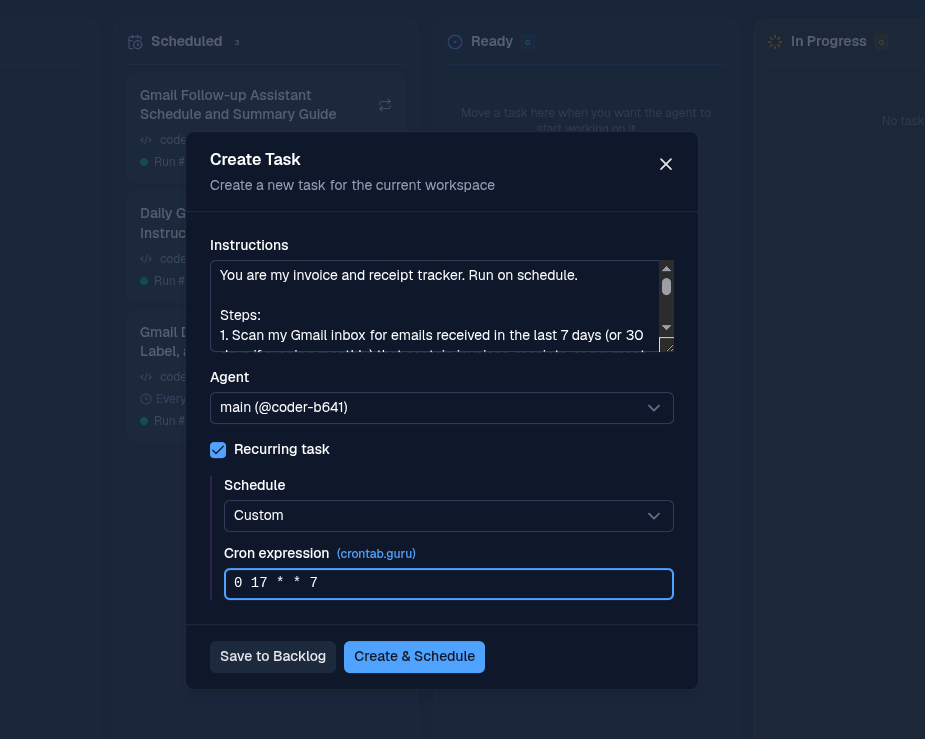
Paste the cron and schedule the task
Back in BetterClaw, paste the cron expression into the Cron expression field and click Create & Schedule.
- 10
Trigger a test run
The task now appears in the Scheduled column. Open it and click Trigger Now to run it once immediately so you can confirm everything works.
- 11
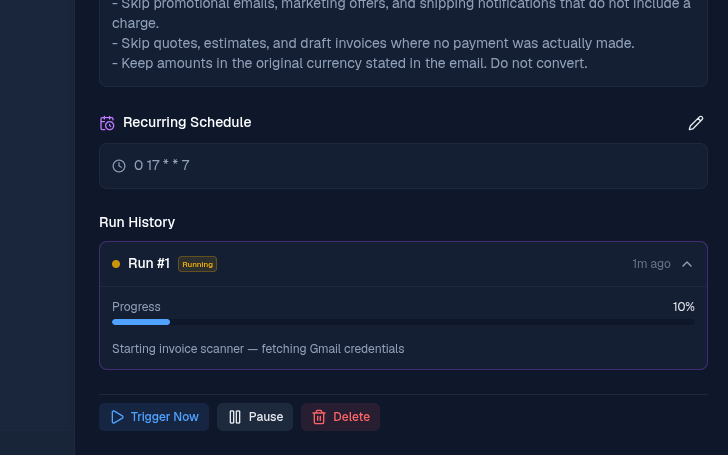
Watch the run in progress
The task moves into Run History and shows a live progress bar while the agent scans your inbox and builds the CSV.
- 12
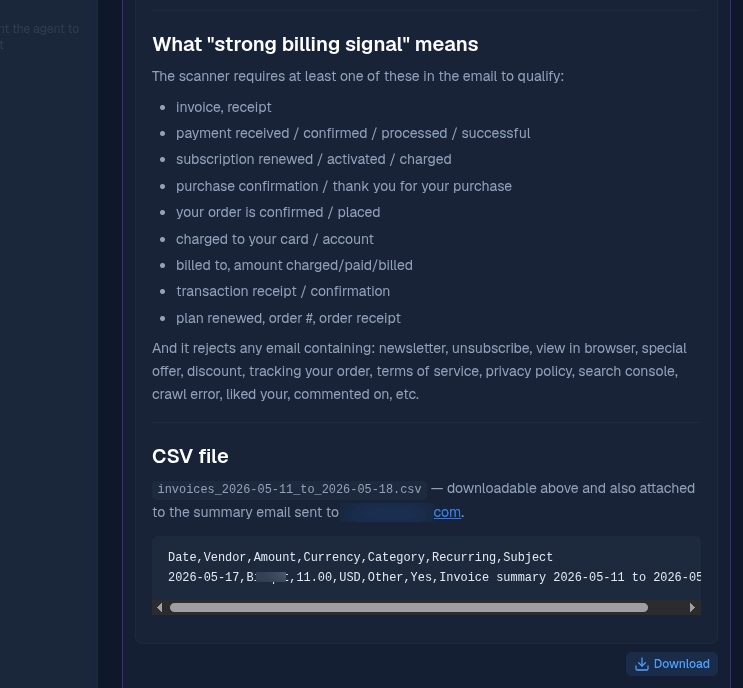
Read the summary in the task
When the run finishes, open the task to see a detailed summary: how many invoices were found, total spend, top vendors, and the generated CSV file path. The CSV is downloadable directly from the task view.
- 13
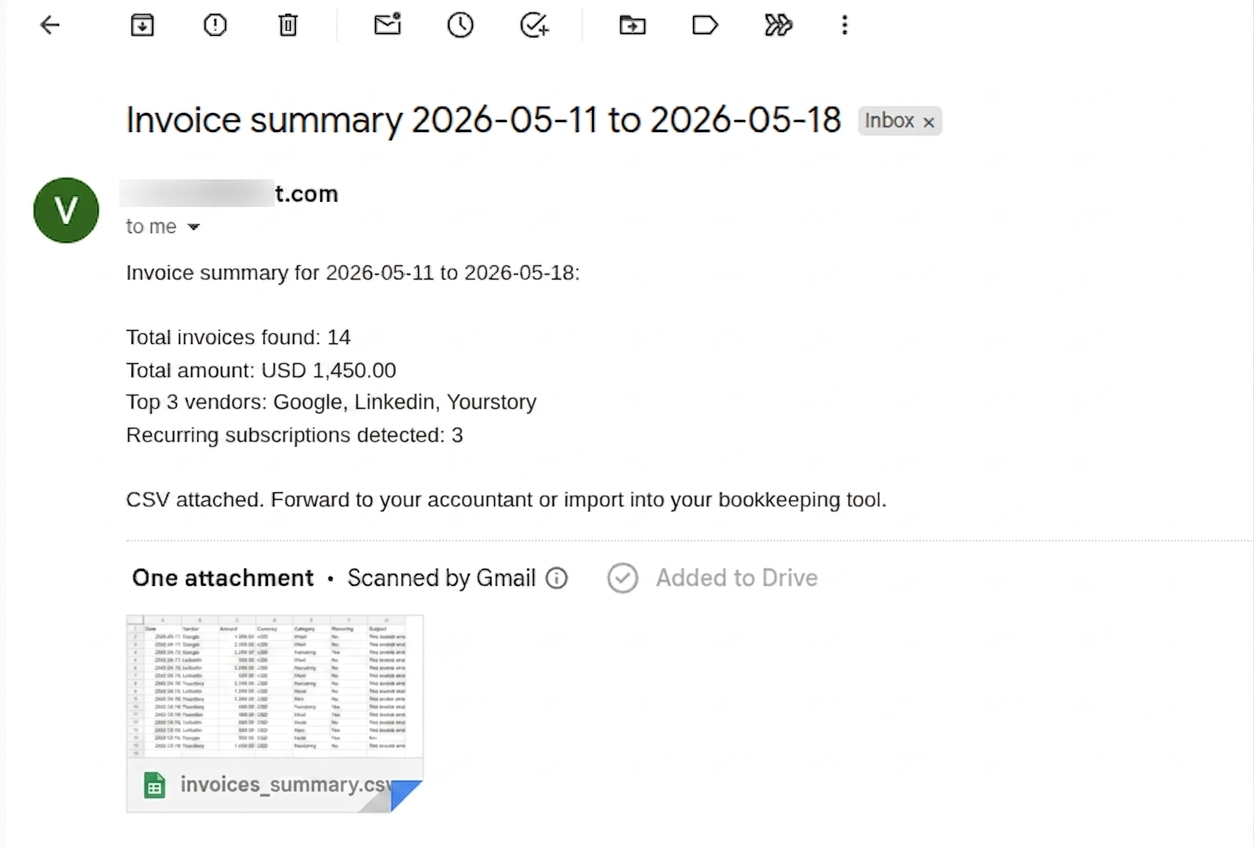
Check your inbox for the summary email
The agent emails the summary to your inbox with the CSV attached. Subject line: Invoice summary and the date range. If no invoices were found in the period, the email reports zero invoices and skips the attachment. No false busywork.
- 14
Download the CSV and hand it off
Open the email, download the attached CSV, and either upload it to your bookkeeping tool or forward the email directly to your accountant. Your books stay current with zero manual work.
More BetterClaw recipes and resources
The invoice tracker is one recipe. Browse the full library, see what your team can deploy, or check pricing for the free tier and Pro plan.
Browse all recipes
Customer support, HR screening, operations, marketing teams, and more. Every recipe deploys in 10 minutes.
See use cases Related RecipeGmail Follow-Up Automation
Already tracking invoices? Set up an agent that drafts daily Gmail follow-ups for emails awaiting a reply and queues them in Drafts.
Open recipe PricingFree tier and Pro plan
Start free with 1 agent and BYOK. Upgrade to Pro at $49 per month for 5 agents and 12,000 credits when you are ready for more.
See pricingInvoice and Receipt Tracker: Common Questions
Does the agent send any emails on my behalf?
Only one: the summary email it sends to your own inbox with the CSV attached. Nothing else is sent. The agent only reads your inbox and creates a CSV file.
Which emails does the agent skip?
Promotional offers, marketing emails, shipping notifications without a charge, quotes, estimates, and draft invoices. The agent only logs emails where an actual payment was made.
How do I change the run frequency?
Use any cron expression. Open the task, edit the Recurring Schedule, switch to Custom, and paste a new cron from crontab.guru. Weekly Sunday at 8pm (0 20 * * 0) and monthly 1st at 9am (0 9 1 * *) are the most common picks.
What if the agent miscategorizes an expense?
Edit the prompt. Add specific rules like "Always categorize Notion as Software" or "Categorize anything from xyz@vendor.com as Marketing." The agent gets sharper with every refinement.
Can I have it send the CSV directly to my accountant?
Yes. Change the recipient in the prompt from "my Gmail address" to your accountant's email. Some users run two versions: one to themselves for review, one direct to the accountant after the first month of refinement.
Do I need both gmail and gmail-app-password skills?
Yes. The agent uses both to scan your inbox, read email contents, and send the summary email with the CSV attached. Install both from the Skills page and enable them for the agent that runs this task.
Is BetterClaw free to try?
Yes. The Free plan includes 1 agent, 100 credits per month, 3 connectors, and bring-your-own-key (BYOK) for the AI model. You pay nothing to BetterClaw, only your model provider for tokens used. Pro is $49 per month ($39 per month billed annually) and includes 5 agents, 12,000 credits per month, unlimited connectors, and 90-day memory retention. The invoice tracker runs on either plan.
How do I automate invoice tracking from Gmail without manual data entry?
Use a BetterClaw agent with the gmail and gmail-app-password skills, and a prompt that tells the agent to scan your inbox, extract invoice details, and generate a CSV. The agent reads each invoice or receipt email, pulls vendor, date, amount, and category into a structured CSV, and emails it to you with a summary. Zero manual copy-paste.
What is the best AI agent to track Gmail receipts and build expense reports?
BetterClaw is built for this use case. Unlike Expensify, Dext, or Receipt Bank, BetterClaw works directly from your existing Gmail inbox, requires no separate app to forward receipts to, uses your choice of 28+ AI models (OpenAI, Claude, Gemini, Mistral, DeepSeek), and runs on a free tier with BYOK. You keep the CSV and use it wherever you want.
Is it safe to give an AI agent access to my Gmail for expense tracking?
BetterClaw connects to Gmail through a Gmail app password or OAuth token that you control and can revoke at any time from your Google Account settings. All credentials are stored encrypted with AES-256 in the BetterClaw vault. The agent only reads your inbox and sends one summary email back to your own address. You can pause or delete the agent from the dashboard in one click.
How long does it take to set up an AI invoice tracking agent?
About 10 minutes start to finish. The setup has 14 short steps: add Gmail credentials in Secrets (2 min), install the gmail and gmail-app-password skills (1 min), paste the agent prompt into a new task (2 min), choose a custom cron expression using crontab.guru (2 min), and trigger the first run to verify the CSV arrives in your inbox (3 min). No code, no Docker, no terminal.
Does this work with QuickBooks, Xero, or FreshBooks?
Yes. The agent generates a clean CSV with columns Date, Vendor, Amount, Currency, Category, Recurring, and Subject. That format imports directly into QuickBooks Online, Xero, FreshBooks, Wave, and Zoho Books. For QuickBooks specifically, use the bank-feed CSV import flow. For Xero, use the manual transactions import. If your bookkeeping tool needs a slightly different column order, edit one line in the agent prompt and the CSV reshapes itself the next run.
How does this compare to Expensify, Dext, or Receipt Bank?
Different category. Expensify, Dext, and Receipt Bank are mobile-first receipt-photo apps that need you to forward, scan, or photograph each receipt. BetterClaw works in the opposite direction: it reads the Gmail inbox you already have and finds the digital receipts that are already there. No mobile app, no forwarding rules, no manual capture. It's free up to 1 agent. Expensify starts at $4.99/user/month plus per-receipt SmartScan limits, Dext starts at $20/month, Receipt Bank starts at $25/month. For 100% digital businesses where every invoice arrives via email, BetterClaw is faster, cheaper, and more flexible. For physical-receipt-heavy workflows (field sales, in-person purchases), pair BetterClaw with a receipt-photo tool.
Can I use this for 1099 tax prep or year-end expense reporting?
Yes — this is one of the most common use cases. Set the date range in the prompt to your full tax year (or the current quarter), run the task once, and you get a complete CSV of every Gmail-delivered invoice and receipt with vendor, date, amount, category, and recurring flag. Hand it to your CPA or import it into TurboTax, QuickBooks Self-Employed, or any 1099 tax tool. Sole proprietors, LLC owners, and freelancers use this every January to close out the prior year in under 30 minutes.
Does the agent capture VAT, GST, or non-USD invoices?
Yes. The agent keeps amounts in the original currency stated in the email (USD, GBP, EUR, INR, CAD, AUD, JPY, and any other) and does not auto-convert. The CSV's Currency column lets your accountant or accounting tool handle conversion. The agent also captures VAT (UK/EU), GST (Australia/Canada/India/New Zealand), and sales tax line items when present in the invoice email. If your jurisdiction requires a specific tax breakdown, add that column to the prompt and the CSV will include it.
End the Month-End Receipt Hunt
A clean CSV of every invoice and receipt, in your inbox, ready for your accountant. The agent does the digging.
Free plan or Pro at $49/month · BYOK · Read-only Gmail access