The Reinstall button doesn't work. Check for Updates lies. Here's the actual fix and why it happened.
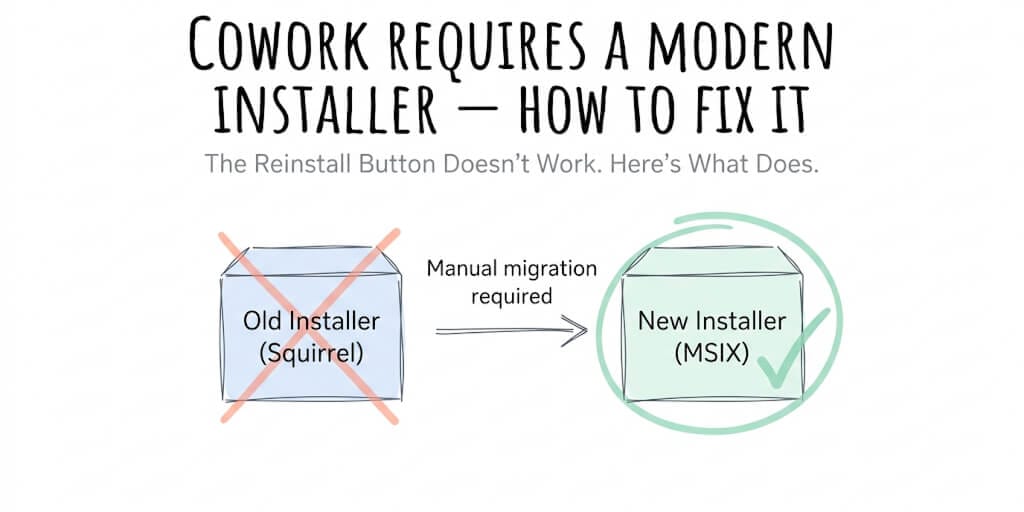
This error means your copy of Claude Desktop was installed using an older method that Cowork can't work with. Cowork requires Claude Desktop to be installed through Anthropic's current MSIX-based installer, which registers the virtualization service Cowork depends on. The fix is to fully uninstall your existing Claude Desktop, download the latest installer from claude.ai/download, and reinstall. It takes about five minutes, and your chat history stays intact because it's tied to your account, not the local install.
Cowork broke after a September 2026 Windows update instead? That isn't an installer problem, and reinstalling won't fix it. Microsoft fixed the underlying Windows bug on September 14 (KB5129195 on Windows 11 24H2/25H2); run Windows Update and restart. Full fix.
Here's what makes this error especially frustrating. Claude Desktop has a "Reinstall" button in the banner that says you need a newer installation. That button does nothing. And "Check for Updates" tells you you're on the latest version. You're not.
Why you're seeing this error (the Squirrel-to-MSIX migration nobody told you about)
Around February 10, 2026, Anthropic shipped Cowork and simultaneously switched the Windows installer from the older Squirrel-based .exe format to MSIX, Microsoft's modern app packaging standard. Every Claude Desktop install before that date used Squirrel. Every install after uses MSIX.
The problem: there is no automatic upgrade path from the Squirrel installer to the MSIX format. The Squirrel-based install and the MSIX-based install are essentially two different applications as far as Windows is concerned.
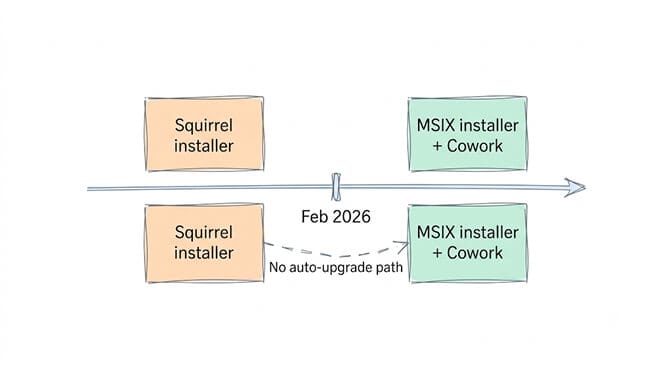
So if you installed Claude Desktop before mid-February 2026, or installed it from an old download link, or used a package manager that cached the Squirrel version, you're running an installer format that predates Cowork entirely. Cowork's VM service (CoworkVMService) only gets registered by the MSIX installer. The Squirrel installer has no concept of it.
But that's not even the real problem. The real problem is that Claude Desktop tries to help you fix it, and the help doesn't work.
The "Reinstall" button trap
Claude Desktop shows a banner at the top of the app: "Cowork requires a newer installation" with a Reinstall button. Clicking the Reinstall button does absolutely nothing. No download starts, no installer launches, no error message appears. The app state doesn't change.
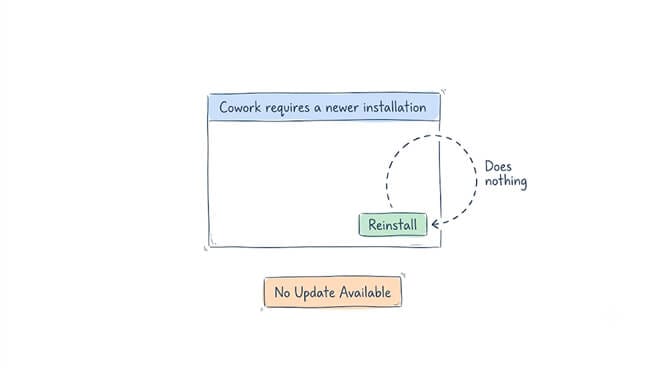
Additionally, going to Help → Check for Updates shows "No Update Available — You are running the latest version." This creates a dead end: the app says you need to reinstall, provides a button to do so, but the button is non-functional, and the update checker contradicts the banner entirely.
Here's why. The in-app updater and the Reinstall button both check the Squirrel update channel. The MSIX version lives on a completely different channel. The Squirrel channel genuinely has no newer version, so the updater is technically correct when it says you're current. It just doesn't know that the MSIX version exists.
The Reinstall button and the Check for Updates dialog are checking the old channel. The new installer lives on a different channel entirely. Manual uninstall and reinstall from claude.ai/download is the only path.
The fix: clean uninstall, then reinstall from claude.ai/download
This is a four-step process. The key word is "clean," because leftover Squirrel files can prevent the MSIX installer from completing.
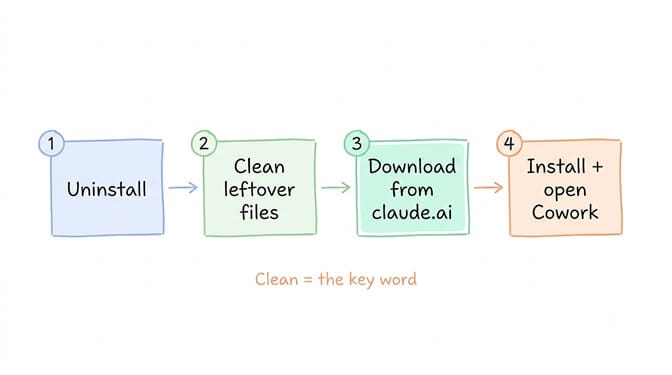
Step 1: Uninstall the current Claude Desktop
Press Win+I to open Settings, go to Apps, then Installed apps. Find Claude in the list and click Uninstall.
If Claude doesn't appear in Installed apps (this happens with some older Squirrel installs that didn't register properly), check for a Claude folder in %LOCALAPPDATA% instead. Open File Explorer, paste %LOCALAPPDATA% into the address bar, and look for a claude-desktop or Claude folder. Delete it manually.
Step 2: Clean up leftover files
After uninstalling, check for and remove any leftover Claude files. Open File Explorer and navigate to each of these locations. Delete the Claude folders if they exist:
%LOCALAPPDATA%\claude-desktop(old Squirrel install location)%APPDATA%\Claude(settings, logs, VM cache)
Removing the old Squirrel install from all user profiles is essential before the managed MSIX install will work cleanly. If you skip this step and the MSIX installer finds Squirrel remnants, it can fail silently with a cryptic HRESULT error and leave you right back where you started.
Your chat history is safe. Conversations are stored in your Anthropic account, not in these local folders. What you're deleting is cached data, logs, and the old installer's registration, not your work.
Step 3: Download the latest installer from claude.ai/download
Go to claude.ai/download and get the current Windows installer. This gives you the MSIX-based version automatically.
Do not use an old download you saved, a link from a third-party site, a Winget package that might be caching the Squirrel version, or a Chocolatey install. Any of those can give you the old format and you'll be right back to the same error.
If you're on an enterprise machine managed by Intune, the process is different. The standard Claude Desktop installer requires Developer Mode or Trusted App Installs to be enabled for MSIX sideloading, which violates CIS benchmarks and NIST hardening guidelines on most enterprise configurations. The fix for IT teams is to deploy the signed MSIX package directly through Intune as a Line of Business app, bypassing the bootstrapper installer entirely. Send your IT admin the Anthropic enterprise deployment guide rather than asking them to run the consumer installer.
Step 4: Run the installer and open Cowork
Open the downloaded file, follow the prompts, and accept the default install location. When it asks for admin permission (UAC prompt), click Yes. The MSIX installer needs admin rights to register the CoworkVMService.
Launch Claude Desktop, sign in, and the Cowork tab should now appear.
If the idea of debugging installer formats, cleaning up leftover registry entries, and figuring out which update channel your version is on sounds like an unreasonable amount of work just to get an AI agent running, we built BetterClaw specifically to avoid this class of problem entirely. No desktop installer. No VM. No MSIX. No Squirrel. Your agent runs in the cloud on managed infrastructure. Free plan, no credit card, unlimited skills, 60-second deploy.
If Cowork still doesn't appear after reinstalling
If you've done the clean uninstall, removed the leftover files, installed the MSIX version from claude.ai/download, and Cowork still isn't working, the problem has shifted from the installer to a Windows requirement. Different error, different fix.
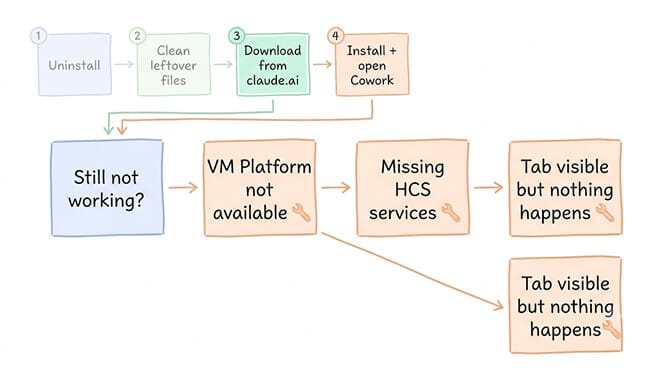
- "Virtual Machine Platform not available": your Windows virtualization features need enabling. Our step-by-step VM Platform fix covers exactly how to enable it and what to do in BIOS.
- "Missing HCS services: HNS, vmcompute, vfpext": the Host Compute Service stack that Cowork's sandbox runs on isn't registered. Our Cowork readiness guide walks through each required component and the fix for each.
- Cowork tab visible but nothing happens when you click it: the
CoworkVMServicemay not have registered properly during the MSIX install. A per-user MSIX install can complete without registering the Cowork virtualization service. Redeploying usingAdd-AppxProvisionedPackageso the service registers machine-wide is the fix. This is most common on enterprise machines where the install ran in user context rather than device context. - Still stuck: the full Cowork troubleshooting guide covers every known failure mode in one place.
The honest takeaway
This error exists because of a packaging format migration that Anthropic handled poorly on the user-facing side. The old installer has no idea the new one exists. The in-app buttons that should fix it don't work. And the error message says "modern installer" without telling you what that means or where to get it.
The fix itself is simple: uninstall, clean up, reinstall from claude.ai/download. Five minutes. But the fact that you needed this page to figure that out is a sign that desktop software deployment, even in 2026, hasn't gotten meaningfully easier for the person at the keyboard.
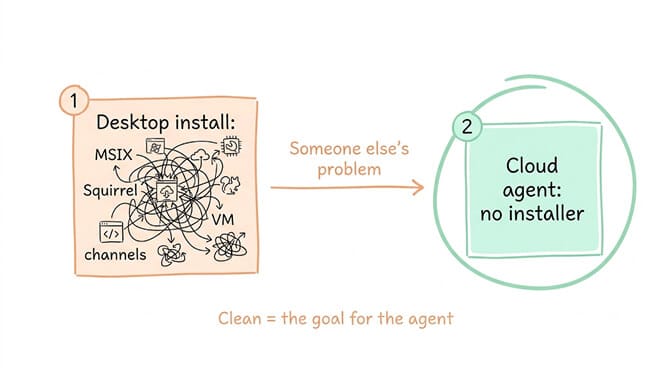
Skip desktop installers entirely
Your AI agent runs in the cloud, where packaging formats and VM services are someone else's problem. No installer. No VM. No MSIX. No Squirrel. Start free → No credit card · Unlimited skills · Free plan with 1 agent and 100 credits/mo · $49/mo for 5 agents on Pro · Deploy in ~60 seconds
If you're also hitting usage caps once Cowork is running, our Claude rate limit guide covers the five-hour rolling window and shared-pool mechanics that affect Cowork sessions differently from regular chat.
Frequently Asked Questions
Will reinstalling Claude Desktop delete my chats?
No. Your conversation history is tied to your Anthropic account, not the local install. Uninstalling removes cached data, logs, and the installer registration. Your conversations, settings, and any saved context will be there when you sign back in after reinstalling.
Do I need admin rights to reinstall Claude Desktop?
Yes. The MSIX installer needs administrator permission to register the CoworkVMService, which is the Windows service Cowork depends on. On a personal machine, click Yes on the UAC prompt. On a work machine managed by IT, ask your IT team to deploy the signed MSIX package through their endpoint management tool rather than running the consumer installer.
Is the "modern installer" a separate download?
No. It's just the current official Claude Desktop installer from claude.ai/download, which uses MSIX packaging instead of the older Squirrel format. Any download from claude.ai/download after February 2026 gives you the MSIX version automatically. The term "modern installer" in the error message refers to this MSIX-based version.
Why doesn't the "Reinstall" button in Claude Desktop work?
The Reinstall button and the Check for Updates feature both query the old Squirrel update channel, which no longer receives updates. The MSIX version lives on a different distribution channel entirely. The buttons are checking the right place for the old format and finding nothing new, because nothing new was ever published to that channel.
I installed Claude via Winget or Chocolatey. Is that the problem?
Possibly. If the package manager cached the Squirrel-based version, you may have installed the old format without knowing it. Uninstall via the package manager, clean up the leftover files from %LOCALAPPDATA% and %APPDATA%, and reinstall directly from claude.ai/download to ensure you get the current MSIX version.