Cowork stopped working after the September 2026 Windows update?
If Cowork installed fine but stopped reaching your files after Windows updated on or after September 8, 2026, it's a Windows bug, not your setup. The September 8 security updates (KB5124008 on Windows 11 24H2/25H2, KB5124012 on 26H1) broke the Plan9 folder sharing that Cowork's VM uses; Microsoft lists Claude Cowork and WSL as affected. Tasks fail or the workspace doesn't start, and reinstalling Claude doesn't help.
Microsoft fixed it on September 14, 2026 with KB5129195 (24H2/25H2), KB5129194 (26H1) and KB5129242 (23H2). Go to Settings → Windows Update → Check for updates, install, and Restart. No Claude Desktop update is needed. Full details, including the build numbers to check with winver, are in our Cowork Windows troubleshooting guide.
Claude Cowork Windows Requirements
Claude Cowork runs on Windows 10 or later, including Windows 11, on x64 and Arm64. It needs the Virtual Machine Platform feature enabled and admin rights for the first install. Its background service runs as cowork-svc.exe (CoworkVMService). Cloud sessions work on the web and mobile without the desktop app.
| Requirement | Detail |
|---|---|
| Windows version | Windows 10 or later, including Windows 11 (Anthropic's stated minimum). On Windows 10, stay on 22H2, the last release |
| Edition | Pro, Enterprise and Education work. Home has Virtual Machine Platform but often fails (see below) |
| Windows feature | Virtual Machine Platform (not full Hyper-V), plus hardware virtualization on in BIOS/UEFI |
| Installer | The .msix package from claude.com/download. The legacy .exe installer gives you Claude without Cowork |
| Admin rights | Required for the first install (workaround for managed devices) |
| RAM | Anthropic publishes no minimum. The Cowork VM uses about 1.8 GB, so 8 GB total is the practical floor and 16 GB is comfortable |
| Disk | About 2 GB for the VM image. Keep 5 GB free on C:\ for the image, workspace files and logs |
| Architecture | x64 and Arm64 (separate MSIX packages) |
| Claude plan | Pro, Max, Team or Enterprise. Cowork is not on the Free plan |
Download: claude.com/download. Not sure your PC qualifies? Anthropic's readiness check tests all of this in about a minute.
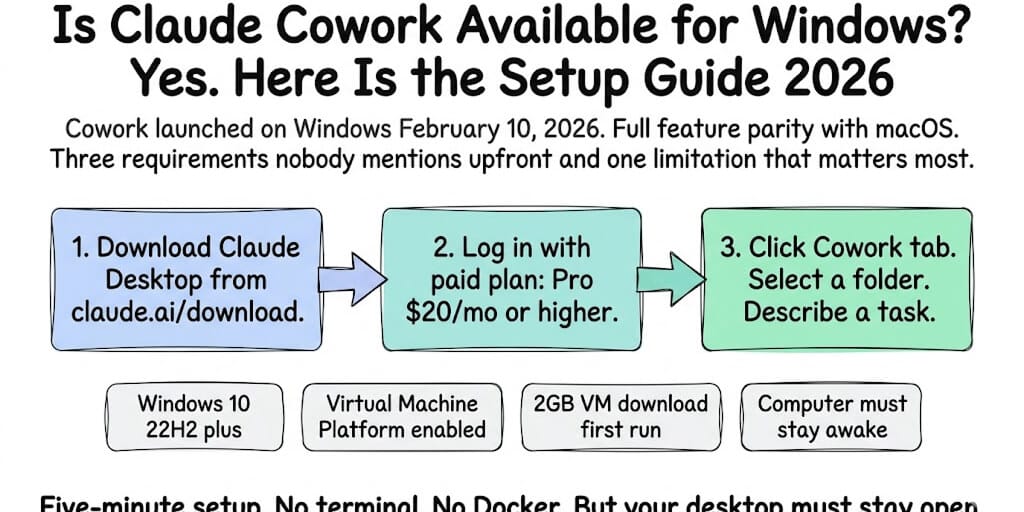
Cowork launched on Windows February 10, 2026. Since July 7, 2026 its sessions also run in the cloud, so the old "your PC must stay awake" rule now applies only to local work. Here is the setup, the three requirements nobody mentions upfront, and where the desktop app is still genuinely required.
Someone in our community asked last year: "I keep hearing about Cowork but I'm on Windows. Is it Mac only?"
It was Mac-only. For exactly one month. Anthropic launched Claude Cowork on macOS January 12, 2026, and extended it to Windows on February 10. Full feature parity. Same capabilities. Same plugins. Same MCP connectors. Same scheduled tasks feature (added February 25).
Then in July the ground moved. Cowork went to the web, to iOS and Android, and into the Chrome side panel, and sessions began running on Anthropic's infrastructure rather than yours. Close the laptop and the task keeps going. Scheduled tasks run with no device online at all.
That does not make this guide obsolete, but it does narrow it. The Windows setup below is what you need for local sessions — the ones that touch files on your machine. Those still need the desktop app, the VM, and a working hypervisor. Everything else now happens without your PC.
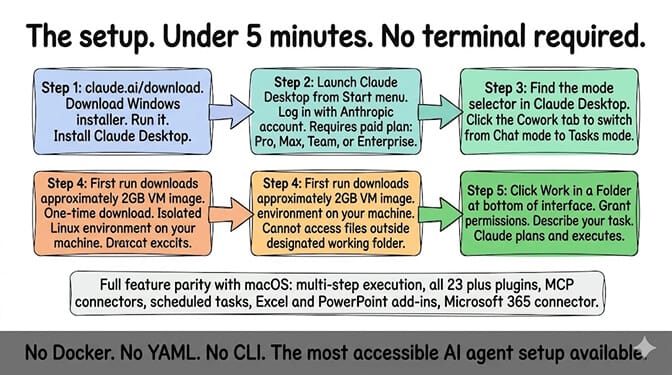
The Setup (Under 5 Minutes, Really)
Step 1: Go to claude.com/download. Download the Windows installer (the .msix package). Run it. Install Claude Desktop.
Step 2: Launch Claude Desktop from the Start menu. Log in with your Anthropic account. You need a paid plan. Cowork is available on Pro ($20/month), Max ($100-200/month), Team ($25/month per seat billed monthly, $20 billed annually), and Enterprise. Not available on the free tier. Note that Cowork tasks burn through quota fast, so it's worth understanding the Claude Cowork rate limits before you start a heavy session.
Step 3: In Claude Desktop, find the mode selector. Click the Cowork tab to switch from Chat mode to Tasks mode.
Step 4: On first run, Cowork downloads a ~2GB VM image. This is a one-time download. The VM is an isolated Linux environment that runs on your machine. Claude operates inside this VM, which means it can't access files outside your designated working folder unless you explicitly grant access.
Step 5: Select a working folder (click Work in a Folder at the bottom of the Cowork interface). Grant permissions when prompted. Describe your task in natural language. Claude plans, breaks work into sub-tasks, and executes.
That's it. No Docker. No YAML. No CLI.
The key fact: Claude Cowork on Windows has full feature parity with macOS. Multi-step task execution, file access, the official plugin directory, MCP connectors, scheduled tasks, Excel and PowerPoint add-ins, Microsoft 365 connector. Everything available on Mac works on Windows.
The Three Requirements Nobody Mentions Upfront
Here's what nobody tells you before you start.
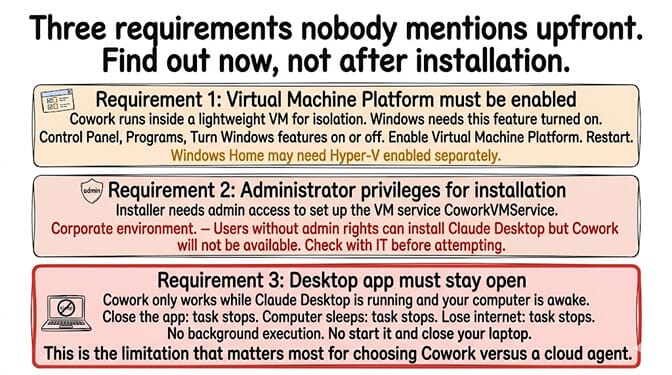
Requirement 1: Virtual Machine Platform must be enabled. Cowork runs inside a lightweight VM for isolation. Windows needs the Virtual Machine Platform feature turned on.
The fastest way is one command. Open PowerShell as Administrator and run:
Enable-WindowsOptionalFeature -Online -FeatureName VirtualMachinePlatform -All
Then restart. Use Restart, not Shut down and power on, because Windows Fast Startup can skip finishing the feature install.
Prefer clicking? Go to Control Panel → Programs → Turn Windows features on or off. Enable Virtual Machine Platform. Restart. Windows 11 Home has this feature too, but Home comes with a catch — see Claude Cowork on Windows 11 Home below.
Requirement 2: Administrator privileges for installation. The installer needs admin access to set up the VM service (CoworkVMService). Users without admin access can install Claude Desktop but Cowork will not be available. This matters for corporate environments where users don't have admin rights. There is a supported workaround: see Install Claude Cowork without admin rights below.
Requirement 3: The desktop app must stay open — for local work. This used to be the limitation that defined Cowork, and it is now a scoped one. A cloud session can read and write files in folders you have connected on your computer only while the desktop app is open. The same applies to local connectors and plugins, browser use, and computer use. Close the app and those capabilities go away; the session itself does not. Work that does not touch your machine keeps running, and scheduled tasks fire with no device online.
So the rule to carry: if the task touches your filesystem, the app stays open. If it doesn't, it doesn't.
For the comparison between Cowork and OpenClaw as desktop agents, our OpenClaw vs Claude Cowork comparison covers the fundamental architecture difference.
Claude Cowork on Windows 11 Home
Short answer: it might, and it's worth trying before you pay for an upgrade. Anthropic's "Deploy Claude Desktop for Windows" doc says Cowork requires Virtual Machine Platform, which Home has, and it doesn't name a Windows edition requirement. In practice, though, many Home users report Cowork failing, which is why so many "Cowork won't start on Windows" reports come from Home machines.
The distinction that trips people up: Windows 11 Home does not include full Hyper-V — no vmms (Hyper-V Virtual Machine Management) service — and it doesn't ship the full HCS/Containers stack. Home does include Virtual Machine Platform, the lightweight hypervisor component that also powers WSL2, and that is the feature Anthropic documents. Guides telling you to "enable Hyper-V" will send you to a Windows feature that isn't there on Home. The failures Home users report in GitHub issues (#27906, #31991, #45883) are generally attributed to those missing Hyper-V pieces.
To enable it on Windows 11 Home:
- Press Win + S, search for Turn Windows features on or off, and open it.
- Tick Virtual Machine Platform. Leave Hyper-V alone — it will not be listed.
- Click OK and restart. The change does not take effect until you reboot.
- Relaunch Claude Desktop and open the Cowork tab.
If Cowork still refuses to start on Home, check these in order:
- Virtualization is off in BIOS/UEFI. Open Task Manager → Performance → CPU and look for Virtualization: Enabled. If it says Disabled, no Windows setting will fix it — reboot into BIOS and turn on Intel VT-x (Intel) or SVM Mode (AMD).
- Memory integrity or a third-party hypervisor is conflicting. VirtualBox and older VMware builds can hold the hypervisor exclusively. Close them and retry.
- Your Windows 10 is too old. Anthropic's stated minimum for Claude Desktop is Windows 10, but Cowork's virtualization features are least reliable on old Windows 10 builds. Older Windows 10 builds are not a supported configuration even with Virtual Machine Platform enabled. Check with
winver, and update to 22H2, the last Windows 10 release, if you can. - No administrator account. The
CoworkVMServiceinstall needs admin rights. On a personal Home machine you usually have them; on a school or work-issued laptop you often do not.
If you've cleared all of those and Cowork still won't start, check the three Windows services Anthropic's deployment doc lists as Cowork dependencies. Open PowerShell and run:
Get-Service vmcompute, hns, vfpext | Select Name, Status
Don't use Get-Service vmms for this. vmms is the full Hyper-V management service, which Home never has, so it tells you nothing about Cowork. If any of the three above are missing, re-run the Enable-WindowsOptionalFeature command from Requirement 1 and restart. Our missing HCS services fix walks through the stubborn cases. If they are still missing after that, you're likely hitting the Home limitation, and your options are upgrading to Windows Pro for the desktop app, or using Cowork on the web at claude.ai, which runs in the cloud and skips the local VM entirely (local file access still needs the desktop app open). Don't lean on Anthropic's readiness checker to settle it: it has a documented false "ready" on Windows 11 Home (GitHub #50621).
What Is cowork-svc.exe (CoworkVMService)?
cowork-svc.exe is Claude's workspace service. Windows lists it as the service CoworkVMService, and the display name shows up as "Claude". It is installed with Claude Desktop, runs in the background as LocalSystem, and manages the virtual machine that Cowork uses for local file access and code execution. The Claude app talks to it over a local named pipe to start the VM and check on it.
Is it safe? Yes. It ships inside Claude Desktop's MSIX package, in the app's resources folder, and Windows only installs signed MSIX packages. To confirm on your own machine, find the file through Task Manager (right-click → Open file location), then right-click it → Properties → Digital Signatures. The signer should read Anthropic. If you see a cowork-svc.exe anywhere else, or unsigned, treat it as suspicious.
Can you stop it? Only briefly. Stop-Service CoworkVMService in an admin PowerShell works, but the service is registered to start automatically and usually comes back within seconds. Claude also starts it whenever you open Cowork. You can't disable it either: Set-Service -StartupType Disabled and sc.exe config both fail with "Access is denied", because Windows protects services that come from MSIX packages. Don't force-kill it in Task Manager, because that can leave the VM in a broken state that crashes the next start. The only way to remove it for good is to uninstall Claude Desktop.
If it's missing: check which installer you used first. The legacy .exe installer doesn't create the service, so reinstall with the .msix package from claude.com/download. Otherwise the install ran without admin rights, or Virtual Machine Platform is off. See the requirements table above.
If it's using a lot of CPU: users have reported cowork-svc.exe sitting at 17-20% CPU while idle (GitHub #31848), caused by the app polling it every second. Restart it with Restart-Service CoworkVMService and update Claude Desktop. If it also blocks Claude from updating itself, a full reboot clears it. For everything else, the Cowork not working on Windows guide covers the service's other failure modes.
Install Claude Cowork Without Admin Rights
The default Claude installer needs admin rights to register CoworkVMService. Without them, Anthropic's own documentation is blunt: you can still install Claude, but Cowork on desktop will not be available. If you're on a managed device (a company laptop or school computer), you have two options.
Option 1: Ask your IT admin to provision the app (recommended)
Your admin can install Claude machine-wide once, so every user on the device gets Cowork without having admin rights themselves. This is the method in Anthropic's Deploy Claude Desktop for Windows guide. From an elevated PowerShell:
Enable-WindowsOptionalFeature -Online -FeatureName VirtualMachinePlatform -All -NoRestart
Add-AppxProvisionedPackage -Online -PackagePath "Claude.msix" -SkipLicense -Regions "all"
Then restart the device. Admins using Intune should know one catch from the same doc: deploying Claude as an Intune line-of-business app installs it per user rather than machine-wide, and that install fails for standard users. Provisioning the package as above is the route that works.
Option 2: Use Cowork on the web
If admin access isn't possible, use Cowork at claude.ai in the browser. There is nothing to install. Cloud sessions keep running when you close the tab and scheduled tasks still fire, but you lose local file access, local connectors, and browser and computer use, because those all need the desktop app. Web Cowork is available on Pro, Max and Team. On Enterprise, an admin has to switch it on.
Desktop sessions vs cloud sessions (what changed in July)
This is the distinction that decides whether any of the troubleshooting above applies to you.
Cowork runs on desktop (Windows 10 and 11, macOS), on the web at claude.ai, on iOS and Android, and in the Chrome side panel. Sessions and files are shared across all of them through your Claude account.
Cloud sessions run on Anthropic's infrastructure. Close the laptop and the task continues. Scheduled tasks run with no device online. Nothing on your machine is involved, so none of the VM, BIOS, or CoworkVMService troubleshooting on this page is relevant to them. Web and mobile are in beta; desktop remains the full experience.
Local capabilities are the exception, and they are why this guide still exists. A cloud session can read and write files in folders you have connected on your computer only while the desktop app is open. Local connectors and plugins, browser use, and computer use carry the same condition. That is where Virtual Machine Platform, the ~2GB VM image, and the hypervisor conflicts below actually bite.
So: if Cowork will not start on Windows, you have a local-session problem, and the fixes below are the right place to look. If your task never touches your filesystem, you can run it from your phone and skip this page entirely.
Cowork vs a Messaging-Channel Agent (In Two Sentences)
Cowork is excellent at operating on your own files, but it is single-user, runs Claude only, and cannot act as an agent on WhatsApp, Telegram, Discord or Slack. If that second shape is what you need, our OpenClaw vs Claude Cowork comparison covers the architecture difference, and BetterClaw is built for it.
"Additional setup needed": a Windows feature needs to be enabled
If the Cowork box in Claude Desktop shows Additional setup needed and says a Windows feature needs to be enabled, Claude is asking for Virtual Machine Platform. It is off by default on most PCs, including Windows 11 Home. Turn it on in an admin PowerShell:
Enable-WindowsOptionalFeature -Online -FeatureName VirtualMachinePlatform -All
Or tick Virtual Machine Platform in Turn Windows features on or off. Then use Restart, not Shut down. With Fast Startup on, shutting down and powering back on can leave the virtualization services uninitialized, and the message comes back.
If it still appears after a proper restart, or turns into "Claude's workspace requires the Virtual Machine Platform on Windows", follow the Virtual Machine Platform fix. That covers BIOS virtualization and the Home-edition problems.
Common Errors During Setup
This page covers setup. When Cowork shows a specific error, find its dedicated fix page here:
| Error message | Fix |
|---|---|
| "Claude's workspace requires the Virtual Machine Platform" / "Virtual Machine Platform not available" | Virtual Machine Platform fix → |
| "Administrator access is required to install Claude with full features" | See Install without admin rights above |
| "Missing HCS services: HNS, vmcompute, vfpext" | Missing HCS services fix → |
| "Additional setup needed" | Enable Virtual Machine Platform (command above), then Restart |
| CoworkVMService not found / "VM service not running" | See What is cowork-svc.exe above |
| "Cowork requires Claude Desktop to be installed via a modern installer" | Modern installer fix → |
HRESULT 0x80370102 | Virtual Machine Platform is off or virtualization is disabled in BIOS. Full fix → |
For every other Cowork error: Cowork troubleshooting guide →
Other setup snags
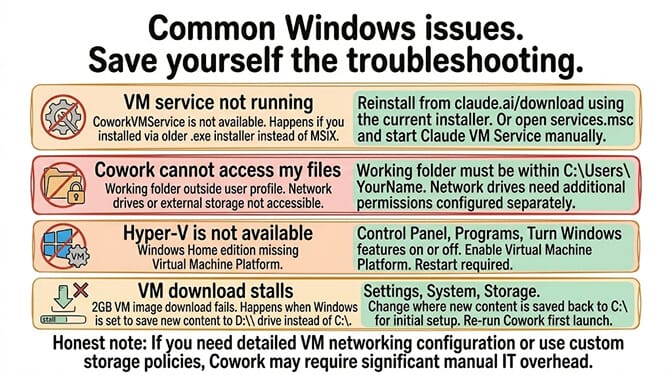
"VM service not running": The Claude VM Service (CoworkVMService) isn't available. This happens if you installed via the older .exe installer instead of MSIX. Reinstall from claude.com/download, or start the service manually: run Start-Service CoworkVMService in an admin PowerShell (in services.msc it can show up simply as "Claude"). What cowork-svc.exe is explains the service itself. For the full list of failure modes and fixes, see our guide on Claude Cowork not working on Windows.
"Cowork can't access my files": Your working folder must be within your user profile (C:\Users\YourName). Network drives and external storage may need additional permissions.
"Hyper-V isn't available": On Windows Home editions, enable Virtual Machine Platform from Control Panel. A restart is required. If Cowork still won't start and Get-Service vmcompute, hns, vfpext shows services missing even after re-enabling the feature, Home's missing Hyper-V pieces are the likely cause: upgrade to Pro or use Cowork on the web at claude.ai.
VM download stalls: The ~2GB VM image downloads to your system drive. If Windows redirects new content to a D:\ drive (Settings → System → Storage → "Where new content is saved"), the download can fail. Change it back to C:\ for the initial setup.
Frequently Asked Questions
Is Claude Cowork available for Windows?
Yes. Anthropic released Claude Cowork for Windows on February 10, 2026, one month after the macOS launch on January 12. Full feature parity with macOS. Requires Windows 10 or later, including Windows 11, the Claude Desktop app installed from the .msix package, and a paid plan (Pro $20/month or higher). Download from claude.com/download.
How do I set up Claude Cowork on Windows?
Download Claude Desktop from claude.com/download. Install and log in with a paid plan. Enable Virtual Machine Platform in Windows features (restart required). Click the Cowork tab in Claude Desktop. On first run, a ~2GB VM image downloads automatically. Select a working folder and start your first task. Total setup: about 5 minutes.
What are the Claude Cowork system requirements on Windows?
Windows 10 or later, including Windows 11, on x64 or Arm64. You need the Virtual Machine Platform feature enabled, hardware virtualization on in BIOS/UEFI, Claude Desktop installed from the .msix package, admin rights for the first install, and a paid Claude plan (Pro, Max, Team or Enterprise). Anthropic publishes no RAM minimum, but the Cowork VM uses about 1.8 GB, so 8 GB total is the practical floor. The full list is in the requirements table.
How do I enable Claude Cowork on Windows?
Install Claude Desktop from claude.com/download and sign in with a paid plan. Turn on Virtual Machine Platform, either in Turn Windows features on or off or with Enable-WindowsOptionalFeature -Online -FeatureName VirtualMachinePlatform -All in an admin PowerShell. Use Restart, not Shut down. Then open the Cowork tab. If it says "Additional setup needed", the feature is still off or the restart did not finish initializing it.
What is cowork-svc.exe?
cowork-svc.exe is the executable behind CoworkVMService, the Windows service Claude Desktop installs to run the virtual machine Cowork works inside. It is a normal part of Claude Desktop and runs in the background as LocalSystem. You can stop it with Stop-Service CoworkVMService, but it restarts automatically within seconds and can't be disabled, because Windows protects services installed from MSIX packages. The only way to remove it permanently is to uninstall Claude Desktop. More on cowork-svc.exe.
Can I install Claude Cowork without admin rights?
Not on your own. Without admin rights Claude Desktop installs, but Cowork on desktop is unavailable because the installer can't register CoworkVMService. The supported workaround is for an IT admin to provision Claude machine-wide with Add-AppxProvisionedPackage -Online -PackagePath "Claude.msix" -SkipLicense -Regions "all", after which standard users get Cowork. Otherwise, use Cowork on the web at claude.ai, which needs no install but has no local file access. Full steps.
Does Claude Cowork work on Windows 11 Home?
Sometimes. Anthropic's documented requirement is Virtual Machine Platform, which Home has (it's just off by default), and Anthropic doesn't name an edition requirement. In practice, many Home users report Cowork failing because Home lacks full Hyper-V (vmms) and parts of the HCS stack. Enable Virtual Machine Platform in Turn Windows features on or off and restart. If Cowork still won't start, run Get-Service vmcompute, hns, vfpext: if those services are still missing after re-enabling the feature, upgrade to Windows Pro for the desktop app or use Cowork on the web at claude.ai, which runs in the cloud and skips the local VM. Full walkthrough in Claude Cowork on Windows 11 Home.
How much does Claude Cowork cost?
Cowork requires a paid Claude plan: Pro ($20/month), Max ($100-200/month), Team ($25/month per seat billed monthly, $20 billed annually), or Enterprise. There is no standalone Cowork plan and no free tier access. For agents that live on messaging channels instead, BetterClaw has a free plan with 1 agent, 100 credits a month, and BYOK, or $49/month for Pro with 5 agents.
Does Claude Cowork keep running when I close my laptop?
Yes, since July 7, 2026. Cowork sessions run in the cloud on every surface, so closing the laptop does not stop the task, and scheduled tasks run with no device online at all. The one exception is local capabilities: a session can read and write files in folders you have connected on your computer, use local connectors and plugins, or drive browser and computer use only while the Claude Desktop app is open. Cloud sessions on web and mobile are in beta for Pro, Max, and Team plans.
What's the difference between Claude Cowork and BetterClaw?
Both run in the cloud and both keep working when your machine is off, so that is no longer the distinction. Cowork operates on your own files, is single-user, and runs Claude only. BetterClaw operates as a conversational agent on 15+ messaging channels including WhatsApp, Telegram, Discord, and Slack, supports team workspaces and persistent agent identity, and lets you bring your own key across 28+ model providers. Many people run both: Cowork for the filesystem, BetterClaw for the channels.