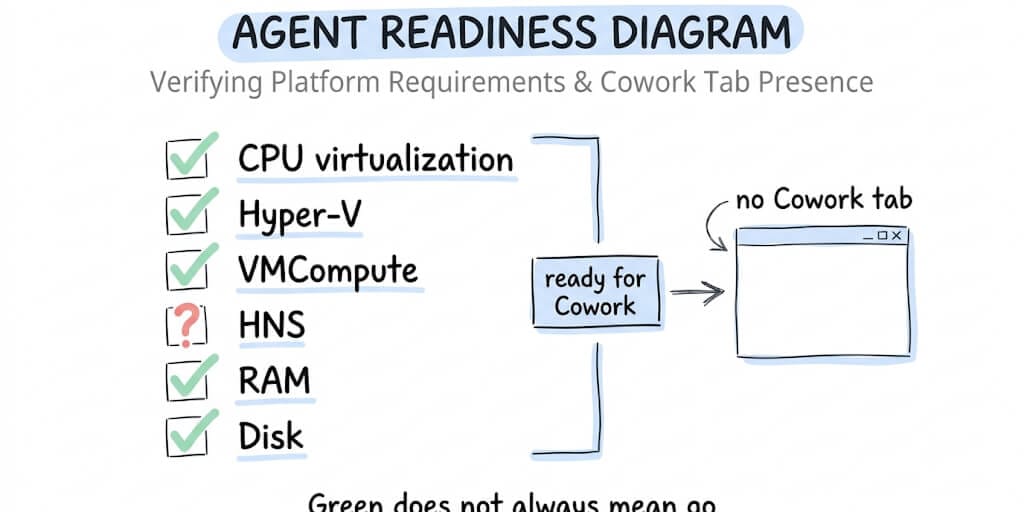
Six tests, one green "ready" message, and a Cowork tab that still refuses to appear. Here is what the checker is actually looking at.
You run the exe. Six lines scroll past. Every one says PASS.
Then you open Claude Desktop and there is no Cowork tab. Just Chat, sitting there, entirely unbothered by your six green ticks.
The Cowork readiness check is a standalone utility from Anthropic that inspects whether your Windows machine can host Cowork's sandboxed VM. It is useful, and on one specific configuration it is confidently wrong. Here is what each test looks at, and what to do when one fails.
All six tests pass but Cowork broke after a September 2026 Windows update? The checker won't catch that one. The September 8 update broke how Cowork's VM reaches your files, and Microsoft fixed it on September 14 (KB5129195 on Windows 11 24H2/25H2). Run Windows Update and restart. Full fix.
Where to get the readiness checker
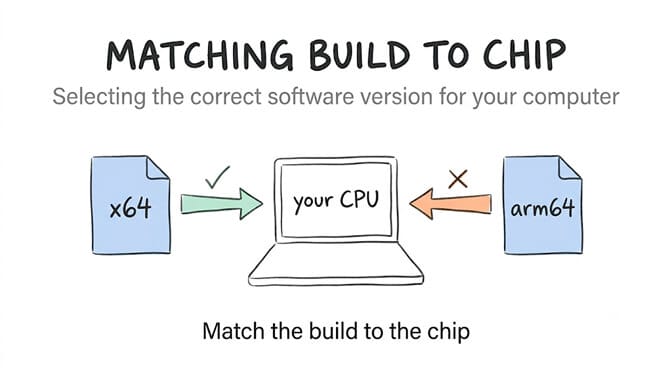
It is not inside Claude Desktop. It ships as a separate download linked from Anthropic's Cowork getting-started article, in Windows x64 and ARM64 builds. Grab the one matching your processor.
Each item reports PASS, WARN, or FAIL, and the final line reads SUPPORTED or UNSUPPORTED.
The checker tests the host. It does not test whether Cowork will launch. Those are different questions.
What each Cowork readiness check test looks at
Hyper-V and Virtual Machine Platform
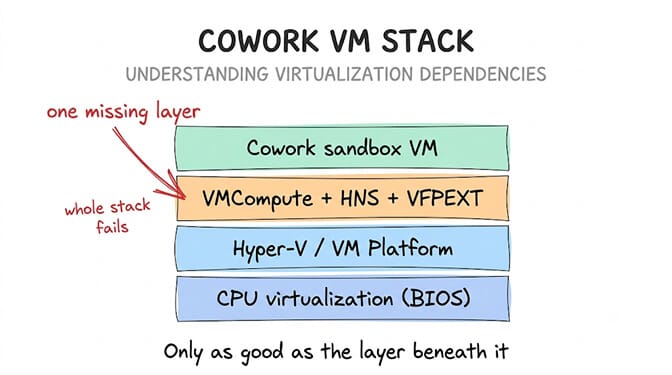
This is the test that decides everything. Cowork's sandbox runs on the Windows Host Compute Service stack, which sits on Hyper-V.
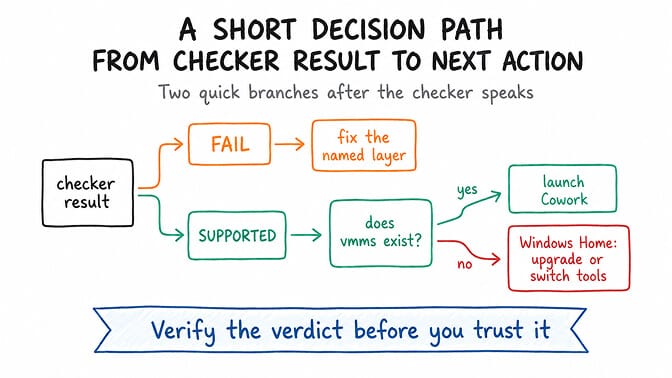
Windows Home does not ship the full stack. It has Virtual Machine Platform, which is what Anthropic documents as the requirement, but not full Hyper-V or the full HCS stack, and many Home users report Cowork failing as a result. The fastest way to know where you stand is Get-Service vmms in PowerShell. If the service does not exist, you are on Home, and feature-toggling will not add it.
On Pro, Enterprise, or Education, run Enable-WindowsOptionalFeature -Online -FeatureName VirtualMachinePlatform -All elevated. Our walkthrough for enabling Virtual Machine Platform for Cowork covers the GUI path.
Then restart. Not shut down and power on. Fast Startup can leave the virtualization services uninitialized through a full power cycle, which is an infuriating way to lose half an hour.
VMCompute
VMCompute is the Hyper-V Host Compute Service, the layer that creates and runs the VM. Check it with Get-Service vmcompute. It should read Running.
It ships with startup type Manual, so it can be present, pass the check, and still be stopped when you need it. Some third-party security suites also cause it to terminate with access denied, 0x80070005, on every start attempt while the readiness check still reports PASS.
HNS
HNS is the Host Network Service, the virtual networking layer. Check it with Get-Service hns.
Cowork's internal NAT network uses 172.16.0.0/24. If your office network or VPN already uses that range, the VM boots fine and cannot reach anything, which looks nothing like a networking problem from your side.
CPU virtualization
This one is firmware, not Windows. The checker reads whether hardware virtualization is on in BIOS or UEFI, labelled Intel VT-x on Intel boards and SVM Mode on AMD.
Fastest confirmation without rebooting: Task Manager, Performance, CPU, and look at the Virtualization line. If it reads Disabled, nothing else works until you fix it in firmware.
One wrinkle. If VMware or VirtualBox is installed, a third-party hypervisor may have set Windows' own hypervisor to stay off at boot. Run bcdedit elevated and confirm hypervisorlaunchtype reads Auto.
RAM
The checker reports your memory and flags low values. Anthropic does not publish a hard floor, which is why 4 GB and 8 GB both circulate.
Practically: the workspace VM consumes around 4 GB while running, so 8 GB is the realistic minimum and 16 GB is where it stops feeling like a compromise.
Disk
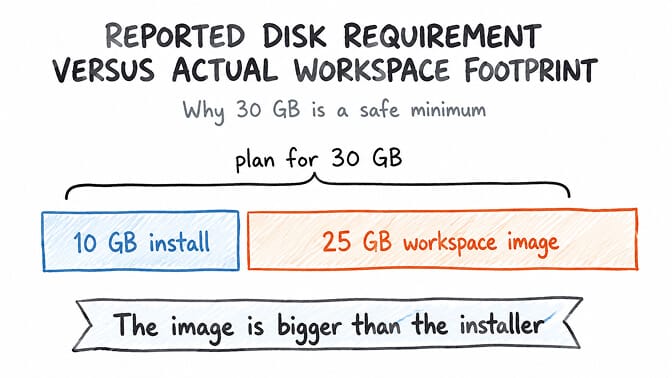
Roughly 10 GB free is the usual install figure, but the workspace image itself has been reported closer to 25 GB once it downloads and expands. A PASS on a nearly full drive is accurate and useless. Give yourself 30 GB.
If reading out Windows services to diagnose an AI assistant feels like the wrong use of an afternoon, that reaction is reasonable. We built BetterClaw as a cloud agent platform for this exact reason. No VM, no Windows features, no BIOS trip. Free plan, no card.
The Windows 11 Home false positive no one warns you about
This is the failure mode worth knowing, because the checker does not report it as a failure.
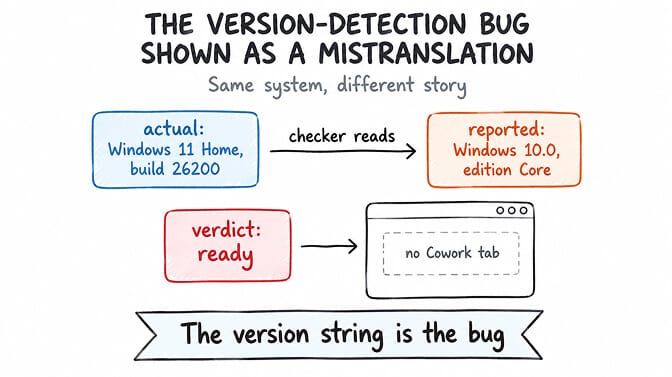
GitHub issue #50621, filed in April 2026, documents the readiness checker on a Windows 11 Home machine reporting the OS as "Windows version 10.0 build 26200" with edition "Core". Build 26200 is Windows 11. "Core" is Microsoft's internal name for Home. The checker translated neither, declared the machine ready, and the Cowork tab never appeared.
Windows 11 still reports its internal version as 10.0, and the checker takes that at face value. The issue was closed as a duplicate, which tells you how many people hit it.
It is not the only pass-then-fail pattern. Issue #46033 documents a Snapdragon X machine returning SUPPORTED on every item, 31.6 GB RAM and 820 GB free, then failing with a VM connection timeout after 60 seconds.
So treat SUPPORTED as a hypothesis. Confirm it with Get-Service vmms.
What to do for each failure
CPU virtualization FAIL means firmware, and everything else is blocked until it is on.
Hyper-V or Virtual Machine Platform FAIL means enable the features and restart properly. An empty Get-Service vmms means Home. If Cowork won't start there, the options are a Pro upgrade or Cowork on the web at claude.ai, which runs in the cloud and skips the local VM.
VMCompute or HNS FAIL usually means the feature is on but the service stack is not registered or running. Our guide to fixing missing HCS services covers vmcompute, hns, and the stubborn vfpext driver separately.
RAM or disk WARN is the only category safe to ignore for a first test.
If the error you are seeing is the Virtual Machine Platform message rather than a readiness-check failure, our Virtual Machine Platform fix guide walks through all three fixes in order.
If your machine will never run a local hypervisor, better to know now than after three hours of PowerShell. We built a side-by-side of Cowork and a cloud agent platform for that call, plus a comparison of OpenClaw and Cowork if self-hosting is on the table.
Skip the readiness check entirely
BetterClaw runs your agent on infrastructure that is always ready — no virtualization, no HCS services, no VM eating your laptop's RAM. Start free → No credit card · Free plan with 1 agent and 100 credits/mo · $49/mo for Pro, $39 on annual · Deploy in ~60 seconds
Six green ticks felt like permission. They were only ever a description of your hardware.
Frequently Asked Questions
What is the Cowork readiness check?
It is a standalone program from Anthropic that tests whether your Windows machine can run Claude Cowork's sandboxed virtual machine. It inspects CPU virtualization, Hyper-V and Virtual Machine Platform, the Host Compute Service components, RAM, and free disk space, then returns SUPPORTED or UNSUPPORTED. It downloads separately from Claude Desktop.
How does the readiness check differ from just installing Claude Desktop?
The check tests your host before you commit to an install. Claude Desktop tells you whether Cowork actually launches, which is stricter. Documented cases show SUPPORTED machines where the workspace still fails, so a pass is a good sign rather than a guarantee.
How do I run cowork readiness check.exe and read the result?
Download the build matching your processor and run it. It prints one line per test with PASS, WARN, or FAIL, then an overall verdict. Follow it with Get-Service vmms to confirm you are not on a Windows Home edition the checker misread.
Is passing the readiness check enough to use Cowork, and what does it cost?
No. You also need a paid Claude plan, since Cowork is not on the free tier, and Claude Desktop rather than web or mobile. The readiness check itself is free and takes seconds.
Is running an AI agent inside a local VM safe enough for work files?
The VM boundary is real and the right design for local file access. The practical risk is scope, since an agent with folder access can modify more than you intended. Grant one project folder rather than your whole user directory, and keep a backup before the first serious task.