
Overview
Available on
Free, Pro, and Enterprise plans
Setup time
About 5 minutes
What you need
A Gmail or Google Workspace account with 2-Step Verification enabled
Connection method
App Password over IMAP and SMTP
What your agent can do
Read inbox, search by keyword/sender/date, fetch full message bodies, compose and send mail, manage labels
BetterClaw connects to Gmail using a Google App Password, a 16-character code Google generates specifically for third-party apps. Your real Gmail password is never stored, and the App Password can be revoked any time from your Google account settings without affecting anything else.
Once connected, any agent in your workspace with the Gmail skill installed can ask Gmail for emails, summarize threads, search by date or sender, draft replies, and send mail using your address.
Why App Password and not OAuth?
App Passwords work over IMAP and SMTP. This means setup takes 5 minutes - no Google Cloud Console project, no OAuth consent screen, and no app verification. The trade-off is that you need 2-Step Verification turned on first, and there is one minor limitation around the Sent folder explained later in this guide.
What you will do
- Turn on 2-Step Verification on your Google account
- Generate a Google App Password labeled "betterclaw"
- Save the App Password to the BetterClaw vault
- Install the
gmail-app-passwordskill on your agent - Test by asking your agent to fetch or send an email
Step 1: Turn on 2-Step Verification
Google only allows App Passwords on accounts with 2-Step Verification active. If you already have it on, skip to Step 2.
Go to myaccount.google.com/security and click 2-Step Verification. Follow the prompts to add a phone number or authenticator app. Confirm with the test code Google sends. The whole thing takes about a minute.
App Passwords are unavailable unless 2-Step Verification is active. Even if you find the App Passwords page, the Create button will be disabled until 2SV is on.
Step 2: Open the Connect Gmail Dialog in BetterClaw
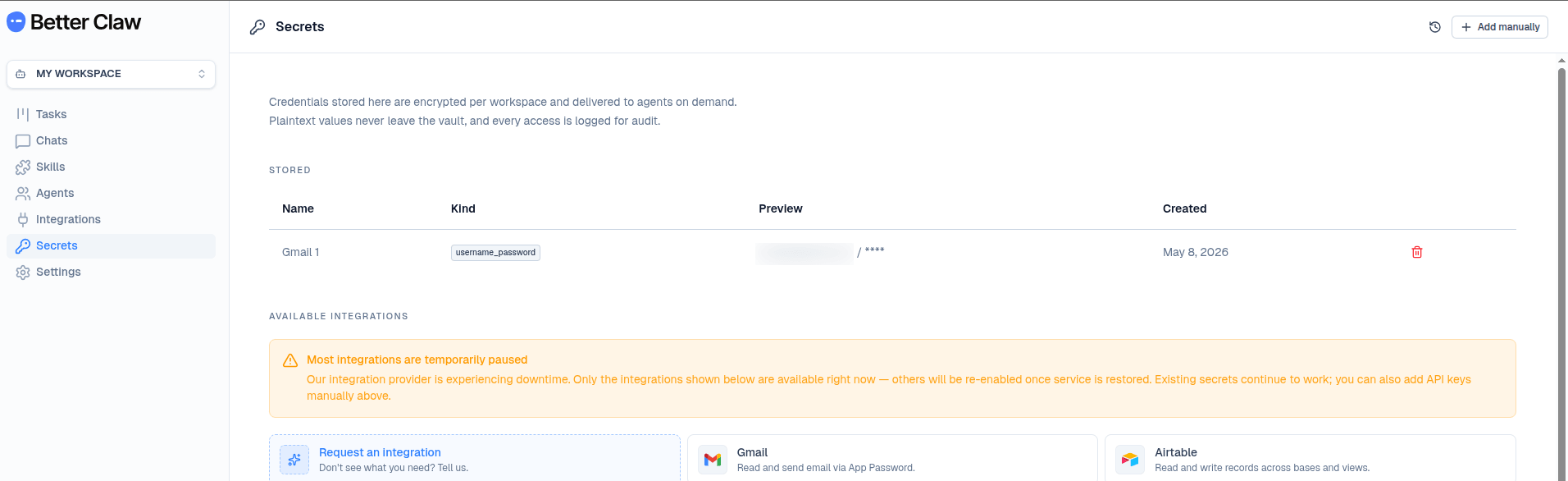
Log in to BetterClaw, go to Secrets from the left sidebar, scroll to Available Integrations, and click Gmail. A dialog opens with the full creation guide and two input fields.
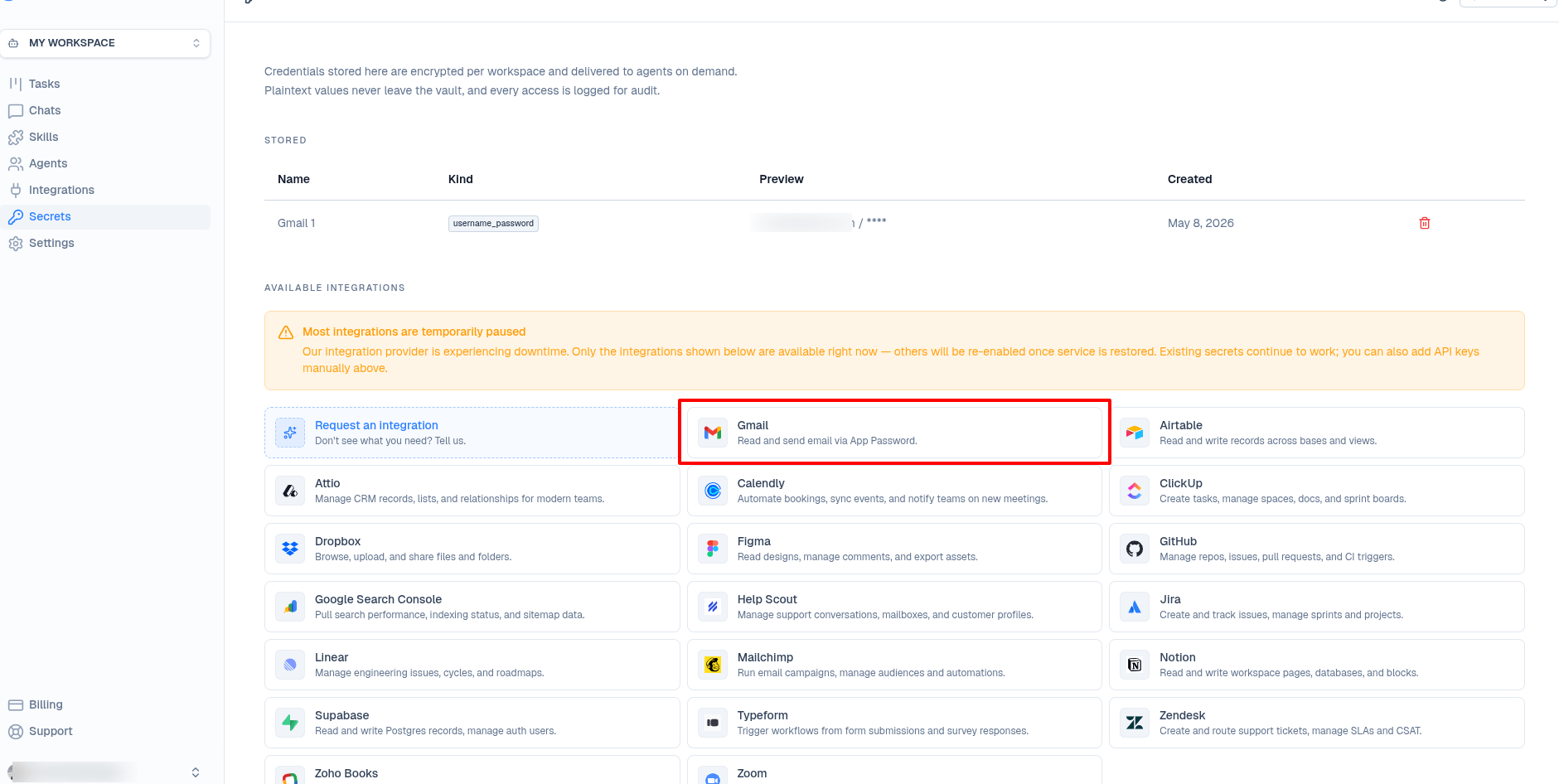
Keep this dialog open. We will fill it in after we generate the App Password from Google.
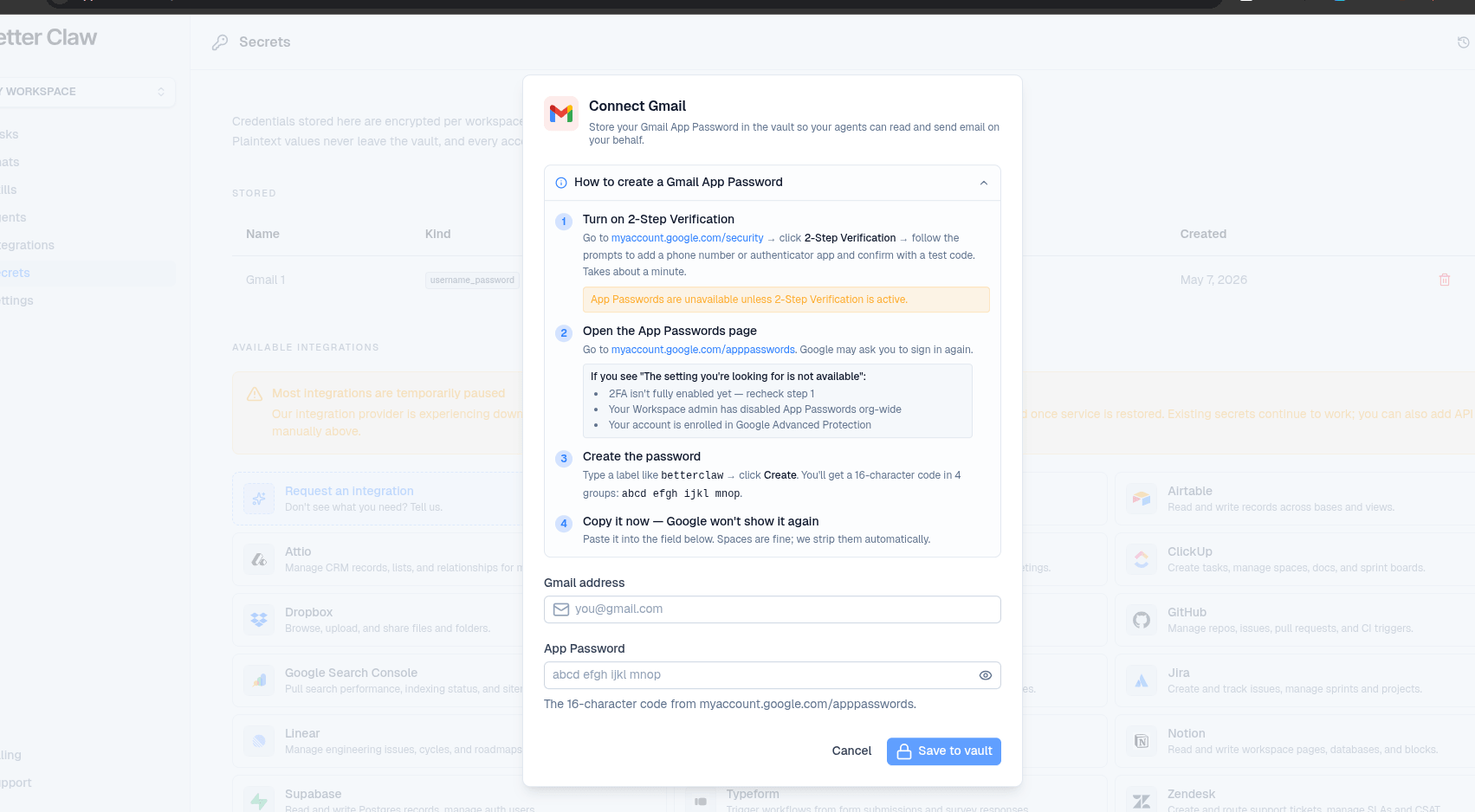
Step 3: Generate a Google App Password
Open a new tab and go to myaccount.google.com/apppasswords. Google may ask you to sign in again, even if you are already logged into Gmail.
On the App Passwords page you will see a field labeled App name. Type a label so you can identify this credential later. We recommend:
betterclawClick Create. Google generates a 16-character code split into 4 groups of 4 letters, like:
abcd efgh ijkl mnop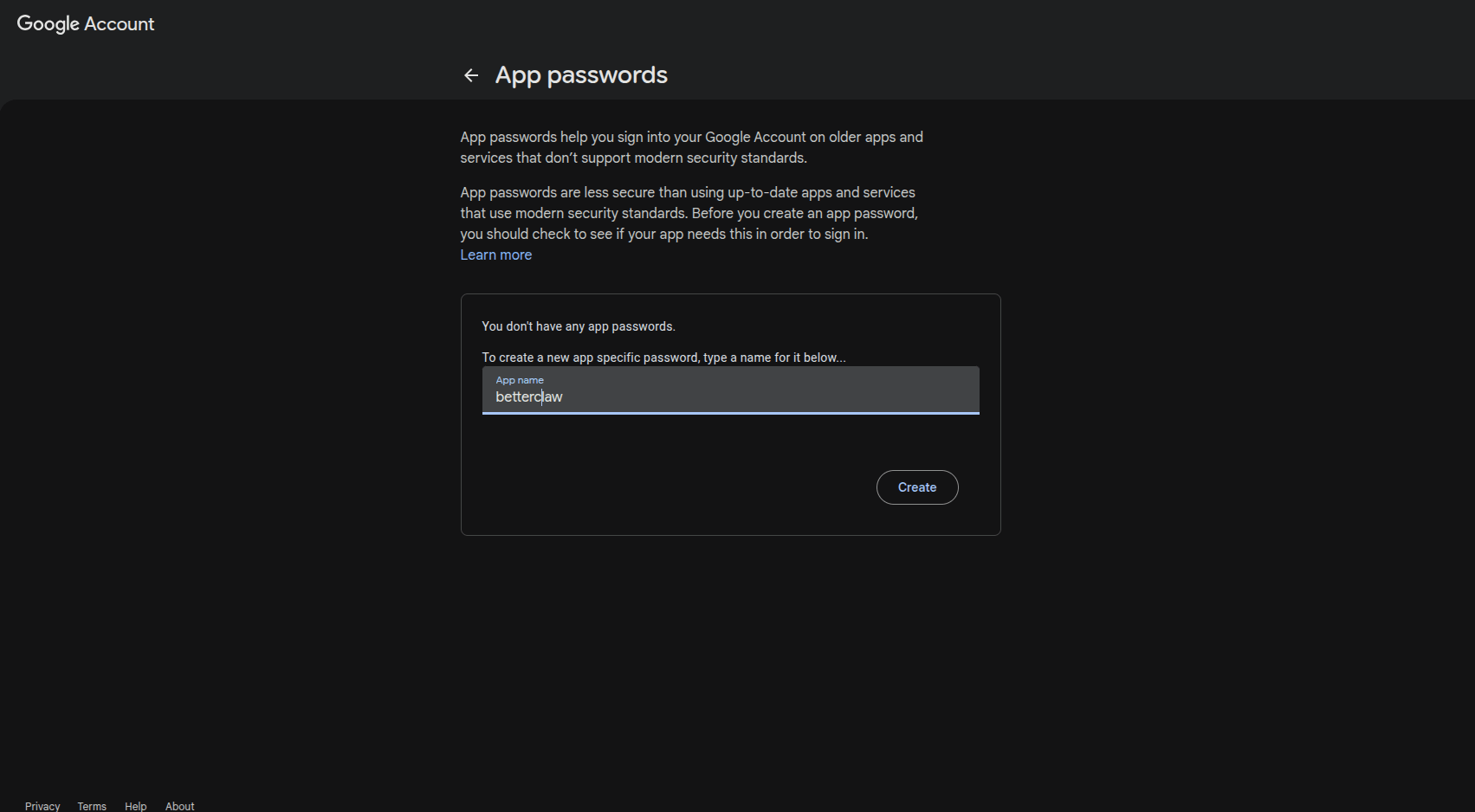
Google shows the App Password exactly once. The moment you close the dialog or leave the page, the code is gone forever. If you lose it, you have to delete the entry and create a new one. Click the code to copy it before doing anything else.
What if I see "The setting you are looking for is not available"?
That message means one of three things:
- 2-Step Verification is not fully enabled yet. Go back to Step 1 and confirm the test code, then refresh the page.
- Your Workspace admin has disabled App Passwords organization-wide. If you are on a corporate Gmail account, ask your IT admin to allow App Passwords, or use a personal Gmail account for testing.
- Your account is enrolled in Google Advanced Protection. Advanced Protection blocks all App Password access by design. You will need to either disable it or use a different Google account.
Step 4: Save the Password to BetterClaw
Switch back to the BetterClaw tab where the Connect Gmail dialog is still open. Fill in both fields:
Gmail Address
Your full email address, for example yourname@gmail.com or you@yourcompany.com if it is a Google Workspace address.
App Password
Paste the 16-character code from Google. The spaces between groups are fine. BetterClaw strips them automatically before storing the value.
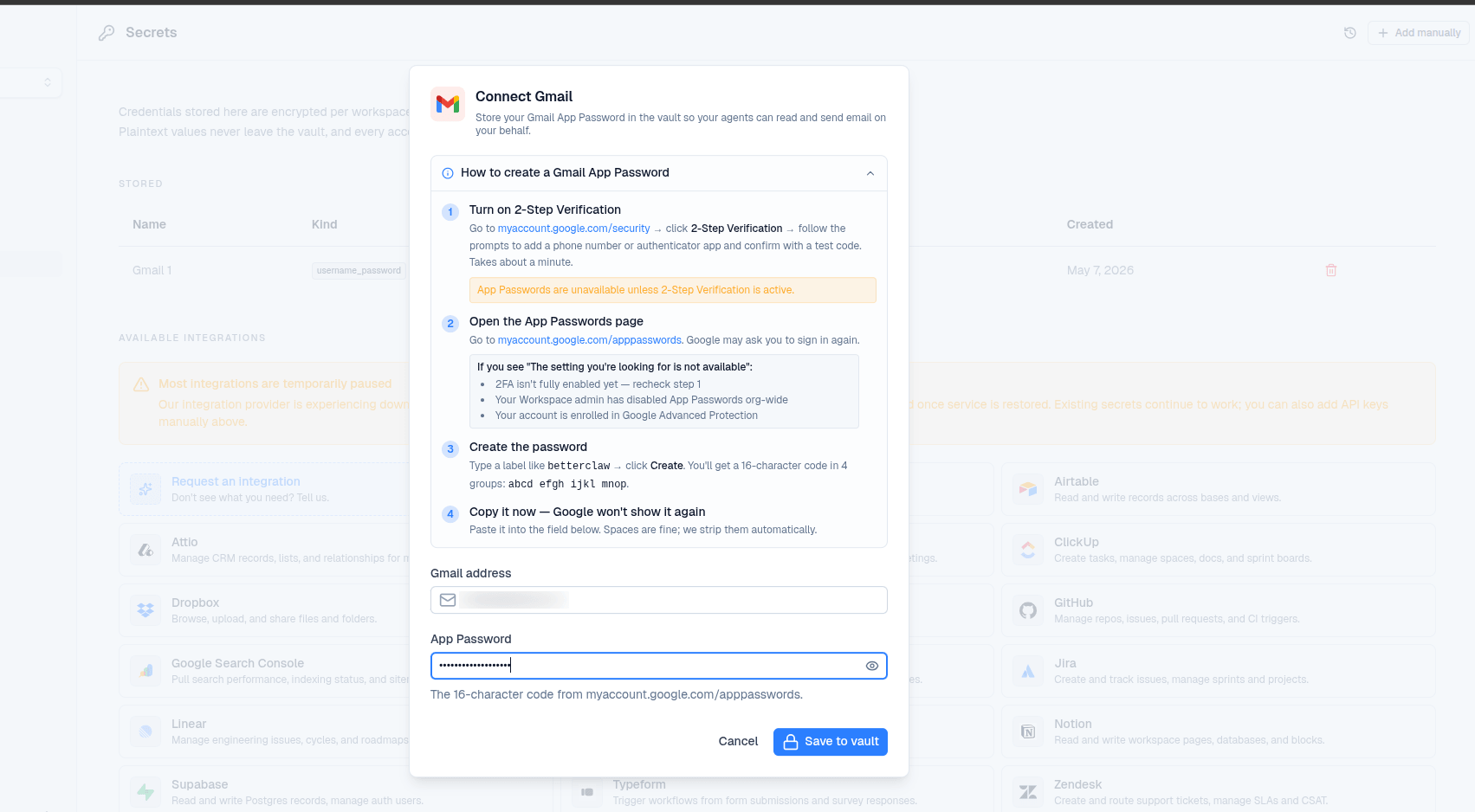
Click Save to vault. You will see a "Gmail connected. Your App Password is stored securely in the vault." confirmation in the bottom right corner.
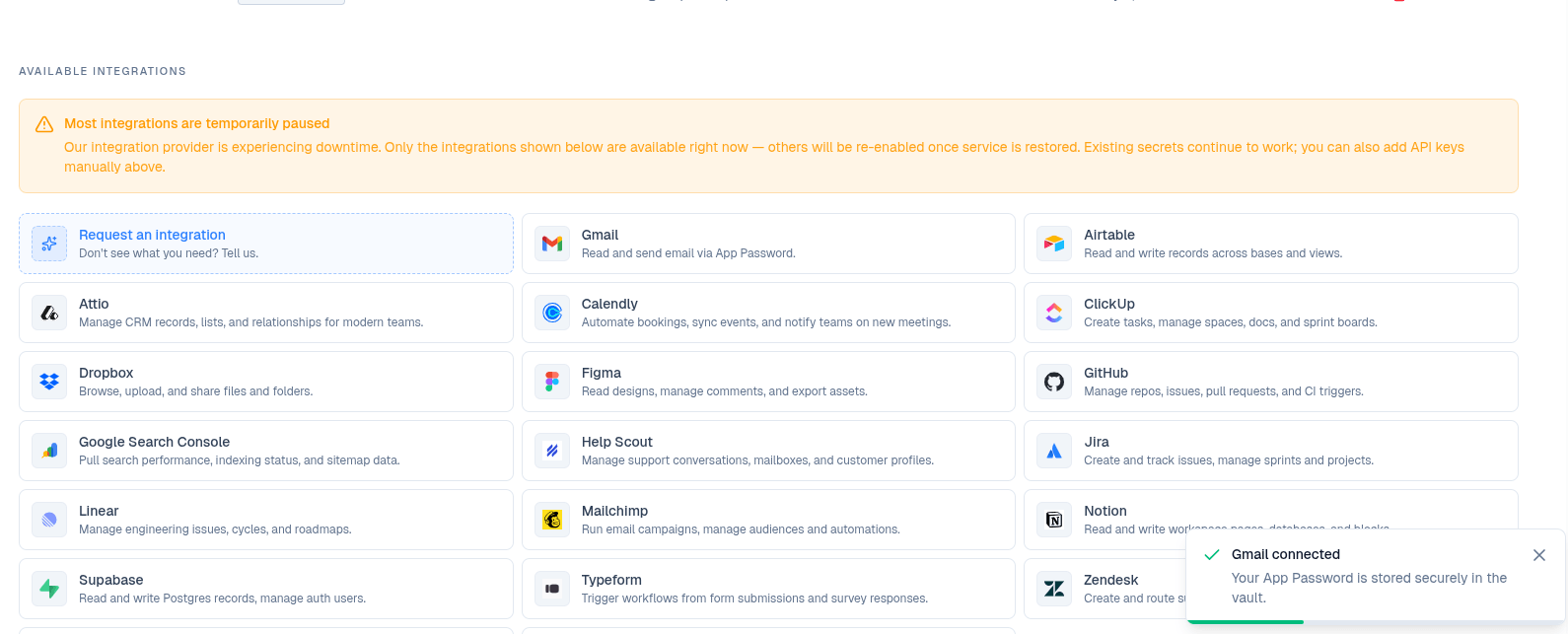
Your secret is now stored encrypted at the workspace level. The plaintext password never leaves the vault and every time an agent reads it, the access is logged for audit.
Step 5: Install the Gmail Skill on Your Agent
Storing the secret only puts the credential in the vault. Your agent needs the skill that knows how to actually talk to Gmail.
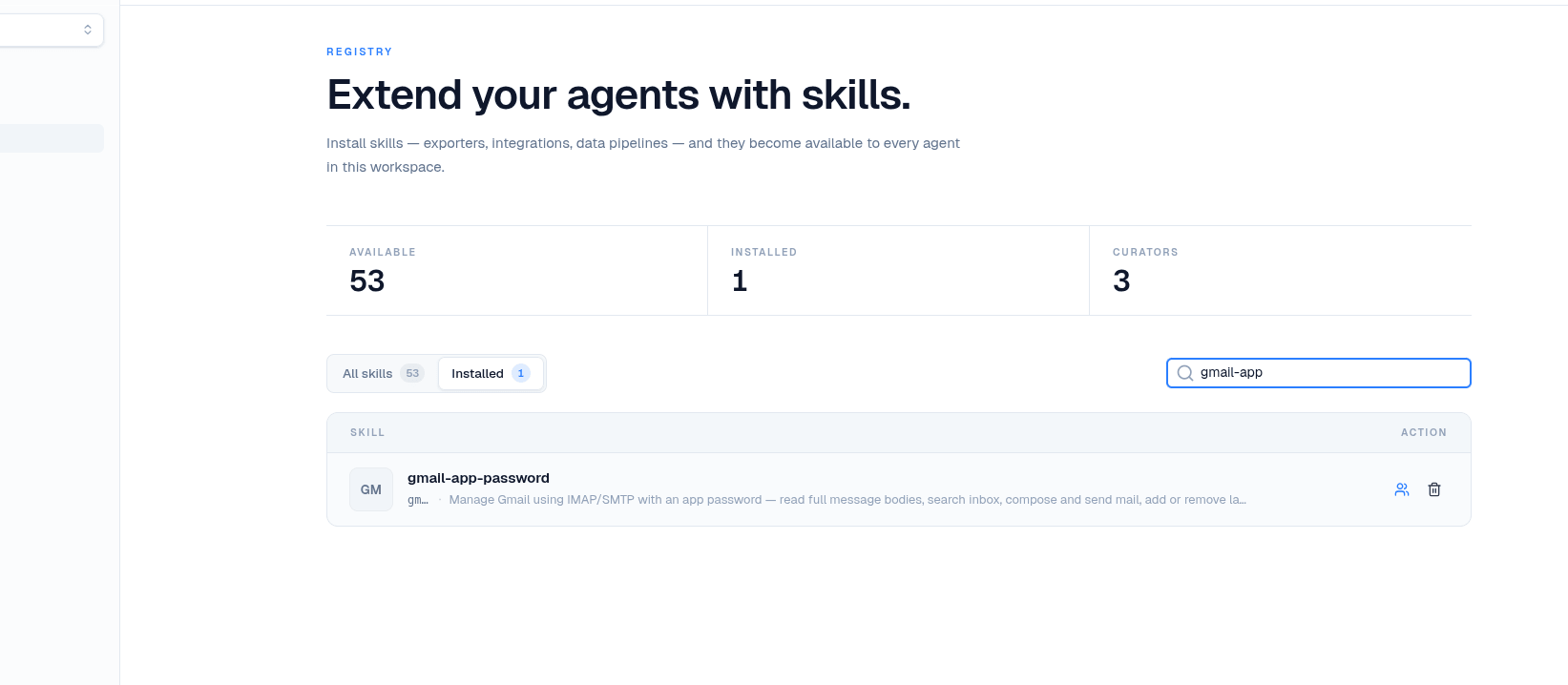
Go to Skills from the left sidebar. In the search box, type:
gmailYou will see two results:
- gmail (v2.0.0) - uses Google API via OAuth integration. Use this only if you have set up the Gmail OAuth integration separately.
- gmail-app-password - works with the App Password you just stored.
Pick gmail-app-password and click Install. A side panel opens.
In the side panel, you will see:
- Agent - pick which agent in your workspace gets this skill. Each agent needs the skill installed individually.
- Credentials required: GMAIL_APP_PASSWORD - bind the secret you saved in Step 4 to this skill. Pick it from the dropdown. The preview shows your email address and masked password so you know which one you are picking.
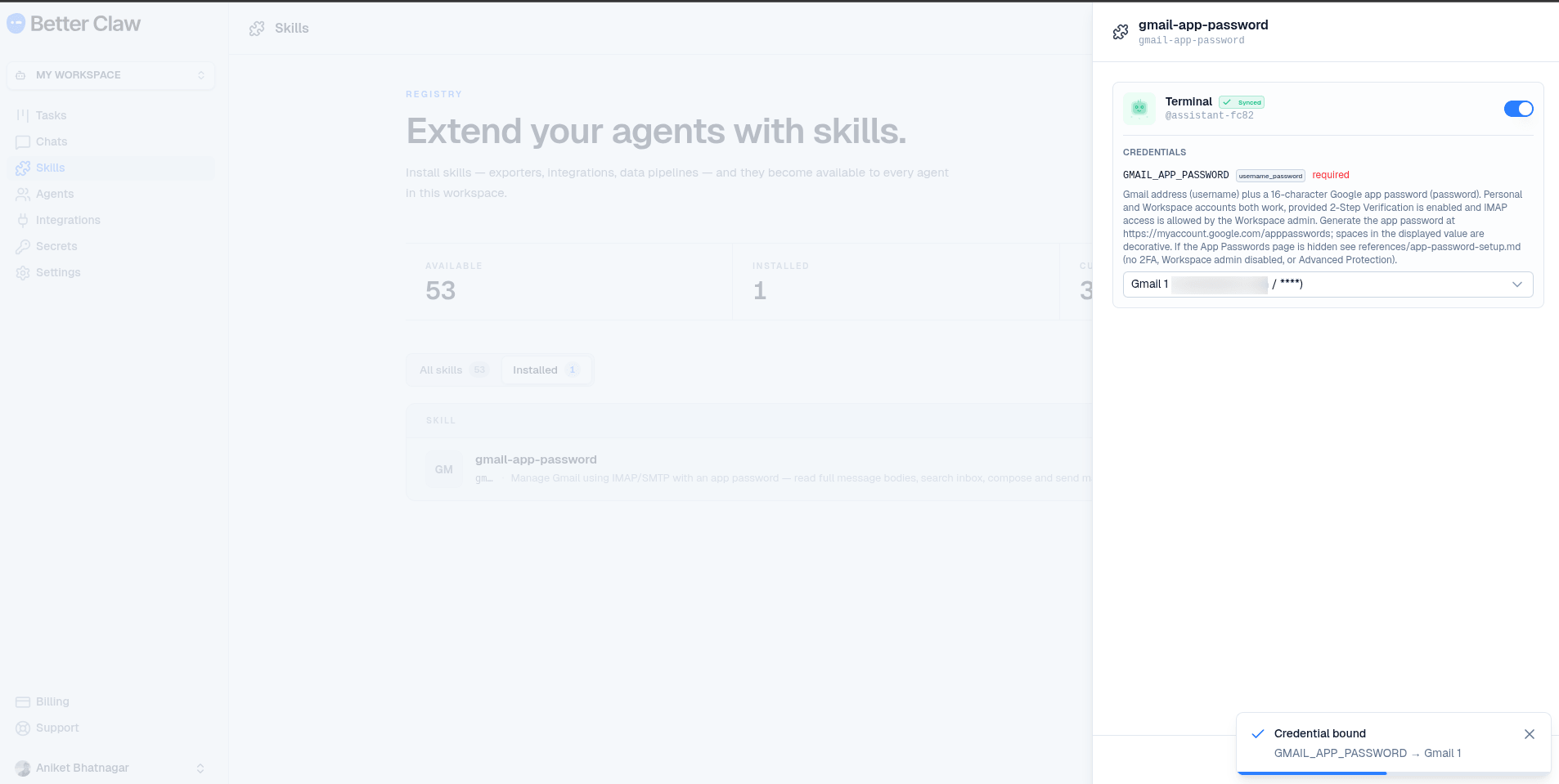
That is it. The skill is installed and bound to the credential. The agent can now use Gmail.
Step 6: Test It
Go to Chats from the left sidebar, start a New chat, and pick the agent you just gave the Gmail skill.
Test reading
Try a prompt like:
give me the emails in past 2 hours You should see the agent think for a few seconds, load the Gmail skill, install imap-tools internally, and then return a structured summary of your recent inbox grouped by sender, time, subject, and a summary of highlights.
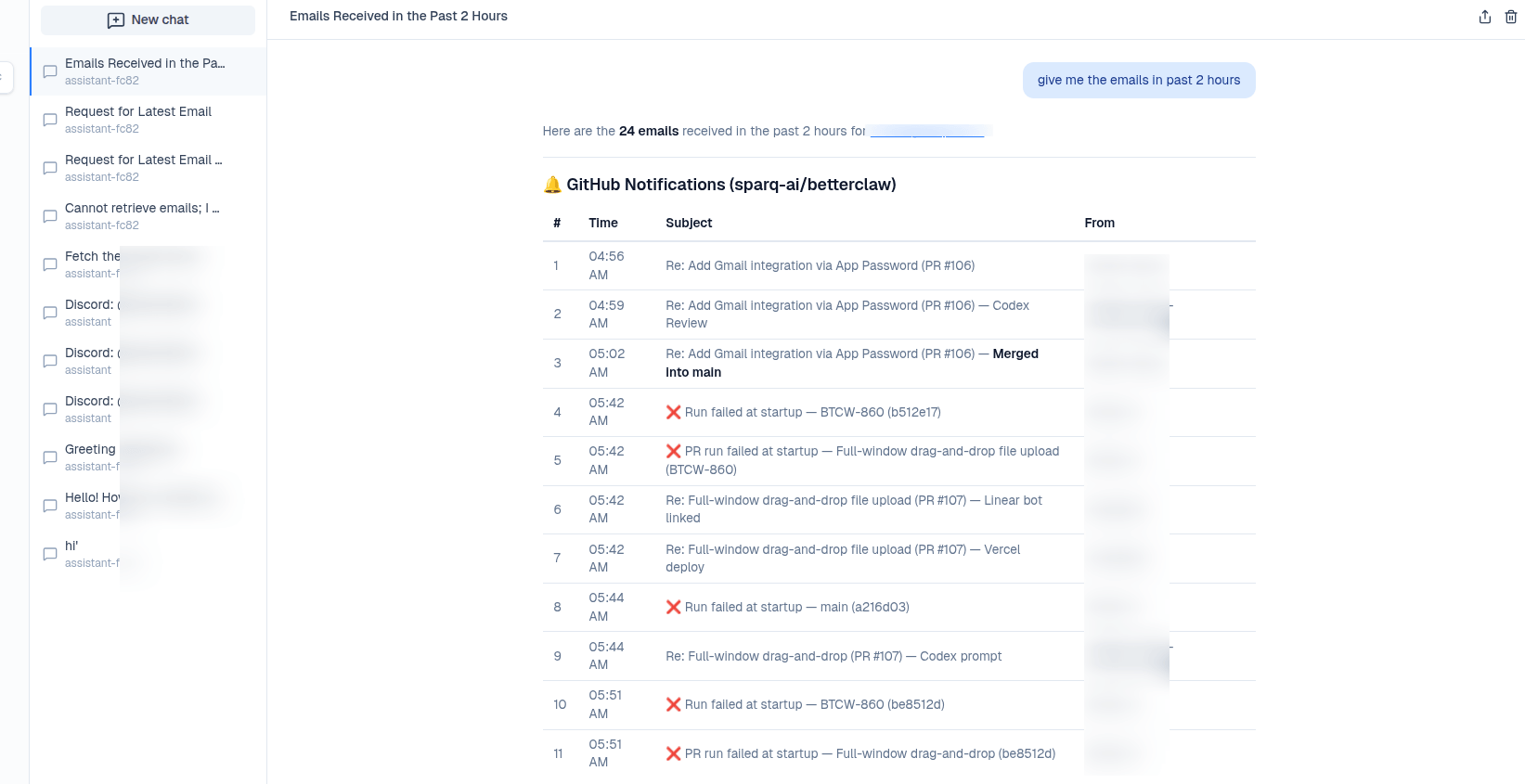
Test sending
In the same chat, try:
send an email to teammate@example.com with body: Gmail integration is liveThe agent will compose and send the email through your Gmail account. You will get a confirmation showing To, Subject, and Body fields.
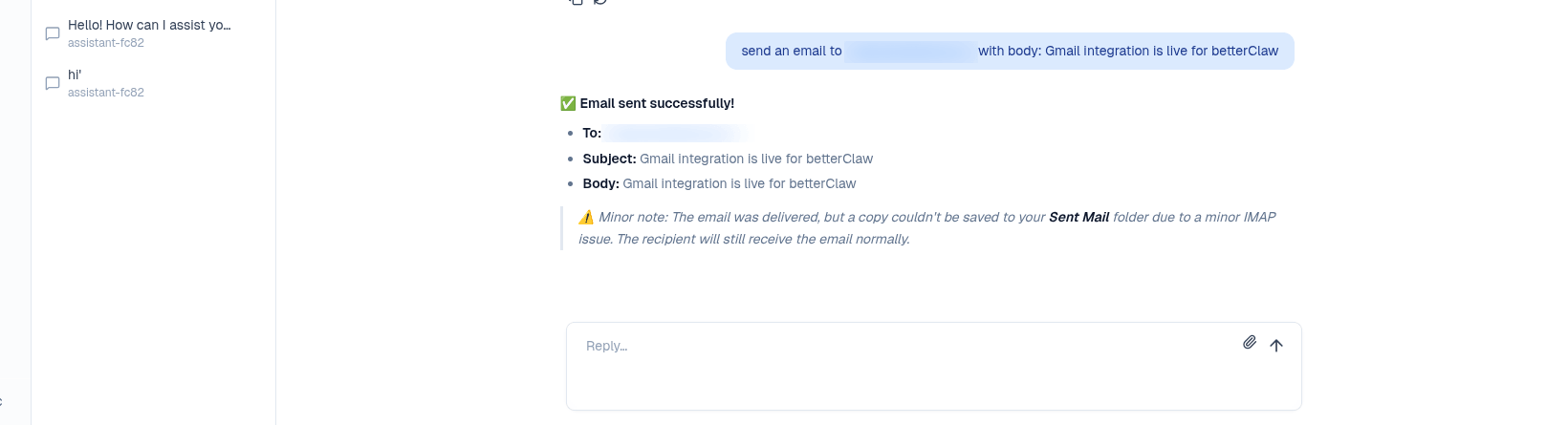
When the agent sends an email, you might see a small note in the response about the email being delivered but a copy not being saved to your Sent Mail folder due to a minor IMAP issue. This is an IMAP behavior, not a bug. Gmail sends the message through SMTP and recipients receive it normally, but Gmail does not always re-import the SMTP-sent copy back into the IMAP Sent folder. This affects most IMAP/SMTP-based email tools, not just BetterClaw. If you need the sent copy in your Sent folder, the simplest workaround is to BCC yourself when asking the agent to send. For example: send an email to teammate@example.com, bcc me, with body: ...
Common Questions
Is my password safe?
Yes. Two layers of protection: First, App Passwords are not your real Gmail password. They only grant IMAP/SMTP access and you can revoke them any time at myaccount.google.com/apppasswords without changing your real password. Second, BetterClaw encrypts all secrets at rest at the workspace level. Plaintext values never leave the vault, and every read is logged for audit.
Can multiple agents share the same Gmail account?
Yes. The secret is stored once in the vault and you can bind it to as many agents as you want. Each agent that needs Gmail just installs the gmail-app-password skill and selects the same Gmail credential.
Can I connect multiple Gmail accounts?
Yes. Repeat Steps 2 to 4 for each address. The vault will show Gmail 1, Gmail 2, and so on. When you install the skill on an agent, you pick which one to bind.
How do I disconnect Gmail?
Two places. First, on BetterClaw: go to Secrets, find the Gmail entry, and click the delete icon. The secret is removed from the vault and any agent skill bound to it stops working immediately. Second, on Google: go to myaccount.google.com/apppasswords and delete the "betterclaw" entry. This invalidates the password globally so even if it leaked somewhere, it can no longer be used.
What about Google Workspace accounts (custom domains)?
Works the same way as long as your Workspace admin allows App Passwords. Some organizations disable them for security. If you are on a strict Workspace and the App Passwords page shows as unavailable, talk to your IT admin or use a personal Gmail account for the agent.
Does this work with Google Advanced Protection accounts?
No. Advanced Protection explicitly blocks App Password creation. You will need to disable Advanced Protection or use a different Google account.
Can the agent read attachments?
The agent can list and reference attachments in messages it reads. Downloading and processing attachment contents depends on what other skills the agent has installed (for example, a PDF reader skill or an image analysis skill).
Troubleshooting
Authentication failed or wrong username/password
The most common cause is a typo when pasting the App Password, or pasting your regular Gmail password by accident. Go to Secrets, delete the Gmail entry, and redo Step 4 with a freshly generated App Password. Remember the App Password is shown to you exactly once on Google, so generate a new one if you have lost the original.
Agent says it does not know how to read or send email
The skill is not installed on that specific agent. Go to Skills, find gmail-app-password, install it, and confirm both the agent selection and credential binding in the side panel.
"Account access blocked" email from Google after connecting
This is a normal Google security alert. The email simply lets you know that something signed in. Since you initiated this yourself, no action is needed. If you ever get this alert and you did not connect anything new, immediately go to myaccount.google.com/apppasswords and delete any entries you do not recognize.
Sent emails do not appear in my Sent folder
See "Heads up about the Sent folder" earlier in this guide. The recipient still receives the email. To keep a copy in your Sent folder, BCC yourself when asking the agent to send.
Agent fetches old emails but not the most recent ones
Gmail occasionally lags on IMAP indexing for new messages, especially on busy accounts. Wait 30 to 60 seconds and ask again. If it persists, ask the agent specifically for "the latest unread email" to force a fresh IMAP query.
App Password works but the agent times out
On very large mailboxes, the first IMAP connection can take 20 to 40 seconds while imap-tools indexes folders. This is a one-time cost per session. Try narrowing your request, for example "emails from Stripe in the last 24 hours" instead of "all my emails".
Quick Reference
| Step | Action | Where |
|---|---|---|
| 1. Enable 2-Step Verification | Turn on 2SV on your Google account | myaccount.google.com/security |
| 2. Open Connect Gmail dialog | Click Gmail under Available Integrations | BetterClaw > Secrets > Gmail |
| 3. Generate App Password | Name it "betterclaw" and copy the 16-character code | myaccount.google.com/apppasswords |
| 4. Save password to vault | Paste email + App Password, click Save to vault | BetterClaw > Connect Gmail dialog |
| 5. Install gmail-app-password skill | Pick agent, bind credential, install | BetterClaw > Skills > Search "gmail" |
| 6. Test reading and sending | Ask the agent to fetch or send an email | BetterClaw > Chats > New chat |
Related Documentation
- How to Install Custom Skills
- How to Integrate Telegram with BetterClaw
- How to Connect Your Agent to Discord
Need more help? Email support@betterclaw.io or open the chat widget in your dashboard.