
Overview
Telegram bots are special accounts that run without a phone number. They are created and managed through BotFather, which is Telegram's official bot for registering new bots and managing existing ones.
When you create a bot through BotFather, you receive a bot token. This token is a long string that acts as your bot's authentication key. BetterClaw uses this token to send and receive messages on your bot's behalf.
The entire process takes about 2 minutes.
Jump to
- Create a bot token — the four-step BotFather walkthrough
- "Username must end in bot" error — why BotFather rejects your username, and valid examples
- How to revoke a bot token — the
/revokecommand, step by step - How to regenerate a lost token — recover it with
/mybots, or issue a new one - Token format and where to find it — what each half of the token means
- How to find your chat ID: read it from
getUpdatesfor a private chat or a group - Connecting the token to an AI agent — OpenClaw, Hermes, and BetterClaw
Prerequisites
- A Telegram account (requires a phone number for initial registration)
- Telegram app installed on your phone, desktop, or access via web.telegram.org
Step 1: Open BotFather
Open Telegram and search for @BotFather in the search bar at the top.
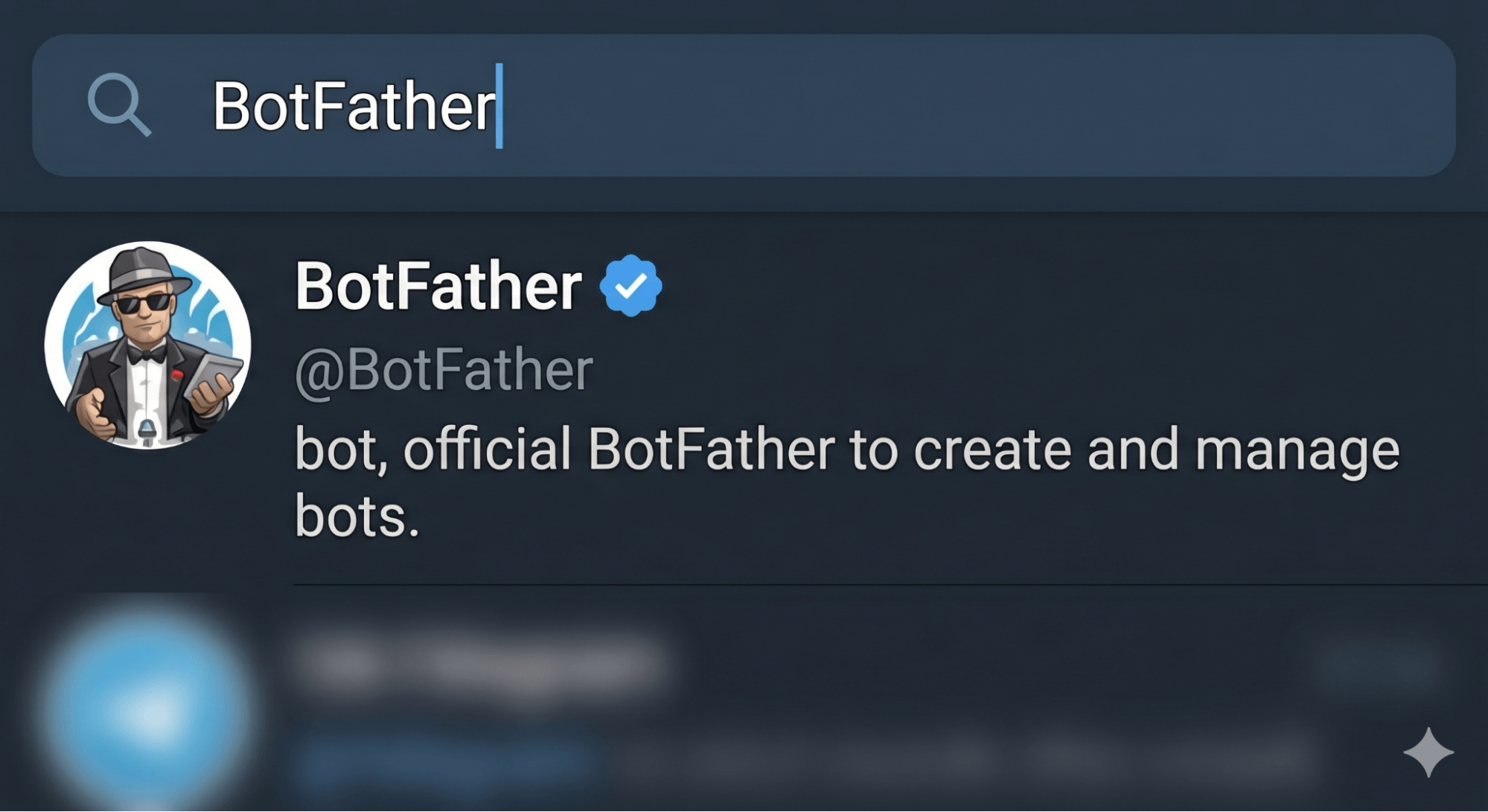
Make sure you select the verified BotFather account. It has a blue checkmark next to its name and the handle is exactly @BotFather. There are fake accounts with similar names. If the account does not have the blue verification badge, do not use it.
Click on BotFather to open the chat. If this is your first time, click Start or type /start to begin. BotFather will respond with a list of available commands.
Step 2: Create a New Bot
Type or tap /newbot and send the message. BotFather will ask you two questions, one at a time.
Choose a Display Name
First, BotFather asks: "Alright, a new bot. How are we going to call it? Please choose a name for your bot."
This is the display name that users will see in their chat list and at the top of the conversation. It can be anything you want. For example: "My Assistant", "Support Bot", or "Acme AI Agent".
Type your chosen name and send it.
Choose a Username
Next, BotFather asks: "Good. Now let's choose a username for your bot. It must end in 'bot'. Like this, for example: TetrisBot or tetris_bot."
The username is the unique handle for your bot. It must end with "bot" (case-insensitive). For example: "acme_support_bot" or "MyAssistantBot". If the username is already taken, BotFather will ask you to try another one.
Type your chosen username and send it.
BotFather says "Sorry, this username is invalid" or "It must end in 'bot'"? The username, not the display name, has to end in bot or _bot. Add it and send the username again. See Fixing "Username Must End in Bot" for the full rules and valid examples.
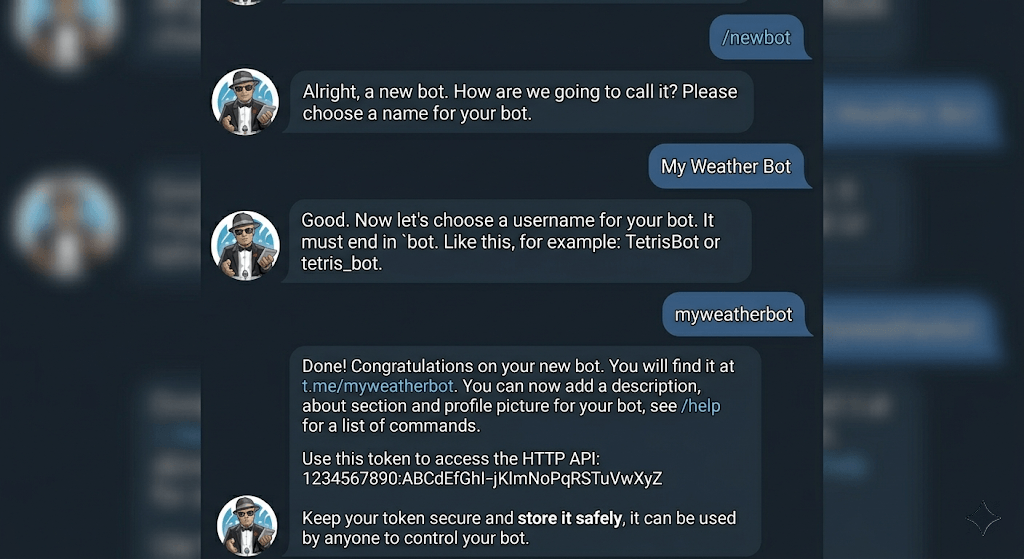
Fixing "Username Must End in Bot" in BotFather
If BotFather answers your username with "Sorry, this username is invalid." or repeats "It must end in 'bot'.", you have hit Telegram's naming rule. Every bot username must end with bot or _bot. This is enforced by Telegram and there is no way around it.
The most common source of confusion: this rule applies to the username (the @handle that forms your t.me/ link), not the display name BotFather asked for in the previous step. Your display name can be anything — "Acme Support", "Nova", a single emoji. Only the username is constrained.
| Username | Accepted? | Why |
|---|---|---|
acme_support_bot | Valid | Ends in _bot |
AcmeSupportBot | Valid | Ends in bot (case does not matter) |
acme_support | Rejected | Does not end in bot |
bot_acme_support | Rejected | Has "bot" at the start, not the end |
The rest of the username rules, which trip people up right after they fix the "bot" suffix:
- 5 to 32 characters long
- Latin letters, digits, and underscores only — no spaces, hyphens, or dots
- Case-insensitive, so
MyBotandmybotare the same name to Telegram - Globally unique across all of Telegram, so short generic names are almost always taken
If the name is rejected as taken rather than invalid, see Troubleshooting below.
Step 3: Copy Your Bot Token
Once you provide a valid username, BotFather responds with a success message that includes your bot token. The message will say something like:
Done! Congratulations on your new bot. You will find it at t.me/your_bot_username.

Use this token to access the HTTP API:
123456789:ABCDefgh-IJKLmnopQRSTuvwxyz1234567

Keep your token secure and store it safely.
The token is the long string that looks like 123456789:ABCDefgh-IJKLmnopQRSTuvwxyz1234567. It consists of two parts separated by a colon: a numeric bot ID and an alphanumeric authentication hash.
Copy the entire token, including the colon and everything after it. You will paste this into BetterClaw in the next step.
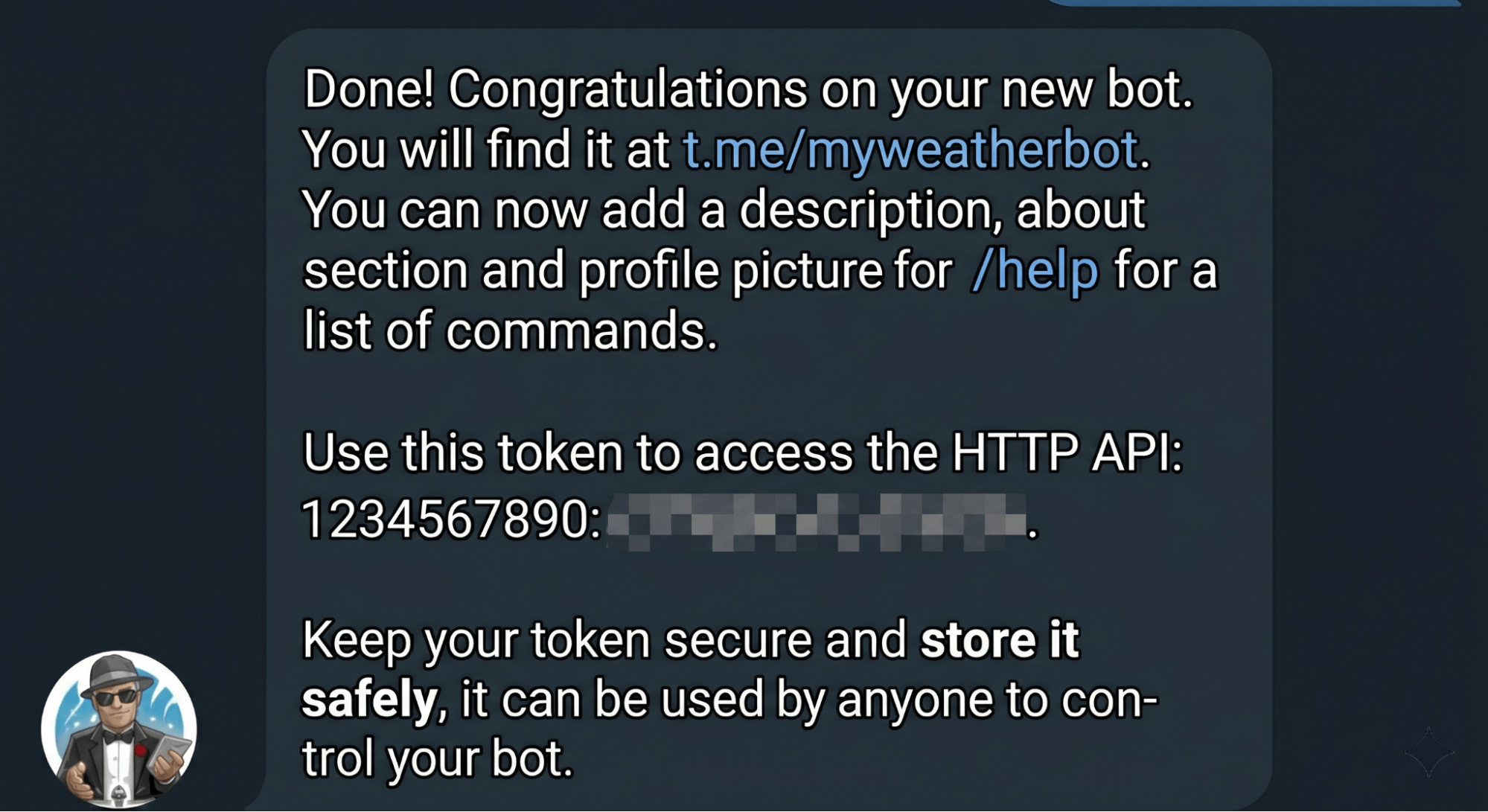
Do not share your bot token publicly. Anyone with the token can control your bot, read messages, and send messages on its behalf. If your token is ever exposed, use the /revoke command in BotFather to generate a new one immediately.
Step 4: Add the Token to BetterClaw
Now that you have your bot token, you need to store it in your BetterClaw workspace so your agent can use it.
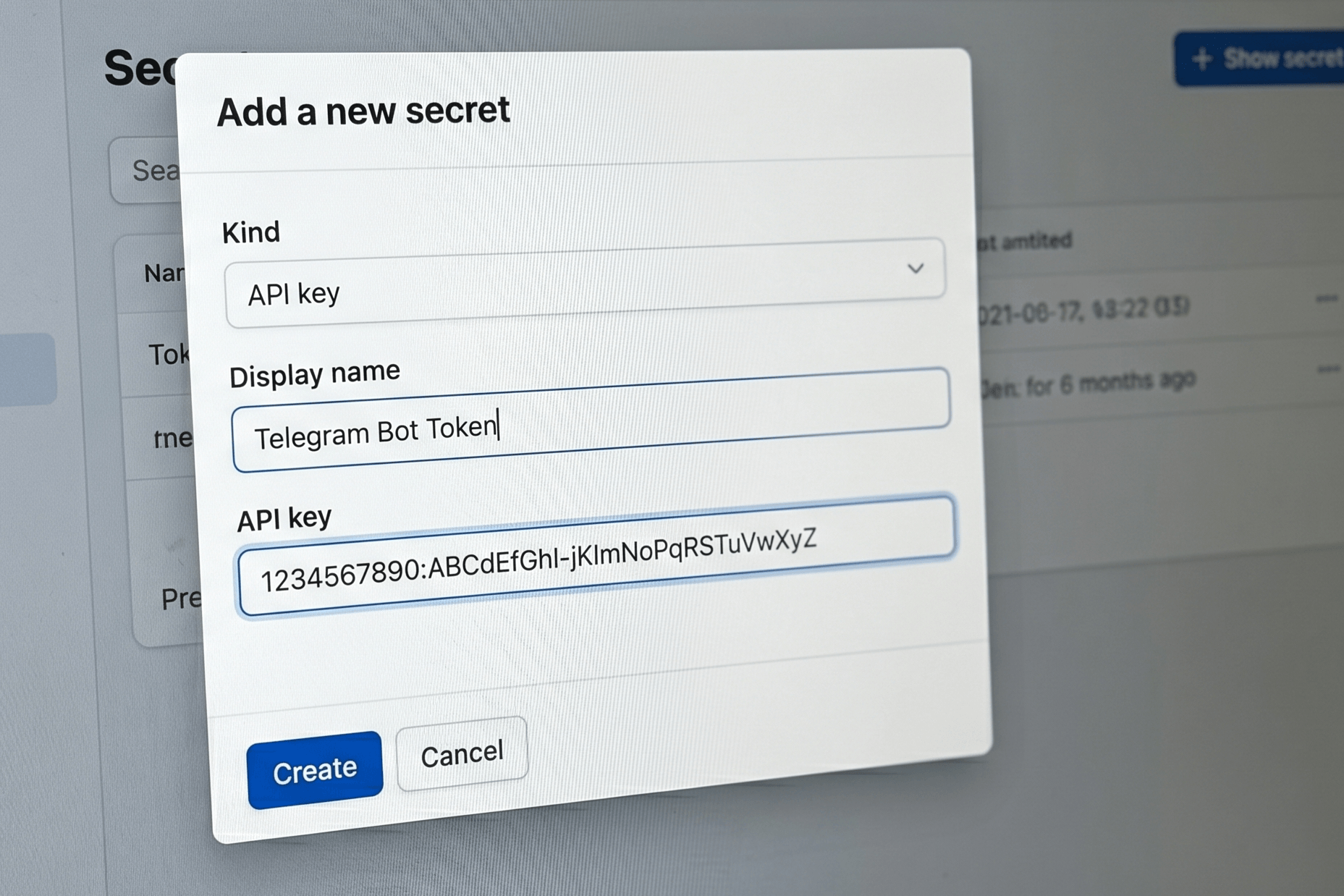
- Go to Secrets in the left sidebar of your BetterClaw workspace.
- Click + Add secret.
- Set Kind to "API key".
- Set Display name to something recognizable, like "Telegram Bot Token".
- Paste your bot token into the API key field.
- Click Create.
Your Telegram bot token is now securely stored and encrypted. When you enable Telegram as a channel on your agent, BetterClaw will use this token to authenticate with the Telegram Bot API.
Optional: Customize Your Bot
Before connecting your bot to BetterClaw, you can optionally customize its appearance in Telegram. All of these commands are sent to BotFather.
| Command | What It Does | Example |
|---|---|---|
/setname | Changes the bot's display name | "Acme AI Support" |
/setdescription | Sets the text users see before starting a chat | "AI assistant for Acme Corp" |
/setabouttext | Sets the short bio in the bot's profile | "Powered by BetterClaw" |
/setuserpic | Uploads a profile picture for the bot | Upload a 512x512 PNG image |
/setcommands | Defines the command menu users see in the chat | help - Show available commands |
/revoke | Generates a new token (invalidates the old one) | Use if your token is compromised |
Understanding the Token Format
A Telegram bot token always follows this format:
<bot_id>:<auth_hash>- Bot ID: The numeric part before the colon. This is your bot's unique identifier on Telegram.
- Auth Hash: The alphanumeric string after the colon. This authenticates API requests.
When pasting the token into BetterClaw, always include both parts with the colon. A common mistake is accidentally cutting off the beginning or end of the token when copying.
How to Find Your Telegram Chat ID
The token identifies your bot. A chat ID identifies a conversation, and you need it whenever your code or a tool asks where to send messages (a chat_id parameter or a TELEGRAM_CHAT_ID variable). The reliable way to get it uses only your token and Telegram's own Bot API, so there is no need to hand your token to a third-party "chat ID" bot or website.
- Open your bot in Telegram (
t.me/your_bot_username), tap Start, and send it any message, such as "hi". Telegram only creates an update once someone messages the bot. - In a browser, open the URL below with your token in place of
<TOKEN>. Keep the wordbotdirectly in front of the token, with no space. - Find
"chat":{"id": ...}insidemessagein the response. That number is your chat ID.
https://api.telegram.org/bot<TOKEN>/getUpdates{
"ok": true,
"result": [
{
"update_id": 815230001,
"message": {
"message_id": 1,
"from": { "id": 123456789, "is_bot": false, "first_name": "Ana" },
"chat": { "id": 123456789, "first_name": "Ana", "type": "private" },
"date": 1792000000,
"text": "hi"
}
}
]
} The same request works from a terminal with curl "https://api.telegram.org/bot<TOKEN>/getUpdates". Treat the URL like the token itself: it contains the token, so do not paste it into a shared doc or screenshot.
Private chats, groups, and supergroups
- Private chat with you: a positive number. It is the same as your Telegram user ID, so the
from.idandchat.idvalues match. - Basic group: a negative number, such as
-4512345678. - Supergroup or channel: a negative number that typically starts with
-100, such as-1001234567890. Copy the full value, minus sign and-100prefix included.
To get a group's ID, add the bot to the group, post a message there, then load getUpdates again. If a basic group is later upgraded to a supergroup, its ID changes, so read it again after the upgrade.
getUpdates returns an empty result
- Nobody has messaged the bot yet, or it was too long ago. Telegram keeps pending updates for at most 24 hours. Send a fresh message and reload the URL.
- A webhook is set.
getUpdatesdoes not work while an outgoing webhook is configured, which is the case once the token is connected to an agent platform or server. Check with/getWebhookInfo. You can call/deleteWebhookto read updates manually, but that disconnects whatever was receiving them until the webhook is set again, so it is often easier to read the ID before connecting the bot. - Group messages are missing. Bots in groups run in privacy mode by default and only see commands meant for them (such as
/start@your_bot_username), replies to their own messages, and service messages. Send a command like that in the group, or make the bot an admin, since admin bots receive every message. You can also turn privacy mode off with/setprivacyin BotFather, but the bot then has to be removed and re-added to the group for the change to apply.
Token Security
Your bot token is a credential, not a configuration value. Anyone holding it can control your bot, read every message sent to it, and send messages as it. Telegram does not tie the token to an IP address or a device, so a leaked token works for whoever finds it until you revoke it.
- Do not commit it to a Git repo, public or private. Repo history outlives the file you deleted it from.
- Do not paste it into a Slack, Discord, or support channel, and do not include it in a screenshot.
- Store it in an environment variable or a secrets manager rather than plaintext config.
- Use a separate bot and token per environment. Telegram allows only one active connection per token, so sharing one between staging and production causes 409 Conflict errors as well as being a security problem.
- If you suspect it was exposed, revoke and regenerate immediately. Deleting the message or the commit does not invalidate the token.
On BetterClaw, bot tokens are encrypted at rest with AES-256 and auto-purge from agent memory after 5 minutes. On a self-hosted OpenClaw or Hermes setup, token storage and rotation are your responsibility.
What to Do With Your Bot Token: Connect It to an AI Agent
You have a token. Most guides stop here. If the reason you created this bot is to put an AI agent behind it, here is what the token actually plugs into on each of the three common platforms.
OpenClaw (self-hosted)
Add the token to your config at ~/.openclaw/openclaw.json under the Telegram channel:
{
  "channels": {
    "telegram": {
      "enabled": true,
      "botToken": "YOUR_BOT_TOKEN_FROM_BOTFATHER",
      "dmPolicy": "pairing"
    }
  }
}
You can set the token through the environment instead, using TELEGRAM_BOT_TOKEN for the default account. There is no channels login telegram command for Telegram — config or env is the supported path. Then start the gateway, click Start in your bot chat, and approve the pairing code from the terminal. The full walkthrough is in our OpenClaw Telegram setup guide.
Hermes Agent (self-hosted)
Hermes keeps credentials in ~/.hermes/.env and behaviour settings in ~/.hermes/config.yaml. Environment variables take precedence over the YAML.
# ~/.hermes/.env
TELEGRAM_BOT_TOKEN=your-bot-token-here
TELEGRAM_ALLOWED_USERS=your-telegram-user-id
Then run hermes gateway run. As with the Discord gateway, an allowlist is required — without one the gateway denies every incoming message by default, which is a security-first default rather than a bug.
BetterClaw (managed)
No config file, no gateway to run, no pairing code to approve in a terminal. In your workspace, open Integrations in the left sidebar, find the Connect Telegram bot card, paste the token, pick which agent handles the conversation, and choose whether anyone can message the bot or only an allowlist of usernames. Click Connect and the card shows an Active badge.
Telegram is a Pro channel on BetterClaw, at $49/month. The free plan gives you one agent and 100 credits a month with BYOK, which is enough to build and test the agent itself, but the Telegram connection is not included. Full walkthrough: Integrate Telegram with BetterClaw.
How to Revoke a Leaked or Exposed Bot Token (.env, GitHub) and Regenerate It
Telegram has no "reset password" for bots. Revoking the token is the rotation mechanism: you cannot invalidate a leaked token without also being handed a replacement. The whole process happens in BotFather and takes under a minute.
- Open your chat with
@BotFatherand send/revoke. - BotFather replies with a keyboard listing every bot you own. Tap the bot whose token you want to kill. If you only have one bot, it still asks you to confirm the selection.
- BotFather immediately returns a new token. The old token stops working the moment the new one is issued, so there is no overlap window and no way to undo it.
- Paste the new token back into your setup. In BetterClaw, that means Secrets → your Telegram Bot Token entry → update the API key value. Anywhere else the old token is stored (a
.envfile, a CI secret, a webhook config) has to be updated too or that integration will start failing.
If a token was ever committed to a repo (a .env file holding TELEGRAM_BOT_TOKEN pushed to GitHub is the usual case), pasted into a chat, or shared in a screenshot, treat it as compromised and run /revoke right away. Revoking is the only way to lock out whoever has the old token — deleting the message or the commit does not, because the token stays valid until it is revoked.
Revoking a token does not delete your bot, its username, its chat history, or its subscribers. Only the authentication key changes. If you want to remove the bot entirely, use /deletebot instead.
To check your current token without revoking it, send /mybots, select the bot, and choose API Token.
Troubleshooting
BotFather says the username is taken
Telegram bot usernames must be globally unique. Try adding a prefix or suffix that is specific to your organization. For example, instead of "support_bot", try "acme_support_bot" or "support_bot_2026".
Token not working after pasting into BetterClaw
Make sure you copied the full token, including the colon. Check for extra spaces at the beginning or end. If the token still does not work, go back to BotFather and use /mybots to view your bot, then click "API Token" to see the current valid token.
Bot is not responding to messages
After storing the token in BetterClaw, make sure you have also enabled Telegram as a channel on your agent. The token alone does not activate the connection. You also need to open Telegram, find your bot by its username, and click Start to initiate the first conversation.
I accidentally shared my token
Revoke it immediately — see How to Revoke a Leaked or Exposed Bot Token above for the full /revoke flow and what to update afterwards.
I need multiple bots
You can create as many bots as you want through BotFather. Each bot gets its own token. In BetterClaw, store each token as a separate secret and assign them to different agents or channels.
Quick Reference
| Step | Action | Where |
|---|---|---|
| 1. Open BotFather | Search @BotFather in Telegram | Telegram app or web |
| 2. Create bot | Send /newbot, choose name and username | BotFather chat |
| 3. Copy token | Copy the full token from BotFather's response | BotFather chat |
| 4. Store in BetterClaw | Add as API key secret | Sidebar → Secrets → + Add secret |
Frequently Asked Questions
What does BotFather "username must end in bot" mean?
Telegram requires every bot username to end in "bot" or "_bot", for example acme_support_bot or AcmeSupportBot. The rule applies to the username (the @handle), not the display name. Add "bot" to the end of the username and send it again.
How do I get a Telegram bot token?
Open a chat with @BotFather in Telegram and send /newbot. Choose a display name, then a username that ends in "bot". BotFather replies with your token, a string like 123456789:AAH... that has a numeric bot ID, a colon, and an auth hash. If you lose it later, send /mybots, pick the bot, and tap API Token.
Is there a Telegram bot token generator?
BotFather is the only generator. Telegram issues every bot token itself, so a third-party "token generator" website cannot create a working token. Never paste an existing token into one either, because anyone holding the token controls your bot.
How do I revoke a Telegram bot token?
Send /revoke to @BotFather and pick the bot. BotFather issues a new token right away and the old one stops working at the same moment. The bot, its username, and its chats are not affected. Update the token everywhere you stored it.
Is a Telegram bot token free?
Yes. Creating bots and tokens through BotFather is free, and you can create more than one bot from the same Telegram account.
Next Steps
Once your bot token is stored in BetterClaw, you can:
- Enable Telegram as a messaging channel on your agent
- Customize your bot's profile picture and description through BotFather
- Configure DM and group messaging policies
- Test by opening your bot in Telegram and sending a message
For the full Telegram channel configuration, see the Integrate Telegram with BetterClaw guide.