
Prerequisites
Before you begin, make sure you have:
- A BetterClaw workspace with at least one agent created
- A Telegram bot token from BotFather
If you do not have a bot token yet, follow the How to Generate a Telegram Bot Token guide first.
Step 1: Open the Integrations Page
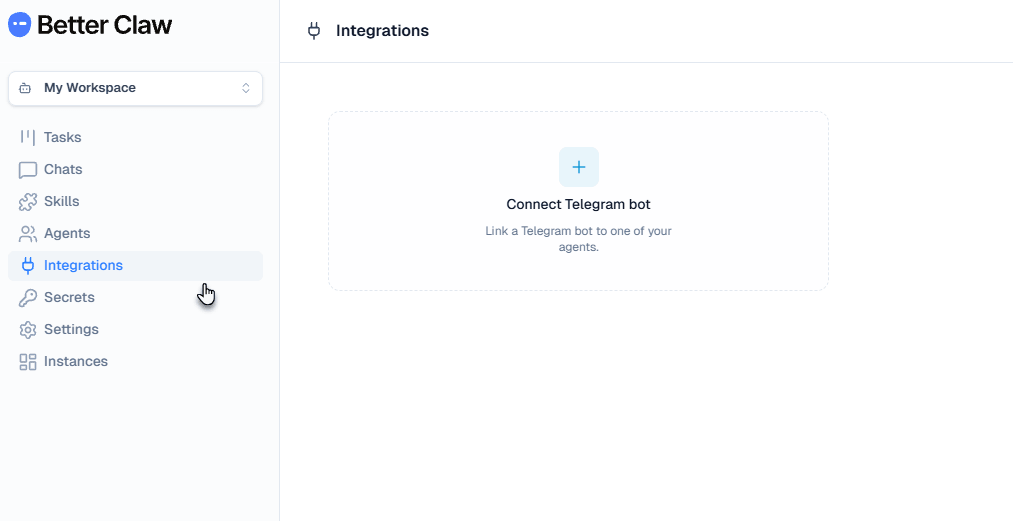
In your BetterClaw workspace, click Integrations in the left sidebar.
You will see the Integrations page with a card labeled "Connect Telegram bot" and a description: "Link a Telegram bot to one of your agents."
Click the Connect Telegram bot card to open the connection modal.
Step 2: Configure the Connection
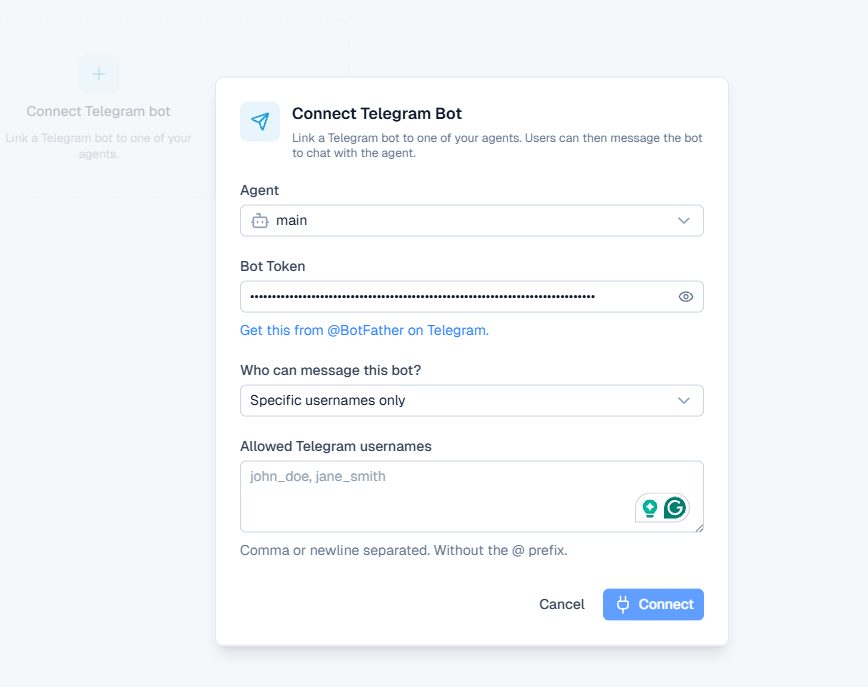
The "Connect Telegram Bot" modal opens with the following fields:
Agent
Select which agent should handle messages from this Telegram bot. Use the dropdown to pick from your available agents. If you only have one agent, it will be pre-selected (for example, main).
Bot Token
Paste your Telegram bot token here. This is the token you received from BotFather when you created your bot. The link below the field ("Get this from @BotFather on Telegram") will take you to BotFather if you need to retrieve it.
Who Can Message This Bot?
This dropdown controls who is allowed to send messages to your bot. BetterClaw provides two options:
| Option | Behavior |
|---|---|
| Anyone | Any Telegram user who finds your bot can send messages. The agent responds to everyone. Best for public-facing bots like customer support or general Q&A. |
| Specific usernames only | Only users whose Telegram usernames are on the allowlist can interact with the bot. Messages from anyone else are ignored. Best for internal teams, beta testing, or private agents. |
Allowed Telegram Usernames
This field only appears when you select "Specific usernames only." Enter the Telegram usernames of people who should have access. Separate multiple usernames with commas or newlines. Do not include the @ prefix. For example, enter john_doe, jane_smith not @john_doe, @jane_smith.
Once all fields are filled, click Connect.
You can change the access controls later without disconnecting the bot. Click Edit on the integration card to update who can message the bot or switch between "Anyone" and "Specific usernames only."
Step 3: Verify the Connection
After clicking Connect, BetterClaw links your bot token to the selected agent and starts listening for incoming messages.
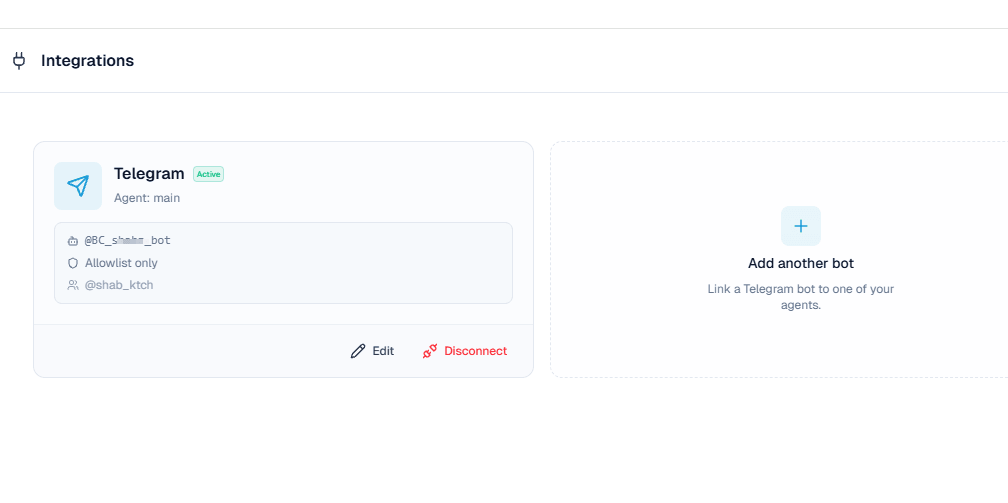
You will be returned to the Integrations page. Your Telegram bot now appears as a card with:
- A green Active badge confirming the connection is live
- The agent it is connected to (for example, "Agent: main")
- Your bot's username
- The access policy ("Allowlist only" or "Anyone")
- The allowed usernames (if using allowlist mode)
- Edit and Disconnect buttons at the bottom
If you have capacity for additional bots, an "Add another bot" card appears next to the active integration.
Step 4: Test the Bot on Telegram
Open Telegram on your phone, desktop, or web browser. Search for your bot by its username (the one you chose when creating the bot in BotFather).
Click on the bot to open the chat, then click Start or type /start to initiate the conversation.
Send a test message. Your BetterClaw agent will receive the message, process it, and send a response back through Telegram. The first reply may take a few seconds depending on your agent's configuration and the model it uses.
If you set access to "Specific usernames only," make sure your own Telegram username is on the allowlist before testing. Otherwise the bot will not respond to your messages.
Managing Your Telegram Integration
Edit Settings
Click Edit on the integration card to update the access policy, change the allowlist, or switch the agent the bot is connected to. You do not need to disconnect and reconnect to make changes.
Disconnect
Click Disconnect to remove the integration. This stops BetterClaw from listening for messages on this bot. The bot itself is not deleted from Telegram. You can reconnect it at any time by going through the setup process again with the same token.
Add Multiple Bots
You can connect more than one Telegram bot to your workspace. Each bot can be linked to a different agent, which is useful for running separate bots for different departments, projects, or audiences. Click "Add another bot" on the Integrations page to set up an additional connection.
Troubleshooting
Bot shows as connected but does not respond
Open Telegram and make sure you clicked Start in the bot chat. If you are using the allowlist, verify that your Telegram username is listed (without the @ prefix). Also confirm that the agent assigned to the bot is active and has a model configured.
"Bot token is invalid" error
Go back to BotFather on Telegram and send /mybots. Select your bot and click "API Token" to see the current valid token. Copy it again carefully, making sure there are no extra spaces. If you previously revoked the token, you will need to use the new one.
Messages are delayed
Some delay is normal, especially on first messages or when using larger models. If messages consistently take more than 10 to 15 seconds, check your agent's model configuration. Smaller, faster models will produce quicker responses.
I want to switch which agent handles Telegram
Click Edit on the integration card and change the agent from the dropdown. You do not need to disconnect and reconnect. The change takes effect immediately.
Can I use the same bot token on multiple platforms?
No. A Telegram bot token can only have one active webhook at a time. If you connect the same token to another service, it will stop working in BetterClaw. Each platform needs its own bot and token.
Quick Reference
| Step | Action | Where |
|---|---|---|
| 1. Open Integrations | Click Integrations in sidebar | BetterClaw sidebar |
| 2. Connect bot | Paste token, select agent, set access | Connect Telegram Bot modal |
| 3. Verify | Check for Active badge on card | Integrations page |
| 4. Test | Search bot username, click Start, send a message | Telegram app or web |