Quick answer: To connect OpenClaw to Telegram you create a bot with BotFather, copy the bot token, and add it to your OpenClaw config under channels.telegram.botToken. Then you set a dmPolicy, start the gateway, and approve the pairing code. The whole thing takes about five minutes. This guide walks all five steps, then covers the errors that actually trip people up: 401 token failures, pairing rejections, allowFrom mistakes, and group privacy mode.
Your agent. Running. Not broken.
One AI agent on managed infrastructure. Pick your model, connect Telegram from a dashboard, live in 60 seconds. Start free; Telegram needs Pro at $49/month. Start free → No credit card · No Docker · No config files
How OpenClaw Connects to Telegram
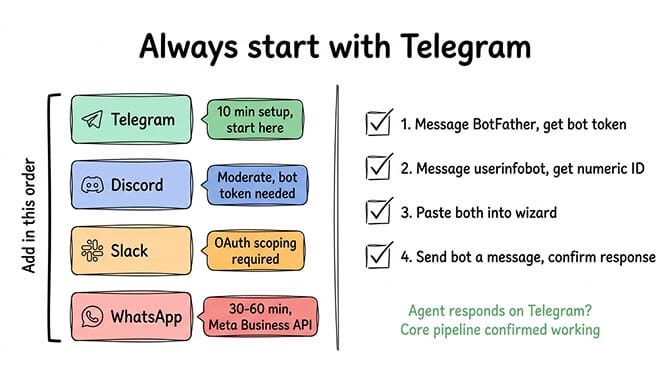
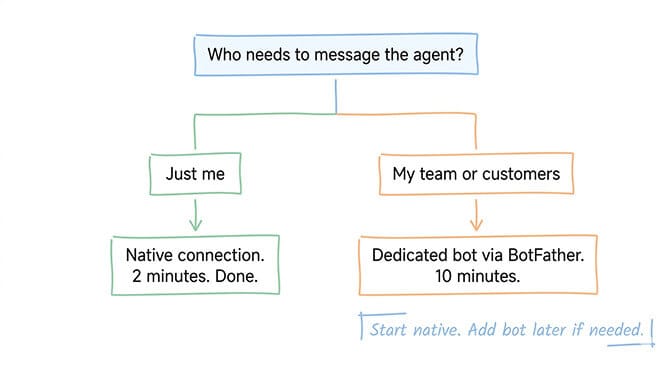
One thing to clear up first, because a lot of guides muddy it. OpenClaw talks to Telegram through a bot you create with BotFather. There is no tokenless "native" Telegram login. You always need a BotFather token. What confuses people is that there is a second step on top of the token, called pairing, which authorizes which humans are allowed to message the bot. Token first, pairing second. Both are normal.
Under the hood, OpenClaw uses the grammY Telegram Bot API library and long-polling by default, so you do not need to configure webhooks or expose a public URL for a basic setup. That is the part that actually saves you time, not skipping BotFather.
Here is the full setup.
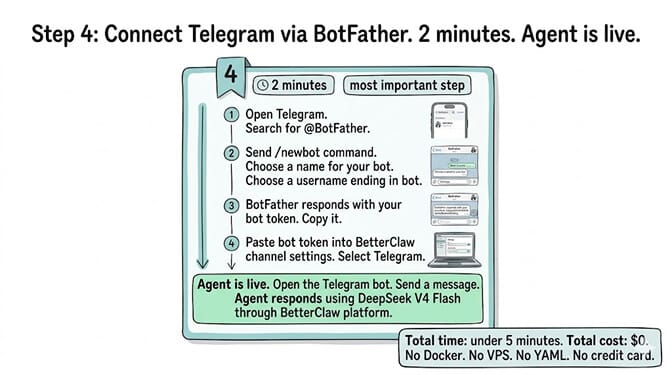
Step 1: Create Your Bot With BotFather
Open Telegram and search for @BotFather. Make sure it is the official account with the blue verified checkmark, since there are impostors.
Start a chat and send:
/newbot
BotFather asks for two things:
- A display name for your bot, anything descriptive like "My OpenClaw Assistant."
- A username, which must be unique across Telegram and end in "bot," for example
myname_openclaw_bot.
Once created, BotFather sends you a bot token that looks like 123456789:ABCdefGHIjklMNOpqrsTUVwxyz (our guide to generating a Telegram bot token covers this step in detail). Copy it immediately and keep it secret. Anyone with this token can control your bot. If you ever lose it, run /mybots, select your bot, and open API Token to retrieve or regenerate it.
Step 2: Add the Token to Your OpenClaw Config
Tell OpenClaw about your bot. Edit your config (~/.openclaw/openclaw.json) and add the Telegram channel:
{
  "channels": {
    "telegram": {
      "enabled": true,
      "botToken": "YOUR_BOT_TOKEN_FROM_BOTFATHER",
      "dmPolicy": "pairing"
    }
  }
}
You can also set the token through the environment instead of the file, using TELEGRAM_BOT_TOKEN for the default account. Note that OpenClaw does not use a channels login telegram command for Telegram. You configure the token in config or env, then start the gateway. That is the supported path.
Step 3: Choose Who Can Message the Bot (dmPolicy)
The dmPolicy controls who is allowed to talk to your agent. OpenClaw supports a few policies, and picking the right one now saves you a confusing silent-bot moment later.
| Policy | Behavior | Best for |
|---|---|---|
| pairing (default) | New users must be approved with a one-time pairing code | Personal use, secure by default |
| allowlist | Only user IDs in allowFrom can message the bot | Teams, fixed set of users |
| open | Anyone who finds the bot can message it | Public-facing bots, use with caution |
For most personal setups, leave it on pairing. For a known team, allowlist with specific user IDs is cleaner because there is no per-user approval step. Only use open for genuinely public bots, and pair it with spending caps.
Step 4: Start the Gateway and Approve Pairing
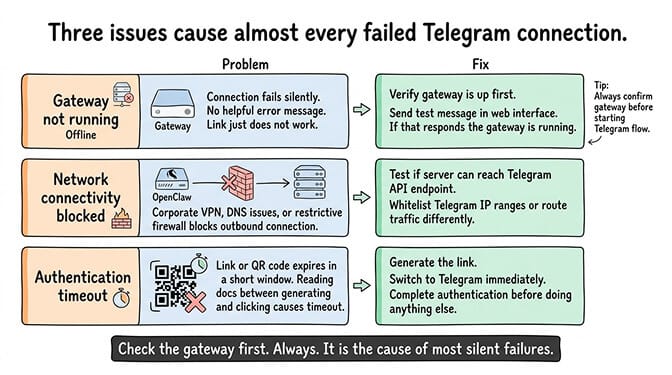
Start (or restart) the OpenClaw gateway so it loads the Telegram channel. If you skip the restart, the channel will not initialize, which is the single most common "why isn't this working" cause.
Now open Telegram, search for your bot by its username, open the chat, and click Start (or send /start). The bot only responds after you have started it, so this step is not optional.
If you are on the default pairing policy, your first message triggers a pairing code. Approve it from your terminal:
openclaw pairing approve telegram <code>
You can list pending requests with openclaw pairing pending. Once approved, send another message and your agent replies through Telegram. Pairing codes expire after one hour, so approve promptly.
Step 5: Test, Then Lock It Down
Send a normal message ("hello") and confirm you get a response. That is a working OpenClaw Telegram bot.
Before you rely on it, two security touches:
- Set
allowFromwith your Telegram user ID so only you (or your approved users) can drive the agent, even on pairing. This is your primary access control. - Never expose the token. If it leaks, regenerate it in BotFather with
/tokenand update your config. A live token is full control of the bot.
Using the Bot in Group Chats
Want the agent in a Telegram group or forum topic? Two things to know, because this is where most setups silently fail.
First, Telegram bots default to Privacy Mode, which limits which group messages the bot can even see. To let it read all group messages, either disable privacy mode in BotFather with /setprivacy, or make the bot a group admin. After toggling privacy mode, remove and re-add the bot in each group so Telegram applies the change.
Second, group access needs IDs. Add the bot to the group, then collect your Telegram user ID (used in allowFrom / groupAllowFrom) and the group chat ID (used as the key under channels.telegram.groups). You can get the group chat ID from openclaw logs --follow, a forwarded-ID bot, or the Bot API getUpdates. Supergroup IDs that start with -100 are the group chat IDs. You can also set requireMention: true so the bot only responds when tagged, which keeps it quiet in busy groups.
When the Bot Won't Respond: The Real Errors
Most guides stop at the happy path. Here are the failures people actually hit, with the fix for each. (For a deeper, ranked diagnostic, see our OpenClaw Telegram bot not responding guide.)
401 error / getMe returned 401. Telegram rejected your token. It is wrong, has extra spaces, or was regenerated. Copy the current token from BotFather (/mybots then API Token) and update botToken.
"drop dm (pairing required)." You have not approved the pairing yet. Run openclaw pairing pending and approve your user.
"drop dm (not in allowlist)." Your Telegram user ID is not in allowFrom. Add the numeric user ID (not the @username). Mixing up username and user ID is the most common version of this mistake.
Bot connects but stays silent in groups. Usually privacy mode is still on, or requireMention is set and you are not tagging the bot. Disable privacy mode or mention the bot.
409 Conflict / webhook errors. The same bot token is being used by another OpenClaw instance or service. Telegram allows only one active connection per token. Shut down the duplicate, or use a separate bot and token per environment.
Bot never started. If you (or a user) never clicked Start in the bot chat, Telegram will not deliver your messages to the bot. Open the bot and press Start.
The Easier Path: Telegram on BetterClaw
Everything above is the self-hosted route: BotFather, JSON config, gateway restarts, pairing approvals from the terminal, and the occasional 401 at 11pm. It works, and it is worth learning if you want full local control.
If you would rather skip the config files, BetterClaw connects Telegram from a dashboard. You still create the bot in BotFather (Telegram requires that no matter what), but instead of editing JSON you paste the token into the Integrations page, pick which agent handles it, choose "Anyone" or an allowlist of usernames, and click Connect. No gateway to restart, no pairing codes to approve in a terminal. The full walkthrough is in our Telegram integration guide.
The same dashboard connects Telegram alongside WhatsApp, Slack, Discord, and 14 other channels, so you are not wiring each one up by hand. One caveat worth knowing before you sign up: Telegram and Slack webhooks are Pro features, so the dashboard route costs $49/month for Pro. The free plan gives you one agent and 100 credits a month with BYOK, which is enough to build and test the agent itself, but the Telegram connection is not part of it. If you want Telegram for free, the self-hosted route above is the way.
Frequently Asked Questions
How do I set up OpenClaw with Telegram?
Create a bot with @BotFather using /newbot, copy the bot token, and add it to your OpenClaw config under channels.telegram.botToken with enabled: true and a dmPolicy. Start the gateway, click Start in your bot's Telegram chat, and approve the pairing code from the terminal with openclaw pairing approve telegram <code>. Total time is about five minutes.
Do I need a BotFather token to use Telegram with OpenClaw?
Yes. OpenClaw connects to Telegram through a bot you create with BotFather, and the bot token is always required, set via botToken in config or the TELEGRAM_BOT_TOKEN environment variable. There is no tokenless native Telegram login. Pairing is an extra authorization step on top of the token, not a replacement for it.
Why is my OpenClaw Telegram bot not responding?
The usual causes: you did not restart the gateway after adding the token, you never clicked Start in the bot chat, the pairing code was not approved, your user ID is missing from allowFrom, or the token is wrong (a 401). Check openclaw logs --follow to see which one. A 409 Conflict means the same token is running in two places at once.
How do I get my Telegram bot to work in group chats?
Add the bot to the group, then disable Privacy Mode via /setprivacy in BotFather (or make the bot an admin) so it can see group messages. Re-add the bot after toggling privacy. Configure the group chat ID under channels.telegram.groups and set requireMention: true if you want the bot to respond only when tagged.
Is it safe to connect OpenClaw to Telegram?
Yes, when scoped correctly. Use the default pairing policy or an allowlist, add your Telegram user ID to allowFrom, keep the bot token secret, and set spending caps on the agent. Avoid the open policy unless the bot is meant to be public. The token is the keys to the bot, so regenerate it immediately if it ever leaks.
Can I run the same Telegram bot on two services at once?
No. Telegram allows only one active connection per bot token, so using the same token in two OpenClaw instances (or another service) causes 409 Conflict errors and dropped messages. Create a separate bot and token for each environment.
Skip the config files.
Connect your Telegram bot to a managed agent in a few clicks, no gateway, no pairing terminal commands. BYOK with zero markup. Telegram webhooks are included on Pro, $49/month. Start free →