Out of memory kills are the silent agent killer. Here are the five causes, the diagnostic steps, and the config changes that prevent them.
My agent had been running perfectly for eleven days. Responding to messages on Telegram. Executing cron jobs on schedule. Handling web searches and calendar checks without a hiccup.
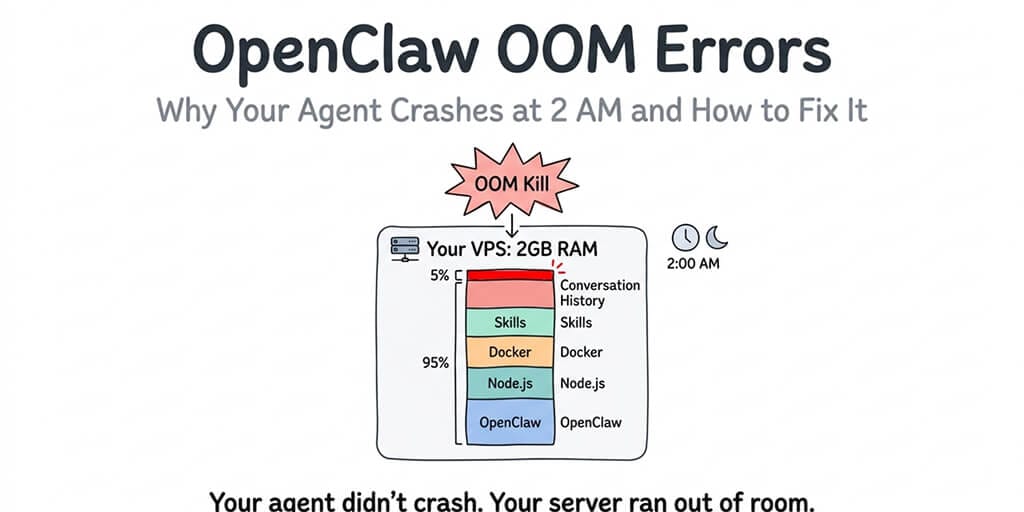
On day twelve, it stopped. No error in the chat. No warning in the gateway logs. The process just vanished. I SSH'd into the VPS and checked the system journal. One line told the whole story: "Out of memory: Killed process 14823 (node)."
The Linux kernel's OOM killer had terminated my OpenClaw process because the server ran out of RAM. The agent didn't crash from a bug. It was murdered by the operating system for using too much memory.
This is the most common failure mode for self-hosted OpenClaw agents, and it's the one nobody talks about in setup tutorials. OpenClaw OOM errors don't produce helpful error messages. They don't trigger graceful shutdowns. They just kill your agent mid-sentence, and unless you know where to look, you'll spend hours debugging code that isn't broken.
Here's how to diagnose, fix, and prevent OpenClaw OOM errors before they silently kill your agent.
Why OpenClaw eats more memory than you expect
OpenClaw is a Node.js application. Node.js has a default heap size limit of roughly 1.5-2GB (depending on version and platform). That sounds like plenty until you understand what's competing for that memory.
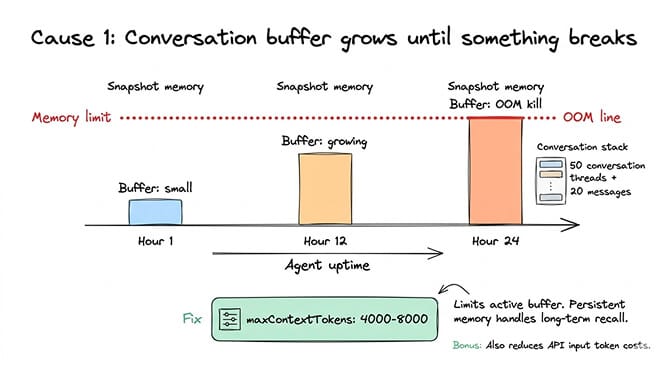
The conversation buffer. Every active conversation stores its full message history in memory. By default, OpenClaw doesn't aggressively truncate old messages. A busy agent handling 50+ conversations with 20+ messages each can hold several hundred megabytes of conversation data in RAM.
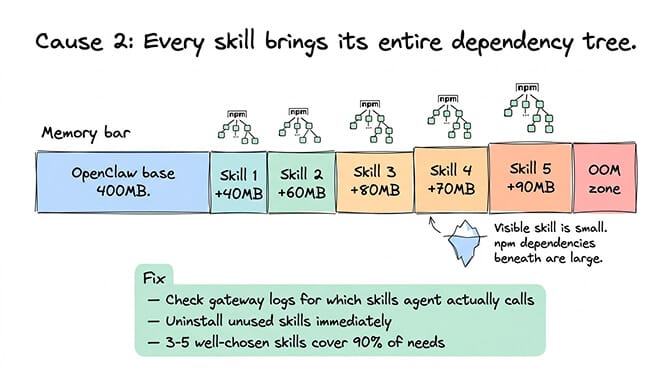
The skill runtime. Each installed skill loads into memory when the agent starts. Skills with large dependency trees (common with npm packages) add their own memory overhead. Five skills might add 100-300MB depending on their complexity.
The memory system. OpenClaw's persistent memory uses vector embeddings for semantic search. These embeddings live in RAM during operation. As your agent accumulates memories across hundreds of conversations, the vector store grows.
Node.js garbage collection behavior. V8 (Node's JavaScript engine) doesn't release memory immediately after use. It waits for garbage collection cycles, which means peak memory usage can be 2-3x higher than steady-state usage. A sudden burst of activity (ten messages arriving at once, a complex skill execution, a large cron job) can spike memory well above the baseline.
On a 2GB VPS (the most common setup for self-hosted OpenClaw), you're working with roughly 1.5GB of usable RAM after the OS takes its share. OpenClaw's baseline memory usage starts at 300-500MB and grows from there. That leaves a margin of about 1GB for everything else: conversation buffers, skills, memories, and garbage collection headroom.
It's not a question of whether you'll hit the limit. It's when.
For the full VPS setup guide including memory-appropriate server sizing, our self-hosting walkthrough covers the infrastructure decisions that prevent OOM from the start.

The five causes of OpenClaw OOM errors (ranked by frequency)
Cause 1: The conversation buffer grows unchecked
This is the most common cause and the easiest to fix. By default, OpenClaw keeps the full conversation history available for context. In long-running conversations, this buffer grows continuously.
The fix: set the maxContextTokens parameter in your config. This limits how many tokens of conversation history get sent with each request. For most agent tasks, 4,000-8,000 tokens of context is sufficient. The agent's persistent memory handles longer-term recall. You don't need the entire conversation in the active buffer.
Setting this limit doesn't just prevent OOM errors. It also reduces your API costs significantly, since you're sending fewer input tokens with every request. For the detailed breakdown of how context windows affect your API bill, our cost guide covers the math.
Cause 2: Too many skills loaded simultaneously
Every skill loads its dependencies into memory at startup. A single skill might seem lightweight, but its npm dependency tree can include dozens of packages. Five skills with heavy dependencies can collectively consume 300MB+ of RAM.
The fix: audit your installed skills and remove any you're not actively using. List everything installed, check which skills your agent actually calls in practice (gateway logs will show this), and uninstall the rest. For most agents, 3-5 well-chosen skills cover 90% of needs.
Cause 3: Memory leaks in third-party skills
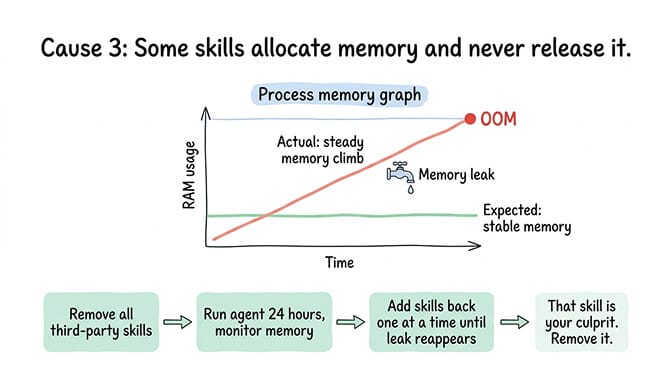
Some ClawHub skills have memory leaks. They allocate memory during execution and never release it. Over hours or days, the leaked memory accumulates until the OOM killer strikes.
The fix: if your agent's memory usage increases steadily over time (check with a process monitor), a memory leak is likely. The diagnostic approach: remove all third-party skills, run the agent for 24 hours, and check if memory stays stable. If it does, add skills back one at a time until the leak reappears. That's your culprit.
For guidance on vetting skills before installation, our skills guide covers what to look for and which community-vetted options are most reliable.
Cause 4: The VPS is simply too small
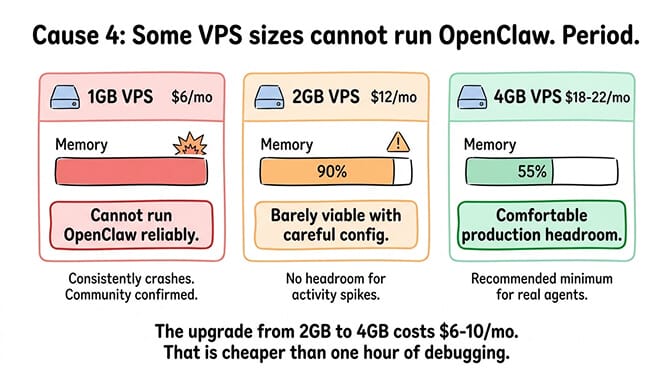
A 1GB VPS cannot run OpenClaw reliably. Period. A 2GB VPS can run a basic agent with 2-3 skills if you're careful about configuration. A 4GB VPS gives you comfortable headroom for a production agent with moderate skill usage.
The community reports on DigitalOcean's 1-Click deployment are telling: users on the smallest droplet ($6/month, 1GB RAM) consistently report crashes. The broken self-update script compounds the problem, but the root cause is insufficient memory.
The fix: if you're on a 1GB or 2GB VPS and hitting OOM errors, upgrade to 4GB. The cost difference is typically $5-10/month. That's cheaper than the time you'll spend debugging memory issues on an undersized server.
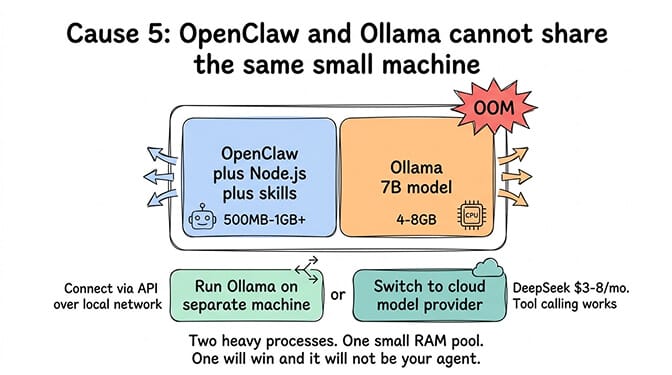
Cause 5: Local models consuming all available RAM
If you're running Ollama alongside OpenClaw on the same machine, the local model competes for the same memory pool. A 7B parameter model needs 4-8GB of RAM. Running that on a machine that also hosts OpenClaw doesn't leave enough for both.
The fix: either run Ollama on a separate machine and connect via API, or use cloud model providers instead of local models. For the complete breakdown of local model hardware requirements, our Ollama troubleshooting guide covers the memory math.
How to diagnose Out of memory: Killed process 14823 (node) after it happens
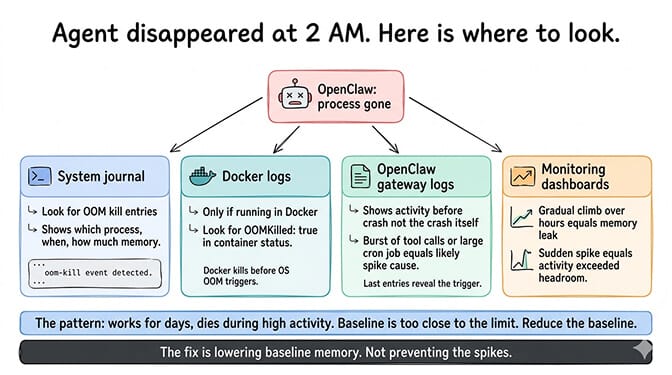
The frustrating thing about OpenClaw OOM errors is that they leave minimal evidence. The process just disappears. Here's where to look.
Check the system journal. On Linux, the command to search your system logs for OOM events will show when the kernel killed a process, which process it killed, and how much memory it was using at the time. Look for entries mentioning "Out of memory" or "oom-kill."
Check Docker logs if running in a container. If OpenClaw runs inside Docker (which it should for security), Docker has its own memory limits. A container hitting its memory ceiling gets killed by Docker before the OS-level OOM killer even triggers. Docker logs will show "OOMKilled: true" in the container's status.
Check the OpenClaw gateway logs. These won't show the OOM event itself (the process is dead before it can log anything), but they'll show what the agent was doing right before the crash. If the last log entries show a burst of activity (multiple simultaneous tool calls, a large cron job, a conversation with an enormous context), that activity likely caused the memory spike.
Check your monitoring dashboards. If you have any process monitoring in place (even basic htop output redirected to a file), look at the memory trend in the hours before the crash. A gradual climb suggests a memory leak. A sudden spike suggests a burst of activity that exceeded headroom.
The pattern to watch for: everything works for days, then the agent dies during a period of high activity. This means your baseline memory is close to the limit, and any spike pushes it over. The fix is reducing the baseline, not preventing the spikes.
The prevention checklist
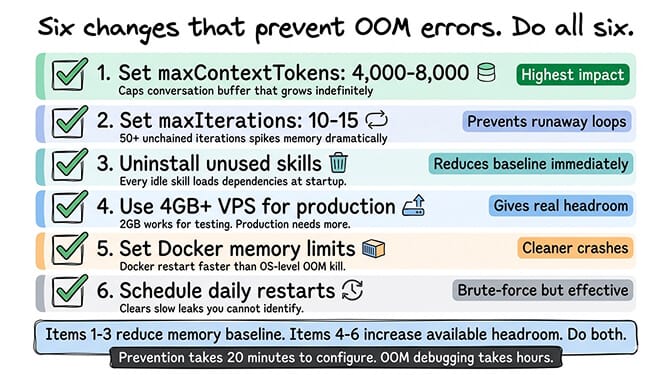
Here are the specific configuration changes that prevent OpenClaw OOM errors, ordered by impact.
Set maxContextTokens to 4,000-8,000. This is the single highest-impact change. It caps the conversation buffer that would otherwise grow indefinitely. Your agent still has persistent memory for long-term context. The active buffer just stays within a reasonable size.
Set maxIterations to 10-15. This prevents runaway loops where the agent makes dozens of sequential tool calls in a single turn. Each iteration consumes memory for the request, response, and tool output. Without a limit, a confused model can chain 50+ iterations and spike memory dramatically.
Uninstall unused skills. Every skill consumes memory at startup. If you installed a browser automation skill "just in case" but never use it, remove it. Run lean.
Use a 4GB+ VPS for production. A 2GB VPS can work for testing. Production agents need headroom. The 4GB tier on most providers costs $20-24/month. That's the minimum for an agent with 3-5 skills and moderate conversation volume.
Set Docker memory limits. If you're running OpenClaw in Docker (recommended), set a container memory limit slightly below your total available RAM. This ensures Docker kills the container before the OS-level OOM killer takes action. Docker restarts are cleaner and faster than OS-level kills.
Schedule periodic restarts. This is the brute-force solution, but it works. If your agent has a slow memory leak you can't identify, a daily restart (during low-traffic hours) clears accumulated memory. It's not elegant. It's effective.
If managing memory limits, container configurations, server sizing, and periodic restarts sounds like more DevOps work than your agent is worth, BetterClaw handles all of this automatically. Real-time health monitoring detects memory anomalies before they crash your agent. Auto-pause kicks in if resource usage spikes. $49/month for Pro, BYOK. The infrastructure is pre-optimized so you never see an OOM error.
The monitoring habit that catches OOM before it kills
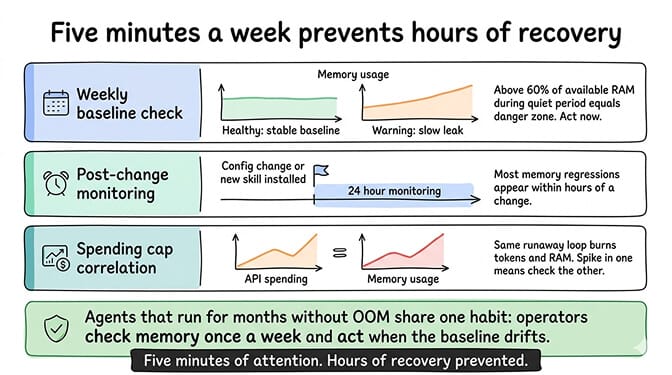
Prevention is better than diagnosis. Here's the monitoring approach that catches memory problems before they become OOM errors.
Weekly memory baseline checks. Look at your agent's memory usage during a quiet period (no active conversations, between cron jobs). This is your baseline. If the baseline increases week over week, you have a slow leak. If the baseline is already above 60% of available RAM, you're in the danger zone.
Post-change monitoring. After installing a new skill, updating OpenClaw, or modifying your config, check memory usage for the next 24 hours. Most memory regressions show up quickly after changes.
Spending cap correlation. API spending spikes often correlate with memory spikes. If your API bill suddenly increases, check your memory usage too. The same runaway loop that burns API tokens also burns memory.
The agents that run for months without OOM errors share a pattern: their operators check memory once a week and act when the baseline drifts upward. It's five minutes of attention that prevents hours of recovery.
The uncomfortable truth about self-hosted memory management
Here's what nobody wants to say: memory management for self-hosted OpenClaw is ongoing work.
Every OpenClaw update can change memory behavior. Every new skill adds memory overhead. Every busy day pushes the baseline higher. The 7,900+ open issues on GitHub include hundreds related to memory, performance, and process stability.
Managed platforms exist specifically because this operational burden is real. The comparison between self-hosted and managed deployment isn't just about initial setup. It's about the ongoing maintenance that keeps an agent running reliably.
If you enjoy server administration and want full control over your infrastructure, self-hosting with proper memory configuration works. If you'd rather spend your time building what the agent does instead of keeping it alive, managed platforms handle the memory management, monitoring, and auto-recovery that prevent OOM from ever reaching your attention.
If you've been fighting OOM errors and want an agent that just runs, give BetterClaw a try. $49/month for Pro, BYOK with 28+ providers. Pre-optimized memory management. Real-time anomaly detection. Auto-pause before crashes. 60-second deploy. We handle the infrastructure nightmares so your agent stays alive while you sleep.
Frequently Asked Questions
What is an OpenClaw OOM error?
An OpenClaw OOM (Out of Memory) error occurs when the Node.js process running your agent consumes more RAM than the server has available. The Linux kernel's OOM killer terminates the process to protect the system. There's no graceful shutdown or error message in the agent. The process simply disappears. OOM errors are the most common silent failure mode for self-hosted OpenClaw agents, especially on VPS servers with 2GB or less RAM.
How does OpenClaw memory usage compare to other agent frameworks?
OpenClaw's memory footprint is typical for a Node.js application with persistent state. Baseline usage is 300-500MB, growing with conversation buffers, installed skills, and vector memory storage. This is comparable to other TypeScript/Node.js agent frameworks but higher than lightweight Python-based alternatives. The main difference is that OpenClaw's skill ecosystem and persistent memory system add memory overhead that simpler chatbot frameworks don't have.
How do I diagnose an OpenClaw OOM error?
Check your system journal for "Out of memory" or "oom-kill" entries. If running in Docker, check the container status for "OOMKilled: true." Review OpenClaw gateway logs for the last activity before the crash (large cron jobs, burst of messages, complex tool chains often trigger the fatal spike). If you have process monitoring, look at the memory trend: gradual climbs suggest leaks, sudden spikes suggest burst activity. The fix depends on which pattern you see.
How much does it cost to prevent OpenClaw OOM errors?
The primary cost is upgrading your VPS. A 4GB VPS (the minimum recommended for production) costs $20-24/month on most providers, compared to $6-12/month for 1-2GB servers that consistently hit OOM limits. Configuration changes (maxContextTokens, maxIterations, skill pruning) are free and high-impact. If you want memory management handled entirely for you, managed platforms like BetterClaw cost $49/month for Pro with pre-optimized infrastructure and anomaly detection included.
Will OpenClaw OOM errors corrupt my agent's data?
An OOM kill terminates the process immediately without cleanup. In-progress conversations may lose the last few messages. Cron jobs that were mid-execution won't complete. The more serious risk: if the OOM kill happens during a write to the agent's persistent memory or config files, data corruption is possible though uncommon. Regular backups of your OpenClaw directory and config files mitigate this risk. The agent itself restarts cleanly after an OOM kill in most cases, but any unsaved state is lost.
Related Reading
- OpenClaw Gateway Won't Start After Updating — OOM during sidecar startup is one of ten post-update failures
- OpenClaw Not Working: Every Fix in One Guide — Master troubleshooting guide covering all common errors
- OpenClaw Agent Stuck in Loop: How to Fix It — Loops that burn memory and API budget
- OpenClaw Memory Fix Guide — Context window overflow and memory drift solutions
- OpenClaw Docker Troubleshooting Guide — Container memory limits and resource allocation fixes