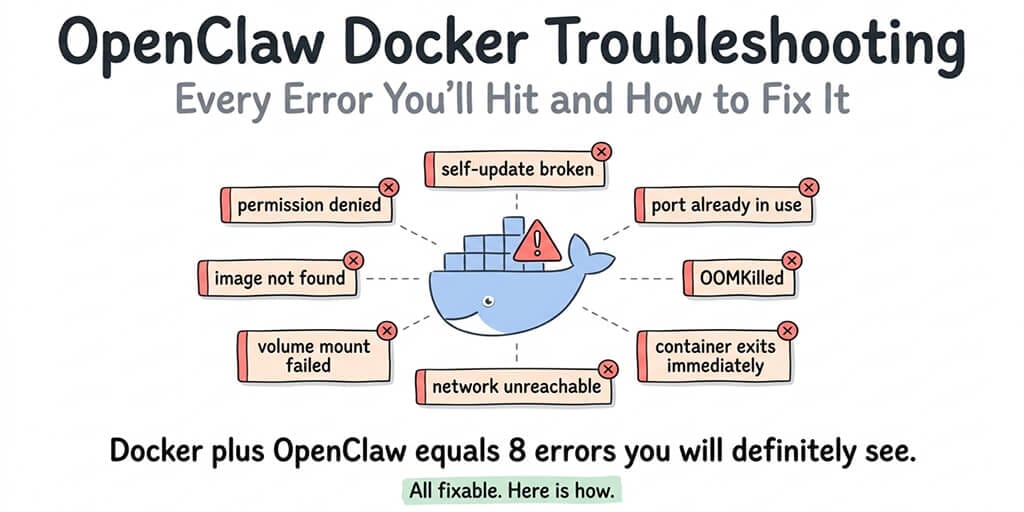
Docker is the biggest source of OpenClaw deployment failures. Here are the 8 errors everyone encounters, why they happen, and the exact fixes.
It was 11 PM on a Tuesday. My OpenClaw container had been running perfectly for six days. Then I ran a routine update. The container restarted. And never came back up.
The logs showed: "Error response from daemon: driver failed programming external connectivity on endpoint." I stared at that error for forty minutes. Tried restarting Docker. Tried rebuilding the container. Tried rebooting the server. Nothing worked.
The fix? Another service had grabbed port 3000 while my container was down during the update. A port conflict. A three-second fix once you know what to look for. Forty minutes of confusion because the error message says "driver failed programming external connectivity" instead of "hey, something else is using your port."
That's OpenClaw Docker troubleshooting in a nutshell. The errors are common. The fixes are usually simple. But the error messages are written for Docker internals developers, not for the person trying to get their AI agent back online at 11 PM.
This guide covers every Docker error you'll encounter with OpenClaw, translated into plain language with the specific fix for each one.
Error 1: Container exits immediately after starting
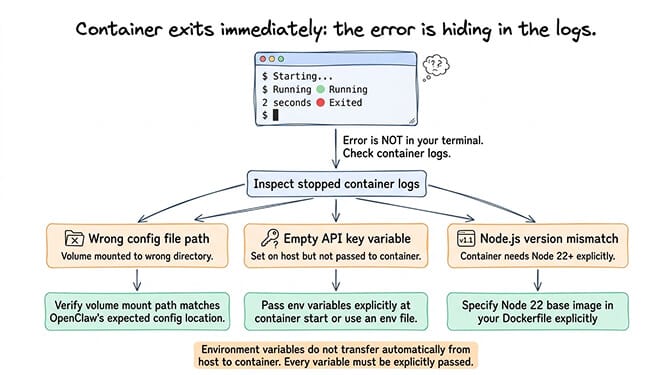
You start the container. It shows as "running" for 2-3 seconds. Then it exits. No error in the terminal. No crash message. Just gone.
What's actually happening: The OpenClaw process inside the container failed during startup but the error only appears in the container logs, not in your terminal output. The most common causes are a missing or malformed config file, a missing environment variable (usually the model provider API key), or a Node.js version mismatch.
The fix: Check the container logs by inspecting the stopped container's output. The actual error will be there. Nine times out of ten, it's one of three things: the config file path is wrong (you mounted the volume to the wrong directory), an API key environment variable is empty, or the Node.js version inside the container doesn't match what OpenClaw expects (it requires Node 22+).
The particularly frustrating variant: you've set your API key as an environment variable on the host machine, but didn't pass it to the container. Environment variables don't automatically transfer from host to container. You need to explicitly pass each one when starting the container or use an environment file.
Error 2: Permission denied on volume mounts
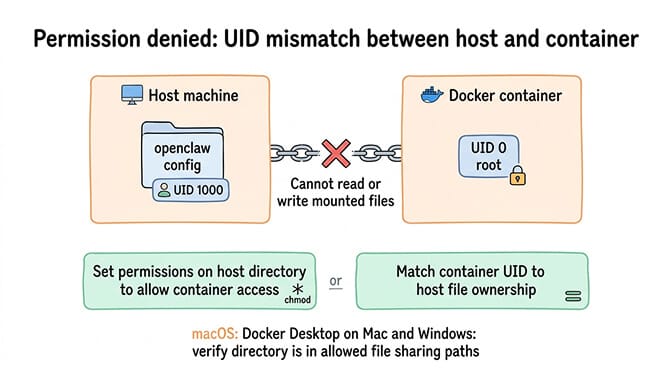
You mount your OpenClaw config directory into the container. The container starts but can't read the config file. "EACCES: permission denied" everywhere.
What's actually happening: The user ID inside the Docker container doesn't match the file ownership on the host machine. Docker containers typically run as root (UID 0) or a specific non-root user. Your host files are owned by your user account (typically UID 1000). When they don't match, the container can't read or write the mounted files.
The fix: The quickest solution is to set the correct permissions on the host directory so that the container's user can access it. Make the OpenClaw config directory readable and writable by all users, or better, match the container's expected UID. If you're running OpenClaw's official Docker image, check the documentation for which user ID the container expects.
This error also appears when Docker Desktop on macOS or Windows has file sharing restrictions. Make sure the directory containing your OpenClaw config is in Docker's allowed file sharing paths.
For the complete OpenClaw installation sequence including where Docker fits in the process, our setup guide covers each step in the correct order.
Error 3: Port conflicts ("address already in use")
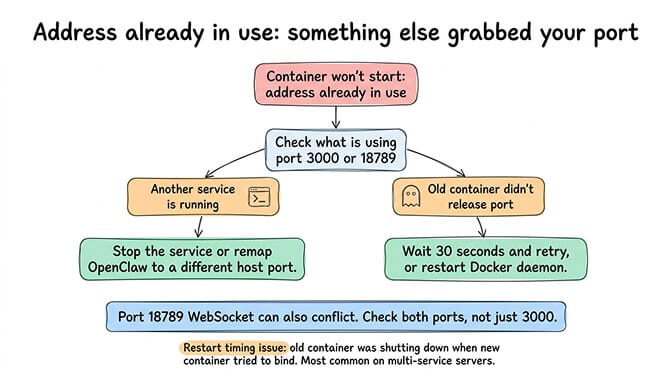
You start the container and get "bind: address already in use" or the more cryptic "driver failed programming external connectivity on endpoint."
What's actually happening: Another process on your server is already using the port that OpenClaw needs. The default OpenClaw gateway port is 3000, and the WebSocket port for gateway communication is 18789. Web servers (Nginx, Apache, Caddy), other Docker containers, or development tools frequently occupy these ports.
The fix: Find out what's using the port. On Linux, use your networking tools to check which process is bound to port 3000 or 18789. Either stop that process, or map OpenClaw to a different host port when starting the container. You can map any available host port to the container's internal port 3000.
The sneaky variant: the port conflict happens only after a container restart. While the old container was shutting down, something else grabbed the port. The new container starts and can't bind. This is especially common on servers running multiple services.
Error 4: OOMKilled (out of memory)
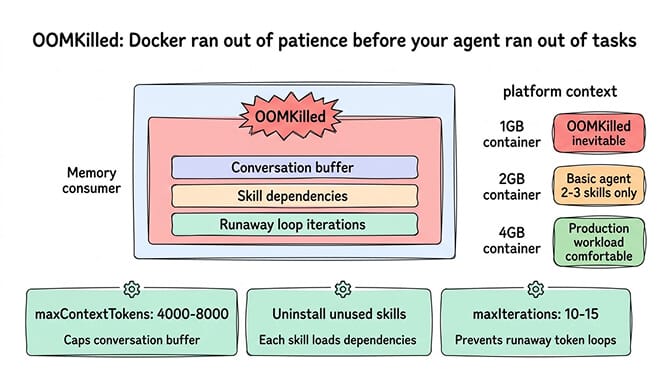
Your container runs for hours or days, then suddenly stops. Container status shows "OOMKilled."
What's actually happening: Docker killed the container because it exceeded its memory limit. This is different from the host-level OOM killer (which kills the Docker daemon itself). Docker's per-container memory limit defaults to unlimited, but many hosting platforms (DigitalOcean, Railway, Render) set container memory limits automatically based on your plan tier.
The fix: Either increase the container's memory limit or reduce OpenClaw's memory consumption. For memory reduction, set maxContextTokens to 4,000-8,000 in your config (prevents the conversation buffer from growing indefinitely), uninstall unused skills, and set maxIterations to 10-15 to prevent runaway loops.
For server sizing, a 2GB container can run a basic OpenClaw agent with 2-3 skills. A 4GB container handles production workloads with moderate skill usage comfortably. If you're on a 1GB container, you're going to hit OOMKilled eventually. It's not a question of if.
For the detailed breakdown of what causes OpenClaw memory issues, our memory troubleshooting guide covers the five specific components that compete for RAM.
Error 5: Network connectivity failures inside the container
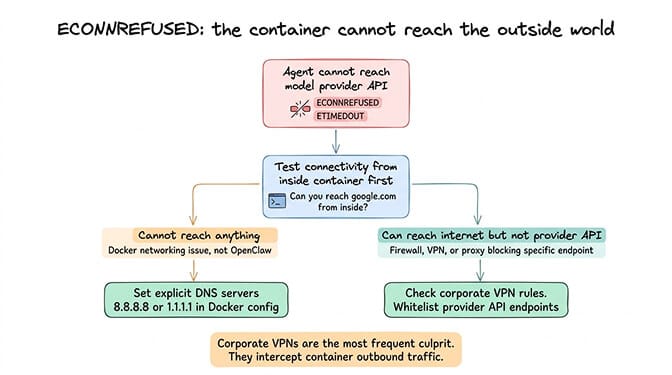
Your container starts fine. OpenClaw loads. But the agent can't reach your model provider's API. "ECONNREFUSED" or "ETIMEDOUT" errors when trying to call Claude, GPT-4o, or any external service.
What's actually happening: The container's networking isn't configured to reach the external internet. This happens most commonly when Docker's default bridge network has DNS issues, when a corporate firewall blocks outbound connections from containers, or when the host machine's DNS resolver isn't accessible from inside the container.
The fix: Test connectivity from inside the container first. Try reaching a known endpoint like google.com. If that fails, it's a Docker networking issue, not an OpenClaw issue. The most common fix is to explicitly set DNS servers in your Docker configuration. Using Google's public DNS (8.8.8.8) or Cloudflare's (1.1.1.1) resolves most DNS-related connectivity failures.
If your container can reach external sites but not your model provider specifically, check whether the provider's API endpoint is being blocked by a firewall, VPN, or proxy on the host machine. Corporate VPNs are a frequent culprit.
Error 6: The self-update that breaks everything
OpenClaw has a built-in self-update mechanism. You trigger an update. The container downloads the new version. And then the gateway fails to start with an error about incompatible dependencies or missing modules.
What's actually happening: The self-update modified files inside the container, but those changes conflict with the container's base image. Docker containers are designed to be immutable. Writing changes to a running container creates a drift between the base image and the actual filesystem state. When the process restarts after the update, it encounters the mismatch.
Community reports about DigitalOcean's 1-Click OpenClaw deployment specifically call out the broken self-update as a recurring issue. Users describe updating their agent and having the entire container become unresponsive, requiring a full rebuild.
The fix: Don't use the in-container self-update for Docker deployments. Instead, pull the new OpenClaw Docker image version, stop the old container, and start a new container with the updated image. Your config and data persist because they're on mounted volumes outside the container. The container itself is disposable.
This is the Docker way: containers are cattle, not pets. Replace them. Don't patch them in place.
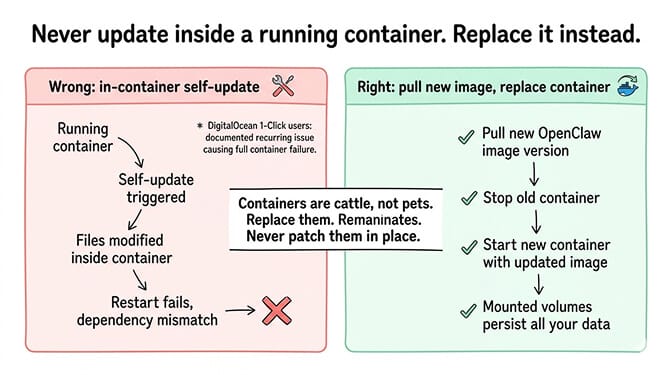
The number one rule of OpenClaw Docker troubleshooting: never modify a running container. Pull the new image. Start a new container. Mount your existing data. The old container is disposable.
Error 7: Volume data disappears after container restart
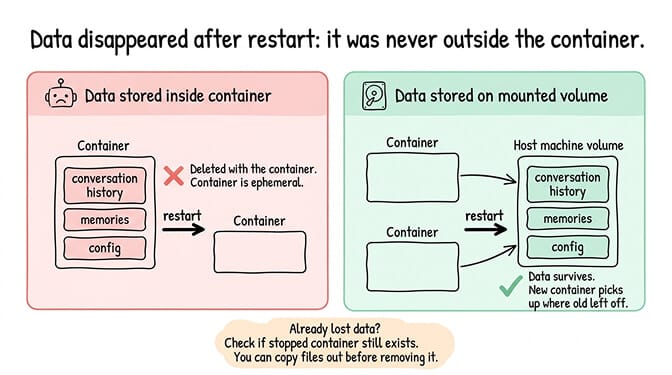
You restart your container and all conversations, memories, and custom settings are gone. The agent is back to its default state.
What's actually happening: Your data was stored inside the container's filesystem instead of on a mounted volume. When you stopped and removed the container, everything inside it was deleted. This is Docker working as designed. Containers are ephemeral. Anything not on a mounted volume is temporary.
The fix: Make sure your OpenClaw data directory (where conversations, memories, and config live) is mounted as a Docker volume. The mount maps a directory on your host machine to a directory inside the container. When the container is replaced, the host directory persists and the new container picks up where the old one left off.
If you've already lost data, check whether Docker kept the old container's filesystem. If you stopped the container without removing it, the data is still inside the stopped container. You can copy files out of a stopped container before removing it.
For guidance on how VPS hosting affects your Docker setup, our self-hosting guide covers volume mounting, backup strategies, and the infrastructure decisions that prevent data loss.
Error 8: Docker Compose file doesn't work with the latest OpenClaw version
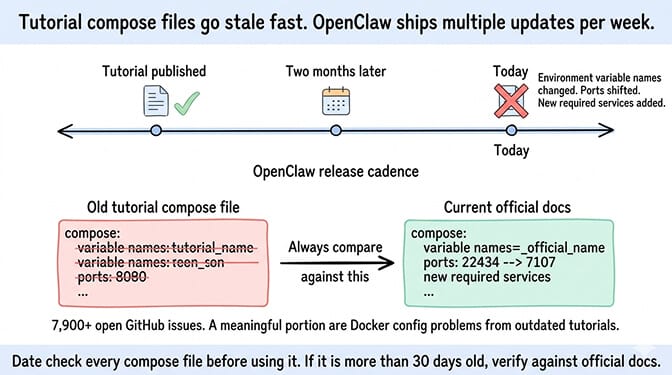
You follow a tutorial from three months ago. The Docker Compose file doesn't work. Services fail to start. Environment variable names have changed. Ports are different.
What's actually happening: OpenClaw releases multiple updates per week. Docker Compose files from tutorials, blog posts, and community guides become stale quickly. Environment variable names change. Default ports shift. New required services get added. The compose file that worked in January may not work in March.
The fix: Always reference the official OpenClaw Docker documentation for the current version. Don't rely on tutorial compose files without checking their date. When adapting an older compose file, compare it against the current official documentation for changes to environment variable names, port mappings, and required services.
The OpenClaw project has 7,900+ open issues on GitHub. A meaningful portion of those are Docker-related configuration problems that stem from outdated documentation or tutorials.
The pattern behind all eight errors
Here's what nobody tells you about OpenClaw Docker troubleshooting. Every single error on this list exists because Docker adds an abstraction layer between OpenClaw and your server. Permissions, networking, port mapping, volume mounts, container lifecycle, image versioning. Each one introduces a failure mode that doesn't exist when running software directly on a machine.
Docker provides real security benefits (isolation, sandboxing, reproducibility). But every benefit comes with a corresponding failure mode. And when something breaks, you're debugging two systems simultaneously: OpenClaw and Docker.
The total time investment for a first-time Docker deployment of OpenClaw is typically 6-8 hours, including troubleshooting. Ongoing maintenance (updates, monitoring, fixing issues as they arise) adds 2-4 hours per month.
If that time investment aligns with your skills and interests, Docker self-hosting gives you maximum control. If it doesn't, if you'd rather spend those hours building agent workflows instead of debugging container networking, the managed vs self-hosted comparison clarifies what each path actually costs in time and money.
If you've been fighting Docker errors and want your agent running without containers, volumes, or compose files, BetterClaw deploys your agent in 60 seconds. $49/month for Pro, BYOK with 28+ providers. Docker-sandboxed execution is built in (we handle the Docker layer so you don't have to). AES-256 encryption. Health monitoring with auto-pause. We've already solved every error on this list so your agent just runs.
The real takeaway
Docker troubleshooting is a skill. A valuable one if you're a DevOps engineer or a developer who enjoys infrastructure. A frustrating one if you're a founder who just wants an AI agent answering customer questions.
The OpenClaw maintainer Shadow said it directly: "If you can't understand how to run a command line, this is far too dangerous of a project for you to use safely." Docker adds another layer of command-line complexity on top of that.
Be honest about whether Docker infrastructure is where you want to spend your time. If yes, this guide has every fix you'll need. If no, managed platforms exist specifically so you don't have to think about container networking at 11 PM on a Tuesday.
Either way, your agent should be answering messages. Not sitting in a stopped container waiting for you to figure out why the port is already in use.
If you're done debugging Docker and ready to deploy, give BetterClaw a try. $49/month for Pro. 60-second deploy. BYOK with 28+ providers. We handle Docker so you never have to. Your agent runs while you sleep.
Frequently Asked Questions
What are the most common OpenClaw Docker errors?
The eight most common errors are: container exits immediately after starting (usually a missing config or API key), permission denied on volume mounts (UID mismatch between host and container), port conflicts (another service using port 3000 or 18789), OOMKilled (container exceeds memory limit), network connectivity failures (DNS issues inside the container), broken self-update (modifying a running container), disappearing data (not using mounted volumes), and outdated Docker Compose files (OpenClaw updates break old configs).
How does Docker troubleshooting compare between OpenClaw and other agent frameworks?
OpenClaw's Docker issues are typical for any Node.js application running in containers. The unique complications come from OpenClaw's multiple components (gateway, skills, cron jobs, memory system) competing for resources in a single container, the in-container self-update mechanism that conflicts with Docker's immutability model, and the rapid release cycle (multiple updates per week) that makes compose files and tutorials go stale quickly. Simpler agent frameworks with fewer components have fewer Docker-specific issues.
How do I fix an OpenClaw Docker container that won't start?
Check the stopped container's logs first. The actual error message is almost always there. The three most common causes are: a missing or malformed config file (wrong volume mount path), an environment variable not passed to the container (API keys don't transfer from host automatically), and a Node.js version mismatch (OpenClaw requires Node 22+). Fix the specific issue, then start a new container. Don't try to fix the stopped one.
How much time does Docker troubleshooting add to OpenClaw deployment?
First-time Docker deployment of OpenClaw takes 6-8 hours including troubleshooting, for someone with basic Docker experience. Ongoing maintenance (updates, monitoring, fixing issues) adds 2-4 hours per month. By comparison, managed platforms like BetterClaw deploy in 60 seconds with zero Docker configuration. The cost difference is $49/month for Pro (managed) versus 2-4 hours/month of DevOps time (self-hosted). The right choice depends on whether your time is better spent on infrastructure or on building agent workflows.
Is Docker required to run OpenClaw securely?
Docker is strongly recommended for security because it isolates OpenClaw from your host system. Without Docker, a compromised skill could access your entire server. Docker sandboxing limits what skills can reach. However, Docker itself introduces security configuration requirements (not running containers as root, restricting capabilities, configuring network isolation). If managing Docker security feels burdensome, managed platforms like BetterClaw include Docker-sandboxed execution by default with AES-256 encryption and workspace scoping, handling the security layer for you.