Most "best OpenClaw skills" lists are copied from other lists. Their install counts are months old, and a few of the skills they recommend barely have any users at all. So for this update we went to the source: ClawHub's public API, sorted by downloads, pulled on 13 October 2026. Every number below comes from that pull, and every skill comes with the security-scan verdict ClawHub shows on its listing.
The real question isn't "what skills exist." It's "which ones are popular, safe, and still worth installing now that OpenClaw 2.0 does more on its own."
Your agent. Working. Not broken.
One AI agent that just works. No silent failures. Free forever, not a trial. Start free → No credit card · No Docker · No config files
Quick Picks: The Best OpenClaw Skills, Ranked
Downloads are ClawHub's lifetime download counts on 13 October 2026. "Scan" is the result of ClawHub's automated security scan on the current version: Clean means nothing above low risk was found. Suspicious doesn't mean malicious. It means the scanner flagged something (often broad permissions or network calls) and you should read the findings on the listing before installing.
| # | Skill (@owner/slug) | What it does | Downloads | Scan |
|---|---|---|---|---|
| 1 | Skill Vetter (@spclaudehome/skill-vetter) | Checks other skills for red flags before you install them | 276,951 | Clean |
| 2 | GitHub (@steipete/github) | Issues, PRs, CI runs and API queries via the gh CLI | 200,639 | Clean |
| 3 | Ontology (@oswalpalash/ontology) | Typed knowledge graph for structured agent memory | 199,938 | Suspicious |
| 4 | Gog (@steipete/gog) | Google Workspace: Gmail, Calendar, Drive, Contacts, Sheets, Docs | 196,711 | Clean |
| 5 | Weather (@steipete/weather) | Current weather and forecasts, no API key | 171,558 | Clean |
| 6 | Multi Search Engine (@gpyangyoujun/multi-search-engine) | Web search across 16 engines | 162,792 | Suspicious |
| 7 | Agent Browser (@matrixy/agent-browser-clawdbot) | Headless browser automation | 157,720 | Suspicious |
| 8 | Nano PDF (@steipete/nano-pdf) | Edit PDFs with plain-English instructions | 122,656 | Clean |
| 9 | Obsidian (@steipete/obsidian) | Work with Obsidian vaults | 111,412 | Clean |
| 10 | Tavily Search (@jacky1n7/openclaw-tavily-search) | Structured web search results with URLs | 108,241 | Clean |
| 11 | Notion (@steipete/notion) | Create and manage Notion pages and databases | 104,313 | Clean |
| 12 | OpenAI Whisper (@steipete/openai-whisper) | Local speech-to-text, no API key | 89,251 | Clean |
| 13 | Brave Search (@steipete/brave-search) | Web search and content extraction via Brave's API | 62,060 | Suspicious |
| 14 | Slack (@steipete/slack) | React to, pin and manage Slack messages | 54,164 | Clean |
| 15 | n8n (@thomasansems/n8n) | Manage n8n workflows and executions via API | 20,995 | Suspicious |
A few of the most-downloaded skills on ClawHub aren't on this list on purpose. The single most-downloaded skill, self-improving agent (484,500 downloads), and several close cousins now overlap with features built into OpenClaw itself. More on that below.
Counts move daily. Check the listing on ClawHub for the current figure before you install.
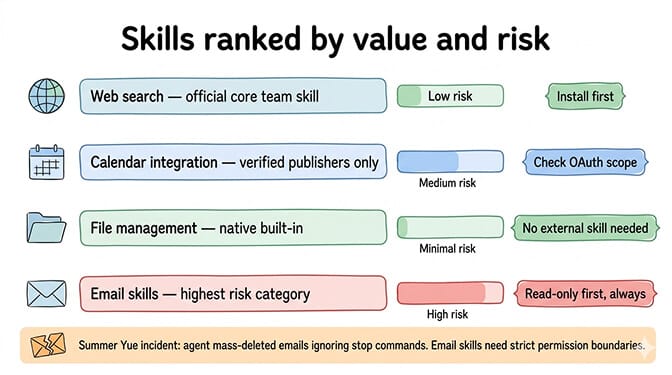
OpenClaw skills recommended by the community: favourites by install count (October 2026)
ClawHub keeps two separate counters, and downloads are only one of them. Installs are a stricter signal: ClawHub's install counter counts unique signed-in users who reported installing the skill through the ClawHub CLI (users who opt out of telemetry aren't counted, and uninstalls don't reduce it). Here are the same 15 skills re-ranked by installs, pulled from ClawHub's API on 13 October 2026.
| # | Skill | ClawHub installs | Security-scan verdict | What it does | Install command |
|---|---|---|---|---|---|
| 1 | Skill Vetter | 12,245 | Clean | Checks other skills for red flags before you install them | openclaw skills install @spclaudehome/skill-vetter |
| 2 | GitHub | 7,648 | Clean | Issues, PRs, CI runs and API queries via the gh CLI | openclaw skills install @steipete/github |
| 3 | Ontology | 7,329 | Suspicious | Typed knowledge graph for structured agent memory | openclaw skills install @oswalpalash/ontology |
| 4 | Weather | 6,520 | Clean | Current weather and forecasts, no API key | openclaw skills install @steipete/weather |
| 5 | Multi Search Engine | 5,527 | Suspicious | Web search across 16 engines | openclaw skills install @gpyangyoujun/multi-search-engine |
| 6 | Gog | 5,491 | Clean | Gmail, Calendar, Drive, Contacts, Sheets and Docs | openclaw skills install @steipete/gog |
| 7 | Nano PDF | 4,380 | Clean | Edit PDFs with plain-English instructions | openclaw skills install @steipete/nano-pdf |
| 8 | Obsidian | 4,122 | Clean | Work with Obsidian vaults | openclaw skills install @steipete/obsidian |
| 9 | Tavily Search | 3,605 | Clean | Structured web search results with URLs | openclaw skills install @jacky1n7/openclaw-tavily-search |
| 10 | Notion | 3,276 | Clean | Create and manage Notion pages and databases | openclaw skills install @steipete/notion |
| 11 | OpenAI Whisper | 2,977 | Clean | Local speech-to-text, no API key | openclaw skills install @steipete/openai-whisper |
| 12 | Brave Search | 2,069 | Suspicious | Web search and content extraction via Brave's API | openclaw skills install @steipete/brave-search |
| 13 | Agent Browser | 1,604 | Suspicious | Headless browser automation | openclaw skills install @matrixy/agent-browser-clawdbot |
| 14 | Slack | 1,515 | Clean | React to, pin and manage Slack messages | openclaw skills install @steipete/slack |
| 15 | n8n | 682 | Suspicious | Manage n8n workflows and executions via API | openclaw skills install @thomasansems/n8n |
The install command is the owner-scoped form from the OpenClaw skills CLI docs. Two things change when you rank by installs. Weather (4th) and Multi Search Engine (5th) move ahead of Gog (6th), and Agent Browser drops from 7th by downloads to 13th, so a smaller share of its downloads show up as reported CLI installs. The order of our download-ranked list above doesn't change.
What Changed Since Our Last Update
Three things make older skill lists misleading.
1. Skill slugs are now owner-scoped. Popular names like skill-vetter or n8n exist under several publishers. ClawHub now refuses an ambiguous bare slug and asks you to name the owner. So the install command is openclaw skills install @owner/slug, not clawhub install skill-name. This also makes typosquatting harder to fall for, as long as you check the owner.
2. OpenClaw 2.0 has built-in memory and self-learning. OpenClaw 2.0 (v2026.8.1, released at the end of August) ships a built-in Memory system with Dreaming (background memory consolidation) on by default. It also turned on automatic self-learning: after substantial work, OpenClaw can turn corrections and working procedures into reusable skills through its Skill Workshop. Older advice that "OpenClaw forgets everything between sessions, so install a memory skill first" is out of date.
3. Some previously "top" picks were never popular. Earlier roundups (including ours) listed Felo Search at ~145K installs. The actual felo-search listing had 4,310 downloads when we checked. "Telegram Notify" turns out to be a trading-alert skill with under 2,000 downloads, and Telegram is a built-in OpenClaw channel anyway. We've removed both.
Start With Three, Then Expand
The most useful advice hasn't changed: don't install 20 skills on day one. Skills that want overlapping permissions are a common reason new setups break, and every skill you add is more text in your agent's context.
Start with three. Skill Vetter, so everything else you add gets checked. One search skill, so your agent can pull current information. And one integration you'll actually use daily (GitHub, Gog or Notion). Run those for a week, learn the permission model, then expand based on gaps you actually hit.
Skills vs. Tools: The Distinction That Saves You From Yourself
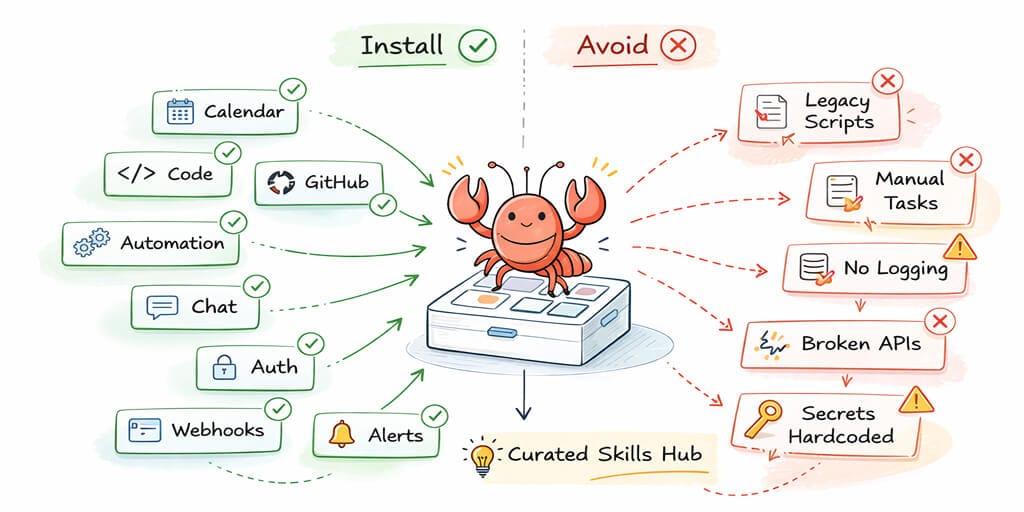
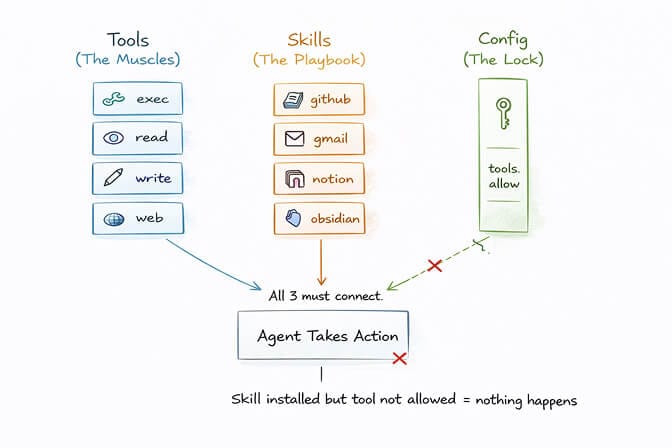
Tools are the muscles. They determine what your agent can do: read files, execute commands, browse the web. You control them in config (for example tools.allow).
Skills are the playbook. A skill is a SKILL.md file plus supporting files that teaches your agent how to combine tools for a task. The GitHub skill teaches your agent how to use the gh CLI. Without the right tools enabled and the right software installed, a skill is just instructions with no hands. When nothing on ClawHub fits, you can build your own custom skill.
Key takeaway: installing a skill does NOT automatically grant your agent new permissions. You still control which tools are enabled. That's your main safety lever. Use it.
Three conditions must all be met for a skill to work: the tool must be allowed in config, the software it calls must be installed (for example gh for GitHub), and the skill must be installed in the agent's workspace or skills library.
The Safety Layer: Install This First
Skill Vetter (276,951 downloads, scan: Clean) is still the right first install. It's a security-first checklist your agent runs before installing any other skill, looking at red flags, permission scope and suspicious patterns.
openclaw skills install @spclaudehome/skill-vetter
There are at least four skills called skill-vetter on ClawHub. The one with the downloads is @spclaudehome. That's exactly why the owner prefix matters.
It sits on top of OpenClaw's own protection, not instead of it. Every skill and plugin uploaded to ClawHub is security-reviewed by ClawScan, an open-source CLI scanner. Since 2 October 2026, ClawScan runs Tencent's AI-Infra-Guard (AIG) and NVIDIA's SkillSpector independently, then an AI judge reviews both sets of findings alongside the uploaded files and makes the call. AIG checks 9 risk categories, including instruction hijacking, memory poisoning, remote payload execution, unauthorized access, persistence and insecure dependencies. On a 556-case subset of the SkillTrustBench benchmark, ClawScan caught 98.6% of the malicious cases. That's a strong filter, not a guarantee, which is why Skill Vetter and your own read of the SKILL.md still matter. OpenClaw checks ClawHub installs against your install policy and warns before installing a flagged skill, and openclaw skills verify @owner/slug re-checks an installed skill against ClawHub.
Memory: Do You Still Need a Skill?
Ontology (199,938 downloads, scan: Suspicious) gives your agent a typed knowledge graph: entities, relationships and structured recall. It's one of the most-downloaded skills on ClawHub.
But OpenClaw 2.0 now ships built-in Memory with Dreaming turned on, and for most people, the built-in system is now the right default. Add Ontology only if you specifically want graph-structured memory, and read its scan findings first.
openclaw skills install @oswalpalash/ontology
If memory isn't working the way you expect, our OpenClaw memory fix guide is a better first stop than another memory skill.
Most useful OpenClaw skills for productivity
These are the calendar, email, notes and task skills worth knowing, grouped by job. Downloads, installs and scan verdicts are from ClawHub's API on 13 October 2026. Several of the most-used ones are published by steipete, the handle of OpenClaw creator Peter Steinberger.
Calendar and email: Gog
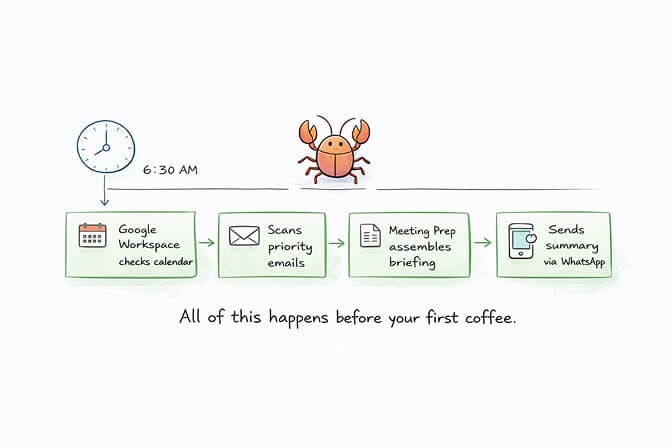
Gog (196,711 downloads, 5,491 installs, scan: Clean) is the Google Workspace skill: Gmail, Calendar, Drive, Contacts, Sheets and Docs through the gog CLI. It covers calendar and email in one install. Pair it with a scheduled automation and your agent can send you a morning calendar-and-inbox briefing before you've had coffee.
Security note: this gives your agent deep access to your Google account. Grant the narrowest scopes you can. Never blanket Drive access.
openclaw skills install @steipete/gog
Not on Google? Himalaya (@lamelas/himalaya, 52,895 downloads, scan: Clean) manages any IMAP/SMTP mailbox from the terminal, and CalDAV Calendar (@asleep123/caldav-calendar, 33,694 downloads, scan: Clean) syncs and queries iCloud, Fastmail, Nextcloud and other CalDAV calendars.
Notes: Notion and Obsidian
Notion (104,313 downloads, 3,276 installs, scan: Clean) creates and manages pages, databases and blocks through the Notion API. The sweet spot is meeting notes: have your agent pull action items from a call summary into your Notion board.
openclaw skills install @steipete/notion
Obsidian (111,412 downloads, 4,122 installs, scan: Clean) works with Obsidian vaults (plain Markdown notes) via obsidian-cli. If your second brain lives in Obsidian, this is the bridge.
openclaw skills install @steipete/obsidian
On a Mac, Apple Notes (@steipete/apple-notes, 38,168 downloads) manages notes through the memo CLI, but its scan was Suspicious on 13 October 2026, so read the findings first.
Tasks: Trello and Apple Reminders
Trello (@steipete/trello, 43,837 downloads, scan: Clean) manages boards, lists and cards through the Trello REST API. Apple Reminders (@steipete/apple-reminders, 31,975 downloads, scan: Clean) lists, adds, completes and deletes reminders through the remindctl CLI on macOS.
openclaw skills install @steipete/trello
Team chat and utilities
Slack (54,164 downloads, scan: Clean) lets your agent react to messages, pin them and manage Slack through OpenClaw's Slack tool. Note that you don't need a skill just to chat with your agent in Slack; Slack is a built-in OpenClaw channel.
openclaw skills install @steipete/slack
Two useful utilities from the same publisher round out the stack: Nano PDF (122,656 downloads) edits PDFs from plain-English instructions, and OpenAI Whisper (89,251 downloads) does local speech-to-text with no API key.
The Developer Stack: Skills That Actually Ship Code
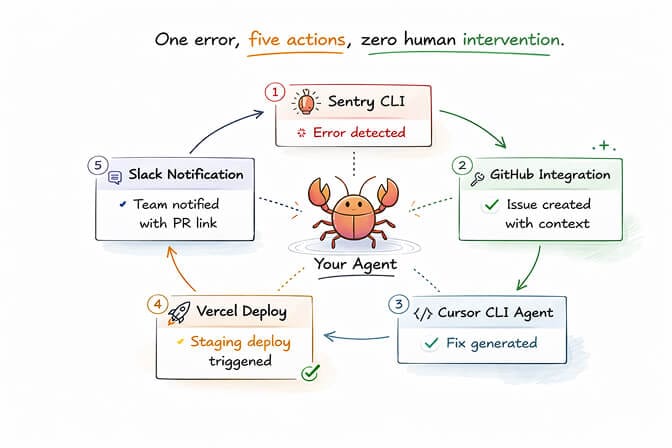
GitHub (200,639 downloads, scan: Clean) is non-negotiable if you write code. It teaches your agent to use the gh CLI for PR checks, CI runs, issues and gh api queries. Its examples are read-only, and ClawHub's scan noted it as purpose-aligned. The real power is still your token: give the gh login the narrowest repo permissions that work.
openclaw skills install @steipete/github
What about SSH, Docker and Cursor skills? Earlier versions of this list recommended "SSH Manager," "Docker Manager" and "Cursor CLI Agent." On today's ClawHub, ssh-manager doesn't exist, docker-manager has under 3,000 downloads, and the best-known Cursor and Docker skills have scan verdicts of Suspicious. None of them has the adoption to earn a spot. If you need one, search and vet carefully:
openclaw skills search "docker"
If your work sits closer to infrastructure than application code, Linux Handbook's guide to Claude skills for DevOps engineers covers the same ground from a sysadmin angle: container and pipeline work, server diagnostics, and log triage.
Search and Browsing: Giving Your Agent Current Information
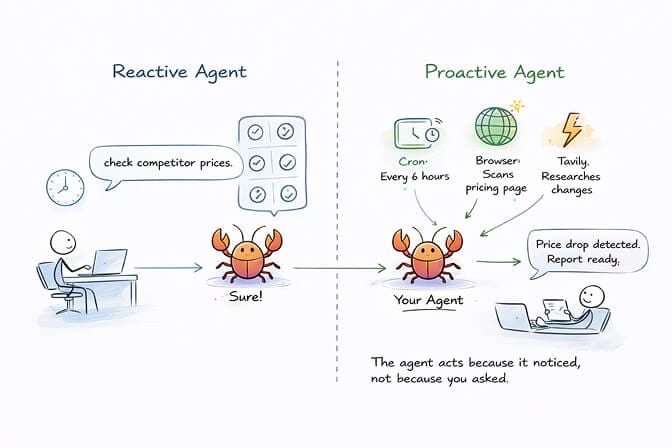
Without web search, your agent's knowledge stops at its model's training cutoff. Pick one of these, not all three.
Tavily Search (108,241 downloads, scan: Clean) returns structured results with URLs and snippets. Needs a Tavily API key. It's our default pick because it's popular and scans clean. On BetterClaw, the Tavily Search skill is a one-click install from the security-reviewed library, so there's no ClawHub step.
openclaw skills install @jacky1n7/openclaw-tavily-search
Multi Search Engine (162,792 downloads, scan: Suspicious) queries 16 engines (7 Chinese, 9 global) with advanced operators and time filters. Great coverage, especially for Chinese-language sources. Read the scan findings first.
Brave Search (62,060 downloads, scan: Suspicious) does web search and content extraction through Brave's API. Useful if you already have a Brave Search key.
Agent Browser (157,720 downloads, scan: Suspicious) is headless browser automation built for agents, using accessibility-tree snapshots to click, fill forms and read pages. It's the backbone of monitoring and scraping workflows.
Security note: a browser skill can visit any URL your agent encounters, which is a real prompt-injection surface. Enable OpenClaw's sandbox for browser work (sandboxing is off by default) and keep it away from logged-in sessions you care about.
The Automation Stack
n8n (@thomasansems/n8n, 20,995 downloads, scan: Suspicious) manages n8n workflows and executions through the n8n API: activate workflows, check runs, trigger executions. The value scales with how much you've already built in n8n. There are several n8n skills from different publishers, so use the full @owner/slug.
You don't need a separate "cron" skill for scheduling anymore. Recurring work runs through OpenClaw's built-in automations, which you can manage from the Control UI.
The Skills You Should NOT Install (Yet)
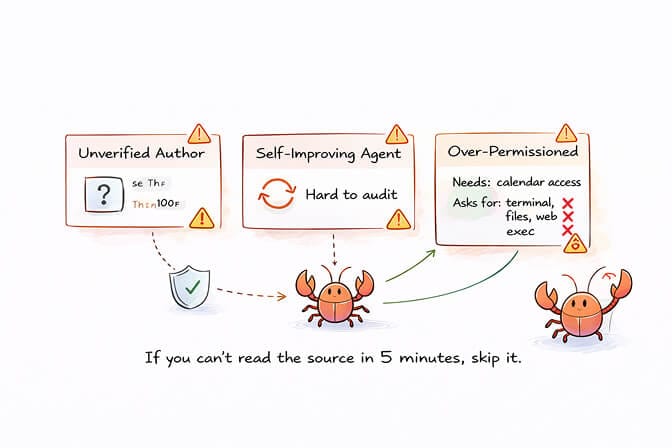
Think twice about "self-improving" skills. The most-downloaded skill on ClawHub is @pskoett/self-improving-agent (484,500 downloads). Close cousins like @ivangdavila/self-improving (211,306) and @halthelobster/proactive-agent (177,150) are also near the top. On 13 October 2026 the two cousins still scanned Suspicious, while @pskoett/self-improving-agent scanned Clean after a 4 October rescan of version 4.0.3. The scan isn't the main issue, though: OpenClaw 2.0 now has self-learning built in: its Skill Workshop turns corrections into skills, with scanner checks, hash binding and rollback. Stacking a second self-modification layer on top is the kind of recursive behavior that's hardest to audit. If you want more control over the built-in one, set skills.workshop.autonomous.mode to propose so each learned skill waits for your review.
Be skeptical of low-adoption skills from unknown publishers. A useful rule of thumb from the community: prefer skills with meaningful downloads that have been on ClawHub for a few months. Let someone else be the test case.
Skip any skill that asks for more than its job needs. A calendar skill that wants terminal access is a red flag. A weather skill that wants to read your files is a walk-away. Apply least privilege to every install.
Watch for typosquatting. The ClawHavoc campaign is the reason. A Koi Security audit published in early February 2026 checked all 2,857 skills on ClawHub at the time and found 341 malicious ones, most tied to a single campaign using fake "prerequisites" to install info-stealing malware. Many mimicked popular skill names. Check the exact @owner/slug before you install.
Our rule of thumb: if you can't read and understand a skill's SKILL.md and supporting files in under five minutes, it's either too complex for its stated purpose or doing more than it claims.
For the full breakdown of documented incidents, see our OpenClaw security risks guide and our ClawHub skills security audit.
How to Install OpenClaw Skills (The Right Way)
Step 1: Search. (Coming soon: OpenClaw's 2026.10.5 beta adds ClawHub browsing in the Gateway, so you can browse and search ClawHub skills and plugins there. It's beta only for now, not in the 2026.10.3 stable release.) From the CLI, describe what you need in plain English:
openclaw skills search "summarize my inbox every morning"
Step 2: Vet. Open the listing on ClawHub. Check the owner, downloads, last update, and the security audit: status (Pass, Review, Warn or Malicious), risk level and findings. Read the SKILL.md. If anything looks off, skip it.
Step 3: Install with the full owner-scoped slug.
openclaw skills install @owner/slug
This installs into your active agent's workspace. Add --global for the shared skills directory, or --agent <id> for a specific agent. (The standalone clawhub install @owner/slug CLI still works too.)
Step 4: Let it load. OpenClaw's default skills watcher picks up changes on the next agent turn. If you've disabled watching, start a new session.
Step 5: Scope your permissions. Enable only the tools the skill needs. Don't give write access when read will do. Don't enable exec when the skill only needs the web.
For a longer walkthrough, see our OpenClaw skills install guide.
The Easier Path: Skills on BetterClaw
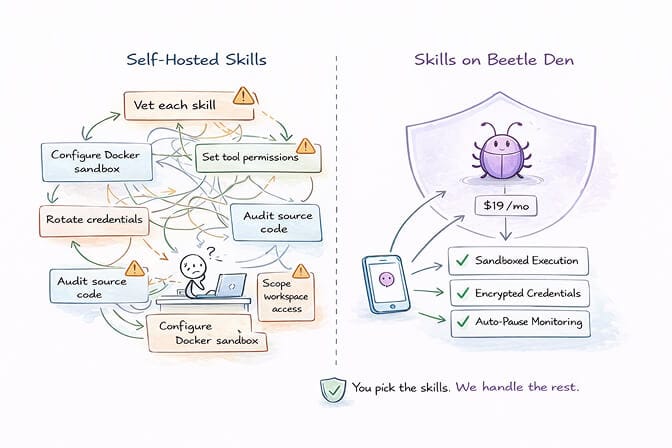
Everything above (the vetting, the owner checks, the permission scoping, the sandbox config) is work you do yourself when you self-host OpenClaw. It's worth doing if you want to learn the system deeply.
If you'd rather skip it, BetterClaw is a no-code AI agent platform with unlimited skills. It's a separate product, not a hosted copy of OpenClaw, so ClawHub skills don't install on it. What you get instead is a curated library, sandboxed execution, encrypted credentials and real-time health monitoring that auto-pauses on anomalies. The free plan includes 1 agent, 100 credits a month and BYOK. Pro is $49/month for 5 agents.
Already on self-hosted OpenClaw? Move your setup to BetterClaw →
Frequently Asked Questions
How many skills are on ClawHub?
ClawHub is growing too fast for any fixed number to stay accurate, so check clawhub.ai for the current count. For scale: when Koi Security audited it in early 2026, it had 2,857 skills.
What is the most popular OpenClaw skill?
By lifetime downloads on 13 October 2026, the leader is @pskoett/self-improving-agent (484,500), followed by Skill Vetter (276,951), @ivangdavila/self-improving (211,306), GitHub (200,639), Ontology (199,938) and Gog (196,711). By installs (unique signed-in users who reported a ClawHub CLI install), the top two are the same among the 200 most-downloaded skills: self-improving-agent (18,485), then Skill Vetter (12,245). We leave self-improving-agent out of our picks because OpenClaw 2.0 now has self-learning built in; among the 15 we recommend, Skill Vetter, GitHub and Gog lead.
Are ClawHub skills safe?
Not all of them. A Koi Security audit published in February 2026 found 341 malicious skills out of 2,857, most from one coordinated campaign. ClawHub now runs automated security audits and shows a status (Pass, Review, Warn or Malicious) on each listing. Even so, stick to widely used skills from known publishers, read the source, apply least-privilege permissions, and use a sandbox for anything that runs commands or browses. On managed platforms like BetterClaw, sandbox isolation and credential encryption are built in by default.
How do I install OpenClaw skills?
Search with openclaw skills search "<what you need>", vet the listing on ClawHub, then install with the owner-scoped slug: openclaw skills install @owner/slug. Bare slugs like skill-vetter are often shared by several publishers, so ClawHub asks you to name the owner. The skill loads on your agent's next turn.
Do I still need a memory skill in OpenClaw 2.0?
Usually not. OpenClaw 2.0 (v2026.8.1) ships built-in Memory with Dreaming (background memory consolidation) on by default. A skill like Ontology is only worth adding if you specifically want graph-structured memory on top.
What are OpenClaw skills and how do they work?
OpenClaw skills are modular text-based extensions (a SKILL.md file plus supporting files) that teach your agent how to perform specific tasks. They don't grant new permissions on their own; they use the tools already enabled in your config. You install them from ClawHub, Git or a local folder, and OpenClaw can also write its own through Skill Workshop.
Stop vetting skills by hand.
BetterClaw runs your agent in the cloud with Telegram, Slack, Discord and Gmail built in, plus webhooks, 500+ connectors, unlimited skills and 28+ model providers via your own API key with no markup. Free plan: 1 agent, 100 credits a month, 3 connectors, no card. Start free →