Hermes v0.14.0, the Foundation Release, shipped Microsoft Teams end to end. The integration is real. The setup is also real. Here's every step, every gotcha, and an honest assessment of whether it's worth your afternoon.
Updated September 28, 2026 for Hermes v0.21.5. Earlier versions of this guide used the wrong environment variable names (TEAMS_APP_ID, TEAMS_APP_PASSWORD, TEAMS_BOT_ID) and the wrong Teams CLI command for your object ID. Both are corrected below to match the current Hermes docs. The guide also covers the install-link step, @mention gating, and the subscription renewal command the meeting pipeline now ships with. If you already hit an error, our Teams setup errors guide goes error by error.
An IT manager in our community spent his entire Tuesday afternoon trying to get Hermes Agent working in Microsoft Teams. He had Azure experience. He'd set up Bot Framework apps before. He knew his way around Graph API permissions.
It still took him nearly two hours. The Azure app registration went smoothly. The bot framework webhook was straightforward. But the part where Hermes's gateway actually processes Teams messages and delivers responses back through the Graph API? Three separate config files. A tunnel requirement (Teams can't deliver to localhost). An allowlist that silently drops messages from unregistered users with no error message.
"The bot was receiving my messages. Hermes was processing them. The response just... disappeared."
His TEAMS_ALLOWED_USERS list was missing his AAD object ID. No log entry. No error. Just silence.
That's the Hermes Agent Microsoft Teams integration in a nutshell. It works. It works well once configured. Getting there requires Azure expertise, patience, and this guide.
What the Teams integration actually includes
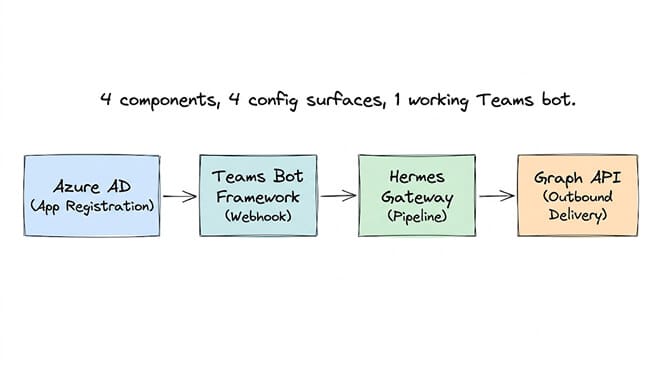
Hermes v0.14.0 (May 16, 2026) shipped the full Microsoft Teams stack in one go: the release notes list an auth and Graph client foundation, a webhook listener, a pipeline plugin runtime, and outbound delivery (#21922, #21969, #22007, #22024). It's not a basic webhook. It's a proper enterprise integration with four components:
Microsoft Graph authentication. Azure AD app registration with client credentials for the Bot Framework and Graph API.
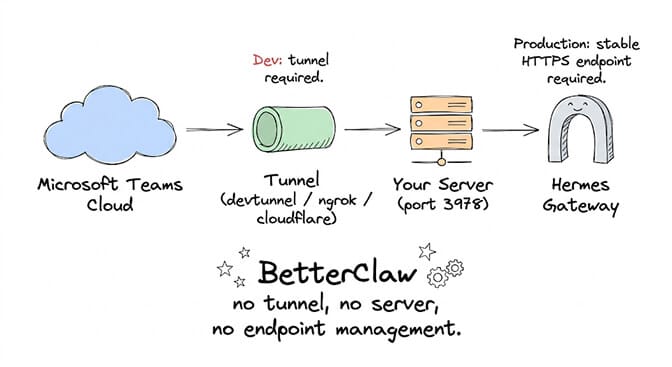
Webhook listener. A plain-HTTP endpoint (default port 3978, path /api/messages) that receives Teams events. Teams needs a public HTTPS URL in front of it, which means a tunnel for local dev or a TLS-terminating reverse proxy in production.
Pipeline runtime. Hermes processes incoming Teams messages through the same agent loop as Telegram, Discord, and Slack.
Outbound delivery. Replies go back into the same Teams conversation. v0.18.0 added native video, voice and document sends. Meeting summaries can be posted through Microsoft Graph or an incoming webhook.
This is genuine end-to-end support. Not a third-party bridge. Not a Composio wrapper. Native.
Step 1: Register the bot (the quick way)
The official Hermes docs recommend the Teams CLI approach, which skips the Azure portal entirely:
npm install -g @microsoft/teams.cli@preview
teams login
Verify your login and find your AAD object ID:
teams status --verbose
Save that object ID. You'll need it for the allowlist.
You need the public URL from Step 2 before you create the bot, so start the tunnel first. Then create the bot registration:
teams app create \
  --name "Hermes" \
  --endpoint "https://<your-tunnel-url>/api/messages"
This command handles the AAD app registration, client secret, manifest and bot setup in one step. It prints your CLIENT_ID, CLIENT_SECRET and TENANT_ID, plus an install link you'll use in Step 4. Save the client secret, because it won't be shown again. It does not write anything to your Hermes .env. You copy the values in yourself in Step 3.
On a source or local install, add the Teams extra so Hermes can import the Microsoft Teams SDK: uv sync --extra teams (or uv pip install -e ".[teams]" for editable installs). On the standard installer, the gateway lazy-installs the SDK into Hermes's own venv the first time Teams is enabled. Don't use system pip for it: on Ubuntu 24.04 that fails with PEP 668 externally-managed-environment, and it wouldn't reach the Hermes venv anyway.
The alternative (Azure portal): If you can't use the CLI (restricted environments, older Node versions), you'll need to manually create an Azure AD app registration, generate a client secret, configure redirect URIs, and note the Client ID and Tenant ID. This takes 15 to 20 minutes with Azure experience. Longer without.
For a comparison of how authentication works across different agent frameworks, our Hermes auth error troubleshooting guide covers the six most common authentication failures.
Step 2: Set up the tunnel (Teams can't reach localhost)
Here's where most people waste time. Teams cannot deliver messages to localhost. You need a public HTTPS URL pointing to your Hermes webhook port.
Three options:
Microsoft Dev Tunnel (recommended for enterprise):
devtunnel create hermes-bot --allow-anonymous
devtunnel port create hermes-bot -p 3978 --protocol http
devtunnel host hermes-bot
Note --protocol http, not https. The public tunnel URL is HTTPS, but Hermes's local listener speaks plain HTTP. The tunnel terminates TLS and forwards HTTP to port 3978. Forward HTTPS to it and the logs fill with "UNKNOWN / HTTP/1.0" 400.
ngrok:
ngrok http 3978
Cloudflare Tunnel:
cloudflared tunnel --url http://localhost:3978
Copy the https:// URL from whichever tool you use and use it as the bot's messaging endpoint: https://your-tunnel-url/api/messages. Leave the tunnel running. devtunnel URLs stay the same with a named tunnel. ngrok and cloudflared give you a new URL each run unless you pay, so update the bot with teams app update --id <teamsAppId> --endpoint "https://<new-url>/api/messages" whenever it changes.
For production: You can't rely on a development tunnel. You need Hermes running on a server with a stable public URL, a valid certificate (Teams rejects self-signed ones) and proper DNS. Terminate TLS at a reverse proxy that forwards plain HTTP to http://127.0.0.1:3978. This is where the self-hosting overhead compounds. A development tunnel for testing is one thing. Maintaining a production endpoint for your enterprise Teams bot is another.
Step 3: Configure Hermes for Teams
Add the Teams credentials to your .hermes/.env file:
# Required (values printed by `teams app create`)
TEAMS_CLIENT_ID=your-client-id
TEAMS_CLIENT_SECRET=your-client-secret
TEAMS_TENANT_ID=your-tenant-id

# Security: only accept messages from these AAD users
TEAMS_ALLOWED_USERS=your-aad-object-id,colleague-aad-id

# Optional
TEAMS_PORT=3978                 # default 3978
TEAMS_REQUIRE_MENTION=true      # channels/group chats: answer only @mentions and replies
TEAMS_HOME_CHANNEL=<conversation-id>   # where cron and proactive messages go
You can put the same values in ~/.hermes/config.yaml instead, under platforms.teams.extra (client_id, client_secret, tenant_id, port).
Lock down the file permissions:
chmod 600 ~/.hermes/.env
Then enable Teams in the gateway:
hermes gateway setup
# Select Microsoft Teams when prompted
Restart the gateway (or run it in the foreground):
hermes gateway restart
# or: hermes gateway run
On Docker, run HERMES_UID=$(id -u) HERMES_GID=$(id -g) docker compose up -d gateway from the directory that contains docker-compose.yml. That's usually your hermes-agent clone, not ~.
Check the listener is up:
curl http://localhost:3978/health   # should return: ok
hermes gateway status -l
Look for [teams] Webhook server listening on ...:3978/api/messages in the output. If the gateway starts without errors, your Teams bot should be listening. But there's a critical security detail.
The silent drop problem (the bug nobody warns you about)
TEAMS_ALLOWED_USERS is not optional. If a user's AAD object ID isn't in that list, their messages are silently dropped. No error in Teams. No log entry in Hermes (by default). The user sends a message, sees it delivered, and gets nothing back.
This is by design for security. But it's the #1 reason enterprise IT managers think the integration is broken when it's actually working perfectly... just ignoring everyone who isn't explicitly allowlisted.
How to find a user's AAD object ID:
# Using Teams CLI (your own ID)
teams status --verbose

# Using Azure CLI
az ad user show --id user@company.com --query id
Add every user who should be able to talk to the agent. Separate with commas. No spaces. The opposite switch, TEAMS_ALLOW_ALL_USERS=true, skips the allowlist entirely. Don't use it on a bot anyone in your tenant can install.
The other silent drop: mentions. In a DM the bot answers every message. In group chats and channels it only answers when @mentioned, because without resource-specific consent (RSC) Teams only delivers messages that mention the bot. If your app manifest grants ChannelMessage.Read.Group or ChatMessage.Read.Chat, Teams delivers every message. Set TEAMS_REQUIRE_MENTION=true so the bot doesn't answer all of them.
For the full picture of how Hermes handles authentication across providers and platforms, our Hermes Docker installation guide covers containerized setups that simplify credential management.
Step 4: Install the app in Teams
Print the install link and open it in your browser. It opens straight in the Teams client:
teams app get <teamsAppId> --install-link
Step 5: Test the connection
Send a DM to your Hermes bot in Teams. If everything is configured correctly, you should see the message in your Hermes gateway logs and get a response back in Teams.
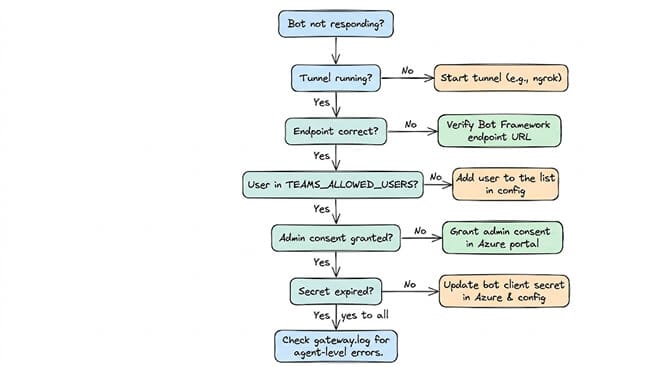
If the bot doesn't respond, debug in this order:
Check the tunnel is running and the URL is correct. Check the bot messaging endpoint matches your tunnel URL + /api/messages. Check TEAMS_ALLOWED_USERS includes your AAD object ID. Check the gateway logs with hermes gateway status -l (or docker logs -f hermes). Check TEAMS_CLIENT_SECRET hasn't expired (Azure secrets have expiry dates).
A few messages from the Hermes troubleshooting table point straight at the fix:
Teams SDK missing/No adapter available for teams: restart the gateway so the lazy install runs, or installmicrosoft-teams-apps aiohttpinto the Hermes venv."UNKNOWN / HTTP/1.0" 400in the logs: your tunnel or proxy is forwarding HTTPS to the plain-HTTP listener.[teams] Failed to connect: the credentials are wrong, or the tenant ID doesn't match the account you used forteams login.- "This bot is not responding" in Teams: the webhook returned an error. The traceback is in
hermes gateway status -l.
Common failure: Graph token 401/403 after adding permissions. You added the Graph API permissions in Azure. The token acquires cleanly. But API calls return 401 or 403. The fix: go back to the Azure portal, find your app registration, and click "Grant admin consent" again. Adding permissions without re-granting admin consent is the most common Azure permissions mistake.
If you're evaluating AI agents for enterprise Teams deployment and the Azure configuration complexity feels like the wrong use of your IT team's time, that's a reasonable reaction. BetterClaw connects to Teams with one-click OAuth. No Azure app registrations. No tunnel configuration. No allowlist management. 50+ companies including Carelon, Grainger, and Robert Half run agents on BetterClaw. The enterprise plan includes SSO, audit logs, and a dedicated CSM.
Approvals are buttons now. When the agent wants to run a risky command, Teams gets an Adaptive Card with Allow Once, Allow Session, Always Allow and Deny instead of asking you to type /approve.
Step 6: Teams Meeting Pipeline (the advanced feature)
v0.14.0 also includes a Teams Meeting Pipeline that can fetch meeting transcripts, generate summaries, and deliver them. It runs on its own Graph app registration (MSGRAPH_CLIENT_ID, MSGRAPH_CLIENT_SECRET, MSGRAPH_TENANT_ID) with application permissions, and posts summaries into Teams either through Graph (delivery_mode: graph) or an incoming webhook (delivery_mode: incoming_webhook). Validate it with:
hermes teams-pipeline validate
hermes teams-pipeline token-health
If token-health fails, force a refresh:
hermes teams-pipeline token-health --force-refresh
The pipeline uses Graph application permissions (not delegated), which means your Azure admin needs to grant consent at the organization level. This is the step where many enterprise deployments stall because it requires IT admin approval.
Known issue: Graph subscriptions for meeting events expire, in at most 72 hours according to the Hermes docs. If nothing renews them, summaries stop after about three days and the pipeline looks broken. Check subscriptions and failed jobs:
hermes teams-pipeline subscriptions
hermes teams-pipeline list --status failed
There is now a renewal command, and the docs call scheduling it "REQUIRED for production":
hermes teams-pipeline maintain-subscriptions --dry-run
hermes teams-pipeline maintain-subscriptions
The recommended way to schedule it is a script-only Hermes cron job every 12 hours. Put exec hermes teams-pipeline maintain-subscriptions in ~/.hermes/scripts/maintain-teams-subscriptions.sh, chmod +x it, then:
hermes cron create "0 */12 * * *" \
  --name "teams-pipeline-maintain-subscriptions" \
  --no-agent \
  --script maintain-teams-subscriptions.sh \
  --deliver local
A systemd timer or a plain crontab works too. Just make sure that environment has the MSGRAPH_* credentials.
The honest time estimate
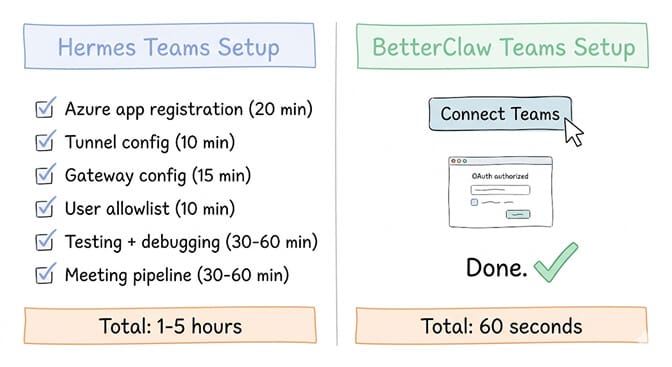
Here's what this actually takes:
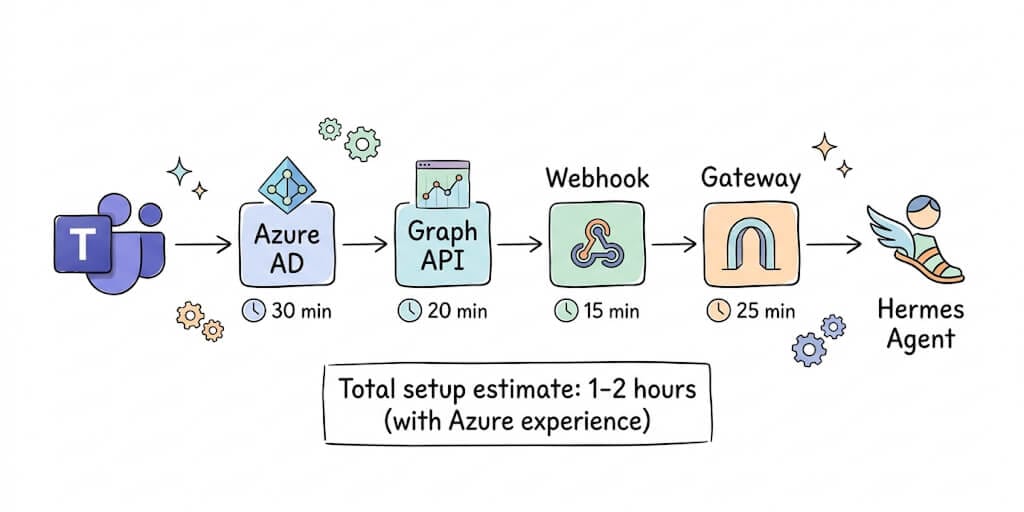
With Azure experience: 1 to 2 hours for basic bot setup and testing. Add 30 to 60 minutes for the meeting pipeline.
Without Azure experience: 3 to 5 hours minimum. Azure AD concepts, Graph API permissions, and the tunnel requirement will slow you down significantly.
Ongoing maintenance: Secret rotation (Azure secrets expire). Tunnel management (for non-production setups). Allowlist updates (new employees). Subscription renewal for the meeting pipeline (automatable with maintain-subscriptions, but you have to set it up). Gateway monitoring.
Compare this to adding Teams on a managed platform: connect OAuth, authorize, done. 60 seconds. No Azure portal. No tunnel. No allowlist.
The real question for enterprise IT: Is the configuration time and ongoing maintenance worth it for the control that self-hosting gives you? For some organizations, yes. For organizations that want AI agents working in Teams this week, not next month, managed deployment is faster by an order of magnitude.
For the broader comparison of how different AI agent platforms handle enterprise integrations, our guide on the best AI agent builders covers Teams support across all major platforms.
What this means for enterprise AI agent adoption
Microsoft Teams is where 320+ million monthly active users do their work. Having an AI agent in Teams isn't a nice-to-have for enterprises. It's the difference between an agent that gets used and an agent that gets forgotten in a Telegram channel nobody checks.
Hermes getting native Teams support is significant. It means the open-source agent space is maturing toward enterprise readiness. But "enterprise-ready" isn't just about platform support. It's about how quickly you can deploy, how much maintenance it requires, and whether your IT team is spending time on Azure configurations or on actual agent workflows.
If your organization is exploring AI agents for Microsoft Teams but not sure where to start, we offer a free AI readiness audit. We identify the highest-impact use cases for your specific operations, share a clear proposal, and if it makes sense, implement it for you on the BetterClaw platform. No commitment required to get the audit. 50+ companies have gone through this process, and the first agent is typically live within a week of approval.
Frequently Asked Questions
Does Hermes Agent work with Microsoft Teams?
Yes. Hermes v0.14.0 (released May 16, 2026) shipped Microsoft Teams end to end, and it's still supported in the current release (v0.21.5, September 24, 2026). The integration includes Microsoft Graph authentication, webhook-based message ingestion, the standard Hermes agent pipeline, and outbound delivery. Setup needs a bot registration (the Teams CLI creates it), a public HTTPS endpoint (a tunnel for development), TEAMS_CLIENT_ID/TEAMS_CLIENT_SECRET/TEAMS_TENANT_ID in ~/.hermes/.env, and explicit user allowlisting.
How long does it take to set up Hermes Agent with Microsoft Teams?
With Azure experience, expect 1 to 2 hours for basic bot setup and testing. Without Azure experience, plan for 3 to 5 hours. The Teams CLI (@microsoft/teams.cli) simplifies bot registration and prints the install link, but you still need a tunnel, credential configuration, and user allowlisting. The meeting pipeline adds another 30 to 60 minutes. BetterClaw's Teams integration takes about 60 seconds via one-click OAuth.
Why doesn't my Hermes Teams bot respond to messages?
The most common cause is the TEAMS_ALLOWED_USERS list. Hermes silently drops messages from users whose AAD object ID isn't in the allowlist. No error appears in Teams or in the default Hermes logs. Find your AAD object ID with teams status --verbose or az ad user show, then add it to TEAMS_ALLOWED_USERS in your .env file. In channels and group chats the bot only answers @mentions. Other common causes: tunnel not running, the tunnel forwarding HTTPS instead of HTTP to port 3978, a messaging endpoint URL mismatch, and Azure Graph permissions added without admin consent being re-granted.
How much does running Hermes Agent with Teams cost?
Hermes Agent is free (MIT license). But the Teams integration requires: a server with a public HTTPS endpoint ($10 to $50/month VPS), a tunnel tool for development, Azure AD (included with Microsoft 365 business plans), and your LLM API costs. Ongoing maintenance includes secret rotation, allowlist management, and Graph subscription renewal for the meeting pipeline. BetterClaw's Free plan is $0/month (1 agent, 100 credits, BYOK). Pro is $49/month for 5 agents. Enterprise pricing is custom with SSO and audit logs.
Is Hermes Agent secure enough for enterprise Microsoft Teams?
Hermes includes TEAMS_ALLOWED_USERS for message filtering, rejects requests to /api/messages that lack a valid Bot Framework JWT, and stores credentials in .env with recommended 600 permissions. However, CrowdStrike published a security advisory on OpenClaw enterprise risks, and the recent "Claw Chain" vulnerabilities (May 2026, 245,000 exposed servers) affected the broader ecosystem. For enterprise deployments, BetterClaw offers isolated Docker containers per agent, secrets auto-purge after 5 minutes (AES-256), verified skills with 4-layer security audit, and SOC-2 aligned security practices. Companies like Carelon, Grainger, and Robert Half use BetterClaw in production.