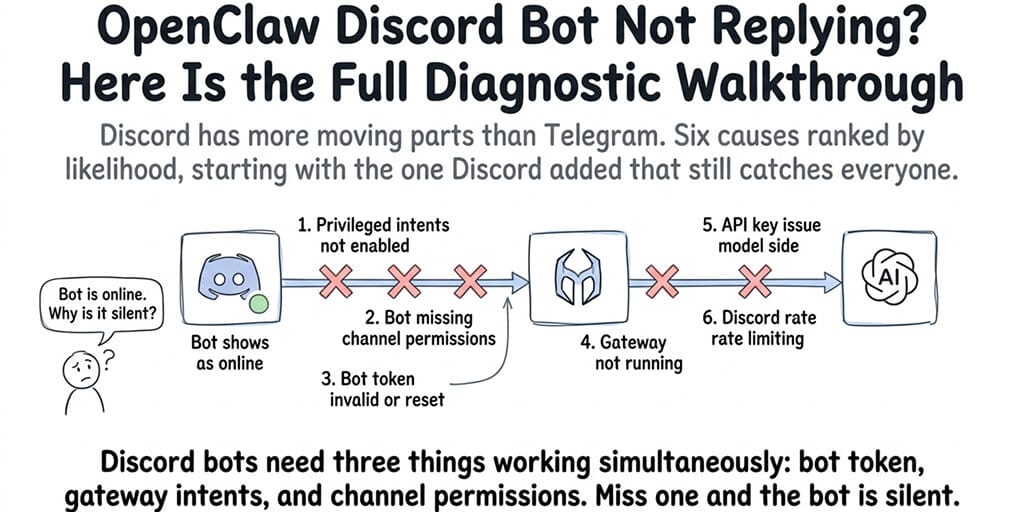
Discord has more moving parts than Telegram. Bot token, intents, permissions, channel access, slash commands. Here are six causes ranked by likelihood, starting with the one Discord added in 2024 that still catches everyone.
The bot showed as online in the Discord server. Green circle. Present in the member list. But when I typed a message in the channel, nothing happened. No response. No typing indicator. No error. Just my message sitting there, unanswered.
The bot is online but not listening. How is that possible?
It turns out Discord has a permission layer that most other messaging platforms don't: privileged gateway intents. Your bot can be online, authenticated, and present in the server, but if it doesn't have Message Content Intent enabled, it literally cannot read what you type. It sees that a message was sent. It can't see what the message says.
This is the #1 reason OpenClaw Discord bots stop responding. And it catches experienced developers because the bot appears to work (it's online) while being fundamentally broken (it can't read messages).
Here are six causes, ranked by how often they're the actual problem.
Why your OpenClaw Discord bot is not responding: Fix 1, privileged gateway intents are disabled (the Discord-specific trap)
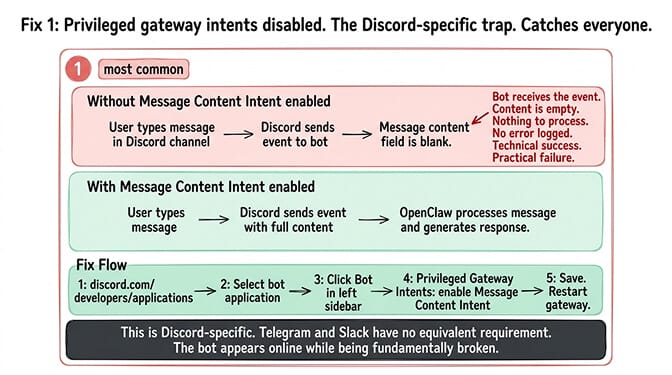
What it is: Discord requires bots to explicitly opt in to reading message content. This is a privacy feature Discord added in 2022. If your bot doesn't have the "Message Content Intent" toggled on in the Discord Developer Portal, it receives message events but the message content is empty.
What this looks like in OpenClaw: The gateway receives a message event from Discord. The message content field is blank. OpenClaw has nothing to process. No response is generated. No error is logged because technically the event was received successfully.
How to fix it:
Go to discord.com/developers/applications. Select your bot application. Click "Bot" in the left sidebar. Scroll to "Privileged Gateway Intents." Enable Message Content Intent. Also enable Server Members Intent and Presence Intent if your agent needs user information.
Save changes. Restart your OpenClaw gateway. The bot can now read message content.
The #1 Discord bot failure: The bot is online but can't read messages because Message Content Intent isn't enabled. This is Discord-specific. Telegram and Slack don't have an equivalent requirement. Every Discord bot tutorial should start here. For the step-by-step setup walkthrough with screenshots, our Discord integration guide covers the full configuration including intents.
Fix 2: Bot missing from channel or wrong permissions
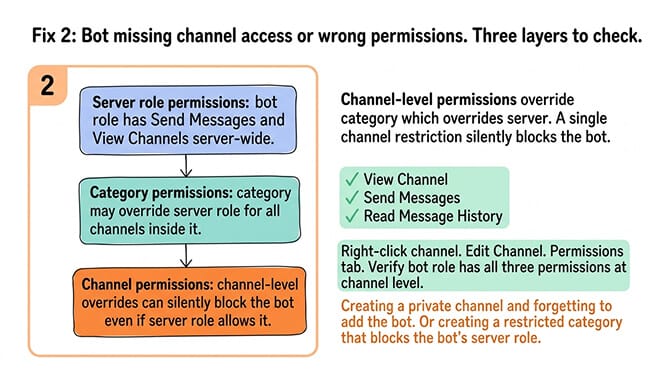
What happens: The bot is in the server but doesn't have access to the specific channel where you're messaging. Or it's in the channel but lacks "Send Messages" permission.
How to check: Right-click the channel in Discord. Click "Edit Channel." Go to "Permissions." Check that your bot role has "View Channel," "Send Messages," and "Read Message History" enabled. If the bot isn't listed, it inherited server-wide permissions. Check if the server role has these permissions.
Common mistake: Creating a private channel and forgetting to add the bot. Or creating a channel with restricted permissions that override the bot's server-wide role. Discord's permission system is layered (server > category > channel), and channel-level overrides can silently block the bot.
The fix: Add the bot to the channel explicitly. Grant "View Channel," "Send Messages," and "Read Message History" at the channel level. For the general troubleshooting guide when OpenClaw stops responding, our guide covers the broader diagnosis across all channels.
Fix 3: Bot token was reset or is invalid
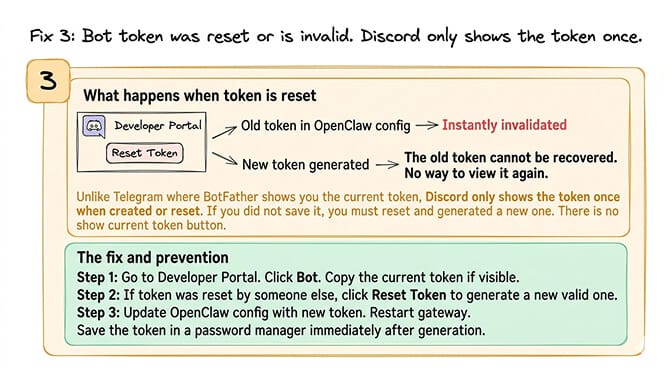
What happens: Discord bot tokens can be reset from the Developer Portal (intentionally or accidentally). If someone on your team regenerated the token, the old token in your OpenClaw config is invalid. The bot appears offline or connects briefly then disconnects.
How to check: Go to the Developer Portal. Click "Bot." Click "Reset Token" if you need a new one (this invalidates the old one permanently). Compare the token in your config to the current one.
The fix: Copy the current token from the Developer Portal. Update your OpenClaw config. Restart the gateway. Only one token is valid at a time. Resetting generates a new one and kills the old one instantly.
Discord-specific detail: Unlike Telegram (where BotFather shows you the current token), Discord only shows the token once when you create or reset it. If you didn't save it, you must reset and generate a new one. There's no "show current token" button.
Fix 4: OpenClaw gateway stuck or not running
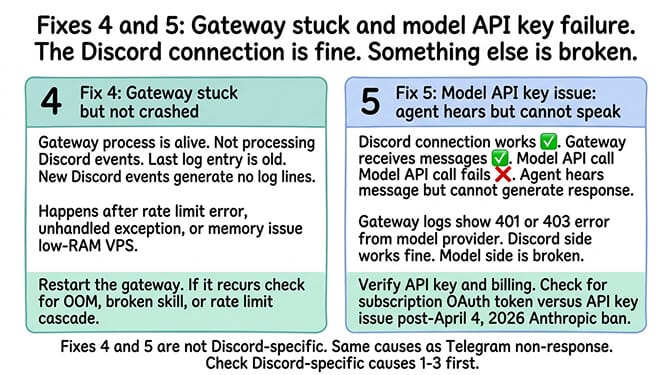
What happens: Same as the Telegram version. The gateway process is alive but not processing incoming events. This can happen after a rate limit error, an unhandled exception, or a memory issue on the VPS.
How to check: Check your gateway logs. If the last entry is old and new Discord events aren't generating log lines, the gateway is stuck.
The fix: Restart the gateway. If it recurs, check for the underlying cause (OOM on low-RAM VPS, unhandled skill exception, rate limit cascade). For the best practices for keeping OpenClaw stable, our guide covers the monitoring patterns that catch stuck gateways.
Fix 5: Model API key issue (the agent can hear but can't speak)
What happens: The Discord connection works. The gateway receives messages. But the model API call fails (invalid key, no billing, wrong token type). The agent hears the message but can't generate a response.
How to check: Gateway logs will show a 401 or 403 error from the model provider. The Discord side works fine. The model side is broken.
The fix: Verify your API key and billing. If using Claude, check whether your credential is a subscription OAuth token (sk-ant-oat01-, which is not an API key) or an API key (sk-ant-api03-) from console.anthropic.com. For the complete API key diagnostic walkthrough, our API key fix guide covers all five causes including the subscription-token mix-up.
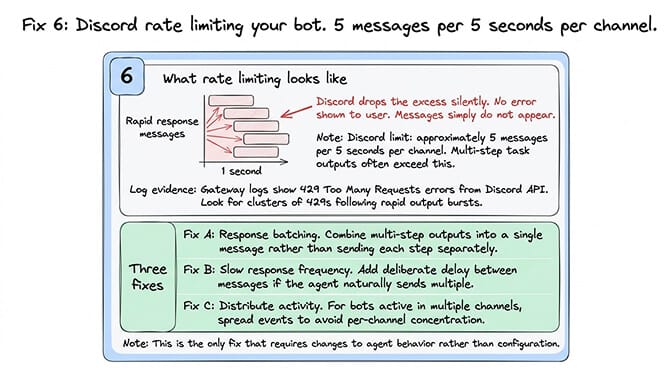
Fix 6: Discord API rate limiting your bot
What happens: Discord rate limits bots that send too many messages too quickly. The limit is approximately 5 messages per 5 seconds per channel. If your agent tries to send multiple responses rapidly (common in multi-step task outputs), Discord silently drops the excess.
How to check: Gateway logs will show 429 (Too Many Requests) errors from Discord's API.
The fix: Add response batching (combine multi-step outputs into a single message). Slow down response frequency. For bots in multiple channels, distribute activity to avoid per-channel limits.
If debugging Discord intents, channel permissions, token resets, gateway states, API keys, and rate limits sounds like more platform engineering than you signed up for, BetterClaw manages the Discord connection automatically. Add your bot token. The platform handles intents, permissions verification, connection monitoring, and auto-reconnect. Free tier with 1 agent and BYOK. $49/month for Pro (5 agents included). Discord, Telegram, Slack, WhatsApp, and 11+ more channels from a single agent. The connections are managed. The debugging is ours.
The Discord difference (why it breaks more than Telegram)
Here's the honest take.
Discord has three layers of authentication that Telegram doesn't: bot token (same as Telegram), privileged intents (Discord-only), and channel permissions (more granular than Telegram). Each layer can independently block the bot from functioning while the other layers work fine.
On Telegram, if the bot token is correct and the gateway is running, messages flow. On Discord, you need the token correct AND intents enabled AND channel permissions set AND the gateway running. Four points of failure versus two.
This is why Discord bots fail more often than Telegram bots in the OpenClaw community. The bot is more complex to configure correctly. Once configured, it's equally reliable. Getting there is the hard part.
If you want Discord integration without the three-layer configuration, give BetterClaw a try. Free tier with 1 agent and BYOK. $49/month for Pro (5 agents included). The platform verifies intents and permissions during setup. The bot connects in 60 seconds. No Developer Portal archaeology required.
Frequently Asked Questions
Why is my OpenClaw Discord bot online but not responding?
The most common cause is that Message Content Intent is disabled in the Discord Developer Portal. The bot connects and appears online, but Discord doesn't send the message content to the bot without this intent enabled. Go to discord.com/developers/applications, select your bot, click "Bot," scroll to "Privileged Gateway Intents," and enable Message Content Intent. Restart the gateway.
What Discord intents does OpenClaw need?
OpenClaw requires three privileged intents: Message Content Intent (to read message text), Server Members Intent (to identify users), and Presence Intent (optional, for user status). All three are configured in the Discord Developer Portal under your application's "Bot" settings. Without Message Content Intent, the bot receives events but can't read what users type.
How do I fix Discord bot permissions for OpenClaw?
Check three levels: server role permissions (the bot's role needs "Send Messages" and "View Channels"), category permissions (check if the category overrides the role), and channel permissions (check if the specific channel restricts the bot). Right-click the channel, click "Edit Channel," go to "Permissions," and verify the bot role has "View Channel," "Send Messages," and "Read Message History."
Is Discord harder to set up with OpenClaw than Telegram?
Yes. Discord has three authentication layers (bot token, privileged intents, channel permissions) versus Telegram's one (bot token). Discord tokens can only be viewed once when created. Discord's permission system has server/category/channel hierarchy. Once configured correctly, both channels are equally reliable. The setup complexity is the difference.
Does BetterClaw handle Discord bot setup automatically?
BetterClaw manages the Discord connection including intent verification, permission checks, and auto-reconnect. You add your bot token during setup. The platform verifies the required intents are enabled and alerts you if permissions are missing. No Developer Portal navigation required after the initial bot creation. Free tier with 1 agent. $49/month for Pro (5 agents included).