Four causes, two different symptoms, and the diagnostic question that saves you an hour of guessing.
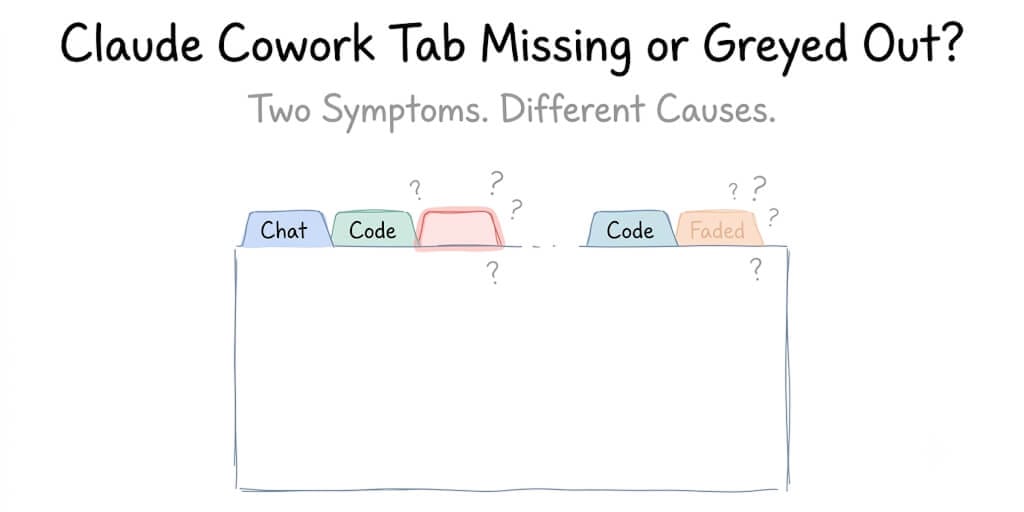
The Cowork tab usually disappears for one of four reasons: an outdated desktop app that predates Cowork or shipped with a broken build, a Windows requirement that isn't met, a staged feature rollout that hasn't reached your account yet, or a plan that doesn't include it. The first step is figuring out whether the tab is missing entirely (not in the navigation at all) or greyed out (visible but unclickable), because those two symptoms have completely different causes.
Here's the first thing you need to know. "Greyed out" and "missing" look similar but they mean different things diagnostically, and fixing the wrong one wastes your whole morning.
The diagnostic question: is it greyed out, or is it gone?
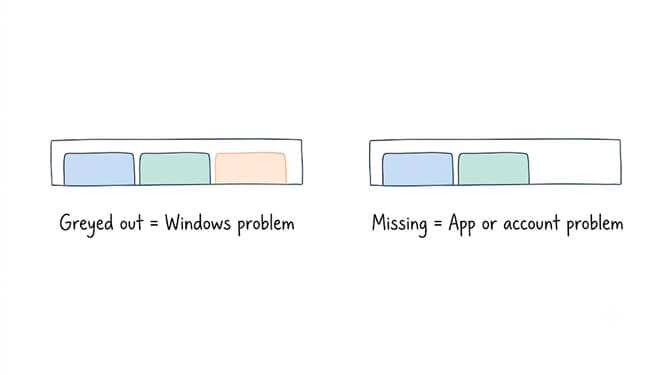
Look at the top navigation bar in Claude Desktop. You should see tabs for Chat, Code, and Cowork.
If the Cowork tab is visible but greyed out or unclickable, hover over it. You'll usually see a tooltip with a specific error message. "Missing HCS services: hns, vmcompute, vfpext." Or "Virtual Machine Platform not available." Or just a generic "Cowork is unavailable."
This means: Cowork is available on your plan and your app version, but a Windows requirement isn't met. The fix is a Windows configuration issue, not an app or account issue.
If the Cowork tab is completely absent from the navigation, with only Chat and Code visible, that's a different problem entirely. It means the app build you're running either doesn't include Cowork, or your account/plan doesn't have access to it.
Greyed out = your app knows about Cowork but your system can't run it. Missing entirely = your app doesn't even know Cowork exists on this install. Same visual result. Different cause. Different fix.
Fix 1: Update the desktop app (most common cause of the tab being completely missing)
This is the fix for the majority of "Cowork tab not showing up" cases. Claude Desktop shipped Cowork on February 10, 2026. If you installed before that date using the old Squirrel-based installer, Cowork was never part of your build.
Here's the part that catches people. The in-app "Check for Updates" feature on old Squirrel installs falsely reports "You are running the latest version" even though a newer MSIX-based build with Cowork exists on a different distribution channel. The updater is checking the Squirrel channel, which has no MSIX version. It's technically correct and practically useless.
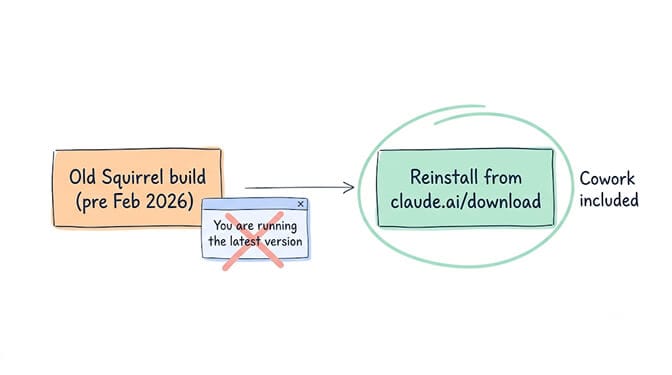
The fix: uninstall Claude Desktop entirely, then download and install the latest version from claude.ai/download. This gives you the MSIX-based build with Cowork included. Your chat history is tied to your account, not the local install, so it survives the reinstall.
For the full walkthrough including the %APPDATA% cleanup steps for a clean migration, our modern installer fix guide covers the Squirrel-to-MSIX process step by step.
There's a second version of this problem. On macOS, a specific build (v1.7196.1) shipped with the Cowork runtime completely absent from the app bundle. The tab disappeared after an auto-update even though it was working before. The diagnostic: on macOS, run this in Terminal:
ls /Applications/Claude.app/Contents/Resources/app.asar.unpacked/node_modules/ | grep -i cowork
If it returns empty, the Cowork runtime wasn't included in your build. On Windows, the same pattern appeared in build v1.2581.0, where the tab was completely absent with no error message, just missing from the navigation.
The fix for build regressions: check if a newer version is available at claude.ai/download. Anthropic typically patches these within days. If you're already on the latest build and the tab is still missing, it may be an account eligibility issue rather than a build issue, covered in Fix 3 below.
Fix 2: Check your Windows setup (if the tab is greyed out, not missing)
If the Cowork tab is visible but greyed out or unclickable, the problem is almost always one of these Windows requirements not being met:
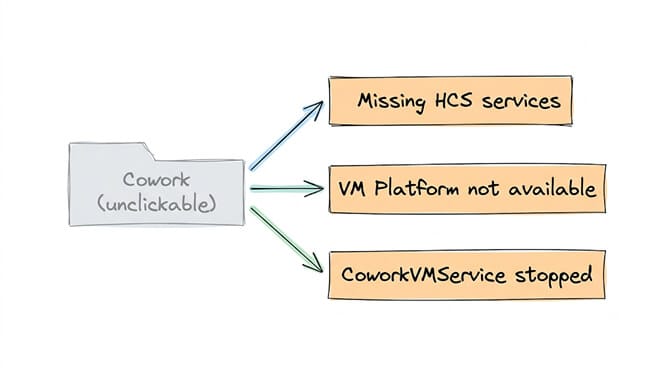
- "Missing HCS services: hns, vmcompute, vfpext" means the Host Compute Service stack that Cowork's sandbox VM depends on isn't running. This is the most common greyed-out cause. Our dedicated HCS services fix guide walks through every step, including the vfpext edge case that trips up 30% of users.
- "Virtual Machine Platform not available" means Windows' virtualization layer is disabled. Our VM Platform fix covers enabling it in Windows Features and BIOS, including the Windows Home carve-out.
- CoworkVMService stopped is the sneaky one. This service ships with startup type set to Manual, so it dies after every reboot, Windows update, and sleep/wake cycle. The tab greys out silently until you restart the service:
Start-Service CoworkVMService
Set-Service -Name "CoworkVMService" -StartupType Automatic
The second command makes it permanent so you don't have to fix this after every restart.
Not sure which error you're hitting? Run the Cowork readiness check to identify the exact failing component.
If the idea of troubleshooting Windows services, HCS drivers, and virtualization settings just to get an AI agent running sounds like the wrong use of your time, we built BetterClaw specifically to avoid this class of problem. No desktop install. No VM. No HCS services. Your agent runs on cloud infrastructure, and the Cowork tab equivalent never greys out because there's no local system requirement. Free plan, no credit card, 200+ verified skills, 60-second deploy.
Fix 3: Check your plan and account eligibility
If the app is up to date and the tab is still completely absent (not greyed out, but gone from the navigation entirely), it may be a plan or rollout issue.
Cowork requires a paid plan. Free Claude accounts do not include Cowork. Cowork launched on January 12, 2026 as Max-only, then expanded to all Pro subscribers on January 16, 2026. As of July 2026, Cowork on the desktop app is available to Pro ($20/mo), Max ($100 or $200/mo), Team, and Enterprise subscribers.
Web and mobile Cowork is Max-only right now. On July 7, 2026, Anthropic began rolling out Cowork to iOS, Android, and the web for Max subscribers in beta. Pro subscribers don't have web/mobile Cowork yet. If you're on Pro and expecting to see Cowork in your browser or on your phone, that's why it's not there.
Team and Enterprise accounts can have Cowork disabled by admins. Organization owners can toggle Cowork off in Organization Settings under Capabilities, and on Enterprise plans, custom roles can restrict Cowork access per team. If you're on a work account and the tab is missing, check with your IT admin before troubleshooting Windows.
Regional availability: Cowork is generally available wherever Claude is supported, but region-locked accounts may not have access. If you're seeing "Not available in your region" errors, that's the cause.
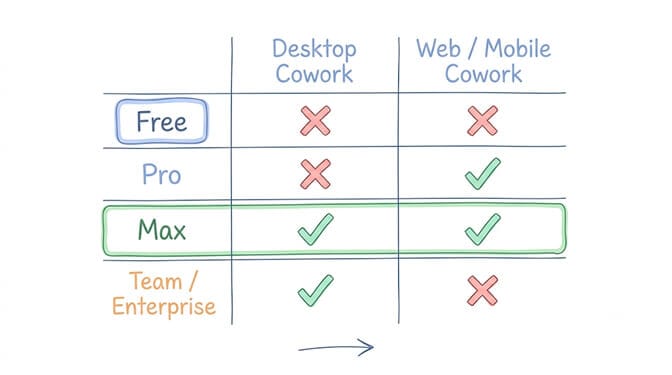
How to verify your plan status: go to claude.ai in your browser, click your profile, and check your subscription. If it says Pro, Max, Team, or Enterprise, Cowork should be available in the desktop app. If it says Free, you'll need to upgrade.
The "it was working yesterday" case
This is the most frustrating variant. The tab was there. You were using Cowork. You opened Claude Desktop the next day and it's gone or greyed out.
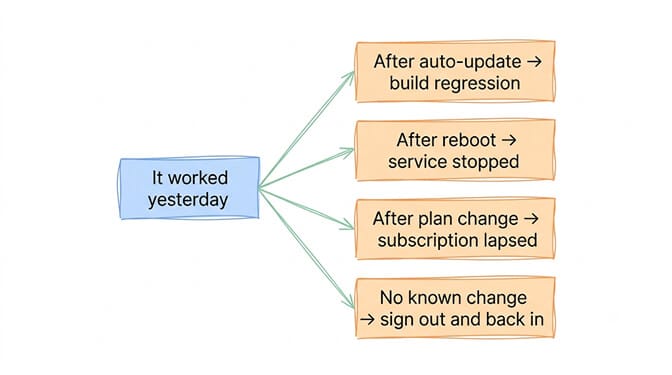
- If it disappeared after an auto-update: a build regression may have removed the Cowork runtime from your version. Check claude.ai/download for a newer build. Build regressions that strip the Cowork tab have been documented on both macOS (v1.7196.1) and Windows (v1.2581.0), and Anthropic typically patches them within days.
- If it greyed out after a reboot or sleep: CoworkVMService died because it ships as Manual startup type. Start it with
Start-Service CoworkVMServiceand set it to Automatic to prevent recurrence. - If it disappeared after a plan change or subscription lapse: Cowork is removed from the UI when a subscription lapses or downgrades to Free. Reactivating your Pro or Max subscription should restore it.
- If it disappeared without any change you're aware of: sign out of Claude Desktop and sign back in. This refreshes the feature flags that determine which tabs appear. If that doesn't work, a clean reinstall from claude.ai/download is the reliable fallback.
The full troubleshooting guide
If none of the fixes above resolved your specific case, the full Cowork troubleshooting guide covers all known failure modes in one place, including the detection bug, network conflicts, and corrupted installs.
And if your issue is rate limits rather than the tab itself, our Claude rate limit guide covers the separate five-hour rolling window and shared-pool mechanics that affect Cowork sessions.
The honest takeaway
A Cowork tab that disappears or greys out isn't one problem with one fix. It's at least four different problems that all look the same from the outside. The diagnostic question ("is it greyed out or missing entirely?") is worth more than all the PowerShell commands in this post combined, because it cuts the possible causes in half before you type a single command.
Skip the disappearing-tab lottery
Your AI agent runs on infrastructure where features don't vanish based on your Windows build, your BIOS settings, or your service startup type. No desktop app. No VM. No tab to disappear. Start free → No credit card · 200+ verified skills · Free plan with 1 agent, every feature · $19/mo per agent for Pro · Deploy in ~60 seconds
Frequently Asked Questions
Why is the Cowork tab missing from Claude Desktop?
The most common cause is running an outdated version of Claude Desktop that predates Cowork (installed before February 2026) or a build where the Cowork runtime was accidentally omitted during an auto-update. The fix is to uninstall and reinstall from claude.ai/download. If you're on a Free plan, Cowork isn't included and requires upgrading to Pro ($20/mo) or higher.
What does a greyed-out Cowork tab mean?
A greyed-out tab means Cowork is available on your plan and your app version, but a Windows system requirement isn't met. Hover over the tab to see the specific error. "Missing HCS services" means the virtualization service stack needs enabling. "Virtual Machine Platform not available" means Windows' virtualization layer is disabled. The fix is Windows configuration, not an app or account change.
Why did the Cowork tab disappear after an update?
Two known causes. First, a build regression where the Cowork runtime was stripped from the app bundle, documented on both macOS (v1.7196.1) and Windows (v1.2581.0). Check claude.ai/download for a newer build. Second, the CoworkVMService died after the update because it ships with Manual startup type. Run Start-Service CoworkVMService in an admin PowerShell.
Is Cowork available on Claude Pro or only Max?
Cowork on the desktop app is available to both Pro ($20/mo) and Max ($100+/mo) subscribers since January 16, 2026. Web and mobile Cowork launched July 7, 2026 as a Max-only beta. Pro subscribers currently get desktop Cowork only. Team and Enterprise plans include Cowork, but organization admins can disable it.
How do I tell if the missing Cowork tab is a Windows problem or an account problem?
Check two things. First, go to claude.ai in your browser and verify your subscription is active (Pro, Max, Team, or Enterprise). Second, check if the tab is greyed out (visible but unclickable) or completely absent. Greyed out means a Windows requirement isn't met. Completely absent on a paid plan means either an outdated build or a feature flag issue, fixed by reinstalling from claude.ai/download or signing out and back in.