Six checks, three common failures, and the one false positive that wastes an hour of your life.
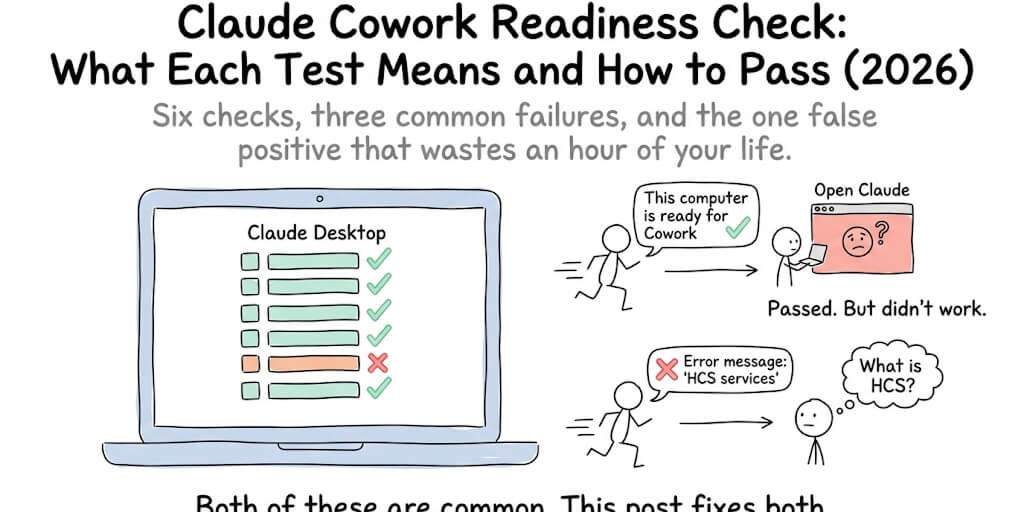
You download the Cowork readiness checker from Anthropic's support page. You run it. It says "This computer is ready for Cowork." You open Claude Desktop, click the Cowork tab, and it fails anyway.
Or the opposite happens. The readiness check fails on one test. You don't know what that test actually checks. The error message says something about "HCS services" and you've never heard of HCS in your life.
Both of these scenarios are common. The readiness checker is a useful diagnostic tool, but only if you know what each test actually does, what a failure on each one means, and one documented case where the check passes when it shouldn't.
This post walks through every check the tool runs, what each result means, and the exact fix for each failure.
What the readiness check actually tests
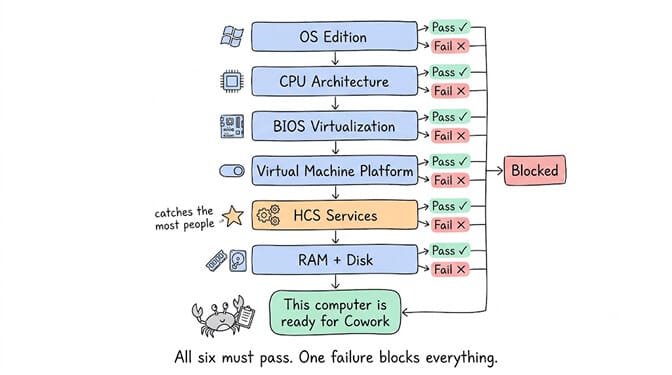
Anthropic provides a downloadable readiness check tool (separate builds for Windows x64 and ARM64) that runs six checks against your system. It verifies your OS version, virtualization status, and Hyper-V availability. If everything passes, you see "This computer is ready for Cowork."
Here's what each check actually does under the hood.
Check 1: Windows Edition
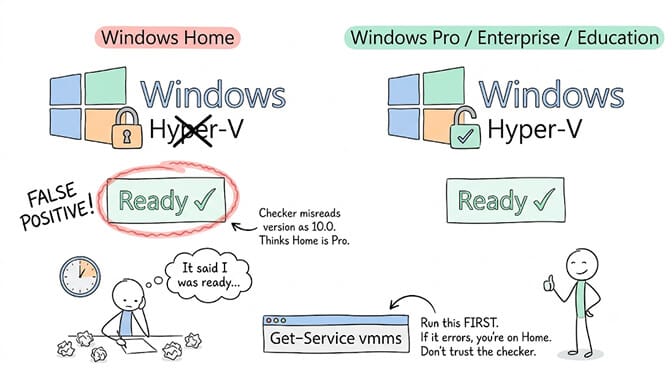
What it tests: whether you're running Windows 10 or 11 Pro, Enterprise, or Education. Cowork requires Hyper-V, which is not available on Windows Home.
How to verify manually: Press Win+I, go to System, then About. Look for the "Edition" line. If it says "Home," Cowork won't work.
A quicker check: open PowerShell and run Get-Service vmms. If it returns a service (running or stopped), your edition supports Hyper-V. If it returns an error, you're on Home.
The fix for a failure: upgrade to Windows Pro. Microsoft sells the upgrade for around $99 through the Microsoft Store. There's no workaround that makes Cowork run on Home edition, because the underlying Hyper-V infrastructure simply isn't installed.
The known false positive you need to know about: GitHub issue #50621 documents that the readiness checker falsely reports "ready" on some Windows 11 Home systems because Windows 11 internally still reports its version as 10.0, and the checker misclassifies the OS edition. If you're on Windows Home and the checker says you're ready, verify manually with Get-Service vmms before spending time on anything else.
If the readiness check passes but Cowork still fails, and you're on Windows Home, the check lied. Verify your edition manually before debugging anything else.
Check 2: Processor Architecture
What it tests: whether your CPU is x64 (Intel or AMD) or ARM64 (Qualcomm Snapdragon, Microsoft SQ series). Anthropic provides separate readiness checkers and installers for each architecture.
How to verify manually: In the same System > About page, look for "System type." It will say "64-bit operating system, x64-based processor" or "ARM-based processor."
The fix for a failure: make sure you downloaded the correct readiness checker for your architecture. If you downloaded the x64 version but you're on ARM64 (common on newer Surface devices), the checker itself may fail or give incorrect results.
Check 3: BIOS/UEFI Virtualization
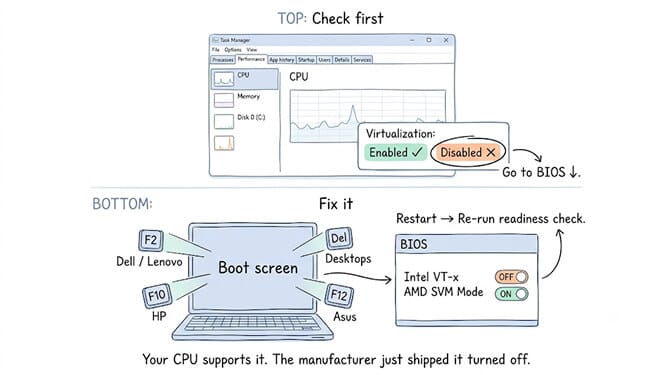
What it tests: whether your CPU's hardware virtualization support (Intel VT-x or AMD SVM) is enabled at the firmware level.
How to verify manually: Open Task Manager (Ctrl+Shift+Esc), click Performance, click CPU. Look for "Virtualization" in the details at the bottom. If it says "Disabled," you need to enter BIOS.
The fix: restart and enter BIOS (F2 for most Dell/Lenovo, F10 for HP, Del for most desktops). Find "Intel Virtualization Technology" or "SVM Mode" under Advanced or CPU Configuration. Enable it. Save and exit.
If your BIOS doesn't show a virtualization option, your CPU may be too old. Any Intel Core i-series from 4th generation (2013) onward supports VT-x. Any AMD Ryzen supports SVM.
For a detailed walkthrough of the BIOS fix, including manufacturer-specific key differences, our Virtual Machine Platform fix guide covers it step by step.
Check 4: Virtual Machine Platform
What it tests: whether the Windows Virtual Machine Platform optional feature is enabled.
How to verify manually:
Get-WindowsOptionalFeature -Online -FeatureName VirtualMachinePlatform
If State shows Enabled, the feature is on.
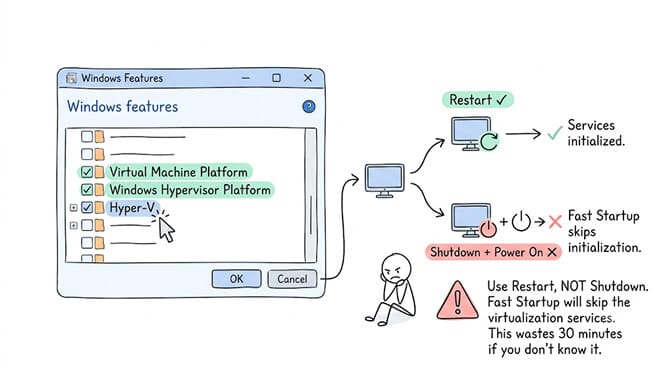
The fix: open "Turn Windows features on or off" from the Start menu and check Virtual Machine Platform, Windows Hypervisor Platform, and Hyper-V. Click OK and restart.
Or via PowerShell as Administrator:
Enable-WindowsOptionalFeature -Online -FeatureName VirtualMachinePlatform -All
Then restart. Use Restart, not Shutdown and power on. With Windows Fast Startup enabled, a shutdown cycle can leave the virtualization services uninitialized. This is one of those details that wastes 30 minutes if you don't know it.
Check 5: HCS Services (the one that catches the most people)
What it tests: whether the three Host Compute Service components that Cowork's sandbox depends on are present and running.
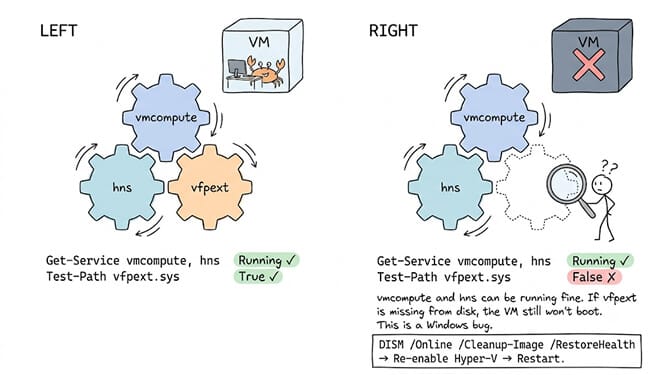
Cowork's sandbox runs on the Windows Host Compute Service (HCS) stack: vmcompute (VM Compute), hns (Host Network Service), and the vfpext virtual-filtering driver. If any are missing or stopped, the VM never boots.
How to verify manually:
Get-Service vmcompute, hns
Both should show Running. For the vfpext driver:
Test-Path C:\Windows\System32\drivers\vfpext.sys
If it returns False, the driver is missing.
The fix if services aren't running: enable the full Hyper-V feature set in Windows Features (not just Virtual Machine Platform), restart, then verify again.
The fix if vfpext.sys is missing: this has been reported as a Windows-side bug on fully patched Windows 11 25H2 systems where the vfpext driver is missing from disk even though Hyper-V is installed and vmcompute and hns are running normally. The fix that worked in the documented case involved running DISM /Online /Cleanup-Image /RestoreHealth followed by re-enabling the Hyper-V feature, then restarting. If that doesn't restore the driver, a Windows repair install may be needed.
This is also the check where conflicting hypervisors show up. If you previously had VMware or VirtualBox installed:
bcdedit
Look for hypervisorlaunchtype. If it doesn't read Auto, run bcdedit /set hypervisorlaunchtype auto and restart. A third-party hypervisor can set this to Off, which prevents Windows' native Hyper-V from loading even when the features are enabled.
Check 6: RAM and Disk Space
What it tests: whether your system has enough available memory and disk space to run the Cowork VM.
The Cowork VM consumes approximately 1.8 GB of RAM when running, and it starts automatically when Claude Desktop launches, regardless of whether you open the Cowork tab. The VM bundle itself is roughly 1.8 GB on disk.
Minimum requirements: 8 GB of total RAM is the practical floor, since the VM takes 1.8 GB and your OS, browser, and other apps need the rest. 16 GB is comfortable. Disk space: at least 5 GB free for the VM bundle, workspace files, and logs.
The fix for RAM: close other applications before launching Claude Desktop, or upgrade your RAM. There's no way to reduce the VM's memory footprint.
The fix for disk space: free up space on your system drive (usually C:). The VM files live in %APPDATA%\Claude, which is always on the system drive regardless of where Claude Desktop is installed.
If the idea of your AI agent consuming 1.8 GB of RAM before you've even given it a task sounds like the wrong tradeoff, that's a reasonable reaction, especially on a 16 GB laptop where memory is already tight. We built BetterClaw so your agents run on managed infrastructure instead of your local machine. No VM. No RAM consumption. No disk space. No readiness check. Free plan, no credit card, 200+ verified skills, and your agent deploys in 60 seconds regardless of what your laptop can or can't run.
The quick reference table
| Check | What it verifies | Manual verification command | Common failure | Fix |
|---|---|---|---|---|
| OS Edition | Pro/Enterprise/Education | Get-Service vmms | Windows Home | Upgrade to Pro ($99) |
| CPU Architecture | x64 or ARM64 | System > About | Wrong installer | Download correct build |
| BIOS Virtualization | VT-x or SVM enabled | Task Manager > CPU | Disabled in firmware | Enable in BIOS |
| VM Platform | Windows feature enabled | Get-WindowsOptionalFeature | Feature off | Enable + Restart (not Shutdown) |
| HCS Services | vmcompute, hns, vfpext | Get-Service vmcompute, hns | vfpext missing | DISM repair + re-enable Hyper-V |
| RAM + Disk | Sufficient resources | Task Manager > Memory | Under 8 GB total | Close apps or upgrade |
What to do if you pass everything and Cowork still fails
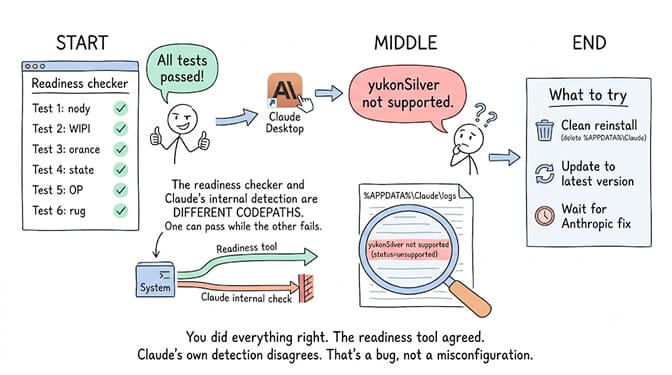
If every readiness check passes but Cowork still won't start, you may be hitting the yukonSilver detection bug documented in our Virtual Machine Platform fix guide. That's a separate issue where Claude Desktop's internal platform detection classifies your correctly configured system as unsupported and enters a loop. The readiness check tool and Claude Desktop's internal detection are different codepaths, so one can pass while the other fails.
If your rate limits are also a factor on top of setup issues, our Claude rate limit fix guide covers the separate five-hour rolling window and shared-pool mechanics that affect Cowork usage.
The honest takeaway
The Cowork readiness check is a helpful starting point, but it has blind spots. It can pass on Windows Home when Cowork can't actually run there. It can pass on all six checks while Claude Desktop's own detection fails on a separate codepath. And it can't tell you about the 1.8 GB RAM consumption that starts the moment Claude Desktop launches, regardless of whether you ever touch the Cowork tab.
For most people, the readiness check is a 2-minute confirmation. For the people it misleads, it's the start of an hour-long debugging session that ends with "my edition doesn't support this" or "there's a known bug I can't fix."
Skip the readiness check entirely
BetterClaw runs your agent on infrastructure that's always ready — no virtualization, no HCS services, no 1.8 GB VM eating your laptop's RAM. Start free → No credit card · One agent with every feature on the free plan · $19/mo per agent for Pro · Deploy in ~60 seconds
Frequently Asked Questions
What is the Claude Cowork readiness check?
It's a downloadable tool from Anthropic that tests whether your Windows system meets the requirements to run Claude Cowork's sandboxed VM environment. It checks your Windows edition, CPU architecture, BIOS virtualization, Virtual Machine Platform feature, HCS services (vmcompute, hns, vfpext), and available RAM and disk space.
Why does the Cowork readiness check pass but Cowork still doesn't work?
Two known causes. First, the checker has a documented false positive on Windows 11 Home where it misclassifies the OS edition as supported. Second, Claude Desktop has its own internal platform detection (the yukonSilver codepath) that can fail independently of the readiness checker. Passing the readiness check doesn't guarantee passing Claude's internal detection.
What are the minimum system requirements for Claude Cowork?
Windows 10 or 11 Pro, Enterprise, or Education edition. CPU with VT-x (Intel) or SVM (AMD) support. At least 8 GB RAM (16 GB recommended since the VM alone consumes 1.8 GB). At least 5 GB free disk space on the system drive. Hyper-V, Virtual Machine Platform, and Windows Hypervisor Platform must all be enabled.
What is the HCS stack and why does Cowork need it?
HCS (Host Compute Service) is the Windows subsystem that creates and manages lightweight VMs. Cowork specifically requires three HCS components: vmcompute (the compute service), hns (the network service), and vfpext (the virtual filtering driver). If any of the three is missing or stopped, the Cowork VM can't start. The most common failure is the vfpext driver being absent from disk even on otherwise fully configured systems.
Can I run Claude Cowork on Windows Home?
Not officially. Windows Home does not include Hyper-V, which Cowork's VM requires. The readiness checker may falsely report "ready" on some Windows Home systems due to a known OS version detection bug, but Cowork itself will fail. Your options are upgrading to Windows Pro ($99), using Claude Code via the terminal (no VM needed), or using Claude.ai web chat.