Three services, three different failure modes, and a detection bug that wastes an hour if you don't know about it.
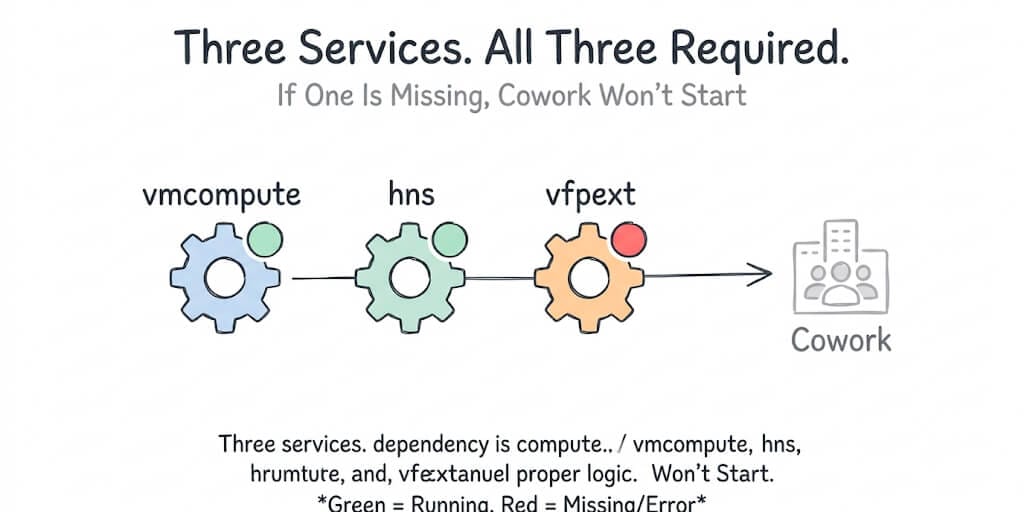
If Claude Cowork shows "Missing HCS services: hns, vmcompute, vfpext," it means the Host Compute Service stack that Cowork's sandbox VM depends on isn't running or isn't installed. These three components — VMCompute (the compute layer), HNS (the virtual networking layer), and VFPEXT (the packet-filtering driver) — all need to be present and active. The fix for most machines is to enable Hyper-V, Virtual Machine Platform, and Containers in Windows Features, then restart using Restart (not Shutdown). Takes about five minutes.
But that's the 70% version. The other 30% of cases involve vfpext specifically, which behaves differently from the other two and has a documented detection bug. This post covers both paths.
What HNS, VMCompute, and VFPEXT actually do (plain-English version)
You don't need to understand virtualization internals to fix this error. But knowing what each service does helps you diagnose which one is actually broken, because the error message lists all three regardless of which specific one is missing.
HCS is the low-level API that Hyper-V and Windows containers use to create and manage lightweight VMs. That's exactly what Cowork's sandbox is built on.
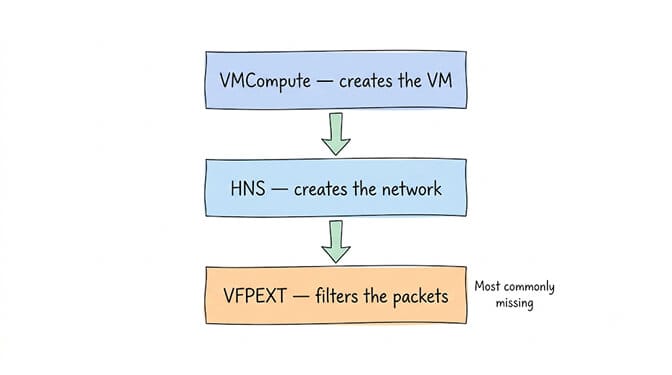
VMCompute (Hyper-V Host Compute Service) is the compute engine. It creates and manages the lightweight VM that Cowork's workspace runs inside. If vmcompute is missing, there's no VM at all. Nothing starts.
HNS (Host Network Service) provides the virtual networking. It creates the virtual switch and NAT rules that let the Cowork VM communicate with the internet and with your host machine. It manages the subnet (typically 172.16.0.0/24) and the gateway that translates the VM's traffic to the outside world. If HNS is missing, the VM might start but it has no network, so Cowork can't download anything, connect to Claude's API, or serve files back to you.
VFPEXT (Virtual Filtering Platform Extension) is the packet-filtering driver that HNS depends on. It handles the actual routing and filtering of network packets between the VM and the host. It's the lowest-level component of the three. If vfpext is missing, HNS can't function properly even if HNS itself is technically running.
Think of it as a stack. VMCompute is the engine. HNS is the plumbing. VFPEXT is the valve that controls the water flow. Remove any one of the three and Cowork can't operate.
The 5-minute fix that works for most machines
This handles about 70% of cases. The error usually appears because the Windows virtualization features that register these services were never enabled, or were disabled by a Windows update.
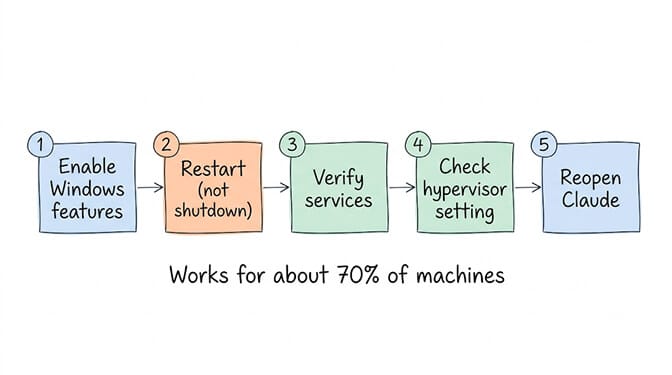
Step 1: Enable the right Windows features
Open PowerShell as Administrator (right-click Start, select Terminal (Admin) or Windows PowerShell (Admin)) and run all three:
Enable-WindowsOptionalFeature -Online -FeatureName VirtualMachinePlatform -All -NoRestart
Enable-WindowsOptionalFeature -Online -FeatureName Microsoft-Hyper-V -All -NoRestart
Enable-WindowsOptionalFeature -Online -FeatureName Containers -All -NoRestart
The Containers feature is the one most guides skip. Enabling Hyper-V, Windows Hypervisor Platform, and Containers together is what registers the full HCS service stack including the vfpext driver. If you only enable Virtual Machine Platform and Hyper-V without Containers, vfpext may not register.
If you prefer the GUI: press Win+S, type "Turn Windows features on or off," open it, and check Hyper-V (all sub-items), Virtual Machine Platform, Windows Hypervisor Platform, and Containers. Click OK.
Step 2: Restart (not Shutdown)
Use Restart, not Shutdown and power on. With Windows Fast Startup enabled, a shutdown cycle can leave the virtualization services uninitialized. The services only register fully after a true restart.
Step 3: Verify the services are running
After restart, open PowerShell and check:
Get-Service vmcompute, hns
Both should show Running. If either shows Stopped, start them manually:
Start-Service vmcompute
Start-Service hns
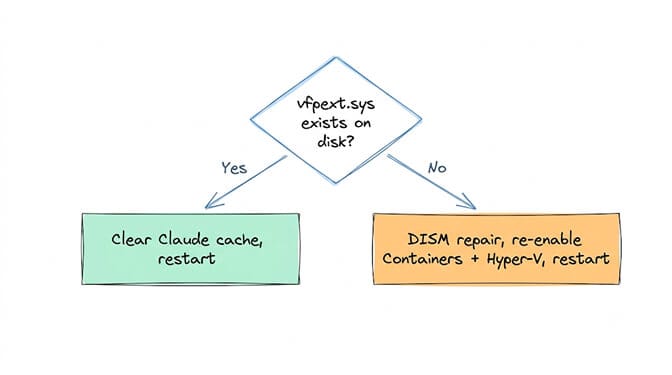
For vfpext (which is a driver, not a standard service), check that the file exists:
Test-Path C:\Windows\System32\drivers\vfpext.sys
If it returns True, the driver is installed. If False, see the dedicated vfpext section below.
Step 4: Check for conflicting hypervisors
If you previously had VMware Workstation or VirtualBox installed, they may have changed the hypervisor boot setting. Run:
bcdedit
Look for hypervisorlaunchtype. If it reads anything other than Auto, fix it:
bcdedit /set hypervisorlaunchtype auto
Restart again after this change.
Step 5: Reopen Claude Desktop
Launch Claude Desktop and try the Cowork tab. If the error is gone, you're done. If it persists, read on.
If VFPEXT is the only one missing
Stay with me here, because this is the failure mode that converts at the highest rate in search and frustrates people the most. VMCompute and HNS are running perfectly. The vfpext driver is the only thing missing. And the standard fix doesn't always bring it back.
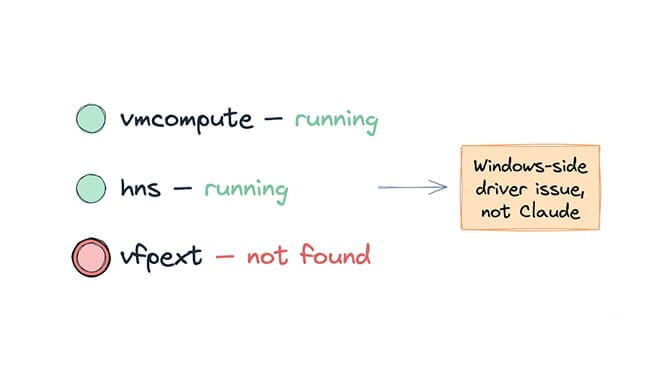
On Windows 11 Pro, the vfpext driver can be absent from disk even with vmcompute and hns running normally. Get-Service vfpext returns "Cannot find any service with service name 'vfpext'" while HNS and VMCompute report Running.
This is a Windows-side issue, not a Claude-side issue. The driver should be installed as part of the Hyper-V and Containers feature set, but on some Windows 11 builds (particularly 25H2), it doesn't register even after enabling all the right features.
The DISM repair path
Try repairing the Windows component store first:
DISM /Online /Cleanup-Image /RestoreHealth
Wait for it to complete (can take 5–15 minutes). Then re-enable the features:
Disable-WindowsOptionalFeature -Online -FeatureName Containers -NoRestart
Enable-WindowsOptionalFeature -Online -FeatureName Containers -All -NoRestart
Disable-WindowsOptionalFeature -Online -FeatureName Microsoft-Hyper-V -NoRestart
Enable-WindowsOptionalFeature -Online -FeatureName Microsoft-Hyper-V -All
This forces Windows to rebuild the feature registration from scratch rather than trying to incrementally fix it. Restart after.
The ARM64 edge case
On Windows 11 Pro ARM64 devices (Surface Pro with Snapdragon), vfpext is consistently missing even after full Hyper-V repair. This is a known issue filed as recently as July 18, 2026 (GitHub issue #78866). As of this writing, there is no confirmed fix for this specific hardware configuration. ARM64 support for the full HCS stack appears to be incomplete in current Windows builds.
The detection false negative (discovered July 2026)
In some configurations, every component Cowork's troubleshooting docs point to — VirtualMachinePlatform enabled, vfpext.sys file present, vmcompute and hns running, active VM switch, Hyper-V Management PowerShell installed — is confirmed present and functioning. Despite this, Cowork's internal check still reports vfpext as a missing HCS service.
This suggests the detection check itself may be checking service RUNNING state rather than driver-loaded state, producing a false negative on configurations where vfpext is registered as an on-demand driver rather than a running service.
The fix that worked: after confirming everything was properly configured, clearing the Claude Code cache via Help → Troubleshoot in the menu resolved the false positive and allowed Cowork to start.
So before you spend two hours on DISM repairs, try this: open Claude Desktop, go to Help, click Troubleshoot, and clear the cache. Restart Claude Desktop. If vfpext.sys exists on disk and all other services are running, the detection bug may be the actual problem.
If debugging Windows driver registration and component store repairs sounds like the wrong use of your Tuesday afternoon, that frustration is exactly why managed platforms exist. We built BetterClaw so your AI agent runs on cloud infrastructure where HCS services, Hyper-V drivers, and Windows component stores are someone else's problem. Free plan, no credit card, 200+ verified skills, and your agent deploys in 60 seconds. No VM. No vfpext. No driver registration.
Fixing it on Windows 11 Home
Windows Home does not include full Hyper-V, which means the Containers feature that registers the full HCS stack (including vfpext) is not available through the standard Windows Features dialog.
What Home does support: Virtual Machine Platform. This is the lightweight virtualization layer, and Cowork is designed to work with it. But the HCS services error specifically means the full HCS stack is expected, which lives in the Hyper-V and Containers feature set that Home doesn't ship.
What to try on Home — enable Virtual Machine Platform using the standard PowerShell command:
Enable-WindowsOptionalFeature -Online -FeatureName VirtualMachinePlatform -All
Restart. If Cowork starts, you're done. Virtual Machine Platform alone is sometimes sufficient.
If it still shows the HCS error, you're hitting the limitation where Cowork specifically needs HCS components that Home edition doesn't include. Your options are:
- Upgrade to Windows Pro ($99 from the Microsoft Store). This is the permanent fix because it gives you full Hyper-V and Containers.
- Use Claude Code instead of Cowork. Claude Code runs in your terminal without requiring a VM at all. You lose the visual Cowork workspace but keep the AI coding capabilities.
- Use Claude.ai chat in your browser. No VM, no virtualization, works on any edition.
For a full walkthrough of the Virtual Machine Platform enablement process, including BIOS settings, our VM Platform fix guide covers each step.
CoworkVMService: the service that dies after every reboot
Here's what nobody tells you about this error. Even after you fix the HCS services, CoworkVMService ships with startup type Manual, so it dies after reboots, Windows updates, and sleep/wake cycles. You fix the HCS error once, everything works for a day, and then tomorrow the Cowork tab is greyed out again.
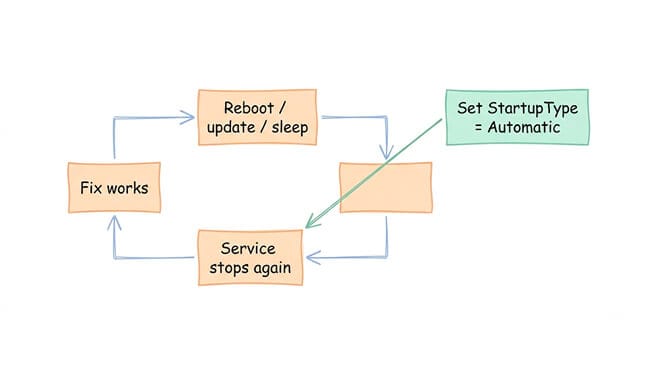
The fix is to set it to start automatically:
Set-Service -Name "CoworkVMService" -StartupType Automatic
Start-Service CoworkVMService
If Set-Service returns "service not found," your Claude Desktop install may be broken. Reinstall from claude.ai/download using the MSIX installer. Our modern installer fix guide covers the Squirrel-to-MSIX migration that's usually the root cause.
Still not working? Run the readiness check
If you've tried everything above and Cowork still won't start, Anthropic's readiness check tool pinpoints the exact failing component. Our readiness check walkthrough explains what each of the six tests checks and the exact fix for each failure.
If you're hitting rate limits on top of setup issues, our Claude rate limit guide covers the separate five-hour rolling window and shared-pool mechanics.
The honest takeaway
The HCS services error looks like one error, but it's actually three different failure modes wearing the same message. VMCompute and HNS are usually fixed by enabling the right Windows features and restarting. VFPEXT is the stubborn one, with a Windows-side driver registration issue on some builds, an ARM64 gap that hasn't been resolved, and a detection false negative in Cowork itself that's been filed as recently as two days before this post was published.
The fix path is: enable features, restart properly, check for conflicting hypervisors, then tackle vfpext specifically if it's the holdout. And clear the Claude cache before you start repairing Windows, because the detection bug means the driver might already be there and Cowork just isn't seeing it.
Skip the Windows Features dialog entirely
Your AI agent runs on managed cloud infrastructure, where HCS services, Hyper-V drivers, and component stores are someone else's problem. No VM. No vfpext. No driver registration. Start free → No credit card · 200+ verified skills · Free plan with 1 agent, every feature · $19/mo per agent for Pro · Deploy in ~60 seconds
Frequently Asked Questions
What does "missing HCS services: hns, vmcompute, vfpext" mean in Claude Cowork?
It means the three Windows Host Compute Service components that Cowork's sandbox VM depends on aren't running or aren't installed. VMCompute creates the VM, HNS provides networking, and VFPEXT handles packet filtering. The fix is usually enabling Hyper-V, Virtual Machine Platform, and Containers in Windows Features, then restarting. The whole process takes about five minutes on most machines.
Why is only vfpext missing when vmcompute and hns are running?
VFPEXT is a driver rather than a standard Windows service, and it registers differently from the other two. On some Windows 11 builds (particularly 25H2), the driver doesn't install even with Hyper-V fully enabled. The fix involves running DISM to repair the component store and then re-enabling the Containers feature specifically. On ARM64 devices (Surface Pro with Snapdragon), the vfpext driver is consistently absent and there's no confirmed fix as of July 2026.
How do I check if HCS services are running on my machine?
Open PowerShell and run Get-Service vmcompute, hns to check VMCompute and HNS. Both should show Running. For vfpext, run Test-Path C:\Windows\System32\drivers\vfpext.sys to check if the driver file exists on disk. If vmcompute or hns show Stopped, start them with Start-Service vmcompute and Start-Service hns.
Does Claude Cowork work on Windows Home without HCS services?
Windows Home does not include the full Hyper-V and Containers features that register the complete HCS stack. Cowork may work on Home with just Virtual Machine Platform enabled, but if it shows the HCS services error, you'll need to either upgrade to Windows Pro ($99) or use Claude Code (terminal-based, no VM required) as an alternative.
Why does the HCS error come back after every reboot?
CoworkVMService, the Windows service that manages Cowork's VM, ships with startup type set to Manual. This means it stops after every reboot, Windows update, and sleep/wake cycle. Fix it permanently by running Set-Service -Name "CoworkVMService" -StartupType Automatic in an admin PowerShell, then starting the service with Start-Service CoworkVMService.
Can clearing the Claude cache fix the "missing vfpext" error?
Yes, in some cases. A detection false negative was documented in July 2026 where Cowork reported vfpext as missing despite all components being properly installed and functioning. Clearing the cache via Claude Desktop's Help → Troubleshoot menu resolved the issue. Try this before spending time on DISM repairs, especially if Test-Path C:\Windows\System32\drivers\vfpext.sys returns True on your machine.