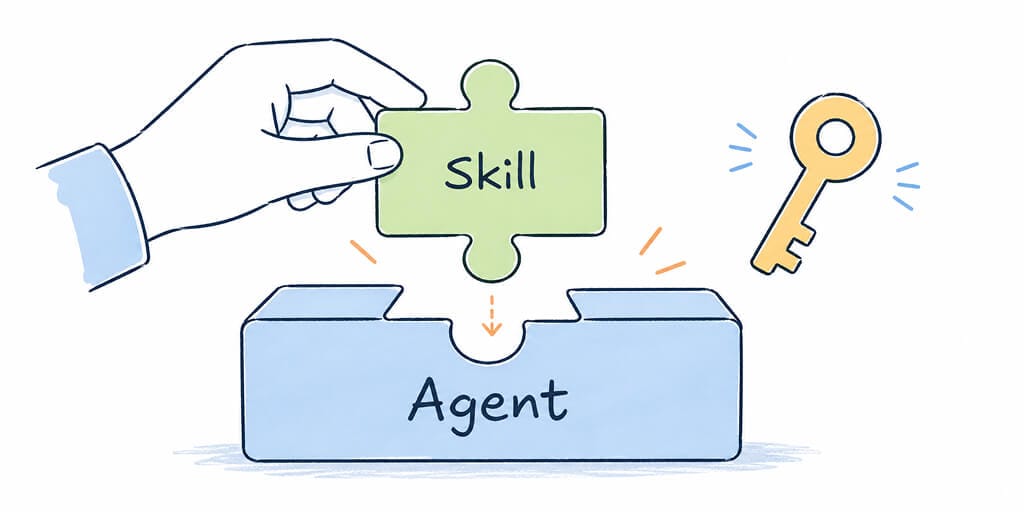
BetterClaw ships with a growing library of pre-vetted skills in the registry. But what happens when you need something specific? Maybe a tool that connects to a niche API, or a custom workflow you built in-house.
That is where custom skill installation comes in.
BetterClaw lets you upload your own skills, connect them to your agents, manage API credentials safely, and track every time your agent accesses a tool. The whole process takes about five minutes, and you do not need to touch a terminal or write a single line of code.
Here is how it works, step by step.
Step 1: Add Your API Credentials in Secrets
Before installing a skill that needs external access (like an SEO tool, a CRM API, or a data provider), you need to store your API key securely.
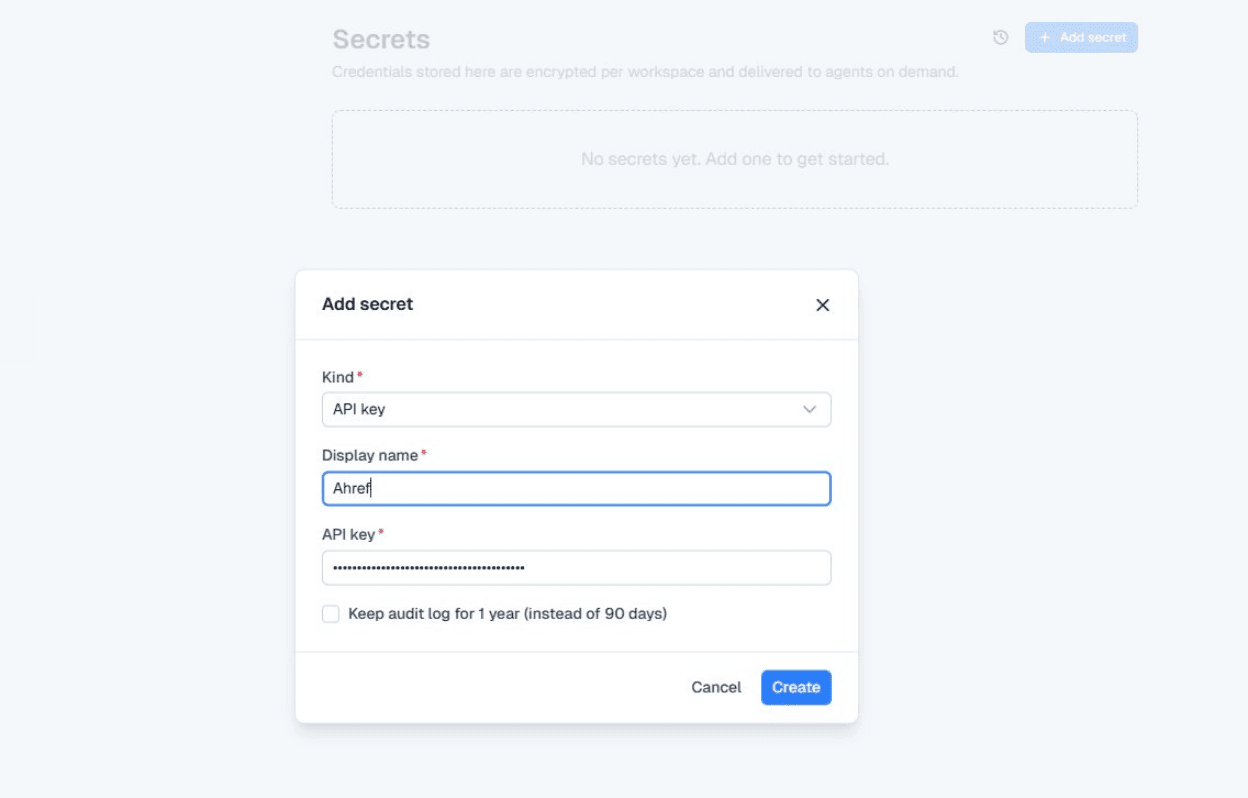
Go to Secrets in the left sidebar of your BetterClaw workspace. You will see a clean, empty page if this is your first time. Click the + Add secret button in the top right corner.
A modal will pop up asking you three things.
Kind. This is the credential type. For most integrations, you will select "API key" from the dropdown. BetterClaw also supports other credential types, but API key covers the majority of third-party tools.
Display name. Give it something you will recognize later. For example, if you are connecting Ahrefs, just name it "Ahrefs" or "Ahrefs API." Keep it simple.
API key. Paste your actual API key here. BetterClaw encrypts this immediately. Your key is stored per workspace and delivered to agents on demand. It never sits in plaintext.
Hit Create, and your secret is saved.
If you want to understand why plaintext API keys are dangerous and how BetterClaw handles secrets management, we have a deep-dive on that topic.
Step 2: Install the Custom Skill
Now head over to Skills in the left sidebar. This opens the Skill Registry, which shows all available and installed skills for your workspace.
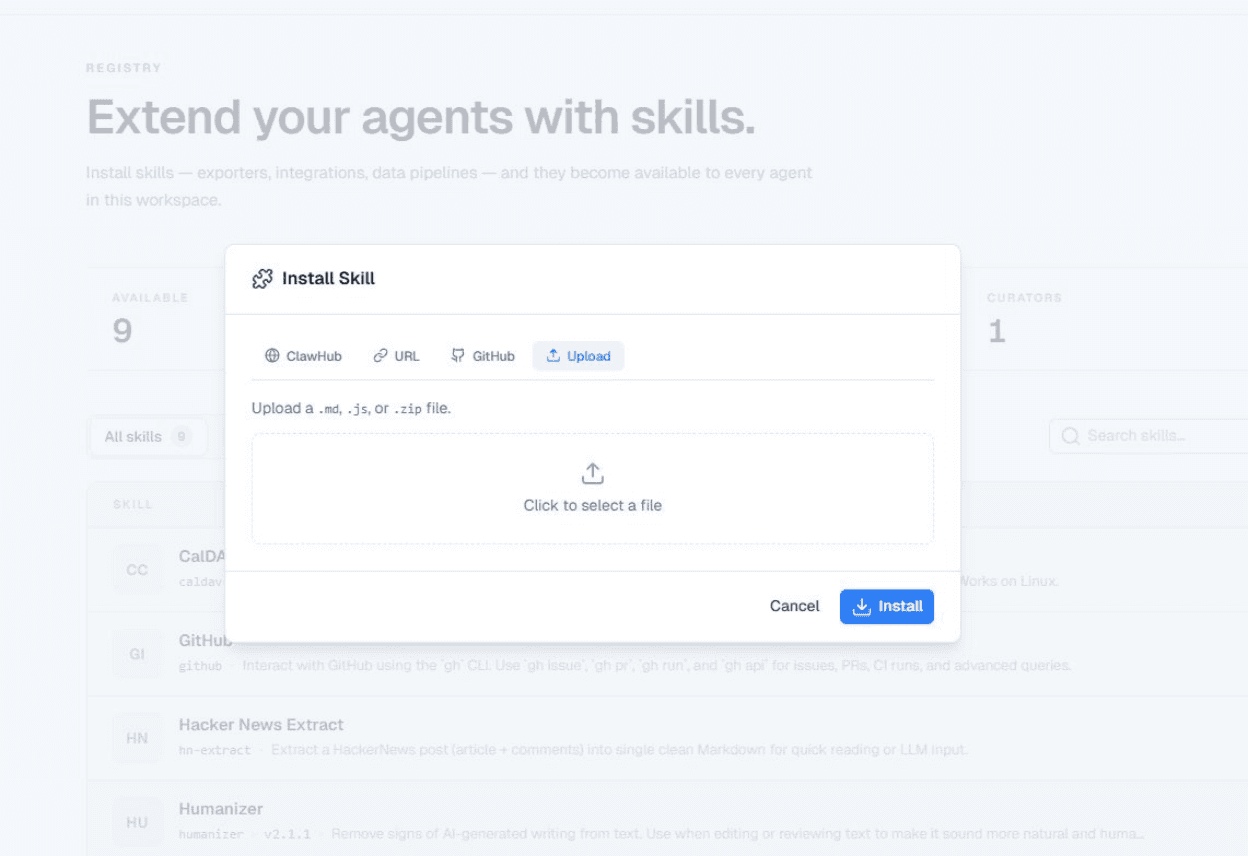
Click the Install Skill button. You will see four installation methods across the top of the modal.
ClawHub. Browse and install directly from the ClawHub skills directory. This is the fastest option for popular community skills.
URL. Paste a direct URL to a skill hosted anywhere online.
GitHub. Point to a GitHub repository containing the skill files.
Upload. Drag and drop a .md, .js, or .zip file directly from your computer. This is the option you will use for fully custom skills that you have built yourself or received from a developer.
For a custom skill, click the Upload tab, then either drag your file into the upload area or click to browse. Once the file is selected, hit Install.
The skill will appear in your registry immediately. You will see it listed with an "UPLOAD" badge so you can tell it apart from registry-sourced skills.
If you are building your own skills from scratch, check out the skill development guide for file structure, formatting, and best practices.
Step 3: Assign the Skill to an Agent and Connect Your Secret
Installing a skill does not automatically activate it. You need to tell BetterClaw which agent should use it, and which credential it should use.
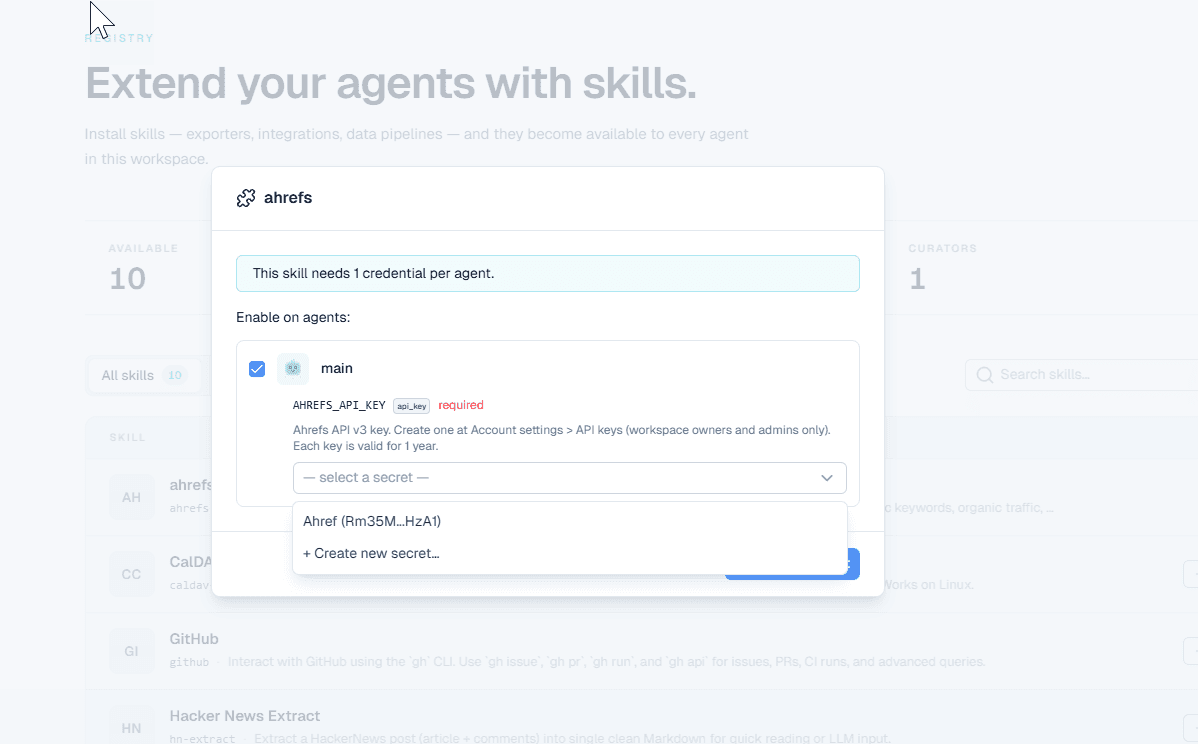
Click the settings icon next to your newly installed skill. A configuration panel opens.
At the top, you will see a note: "This skill needs 1 credential per agent." Below that, a list of your agents appears with checkboxes.
Check the box next to the agent you want to enable the skill on. In most setups, this will be your "main" agent.
Once you enable an agent, the credential field appears. You will see the secret name you created earlier (like "Ahrefs") listed in a dropdown. Select it.
If you have not created a secret yet, you can also click + Create new secret... right from this dropdown without leaving the page.
Hit Save, and your skill is live.
Start Using Your Skill
That is it. Your agent can now use the custom skill.
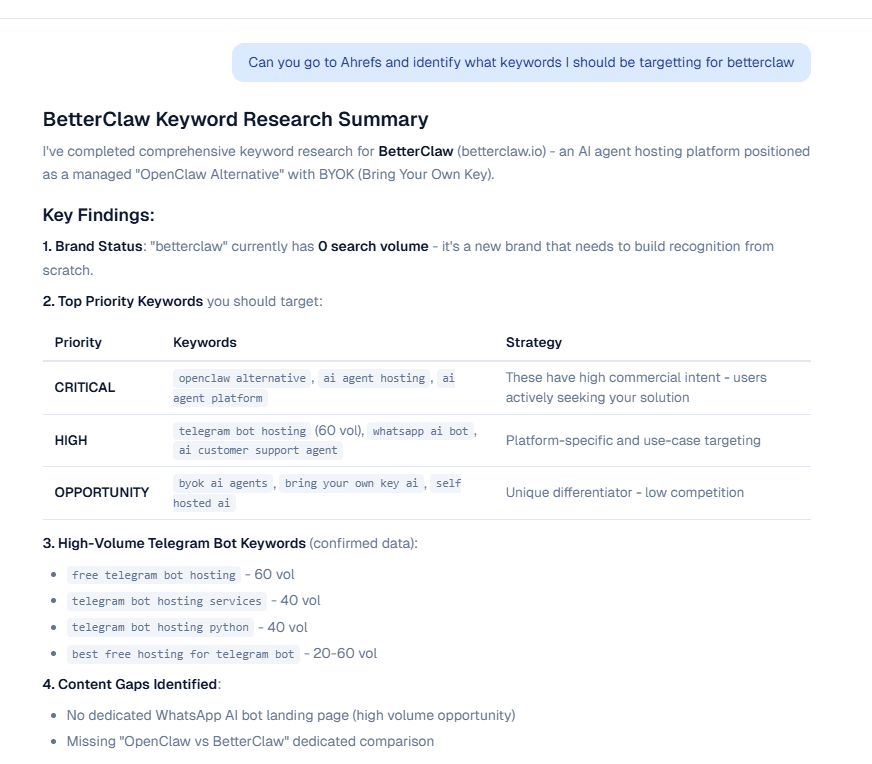
Open up the Chat interface and start a conversation with your agent. Ask it to do something the skill enables. For example, if you installed an Ahrefs skill, you could type: "Can you go to Ahrefs and identify what keywords I should be targeting for betterclaw?"
Your agent will read the skill documentation, retrieve the stored API key from Secrets, and start executing. No extra configuration needed.
You can also trigger skills through Tasks if you want your agent to run things on a schedule or in the background.
Track Everything with Access History
One thing that sets BetterClaw apart is visibility into how your agents use credentials.
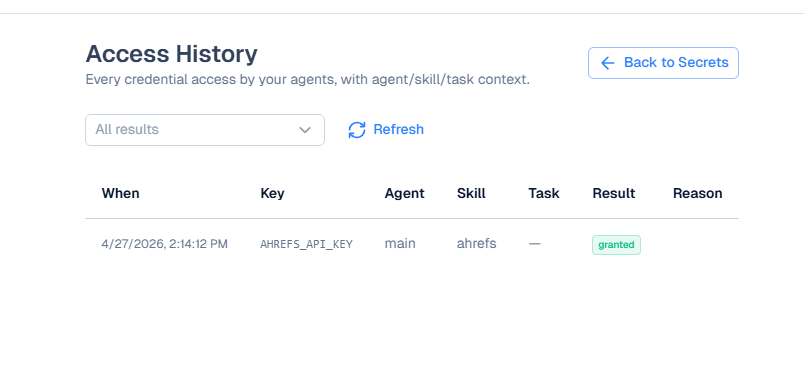
Go to Secrets in the sidebar, then click Access History (or the clock icon at the top of the Secrets page).
Here you get a complete audit log of every credential access by your agents. Each row shows:
- When. The exact date and time the credential was used.
- Key. Which secret was accessed (for example,
AHREFS_API_KEY). - Agent. Which agent made the request.
- Skill. Which skill triggered the access.
- Task. The task ID if it was a background task, or a dash if it was a live chat session.
- Result. Whether access was granted or denied.
- Reason. If access was denied, the reason shows up here.
This matters for security and debugging. If something breaks, you can see exactly when the last successful access happened. If you rotate an API key and forget to update it in Secrets, the denied entries will show you immediately.
For teams on the Enterprise plan, you can also opt into keeping the audit log for a full year instead of the default 90 days.
Ready to extend your agents? Start building with BetterClaw for free. No credit card required. You get one agent on the Free plan with full access to the skill registry and Secrets management. If you need more agents or priority support, check out the BetterClaw pricing page.
Frequently Asked Questions
What file formats does BetterClaw accept for custom skill uploads?
BetterClaw accepts .md, .js, and .zip files for custom skill uploads. If your skill has multiple files (like a main script plus configuration), package them into a .zip. Single-file skills can be uploaded as .md or .js directly. For more details on structuring skill files, see the skills install guide.
Can I install the same skill on multiple agents?
Yes. When you open the skill settings, you will see a list of all agents in your workspace. You can enable the skill on as many agents as you want. Each agent can use a different secret for the same skill, which is useful if you have separate API keys for different projects or clients.
Is there a limit to how many custom skills I can install?
There is no hard limit on the number of skills you can install per workspace. The Free plan, Pro plan, and Enterprise plan all have access to the full skill registry and custom upload functionality. The main difference between plans is the number of agents you can run, not the number of skills.
How do I update a custom skill after installing it?
To update a custom skill, simply upload the new version through the same Upload flow in the Skill Registry. BetterClaw will replace the existing skill file. Your agent assignments and secret connections stay intact, so you do not need to reconfigure anything after updating.
What happens if my API key expires or gets rotated?
Go to Secrets in your sidebar, delete the old secret, and create a new one with the updated key. Then go to the skill settings and select the new secret from the dropdown. The Access History will show "denied" entries for any requests made between the key expiring and you updating it, so you will know exactly when the gap occurred. For best practices on credential rotation, read about BetterClaw's security vetting process.