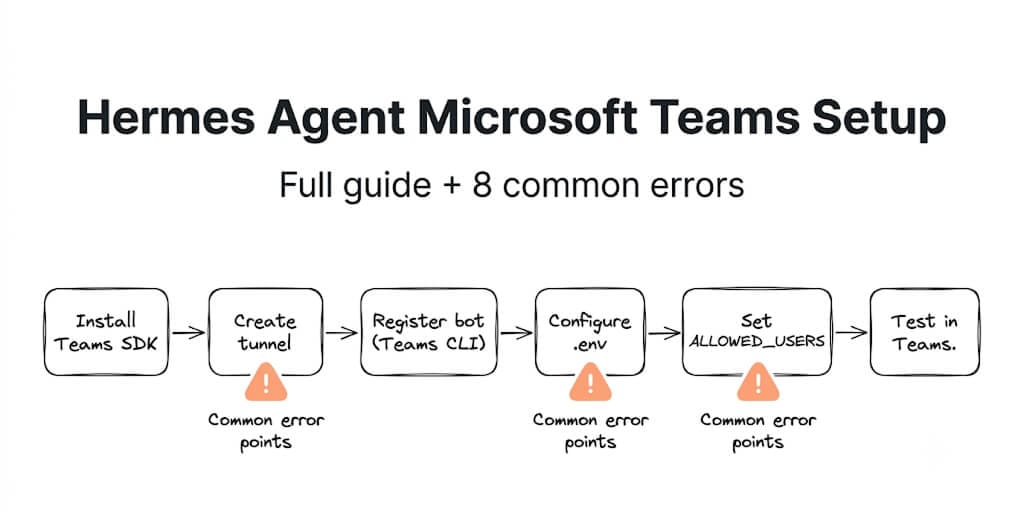
Hermes v0.14.0 added native Teams support. The setup takes 1-2 hours with Azure experience. Here's every step with copy-paste commands, plus the 8 errors that will waste your afternoon if you don't know about them.
Teams in 60 seconds, not an afternoon.
BetterClaw's Teams integration is one-click OAuth — no tunnel, no Azure app registration, no AAD object IDs. Free forever, not a trial. Start free → No credit card · No Azure · One-click OAuth
An IT manager I know spent his entire Tuesday afternoon on this. He had Azure experience. He'd built Bot Framework apps before. He knew the Graph API. It still took nearly two hours.
The Azure app registration went fine. The webhook was straightforward. But the part where Hermes actually receives Teams messages and sends responses back through the Graph API? Three config files. A tunnel requirement. And an allowlist that silently drops messages from unregistered users with zero error output.
"The bot was receiving my messages. Hermes was processing them. The response just... disappeared."
His TEAMS_ALLOWED_USERS list was missing his AAD object ID. No log entry. No error. Just silence.
This is the Hermes Agent Microsoft Teams setup guide that covers everything the docs leave out. The full steps, then the 8 errors ranked by how many hours they waste.
What you need before starting
- Hermes v0.14.0+ (released May 16, 2026). Check with
hermes --version. Update withhermes updateif needed. Ifhermesisn't even running yet, start with our guide to Hermes Agent not working before tackling Teams. - An Azure account (free tier works for development).
- A public HTTPS endpoint. Teams can't deliver messages to localhost. You need a tunnel for development (devtunnel, ngrok, or cloudflared) or a real domain for production.
- Node.js 18+ for the Teams CLI.
Step 1: Install the Teams SDK
# If using uv (recommended)
uv sync --extra teams

# If using pip
uv pip install -e ".[teams]"
This installs the Microsoft Teams SDK adapter that Hermes needs to handle Teams messages.
Step 2: Start a tunnel (Teams can't reach localhost)
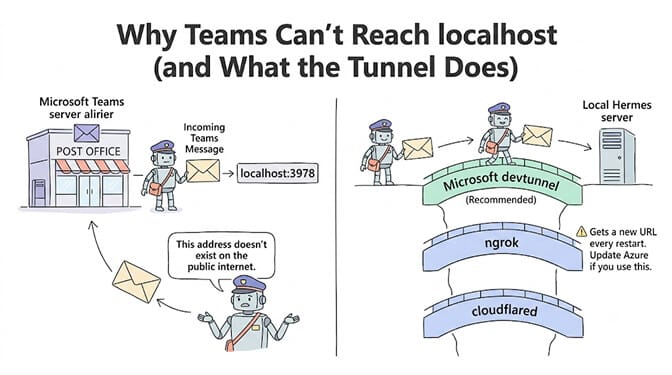
Teams delivers messages by calling a public HTTPS webhook. Your local Hermes instance at localhost:3978 is invisible to Microsoft's servers. You need a tunnel.
# Option 1: Microsoft devtunnel (recommended)
devtunnel create hermes-bot --allow-anonymous
devtunnel port create hermes-bot -p 3978 --protocol https
devtunnel host hermes-bot

# Option 2: ngrok
ngrok http 3978

# Option 3: cloudflared
cloudflared tunnel --url http://localhost:3978
Copy the https:// URL from the output. You'll use it in Step 3. Leave the tunnel running. If the tunnel stops, Teams can't deliver messages.
Step 3: Register the bot with Teams CLI
# Install Teams CLI
npm install -g @microsoft/teams.cli@preview

# Login to Azure
teams login

# Create the bot app
teams app create \
  --name "Hermes" \
  --endpoint "https://<your-tunnel-url>/api/messages"
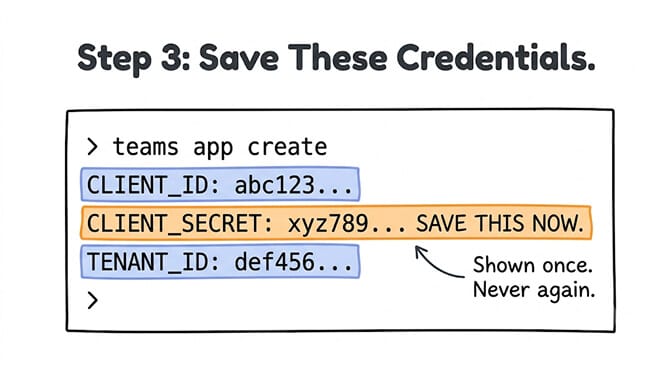
The CLI outputs three values: CLIENT_ID, CLIENT_SECRET, and TENANT_ID. Plus an install link for Step 6.
Save the client secret immediately. It won't be shown again. If you lose it, you need to regenerate from the Azure portal.
Step 4: Configure the credentials
# Add to ~/.hermes/.env
TEAMS_CLIENT_ID=<your-client-id>
TEAMS_CLIENT_SECRET=<your-client-secret>
TEAMS_TENANT_ID=<your-tenant-id>

# Set file permissions
chmod 600 ~/.hermes/.env
Or configure via ~/.hermes/config.yaml:
platforms:
  teams:
    enabled: true
    extra:
      client_id: "your-client-id"
      client_secret: "your-secret"
      tenant_id: "your-tenant-id"
      port: 3978
Step 5: Set the allowed users (THE critical step)
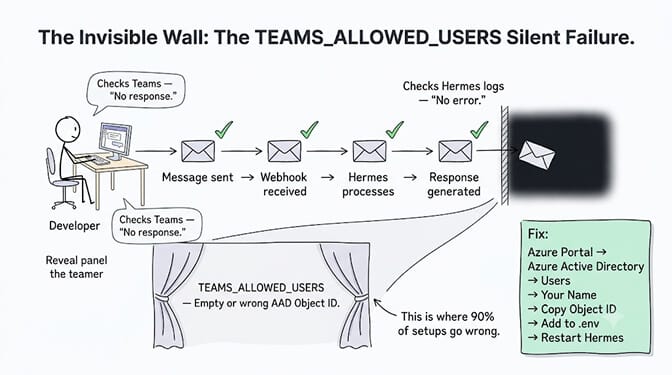
# Add to ~/.hermes/.env
TEAMS_ALLOWED_USERS=<your-aad-object-id>,<teammate-aad-object-id>
This is the step that breaks 90% of Teams setups. Without TEAMS_ALLOWED_USERS, Hermes silently drops every message. With the wrong AAD object ID, same result. No error. No log. Just silence.
To find your AAD object ID: open Azure Portal → Azure Active Directory → Users → click your name → copy the "Object ID" field.
The #1 cause of "my Hermes Teams bot isn't responding": TEAMS_ALLOWED_USERS is empty or contains the wrong AAD object ID. There's no error message. No log entry. The bot receives your message, Hermes processes it, and the response goes nowhere. This silent failure wastes more hours than any other step.
Step 6: Verify and install
# Check the health endpoint
curl http://localhost:3978/health
# Should return: ok

# Restart Hermes to pick up the new config
hermes gateway restart

# If running in Docker:
docker restart <hermes-container-id>
Open the install link from Step 3 in your browser. It opens directly in the Teams client. Send a direct message to your bot. If it responds, you're done.
If you're thinking this is a lot of infrastructure for a chat bot, you're right. BetterClaw's Teams integration takes about 60 seconds via one-click OAuth. No tunnel. No Azure app registration. No AAD object IDs. Free plan with 1 agent and 100 credits a month. $49/month on Pro.
The 8 common errors (ranked by hours wasted)
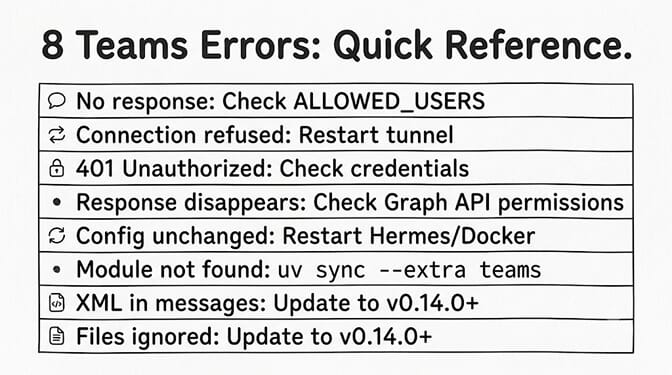
Error 1: Bot doesn't respond (TEAMS_ALLOWED_USERS)
Symptom: You send a message to the bot in Teams. Nothing happens. No error anywhere. Hermes logs show the message was received.
Cause: Your AAD object ID isn't in TEAMS_ALLOWED_USERS. Hermes silently drops unauthorized messages.
Fix: Add your AAD object ID to the allowlist in .env. Restart Hermes.
Error 2: "Connection refused" or "Bad gateway"
Symptom: Teams shows an error when you message the bot. Azure portal shows webhook delivery failures.
Cause: The tunnel isn't running, or the tunnel URL changed (ngrok assigns a new URL on every restart).
Fix: Restart your tunnel. Update the bot endpoint URL in Azure if it changed. For production, use a real domain, not a tunnel.
Error 3: "Unauthorized" (401) on webhook delivery
Symptom: Azure portal shows 401 errors on webhook calls to your endpoint.
Cause: TEAMS_CLIENT_SECRET is wrong, expired, or missing. Or TEAMS_TENANT_ID doesn't match the Azure AD tenant.
Fix: Verify all three credentials (CLIENT_ID, CLIENT_SECRET, TENANT_ID) in .env. Regenerate the secret from Azure portal if needed. If your provider API key (not just Teams) is being rejected, our Hermes auth error fixes cover the six ways credentials silently break.
Error 4: Bot receives messages but responses don't appear
Symptom: Hermes logs show processing and response generation. But nothing appears in Teams.
Cause: The outbound Graph API call is failing. Usually a permissions issue on the Azure AD app registration.
Fix: Check that your app has ChannelMessage.Send and Chat.ReadWrite permissions in Azure AD. Run hermes doctor to diagnose Graph API connectivity.
Error 5: Config changes don't take effect
Symptom: You updated .env but the bot behavior didn't change.
Cause: Hermes didn't reload the config. If running in Docker, the setup wizard doesn't tell container users to restart.
Fix: Restart Hermes. Docker: docker restart <id>. Systemd: sudo systemctl restart hermes. The v0.16.0+ setup wizard now prints a restart hint for Docker users.
Error 6: "Module not found" for Teams SDK
Symptom: ModuleNotFoundError: No module named 'botbuilder' or similar.
Cause: The Teams SDK extra wasn't installed.
Fix: uv sync --extra teams or uv pip install -e ".[teams]"
Error 7: @mention tags in messages
Symptom: Your agent receives messages with <at>BotName</at> XML tags in the text.
Cause: Teams wraps @mentions in XML. Older Hermes versions didn't strip these.
Fix: Update to v0.14.0+. The adapter strips mention tags automatically.
Error 8: File attachments not working
Symptom: You send an image or document to the bot. Hermes ignores it or errors.
Cause: The original Teams adapter (PR #10037) didn't handle attachments. The v2 adapter (PR #13767) does.
Fix: Update to v0.14.0+. Full attachment support (PDF, DOCX, XLSX, PPTX, ZIP, images) is included in the v2 adapter. For details on Hermes error handling across providers, see our error 400 guide.
The honest comparison: Hermes setup vs managed setup
| Hermes (self-hosted) | BetterClaw (managed) | |
|---|---|---|
| Setup time | 1-2 hours (Azure experience) | ~60 seconds |
| Tunnel required | Yes (dev) or real domain (prod) | No |
| Azure app registration | Manual or via Teams CLI | Handled by platform |
| User allowlisting | Manual AAD object IDs | OAuth handles access |
| File attachment support | v0.14.0+ required | Built-in |
| Meeting summaries | Additional pipeline config | Coming soon |
| Cost | Free (self-hosted) + infra time | $0-19/month |
Hermes gives maximum control. BetterClaw gives maximum speed. 50+ companies including Carelon, Grainger, and Robert Half use BetterClaw for enterprise Teams integrations with isolated Docker containers, secrets auto-purge, and trust levels.
If your organization is exploring AI agents for Teams but not sure where to start, we offer a free AI readiness audit. We identify the highest-impact use cases for your specific operations, share a clear proposal, and if it makes sense, implement it on BetterClaw. No commitment required.
Frequently Asked Questions
How long does Hermes Agent Teams setup take?
With Azure experience, expect 1-2 hours for basic bot setup and testing. Without Azure experience, plan for 3-5 hours. The setup involves installing the Teams SDK, creating a public HTTPS tunnel, registering the bot via Teams CLI, configuring credentials, setting user allowlists, and testing. The meeting pipeline adds another 30-60 minutes. For comparison, BetterClaw's Teams integration takes approximately 60 seconds via one-click OAuth.
Why isn't my Hermes Teams bot responding?
The #1 cause is TEAMS_ALLOWED_USERS. Hermes silently drops messages from users whose AAD object ID isn't in the allowlist. No error message, no log entry. Find your AAD object ID in Azure Portal → Azure Active Directory → Users → your profile → Object ID. Add it to TEAMS_ALLOWED_USERS in ~/.hermes/.env and restart Hermes. The #2 cause is the tunnel not running (Teams can't reach localhost).
Does Hermes Teams integration support file attachments?
Yes, starting with v0.14.0 (the v2 adapter from PR #13767). Supported formats include PDF, DOCX, XLSX, PPTX, ZIP, TXT, MD, and images. The original adapter (PR #10037) handled text only. If attachments aren't working, update to v0.14.0+ with hermes update.
Can I use Hermes with Teams channels or only direct messages?
Hermes supports both DM conversations and channel @mentions. In channels, Teams delivers @mentions as regular messages with <at>BotName</at> tags, which Hermes strips automatically before processing. The agent responds in-thread. Channel mode requires the bot to be installed in the team/channel, not just as a personal app.
How does BetterClaw's Teams integration compare to Hermes?
BetterClaw's Teams integration takes ~60 seconds via one-click OAuth. No tunnel, no Azure app registration, no AAD object ID management. BetterClaw adds enterprise features: isolated Docker containers per agent, secrets auto-purge after 5 minutes (AES-256), trust levels with action approval, and real-time health monitoring. Free plan with 1 agent and 100 credits a month. $49/month for Pro. Enterprise pricing available with SSO, audit logs, and dedicated support.
Skip the Azure afternoon.
BetterClaw connects Teams in ~60 seconds via one-click OAuth, with isolated containers and secrets auto-purge. Free forever, not a trial. Start free →