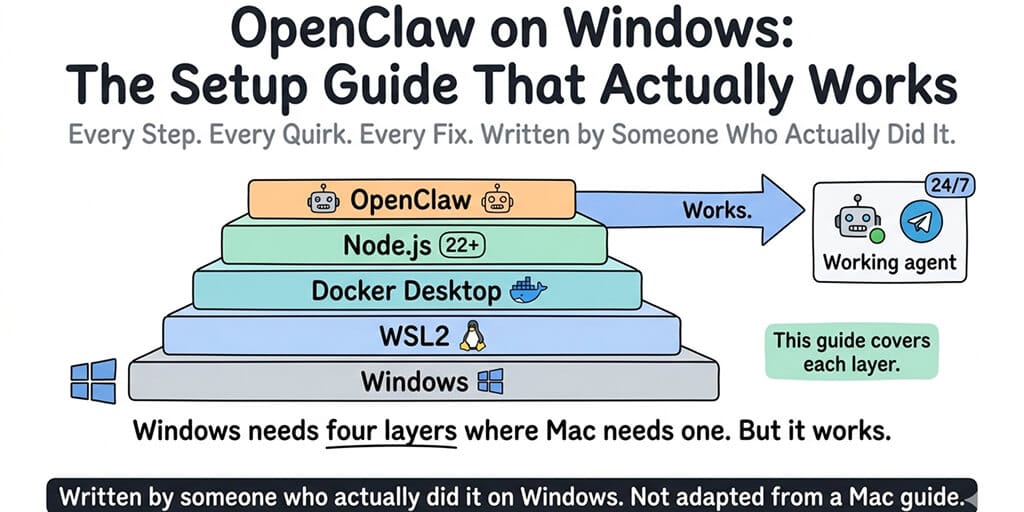
Most OpenClaw guides are written by Mac users who add "and on Windows, just do the same thing." This one is written for Windows. Updated for OpenClaw 2026.9.6 (September 2026): every step, every quirk, every fix.
The first time I tried to set up OpenClaw on Windows, I followed a guide that said "install Node.js and run npm install." Three hours later, I had WSL2 half-configured, Docker Desktop refusing to start, a PowerShell window full of red errors, and a growing suspicion that OpenClaw was a Mac-only project wearing a cross-platform disguise.
Good news: a lot has changed since then. OpenClaw now ships a native Windows app, a PowerShell installer, and a native Windows Gateway. WSL2 is still supported (and still the most Linux-compatible option), but it's no longer mandatory. Docker Desktop isn't required either.
The bad news: most Windows guides online still describe the old WSL2-plus-Docker-plus-Node-22 routine. Node 22 isn't even supported anymore. This guide is the current version.
The short answer: three ways to run OpenClaw on Windows
According to the official Windows docs, you have three supported paths:
| Path | What it is | Best for |
|---|---|---|
| Windows Hub (recommended) | A signed native desktop app for Windows 10 20H2+ and Windows 11. No admin rights needed. Sets up a local Gateway for you. | Most people. Anyone who wants a normal installer and a tray icon. |
| Native CLI + Gateway | The PowerShell one-liner installs Node (if needed) and OpenClaw, then runs onboarding. The Gateway runs as a Scheduled Task. | Terminal-first users who don't want WSL at all. |
| WSL2 Gateway | OpenClaw installed inside Ubuntu (or another distro) on WSL2, using the Linux installer. | Developers who already live in WSL2, or anyone who hits a native-Windows edge case. |
If you just want it working, start with Windows Hub. If you prefer terminals, use the PowerShell installer. Reach for WSL2 when you need maximum Linux compatibility.
What you need before you start
Much less than you used to.
Windows 10 20H2+ or Windows 11. That's the floor for Windows Hub.
Node.js 24.16+ or 26.1+ (only if you install via npm yourself). As of OpenClaw 2026.9.3, the supported engine range is >=24.16.0 <25 || >=26.1.0. Node 26 is recommended. Node 22, 23 and 25 are all unsupported. The reason is a real bug, not fashion: Node's built-in SQLite text decoder in some releases silently truncated values at embedded NUL characters, and 24.16.0 / 26.1.0 are the first fixed builds. If you use the PowerShell installer, it provisions a supported Node for you (via Chocolatey, Scoop or winget, with a portable fallback).
An AI provider. An API key, or an existing Claude Code or Codex CLI login, which onboarding can reuse.
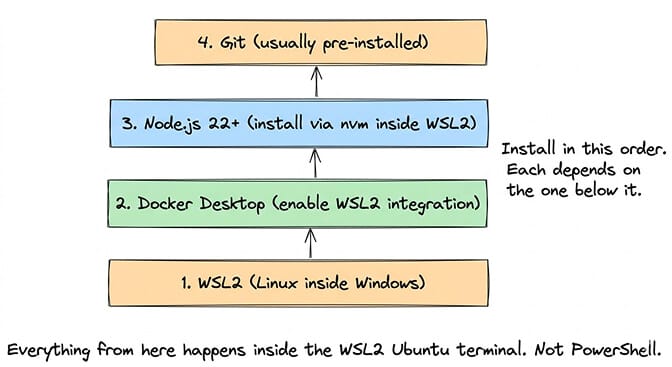
Not required anymore: Docker Desktop (sandboxing is optional and off by default), a manual nvm setup, or Git (only needed if you build from source).
Option 1: Windows Hub (recommended)
- Download the installer from the Windows Hub releases page. There are x64 and ARM64 builds (
OpenClawCompanion-Setup-x64.exe/OpenClawCompanion-Setup-arm64.exe). - Run it. It installs without administrator privileges.
- Launch OpenClaw Companion from the Start menu or system tray.
- On first launch, choose Set up locally. Windows Hub provisions its own app-owned
OpenClawGatewayWSL distro, installs the Gateway inside it, and pairs the app. It does not touch your existing Ubuntu distro. - When the tray icon turns green, open Command Center from the tray to confirm connection, pairing and channel health.
Already have a Gateway running somewhere (a VPS, another PC)? Choose Advanced setup and connect by URL and token, setup code, or SSH tunnel instead.
Windows Hub is released separately from the OpenClaw CLI. At the time of writing, the latest Hub release is v2026.9.4.
Option 2: native CLI and Gateway in PowerShell
Open PowerShell (a normal window is fine) and run the official installer:
iwr -useb https://openclaw.ai/install.ps1 | iex
It detects your setup, installs Node if needed, installs OpenClaw and starts onboarding. In onboarding, Quick start reuses any AI access it can find, verifies it with a real completion, and opens the web dashboard.
Then verify:
openclaw --version
openclaw doctor
openclaw gateway status --json
To keep the Gateway running in the background, install it as a service:
openclaw gateway install
On native Windows this creates a Scheduled Task (with a per-user Startup-folder login item as the fallback if task creation is denied). It launches through a hidden wrapper, so no console window stays open.
Prefer to manage Node yourself? On npm 11.16+ or npm 12:
npm install -g openclaw@latest --allow-scripts=openclaw
openclaw onboard --install-daemon
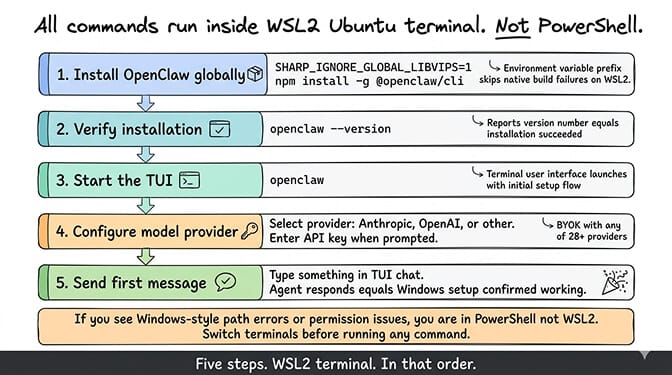
On npm 11.15 and earlier, drop the --allow-scripts=openclaw flag. (Older guides tell you to prefix the install with SHARP_IGNORE_GLOBAL_LIBVIPS=1. The current install docs don't mention it, so skip it unless you actually hit a sharp build error.)
Option 3: WSL2 Gateway
WSL2 is still the most Linux-compatible way to run the Gateway on Windows. Use it if you already work in WSL2 or you hit a native-Windows bug.
In PowerShell as Administrator:
wsl --install
# or pick a distro explicitly:
wsl --install -d Ubuntu-24.04
Restart when asked, open your Ubuntu terminal, and enable systemd:
sudo tee /etc/wsl.conf >/dev/null <<'CONF'
[boot]
systemd=true
CONF
Back in PowerShell, run wsl --shutdown, reopen Ubuntu, and install OpenClaw with the Linux installer:
curl -fsSL https://openclaw.ai/install.sh | bash
openclaw gateway status
On Linux the installer provisions Node 24 LTS if Node is missing. openclaw gateway install inside WSL2 sets up a systemd user service.
The mistake most people make with WSL2: mixing environments. If OpenClaw lives in WSL2, run its commands in the WSL2 terminal, not in PowerShell. Two installs (one native, one in WSL2) with two different configs is a very confusing afternoon.
Getting your first message to work
Whichever path you chose, the check is the same:
openclaw gateway statusshould show the Gateway listening on port 18789.openclaw dashboardopens the Control UI in your browser (or openhttp://127.0.0.1:18789/).- Type a message in the Control UI chat. If you get a reply, your model provider is configured correctly.
Prefer the terminal? Run openclaw (or openclaw tui) for the terminal UI. For phone access, Telegram is the fastest channel to add: openclaw channels add --channel telegram --token <bot-token>.
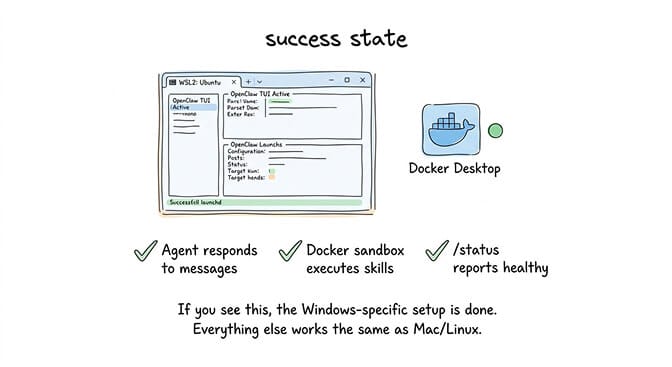
Once you're here, everything else (connecting channels, editing your agent's instructions, installing skills, setting up automations) works the same as on Mac and Linux.
The most common Windows-specific errors
openclaw is not recognized
Almost always a PATH problem: npm's global bin directory isn't on your PATH. Run node -v and npm prefix -g, confirm that folder is on your PATH, then open a new terminal. The Node.js install docs have the Windows-specific fix.
"Unsupported Node version" or a SQLite/NUL truncation error
You're on Node 22, 23, 25, or an early 24.x/26.0 build. Install Node 24.16+ or 26.1+ and retry. The exact diagnostic OpenClaw prints mentions node:sqlite truncates TEXT at embedded NUL.
Windows Hub local setup fails
Open the setup log:
notepad "$env:LOCALAPPDATA\OpenClawTray\Logs\Setup\easy-setup-latest.txt"
The docs list the usual causes: WSL disabled, virtualization blocked in BIOS/UEFI (look for Intel VT-x, AMD-V or SVM Mode), stale app-owned WSL state, or a network failure while downloading the Gateway package. Also check that the Virtual Machine Platform Windows feature is enabled.
The Scheduled Task says it ran, but the Gateway isn't up
A successful task result doesn't prove the Gateway is healthy. Run openclaw gateway status --json and check the Gateway log. A common cause is an occupied port. Fix the logged cause, then run openclaw gateway start. If you updated from an older install, openclaw gateway install --force regenerates the launcher.
"Pairing required" in Windows Hub
Approve the request from the Gateway host:
openclaw devices list
openclaw devices approve <requestId>
Then reconnect from the Connections tab.
Port already in use
The Gateway uses port 18789 by default. Ollama uses 11434. Check what's holding the port with netstat -ano | findstr 18789 in PowerShell, then stop the conflicting process or change the port in your config.
Ollama "fetch failed" across the WSL2 boundary
If Ollama runs on Windows and OpenClaw runs in WSL2, 127.0.0.1 inside WSL2 points at the Linux VM, not at Windows. Either use the Windows host's IP from inside WSL2, run Ollama inside WSL2 too, or run OpenClaw natively on Windows so both sit on the same localhost. Our Ollama fetch-failed guide covers every variant.
The Gateway stops when WSL2 goes idle
On WSL 2.6.1.0 and later, a known WSL regression can idle-terminate the distro 15 to 20 seconds after the last client exits, even with linger enabled. The OpenClaw docs' workaround: inside WSL run sudo loginctl enable-linger "$(whoami)", then create a boot task in an Administrator PowerShell that runs wsl.exe -d Ubuntu --exec dbus-launch true as your own user (not SYSTEM). The Windows docs have the full recipe.
Antivirus interrupts the Gateway start
If antivirus software blocks the Gateway, note the detection name and include the output of openclaw gateway status --json in your bug report.
For the broader OpenClaw troubleshooting guide, our error guide covers the most common first-hour problems across all operating systems.
Is Windows worth it long-term?
Honestly, it's much better than it was in the spring. A native app, a native Gateway and a real installer remove most of the old WSL2 and Docker Desktop babysitting.
What's still true: your agent only runs while your PC is on. Windows power management puts machines to sleep aggressively, and a sleeping PC means a sleeping agent. For a personal assistant you use during work hours, that's fine. For anything that needs to run 24/7 (customer support, overnight automations, team access), you'll eventually want a server. Our VPS hosting comparison covers local vs VPS vs managed, and the costs.
And updates are frequent. OpenClaw shipped six stable 2026.9.x releases in September alone (2026.9.1 through 2026.9.6), and 2026.9.3 raised the Node requirement. Each update is a chance for something on your machine to need attention.
The project isn't going anywhere: the GitHub repo has passed 390,000 stars and the npm package logged about 3.2 million downloads in the week ending September 26, 2026.
If you'd rather not maintain a local agent at all, BetterClaw is a no-code AI agent platform that runs in the cloud, so your operating system doesn't matter. It's a separate product, not a hosted OpenClaw. There's a free plan (1 agent, 100 credits a month, bring your own key), and Pro is $49/month for 5 agents. No WSL, no Node versions, no Scheduled Tasks. The BetterClaw vs self-hosted OpenClaw comparison covers what you gain and what you give up.
One more thing Windows users should know
The setup you just completed is still worth doing even if you move to a server later. Understanding how the Gateway, onboarding and the Control UI fit together makes debugging much easier when something goes wrong remotely. The knowledge transfers.
If you want an agent that keeps working after you close your laptop, start with BetterClaw's free plan: 1 agent, 100 credits a month, BYOK, no card needed. Paid plans come with a 7-day money-back guarantee.
Frequently Asked Questions
Can I install OpenClaw on Windows?
Yes, natively. The recommended option is the Windows Hub desktop app (Windows 10 20H2+ or Windows 11). You can also run the PowerShell installer (iwr -useb https://openclaw.ai/install.ps1 | iex) for the native CLI and Gateway, or install inside WSL2 with the Linux installer. WSL2 is no longer required.
What Node.js version does OpenClaw need on Windows?
Node 24.16+ or Node 26.1+ (Node 26 is recommended). Since OpenClaw 2026.9.3, Node 22, 23 and 25 are unsupported. The PowerShell installer provisions a supported Node version automatically if you don't have one.
Do I need Docker Desktop for OpenClaw on Windows?
No. Docker is optional. Tool sandboxing is off by default in OpenClaw. You only need Docker if you deliberately enable the Docker sandbox backend or run the Gateway itself in a container.
Should I use native Windows or WSL2?
Start with Windows Hub or the native PowerShell install. It's simpler and doesn't need a Linux distro. Choose WSL2 if you already work in it, or if you need the most Linux-compatible Gateway runtime. Windows Hub's own local setup actually uses a dedicated, app-owned WSL distro behind the scenes, so you get WSL2 compatibility without managing it.
How long does the OpenClaw Windows setup take?
With Windows Hub or the PowerShell installer, OpenClaw's getting-started guide targets about 5 minutes for install, onboarding and a first chat, if you already have a provider key or a Claude Code or Codex login. A manual WSL2 setup takes longer because of the WSL install, a restart and systemd configuration.
Is OpenClaw stable on Windows for production use?
For personal use, yes. For production (customer-facing agents, 24/7 availability), a Windows desktop isn't ideal because the agent stops when the machine sleeps or shuts down. Production setups usually run on a Linux VPS. Or skip the infrastructure entirely with a no-code AI agent platform like BetterClaw (free plan available, Pro at $49/month for 5 agents).
Related Reading
- OpenClaw Setup Guide: Complete Walkthrough — Cross-platform setup flow and configuration steps
- WSL2 Setup for AI Agents on Windows — Deeper WSL2 configuration if you go that route
- Do You Need a VPS to Run OpenClaw? — Local vs VPS vs managed hosting decision
- OpenClaw Ollama "Fetch Failed" Fix — Networking issues specific to WSL2 and Ollama
- OpenClaw Not Working: Every Fix in One Guide — Master troubleshooting guide for all platforms
- BetterClaw vs Self-Hosted OpenClaw — Skip local maintenance entirely