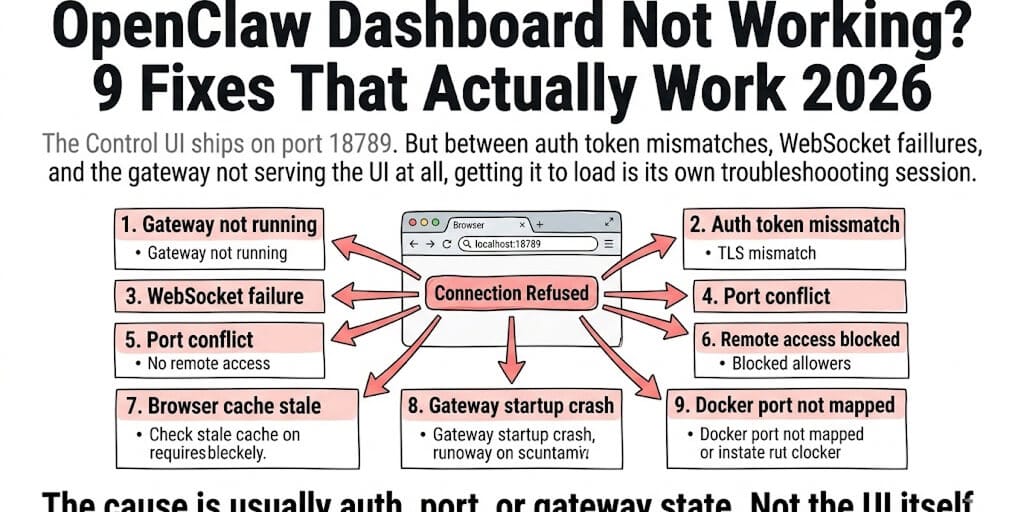
The Control UI ships on port 18789. But between auth token mismatches, WebSocket failures, and the gateway not serving the UI at all, getting it to load is its own troubleshooting session. Here are 9 fixes ranked by likelihood.
Simon Willison described the OpenClaw dashboard as "a whole load of different debugging tools plus a web chat interface." He was right. The Control UI at localhost:18789 gives you agent management, live chat, cron job monitoring, session logs, skill status, exec approvals, and system health in one browser tab.
When it works, it's the best way to manage OpenClaw without touching the terminal.
When it doesn't work, you're staring at a blank page, a connection refused error, or an auth prompt that rejects every token you try. And the error messages give you almost nothing to work with.
Here are nine fixes, ranked by how often they're the actual problem.
Fix 1: The Gateway Isn't Running (the Obvious One That Isn't Always Obvious)
What happens: You navigate to http://localhost:18789/ and get "Connection refused" or "This site can't be reached." The page doesn't load at all.
Why it's #1: The dashboard is served by the gateway process. No gateway, no dashboard. Run openclaw gateway status to check.
The fix: Start the gateway: openclaw gateway start. If it was already running, check the PID and port. If the port changed (some configs override 18789), the URL is different. Check your gateway.controlUi.basePath and gateway.port config values.
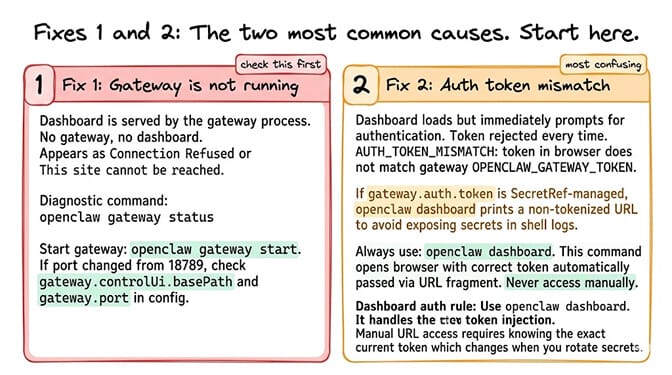
Fix 2: Auth Token Mismatch — AUTH_TOKEN_MISMATCH (the Most Confusing One)
What happens: The dashboard loads but immediately prompts for authentication. You paste your token. It rejects it. You paste it again. Rejected.
From the official docs: "AUTH_TOKEN_MISMATCH" happens when the token in your browser doesn't match the gateway's configured OPENCLAW_GATEWAY_TOKEN.
The fix: Run openclaw dashboard from the terminal. This command opens the browser with the correct token automatically passed via URL fragment. If you're accessing manually, find the current token: check OPENCLAW_GATEWAY_TOKEN in your environment or resolve the SecretRef if using external secret management. Paste the exact token into the Control UI settings auth field.
The SecretRef trap: If gateway.auth.token is SecretRef-managed, openclaw dashboard intentionally prints a non-tokenized URL (to avoid exposing managed tokens in shell logs). You need to resolve the SecretRef in your current shell first, then rerun openclaw dashboard.
The dashboard auth rule: Always use openclaw dashboard to open the UI. It handles token injection automatically. Manual URL access requires knowing the exact current token, which changes if you rotate secrets or use external managers.
Fix 3: WebSocket Connection Fails (Dashboard Loads but Shows No Data)
What happens: The page loads. The layout renders. But all panels show "Connecting..." or "No data." The WebSocket handshake fails silently.
Why: The Control UI communicates with the gateway via WebSocket. Auth is enforced at the WebSocket handshake, not the HTTP page load. The page can load (HTTP works) while the WebSocket fails (auth rejected at handshake).
The fix: Check browser console for WebSocket errors. If it shows 401 or 403 on the WS connection, the auth token is wrong (see Fix 2). If it shows a connection timeout, the WebSocket endpoint may be blocked by a firewall, reverse proxy, or Cloudflare configuration that doesn't support WS upgrades.
For the general troubleshooting guide, our OpenClaw not working guide covers the broader OpenClaw diagnosis beyond dashboard-specific issues.
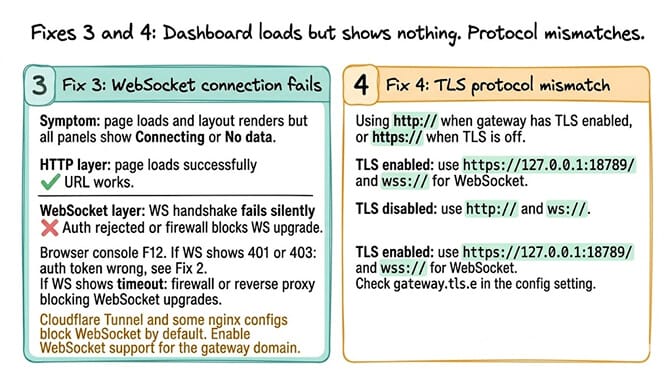
Fix 4: TLS Mismatch (HTTPS vs HTTP)
What happens: You're using http://localhost:18789/ but the gateway has gateway.tls.enabled: true. Or the opposite: using https:// when TLS is off.
The fix: When TLS is enabled, use https://127.0.0.1:18789/ and wss:// for WebSocket. When TLS is off, use http:// and ws://. Mismatched protocol = connection refused or SSL errors.
Fix 5: Port Conflict (Something Else Is on 18789)
What happens: Another process grabbed port 18789 before the gateway started. The gateway logs show "port already in use" or EADDRINUSE.
The fix: Find what's holding the port, then kill the conflicting process or change the gateway port in config.
lsof -i :18789                 # Linux / Mac
netstat -aon | findstr 18789   # Windows
Common culprit on macOS: A previous gateway didn't shut down cleanly. launchctl restarted it on the old port. Now you have two gateways fighting for 18789. Kill both and restart one.
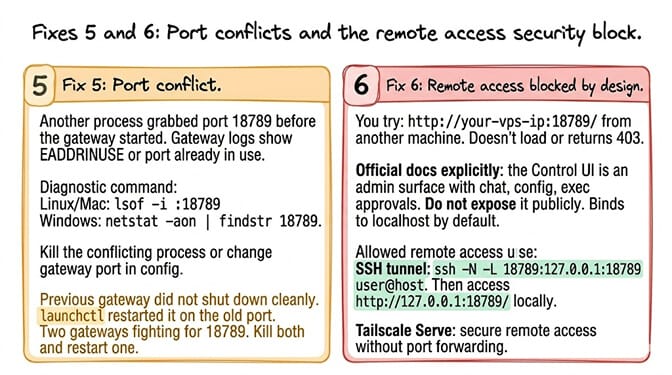
Fix 6: Accessing Remotely Without a Tunnel (Security Block by Design)
What happens: You try to access the dashboard from another machine using http://your-vps-ip:18789/. It doesn't load or returns 403.
Why: The official docs explicitly say: "the Control UI is an admin surface (chat, config, exec approvals). Do not expose it publicly." It binds to localhost by default.
The fix: Use an SSH tunnel, then access http://127.0.0.1:18789/ on your local machine. Alternatively, use Tailscale Serve for secure remote access without port forwarding.
# Forward the remote dashboard port to your local machine
ssh -N -L 18789:127.0.0.1:18789 user@host
If managing auth tokens, WebSocket debugging, TLS configuration, port conflicts, and SSH tunnels for a monitoring dashboard sounds like more infrastructure work than the monitoring itself, BetterClaw includes a managed dashboard out of the box. No localhost. No auth tokens. No tunnels. Access your agent's real-time status, logs, and controls from any browser. Free tier with 1 agent and BYOK. $49/month for Pro.
Fix 7: Browser Cache Serving Stale UI After Update
What happens: You updated OpenClaw but the dashboard shows the old version's layout or features are missing. The UI assets are cached in your browser.
The fix: Hard refresh: Ctrl+Shift+R (Windows/Linux) or Cmd+Shift+R (Mac). If that doesn't work, clear browser cache for localhost:18789 specifically. The Control UI stores auth tokens in sessionStorage (per tab, per gateway URL), so clearing cache shouldn't lose your auth in other tabs.
Fix 8: Gateway Crashed During Startup (Plugin Dependency Loop)
What happens: After updating to a new version (especially the 2026.4.29 era), the gateway gets stuck in a plugin dependency repair loop during startup. It never finishes starting. The dashboard never becomes available.
The fix: Downgrade to a known stable version. For the version stability tracker, our update fatigue and burnout guide covers which versions are safe. Pin your version and wait 72 hours before updating.
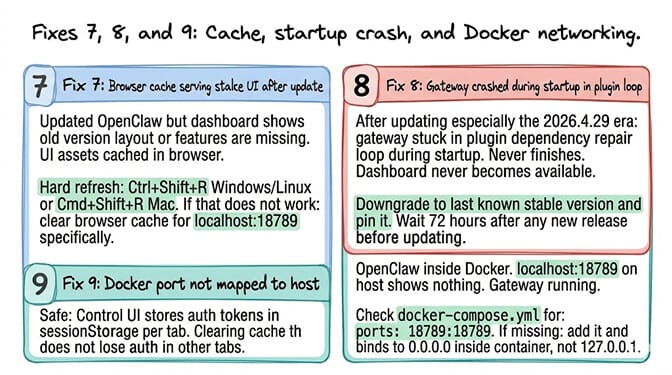
Fix 9: Docker Networking Prevents Localhost Access
What happens: OpenClaw runs inside Docker. You try localhost:18789 on the host. Nothing loads. The gateway is running inside the container but the port isn't mapped to the host.
The fix: Check your docker-compose.yml for port mapping: ports: ["18789:18789"]. If the port isn't mapped, add it and restart the container. If using Docker's bridge network, ensure the gateway binds to 0.0.0.0 inside the container, not 127.0.0.1 (which would only be accessible from within the container).
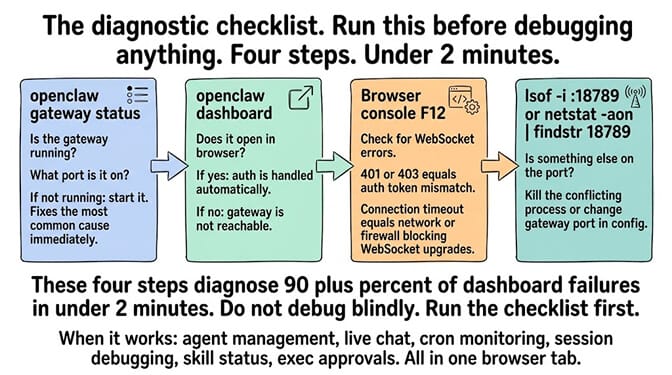
The Diagnostic Checklist (Run Before Debugging)
openclaw gateway status— Is the gateway running? What port?openclaw dashboard— Does it open? If yes, auth is handled. If no, gateway isn't reachable.- Browser console (F12) — Check for WebSocket errors. 401 = auth. Timeout = network/firewall.
lsof -i :18789— Is something else on the port?
The dashboard is genuinely useful when it works. Agent management, live chat, cron monitoring, session debugging, skill status, exec approvals. It's the visual layer that OpenClaw was missing for its first year.
But getting it to load reliably across local, remote, Docker, and TLS configurations is its own troubleshooting project. Nine potential failure points between you and a working dashboard.
If you want a dashboard that works the moment you sign in, give BetterClaw a try. Free tier with 1 agent and BYOK. $49/month for Pro. The dashboard loads from any browser. No auth tokens. No tunnels. No port conflicts. The monitoring is managed. The debugging is ours.
Frequently Asked Questions
Does OpenClaw have a dashboard?
Yes. The Gateway Control UI is a built-in web dashboard served at http://localhost:18789/ by default. It includes agent management, live chat, cron job monitoring, session logs, skill status, exec approvals, and system health. Run openclaw dashboard to open it with automatic authentication. Additionally, 9+ community-built dashboards (like tugcantopaloglu's and mudrii's) offer specialized monitoring features.
Why won't my OpenClaw dashboard load?
The three most common causes: the gateway isn't running (start it with openclaw gateway start), an auth token mismatch (use openclaw dashboard instead of manual URL access), or a port conflict (check lsof -i :18789). Remote access requires an SSH tunnel or Tailscale since the dashboard binds to localhost by default for security.
How do I access the OpenClaw dashboard remotely?
Use an SSH tunnel: ssh -N -L 18789:127.0.0.1:18789 user@host, then open http://127.0.0.1:18789/ locally. Or use Tailscale Serve for persistent remote access. Do not expose port 18789 publicly. The Control UI is an admin surface with chat, config editing, and exec approvals. Public exposure is a security risk.
Why does the OpenClaw dashboard show "Connecting" but no data?
The WebSocket connection is failing. The page loads via HTTP but data comes via WebSocket. Auth is enforced at the WebSocket handshake. Check the browser console (F12) for WS errors. 401/403 = auth token mismatch. Timeout = firewall or reverse proxy blocking WebSocket upgrades. Fix: use openclaw dashboard for correct token injection.
Does BetterClaw have a dashboard?
Yes. BetterClaw includes a managed web dashboard accessible from any browser with no localhost requirements, no auth tokens, no SSH tunnels, and no port configuration. Real-time agent status, activity logs, and controls are available immediately after deployment. Free tier with 1 agent and BYOK. $49/month for Pro.