Your agent silently skips a tool call. No error. No log. No clue what happened. Here's the five-stage diagnostic decision tree that catches every MCP failure mode.
The agent was supposed to query our database. It didn't. No error message. No timeout. No indication anything went wrong. The agent just... continued without the data. Answered the user's question with a confident hallucination instead of actual numbers.
I checked the logs. Nothing. The MCP server was running. The tool was registered. The schema looked correct. Everything appeared fine.
Forty-five minutes of staring at config files later, I found it. The server was printing a debug log line to stdout before the JSON-RPC handshake completed. One console.log("server starting...") was corrupting the entire protocol stream. The client couldn't parse the initialization response, silently gave up on that server, and the agent proceeded without tools.
One print statement. Forty-five minutes of debugging. Zero error messages.
If you need to debug MCP tool calls, the problem is almost never where you think it is. (New to the protocol itself? Start with what MCP is and how it works, then come back here.) MCP failures are silent by default. The protocol doesn't throw visible errors when things go wrong. It just... stops working. Your agent doesn't know it lost a tool. It carries on without it.
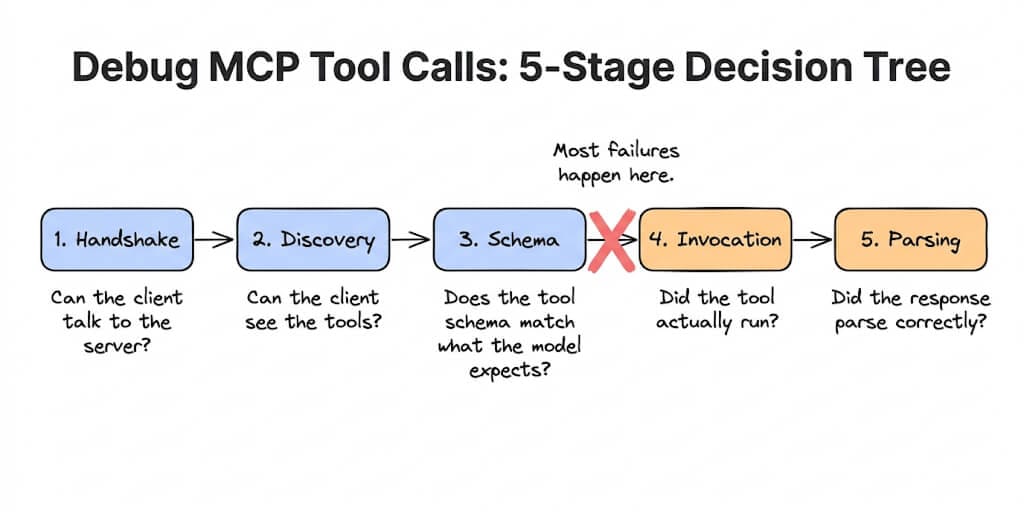
Here's the five-stage diagnostic workflow that catches every failure mode. Work through it in order. Stop when you find the break.
Stage 1: Handshake (can the client talk to the server at all?)
Before debugging tools, verify the connection exists. The MCP handshake is the initialize exchange between client and server. If it fails, nothing else matters.
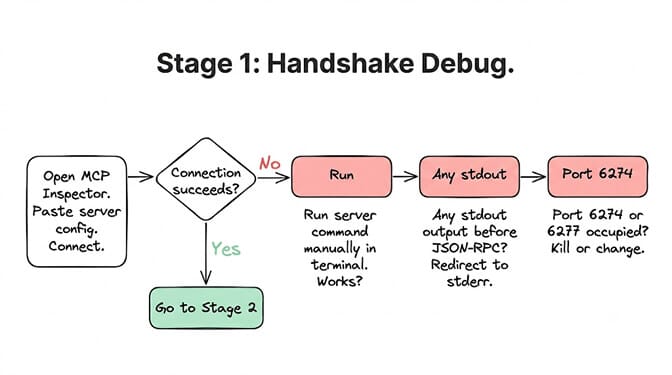
Test it: Open the MCP Inspector (the official debugging tool from the MCP team). Copy your server's command, args, and env from your MCP client config. Paste them into Inspector's connection dialog. Hit connect.
Inspector opens at http://localhost:6274. It shows the raw JSON-RPC messages. If the handshake succeeds, you'll see an initialize request and a capabilities response.
Common handshake failures:
- Wrong path to the server binary. The most common failure. Use absolute paths. Run the command manually in your terminal first. If it doesn't work in your terminal, it won't work in MCP.
- stdout corruption. This is the silent killer. Your server prints something to stdout (a debug log, a startup message, a warning) before the JSON-RPC stream begins. The client tries to parse "Server starting..." as JSON. Fails silently. Redirect all non-protocol output to stderr. Every
console.login your MCP server should beconsole.error(which goes to stderr) unless it's an actual JSON-RPC response. - Port conflicts. Inspector uses ports 6274 and 6277. If another service occupies them, Inspector can't start. Check with
lsof -i :6274. - Wrong transport type. STDIO for local servers (you provide a command). Streamable HTTP for remote servers (you provide a URL). Selecting the wrong one in Inspector produces a connection error that doesn't explain itself.
Stdout corruption is the #1 silent MCP failure. One print statement before the handshake corrupts the entire protocol stream. The fix takes 10 seconds. Finding it without knowing to look takes 45 minutes.
Stage 2: Discovery (can the client see the tools?)
The handshake worked. The server is connected. But does the client see your tools?
Test it: In MCP Inspector, click "List Tools." You should see every tool your server exposes, with names and schemas.
If tools are missing:
- The tool handler isn't registered. Your server code defines the tool but doesn't register it in the MCP handler. Different SDKs have different registration patterns. In the Python SDK, you use
@server.tool()decorators. In TypeScript, you add tools to the server's tool list. A tool that exists in your code but isn't registered in the MCP handler simply doesn't appear. - The server started before the tool was registered. Race condition. If your server answers
tools/listbefore all tool handlers are loaded (common in async setups), the client gets an incomplete list. The client caches this list and doesn't re-request it. - The MCP client is caching a stale tool list. Claude Desktop, Cursor, and Codex CLI all cache the tool list after the first
tools/listresponse. If you add a new tool and restart the server but not the client, the client still sees the old list. Restart both. Or in Codex CLI v0.123+, run/mcp verboseto force a fresh discovery.
If the tool appears but the agent doesn't use it: This isn't a discovery problem. It's a model behavior problem. (If your model can't call tools at all, that's a different issue — see when your model doesn't support tools.) The model sees the tool but decides not to call it. Check: is the tool name clear? Is the description informative? Does the schema accurately describe what the tool does? Models pick tools based on name and description, not your intent.
Stage 3: Schema validation (does the tool definition match what the model expects?)
The tool is visible. The model should be calling it. But the call either fails or produces garbage.
Test it: In Inspector, click the tool and examine its JSON schema. Then manually call it with test parameters. Does it return what you expect?
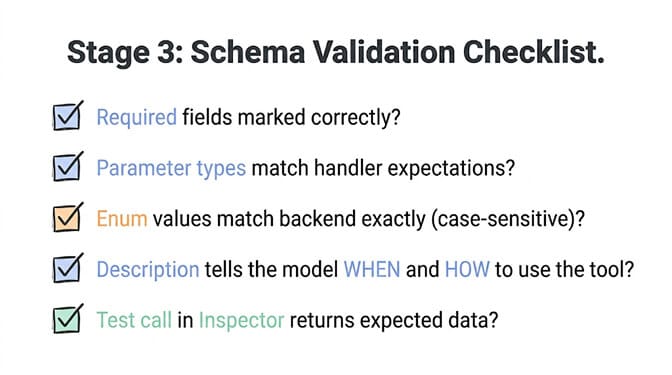
Common schema failures:
- Required parameters marked as optional (or vice versa). The model provides what the schema says. If a required parameter is marked optional, the model might skip it. The tool receives null and crashes or returns an empty result.
- Type mismatches. Your tool expects an integer but the schema says string. The model sends
"42"(string). Your handler receives"42"(string) instead of42(integer) and the comparison or calculation fails silently. - Enum values that don't match. Your schema says the
statusparameter accepts["active", "inactive"]. Your backend code checks for["Active", "Inactive"](capitalized). The model sends the schema's values. Your code doesn't match. No error, just no results. - Description too vague. The model uses the tool description to decide WHEN to call the tool and WHAT to pass. A description like "Queries the database" doesn't tell the model what kind of queries, what parameters to construct, or what results to expect. Be specific: "Queries the customer database by email address and returns account status, plan type, and last login date."
Stage 4: Invocation (did the tool actually run?)
Schema looks good. The model calls the tool. But did the server actually execute the handler?
Test it: Add a log line to the very first line of your tool handler: console.error("TOOL CALLED: toolName", params). (Remember: stderr, not stdout.) Then trigger the agent and check your server's error output.
If the handler never fires:
- The client sent the request but the server didn't receive it. Transport issue. If you're using STDIO, the message might be stuck in a buffer. If you're using Streamable HTTP, the request might have timed out before reaching the server. Check your server's network logs.
- The server received the request but crashed before reaching your handler. A middleware or authentication check failed silently. Add try-catch at the server level (not just the handler level) to log any errors during request routing.
- Timeout. The client has a timeout for tool calls (varies by client: Claude Desktop is generous, Codex CLI's default is shorter). If your tool takes longer than the timeout, the client cancels the call. The server may still be processing. The agent gets nothing. Check your client-specific timeout settings and increase if your tools are legitimately slow.
If the handler fires but returns an error: The tool ran but threw an exception. Without proper error handling, the exception propagates as a JSON-RPC error that the model may not understand. Always return a clear error message from your handler rather than letting exceptions bubble up raw.
This is exactly the kind of debugging that makes self-hosted agent frameworks time-consuming. On BetterClaw, tool integrations are pre-built, tested, and monitored. 200+ verified skills with built-in error handling, retry logic, and health monitoring. No MCP server to configure. No JSON-RPC to debug. No stdout corruption to hunt for. Free plan with 1 agent and 100 credits a month. $49/month on Pro. BYOK with zero markup.
Stage 5: Parsing (did the response make it back to the model correctly?)
The tool ran. It returned data. But the model's response doesn't reflect the tool results.
Common parsing failures:
- Response too large. Your tool returned 50,000 tokens of data. The model's context window filled up. Critical information got pushed out. Truncate tool responses to what the model actually needs. Return summaries, not raw dumps.
- Response format the model can't use. You returned raw HTML, a binary blob, or deeply nested JSON that the model can't parse meaningfully. Return clean, flat JSON with descriptive field names.
- Content field missing. The MCP response must include a
contentarray with at least one text or image block. If your server returns data outside thecontentfield, the client may ignore it. - The model ignores the tool result. This happens when the tool result contradicts the model's prior reasoning. The model decides its initial answer was "probably right" and doesn't update. This isn't an MCP bug. It's a model behavior issue. Improve your system prompt to instruct the model to always prioritize tool results over its own knowledge.
The quick-reference fix table
Here's the full diagnostic table. Start at the top. Stop when you find your issue.
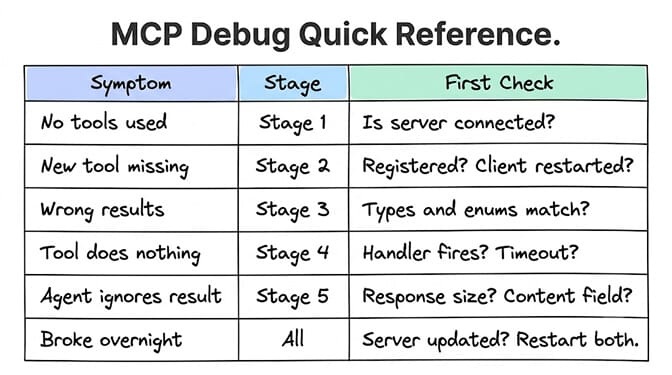
| Symptom | Check |
|---|---|
| Agent doesn't use any tools | Stage 1 (handshake). Is the MCP server connected? Run Inspector. |
| Agent uses some tools but not the new one | Stage 2 (discovery). Is the tool registered? Did you restart the client after adding it? |
| Agent calls the tool but gets wrong results | Stage 3 (schema). Do parameter types and enum values match exactly? |
| Agent calls the tool but nothing happens | Stage 4 (invocation). Does the handler fire? Add stderr logging. Check timeouts. |
| Tool returns correct data but agent ignores it | Stage 5 (parsing). Is the response too large? Is it in the content field? Does the system prompt prioritize tool results? |
| Everything worked yesterday, broken today | Server update changed the tool list or schema. Client cached the old list. Restart both. |
MCP has 97 million downloads as of 2026. It's the standard for connecting agents to tools. But the debugging experience is still rough. Gartner projects 40% of enterprise applications will embed AI agents by end of 2026. Every one of those agents will use tools. Every one of those tool integrations will break at some point. The teams that can diagnose MCP failures in 5 minutes instead of 45 will ship faster and sleep better.
If you're still wiring up your first server, our MCP setup guide walks through the connection step by step. The single best debugging habit you can build: add a health check tool to every MCP server. A tool called health_check that takes no parameters and returns {"status": "ok", "tools_count": N}. If this tool works, your handshake, discovery, and basic invocation are fine. If it doesn't, start at Stage 1.
MCP debugging will get better. Inspector will evolve. Proxy-based logging will mature. Client error reporting will improve. But right now, in mid-2026, silent failures are the norm, and the five-stage workflow above is the fastest path from "something's broken" to "found it, fixed it."
Give BetterClaw a look if you'd rather skip MCP debugging entirely. Pre-built integrations with 25+ OAuth services. Managed tool connections. Built-in error handling and health monitoring. Free plan with 1 agent and 100 credits a month. $49/month on Pro. We handle the protocol plumbing. You handle what the agent actually does.
Frequently Asked Questions
What does it mean to debug MCP tool calls?
Debugging MCP tool calls means diagnosing why an AI agent fails to invoke, execute, or process the results of a tool connected via the Model Context Protocol. MCP failures are typically silent: the agent doesn't throw an error, it simply proceeds without the tool data, often hallucinating an answer instead. The debugging process follows a five-stage decision tree: handshake (is the server connected?), discovery (can the client see the tools?), schema validation (do the definitions match?), invocation (did the tool actually run?), and parsing (did the response reach the model correctly?).
How does the MCP Inspector help with debugging?
MCP Inspector is the official debugging tool from the MCP team. It provides a browser-based UI (at localhost:6274) where you can see the raw JSON-RPC messages between client and server, list all registered tools, call individual tools with test parameters, and inspect responses. The key limitation: Inspector acts as its own client, not a proxy. It shows Inspector-to-server traffic, not your actual agent-to-server traffic. If a tool works in Inspector but fails in your agent client (Claude, Cursor, Codex), the problem is client-specific.
How do I fix an MCP tool that silently fails to fire?
Start with the most common cause: stdout corruption. Check if your MCP server prints anything to stdout before the JSON-RPC stream (startup messages, debug logs, warnings). Redirect all non-protocol output to stderr. Then verify in MCP Inspector that the tool appears in the tools/list response and that calling it with test parameters returns expected data. If it works in Inspector but not in your client, restart the client (it caches the tool list) and check client-specific timeout settings.
How much time does MCP debugging typically take?
With the five-stage diagnostic workflow, most MCP tool call failures can be identified in 5-15 minutes. Without a structured approach, developers commonly report spending 30-60 minutes on what turns out to be a simple configuration issue (wrong path, stdout corruption, stale cache). The most time-consuming failures are Stage 4 (invocation) issues where the handler fires but returns unexpected data, which requires testing with real inputs. Adding a health_check tool to every MCP server reduces initial triage to under 60 seconds.
Is MCP reliable enough for production agent deployments?
MCP is the dominant agent-to-tool protocol with 97 million downloads and adoption by Anthropic, OpenAI, Google, and Microsoft. It's production-ready. The debugging challenges are real but solvable with proper monitoring: add health check tools, log to stderr, use gateway proxies for production observability, and restart both client and server after any tool changes. For teams that want to skip MCP configuration entirely, managed platforms like BetterClaw provide pre-built integrations with built-in error handling, retries, and health monitoring across 200+ verified skills.