You installed 15 skills in week one. You don't remember what half of them do. Here's how to find out before one of them does something you didn't authorize.
I found a skill in my OpenClaw install that I had no memory of adding. It was called something generic like "productivity-helper." It had been sitting there for three weeks, running alongside every conversation, with access to my file system.
When I read the source code, I found network calls to an external server that had nothing to do with the skill's stated purpose. The skill was doing what it promised (managing task lists) while quietly sending my config data somewhere else.
This is the OpenClaw skill audit process I now run monthly. It takes 20 minutes. It's the 20 minutes that keeps me from being one of the 14,285 people who downloaded the most popular malicious ClawHub skill before it was pulled.
Why this matters (one paragraph, then we move on)
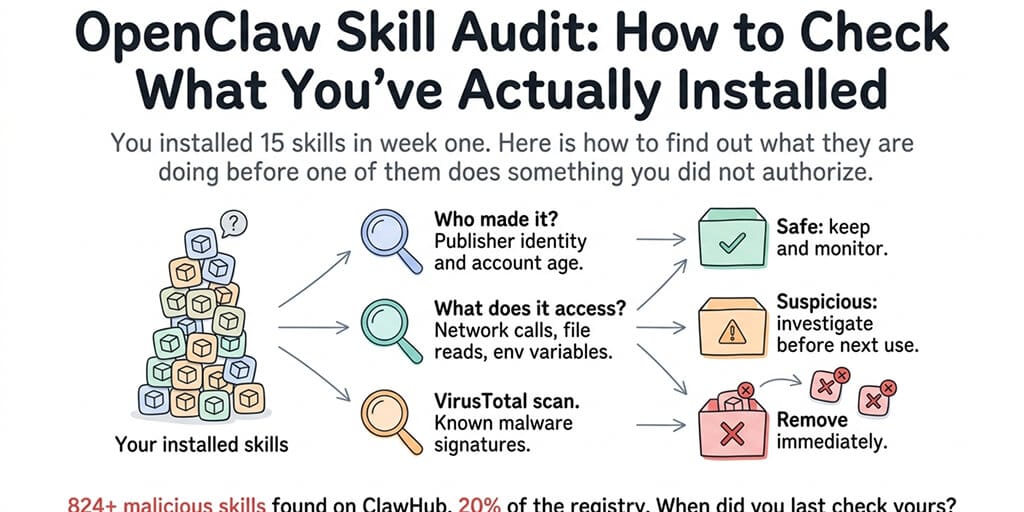
ClawHub has over 13,000 skills. The ClawHavoc campaign identified 824+ of them as malicious, roughly 20% of the entire registry. Cisco independently found a third-party skill performing data exfiltration without user awareness. The skill worked as advertised while simultaneously sending API keys and config data to an external server. If you installed skills enthusiastically in your first week (most people do), some of them might be doing things you didn't authorize. Here's how to check.
Step 1: List every skill you have installed
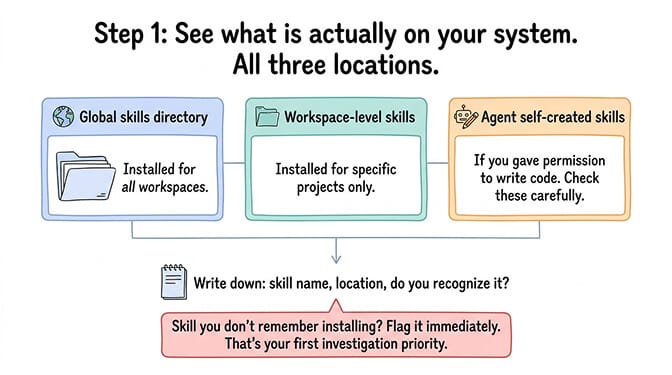
Start by seeing what's actually on your system. OpenClaw stores skills in specific directories: globally installed skills, workspace-level skills, and any skills the agent created itself during conversations.
Check all three locations. The global skills directory contains skills you installed for all workspaces. The workspace-level skills directory contains skills installed for a specific project. And the agent's self-created skills (if you gave it permission to write code) live in the workspace's skill folder.
Write down every skill name, where it's installed, and whether you recognize it. If you see a skill name you don't remember installing, flag it immediately. That's your first priority for investigation.
For the complete skill installation and vetting process, our skills guide covers the safe installation workflow from the beginning.
Step 2: Check each skill against these four questions
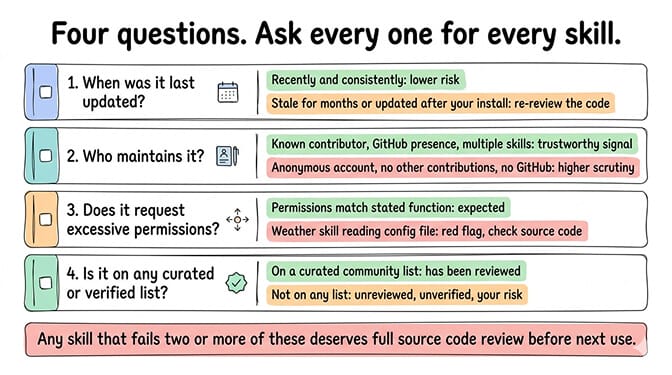
For every skill on your list, ask these four things.
When was it last updated? Skills that haven't been updated in months may have unpatched vulnerabilities. More importantly, skills that were updated after you installed them might contain code you never reviewed. Check the ClawHub page for the skill's update history.
Who maintains it? Check the publisher's profile on ClawHub. Do they maintain other skills? Do they have a GitHub presence? A skill from an anonymous account with no other contributions deserves more scrutiny than one from a known community member with a history of contributions.
Does it request permissions it doesn't need? A task management skill that accesses your file system makes sense. A weather skill that reads your config file doesn't. Open the skill's SKILL.md and check what tools and permissions it declares. If the declared permissions seem excessive for what the skill does, investigate the source code.
Is it on any verified or curated list? Some community members and platforms maintain curated skill lists that have undergone basic vetting. If your skill isn't on any curated list, it hasn't been reviewed by anyone except the person who published it.
Step 3: Run suspicious skills through VirusTotal
For any skill that raised questions in step 2, run the source code through VirusTotal.
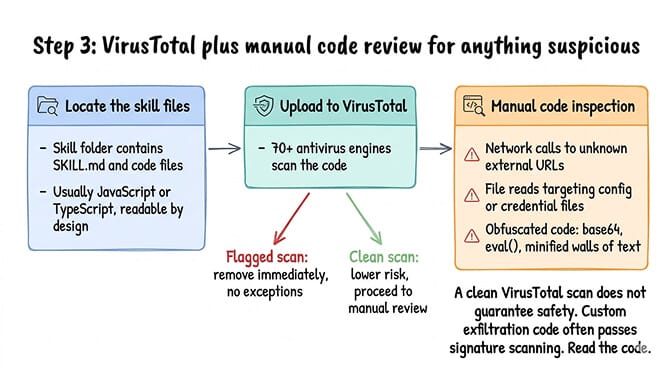
Navigate to the skill's directory on your system. Each skill is a folder containing a SKILL.md file and any associated code files (typically JavaScript or TypeScript). The SKILL.md defines the skill's metadata and instructions. The code files contain the actual logic.
Go to virustotal.com and upload the code files. VirusTotal scans them against 70+ antivirus engines and reports any detections. A clean scan doesn't guarantee safety (custom exfiltration code often passes signature-based scanning), but a flagged scan is a definitive signal to remove the skill immediately.
For deeper inspection beyond VirusTotal: Read the code yourself. Look for network calls to external URLs that aren't related to the skill's purpose. Look for file reads targeting config files, credential files, or directories outside the skill's workspace. Look for obfuscated code (base64 encoded strings, eval() calls, minified code in a skill that should be readable).
If the code does anything you can't explain or anything that accesses data outside its stated function, remove it.
Step 4: Remove skills you don't recognize or don't use
If a skill fails your checks or you simply don't use it anymore, remove it.
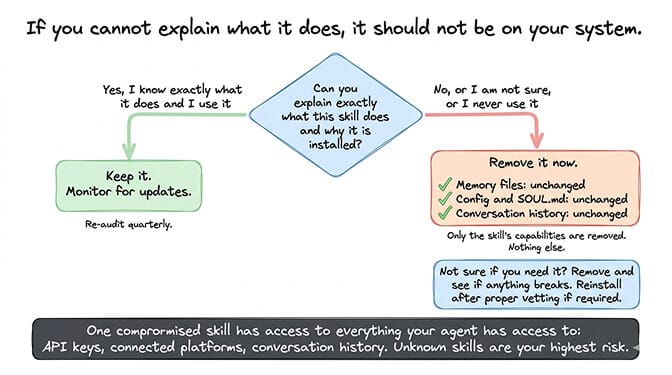
Removing a skill from OpenClaw deletes the skill folder from the installation directory. It does not affect your memory files, your config, your SOUL.md, or your conversation history. The only thing that changes is the agent loses the ability to perform the actions that skill provided.
If you're not sure whether you use a skill, remove it and see if anything breaks. If your agent can't perform a task it used to handle, you'll know which skill was responsible. Reinstall it after proper vetting if you need it.
The rule: if you can't explain what a skill does, it shouldn't be on your system. Unknown skills are the highest-risk items in your OpenClaw setup because they run with whatever permissions your agent has.
For the broader security considerations including gateway hardening and credential protection, our security checklist covers the full stack beyond just skills.
Your agent is only as trustworthy as the least-trusted skill it has installed. One compromised skill has access to everything your agent has access to: files, API keys, connected platforms, conversation history.
Skills worth keeping, skills worth questioning
Without naming specific skills as malicious (that's a legal minefield), here are the patterns that separate trustworthy skills from questionable ones.
Skills worth keeping typically: come from known publishers with multiple maintained skills, have readable source code with clear logic, request only permissions relevant to their function, have been updated within the last 60 days, and have community reviews or appear on curated lists.
Skills worth questioning typically: come from accounts created recently with only one published skill, have obfuscated or minified code that's difficult to read, request file system or network access beyond their stated purpose, haven't been updated since initial publication, and have high download counts but no community discussion (potentially inflated).
If you want a pre-vetted starting point, BetterClaw's curated skills library filters skills through a vetting process before making them available. You still own the audit for any custom skills you add, but the baseline library starts from a reviewed foundation rather than the unfiltered ClawHub registry.
How often should you do this?
After every bulk install: If you add three or more skills in a session, audit all of them before your next work session.
Once a month: Even skills that were clean at installation can be updated by their maintainers with new code. A monthly audit catches skills that changed after you installed them.
After reading about a new security incident: When the next ClawHavoc-style campaign is discovered (and it will be, the ClawHub moderation is still catching up), run an immediate audit of every installed skill.
The 20 minutes this takes is trivial compared to the hours of damage control after a compromised skill exfiltrates your API keys. Rotate all your provider credentials if you find anything suspicious. The cost of a false alarm is five minutes of key rotation. The cost of missing a real compromise is much higher.
For the full security vetting methodology BetterClaw uses, our vetting page explains the criteria we apply to every skill in our curated library.
BetterClaw vets skills before making them available through the platform. You still own the audit process for your own custom installs, but the library starts from a filtered baseline.
Frequently Asked Questions
What is an OpenClaw skill audit?
An OpenClaw skill audit is a systematic review of every skill installed on your agent. It involves listing all installed skills, checking each one against security criteria (publisher identity, update history, permission scope, community reputation), scanning suspicious code through VirusTotal, and removing skills you don't recognize or don't use. The process takes about 20 minutes and should be done monthly, given that 824+ malicious skills were found on ClawHub.
How do I know if an OpenClaw skill is safe?
No single check guarantees safety, but a combination of indicators helps: the skill comes from a known publisher with other maintained skills, the source code is readable and does only what the skill claims, permissions match the skill's purpose (a calendar skill shouldn't need file system access), and the skill appears on community-curated lists. Run code through VirusTotal for signature-based detection. Read the source code yourself for anything that accesses data outside the skill's stated function.
How do I remove an OpenClaw skill?
Delete the skill's folder from your OpenClaw skills directory (global or workspace-level, depending on where it was installed). Removing a skill does not affect your memory files, config, SOUL.md, or conversation history. The agent simply loses the ability to perform actions that skill provided. If you're unsure whether you need a skill, remove it and see if anything breaks. Reinstall after proper vetting if needed.
Are ClawHub skills safe to install?
Not automatically. ClawHub is an open registry with over 13,000 skills. The ClawHavoc campaign identified 824+ malicious skills (roughly 20% of the registry), and Cisco found skills performing data exfiltration without user awareness. Treat ClawHub like any open-source package registry: useful but unvetted. Check every skill before installation using the four-question audit process. Managed platforms like BetterClaw ($49/month for Pro) maintain curated skill libraries with pre-vetting.
How often should I audit my OpenClaw skills?
After every bulk install (three or more skills added at once), once a month as routine maintenance, and immediately after any new security incident is reported in the OpenClaw community. Skills can be updated by their maintainers after you install them, so a skill that was clean at installation may contain new code you haven't reviewed. Monthly audits catch these changes.
Related Reading
- OpenClaw Security Checklist — The full security stack beyond just skills
- OpenClaw Security Risks Explained — Why ClawHavoc and exposed instances matter
- Best OpenClaw Skills (Tested & Vetted) — A curated starting point of safe skills
- OpenClaw Skills Install Guide — The safe installation workflow from the beginning
- BetterClaw vs Self-Hosted OpenClaw — How managed platforms handle skill vetting automatically