
Overview
Available on
Free, Pro, and Enterprise plans
Setup time
About 2 minutes
What you need
A Slack workspace where you can install apps
Install method
One-click OAuth. No bot creation, no token management.
What your agent can do
Read and reply to DMs, respond to @-mentions in channels, send and receive files.
BetterClaw maintains a single official Slack app that any workspace can install with one click. There is no Slack app to create, no bot token to copy, no scopes to configure. You pick which agent should answer in Slack, click Add to Slack, authorize, and the bot is live in your workspace within seconds.
Compared to Discord (which uses a Bring Your Own Bot model), Slack is faster to set up but the trade-off is that the bot appears as Better Claw in your Slack instead of under a custom name. If you need full white-label branding, look at Discord integration instead.
What you will do
- Open the Slack integration in BetterClaw
- Pick which agent should respond
- Click Add to Slack and authorize the app
- Test by sending a DM to Better Claw in Slack
Step 1: Open the Slack Integration in BetterClaw
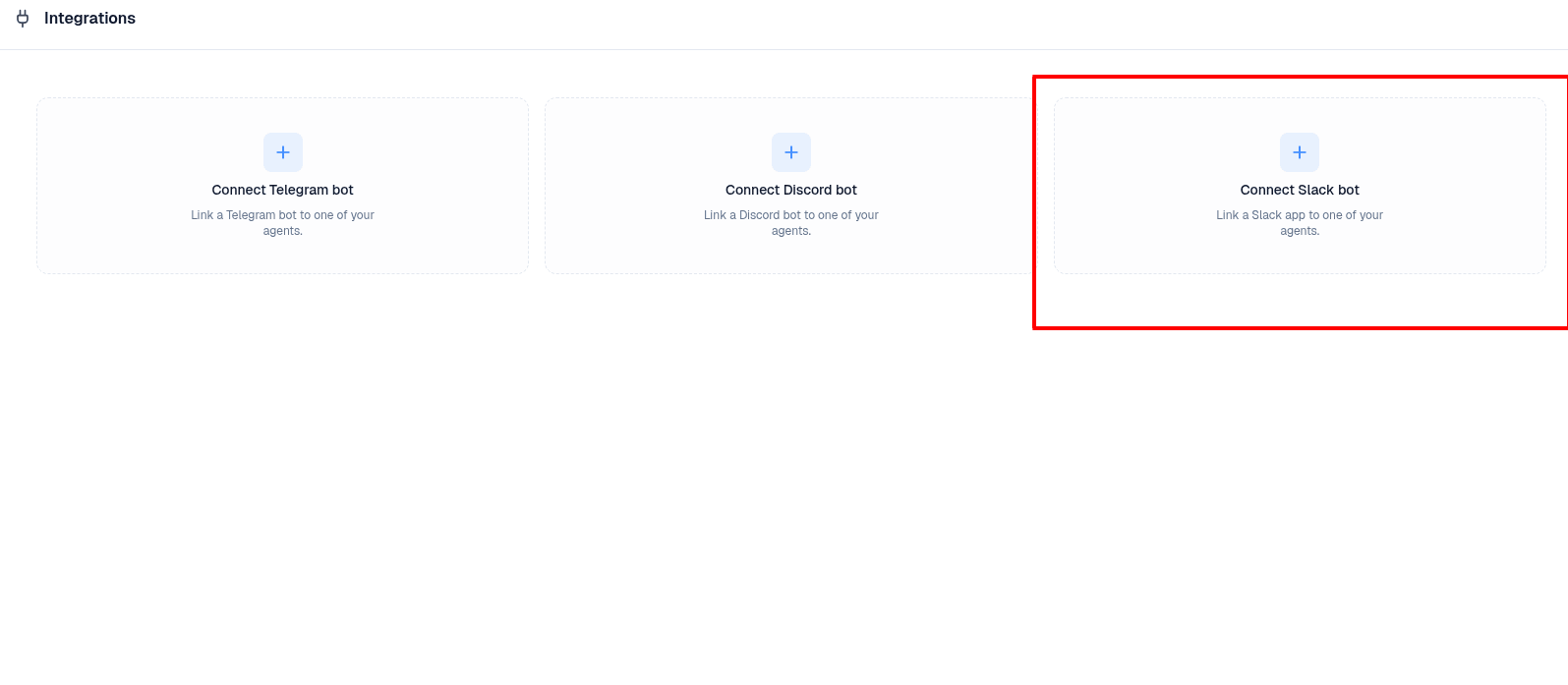
Log in to BetterClaw and go to Integrations from the left sidebar. You will see three cards: Connect Telegram bot, Connect Discord bot, and Connect Slack bot. Click Connect Slack bot.
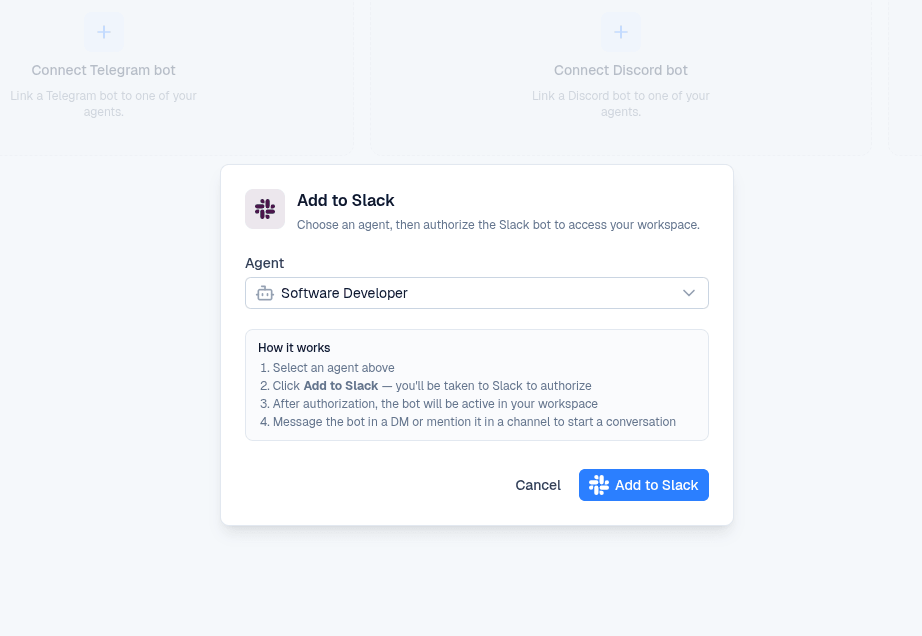
An Add to Slack dialog opens with a single dropdown and a How it works summary.
Step 2: Pick Your Agent
From the Agent dropdown, choose which agent in your workspace should answer messages on Slack. The selected agent will respond to every DM and channel mention through this bot.
Each Slack workspace can be connected to one BetterClaw agent at a time. If you want different agents for different purposes, you can install the Better Claw app in multiple Slack workspaces (one agent each), but you cannot route different channels to different agents within the same workspace today.
After picking the agent, click the blue Add to Slack button.
Step 3: Authorize the Better Claw App in Slack
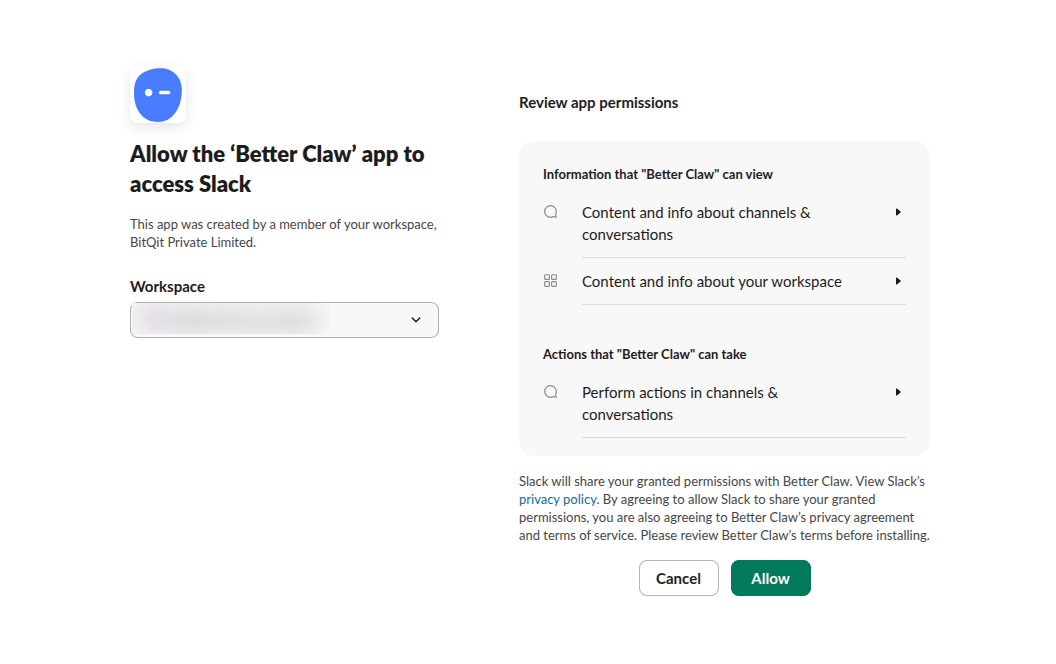
You will be taken to a Slack authorization page. Slack shows the workspace dropdown and the full list of permissions the Better Claw app is requesting.
What Permissions Better Claw Requests
Here is exactly what Slack asks for and what each permission does:
| Permission | What It Does |
|---|---|
| Content and info about channels and conversations | Read messages where the bot is mentioned and DM history with the bot, so it can hold a conversation with context. |
| Content and info about your workspace | See user names and basic workspace info, so the agent knows who it is talking to. |
| Perform actions in channels and conversations | Send messages and files back to users. |
Under the hood Slack maps these into specific OAuth scopes:
chat:write, im:history, im:read, files:read, files:write, app_mentions:read, users:readPick the correct Slack workspace from the dropdown if you belong to multiple workspaces, then click Allow.
By default, all Slack workspace members can request app installs but a Workspace Admin or Owner must approve. If your Allow button shows as "Request to install" instead, your admin needs to approve the request before the bot becomes active. This is a Slack setting, not BetterClaw.
Step 4: Confirm the Connection in BetterClaw
After clicking Allow, Slack redirects you back to BetterClaw. The Integrations page now shows a Slack card with a green Active badge, the workspace name, and Edit / Disconnect buttons.
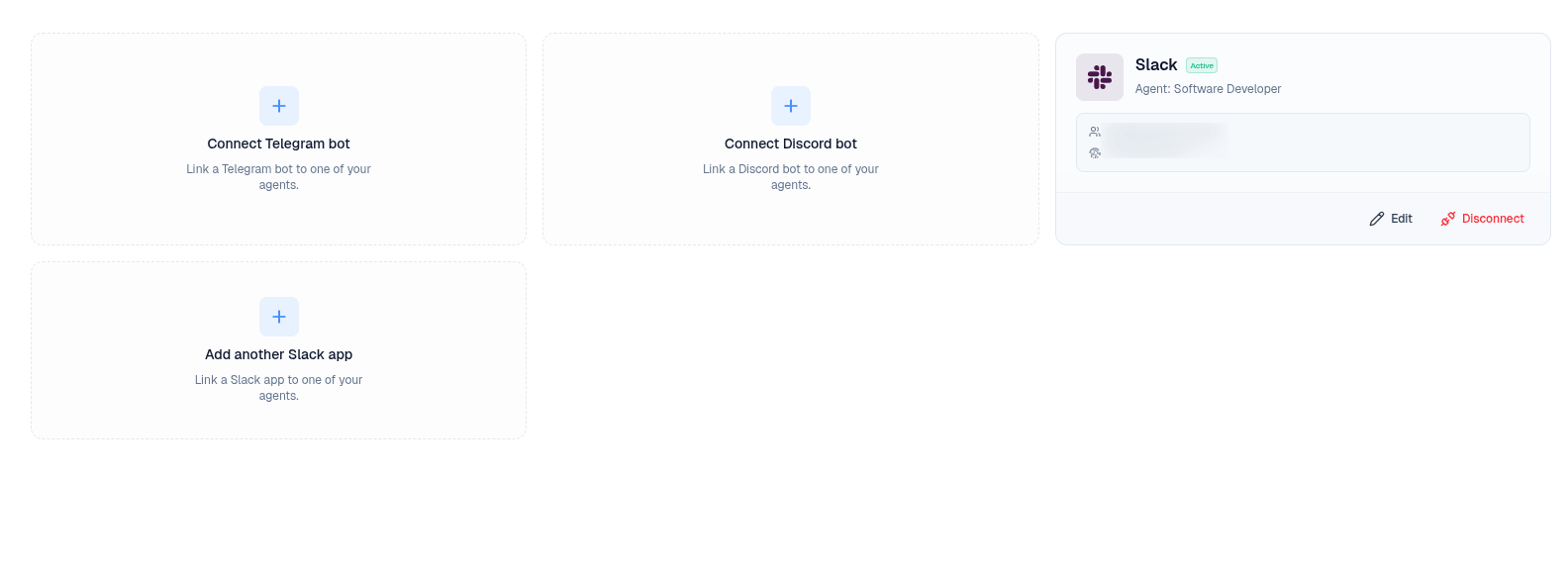
Your agent is live in Slack.
Step 5: Test Your Agent
Open Slack (web, desktop, or mobile) and switch to the workspace where you just installed Better Claw.
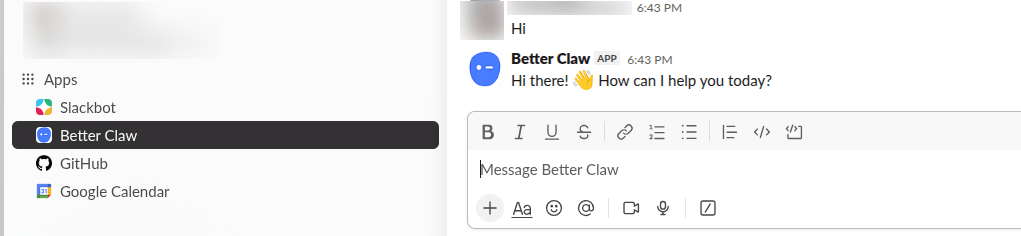
You will find Better Claw in the left sidebar under Apps. There are two ways to talk to it.
Direct Messages
Click Better Claw under Apps. This opens a DM with the agent. Send any message and the agent will reply within a couple of seconds.
HiThe agent will respond with something like "Hi there! How can I help you today?"
Channel Mentions
To use the agent in a public or private channel, first invite the Better Claw app to that channel. Type the invite command in the channel:
/invite @Better ClawOnce invited, anyone in the channel can @-mention the bot and it will reply in the same channel:
@Better Claw can you summarize the thread above?Send Files
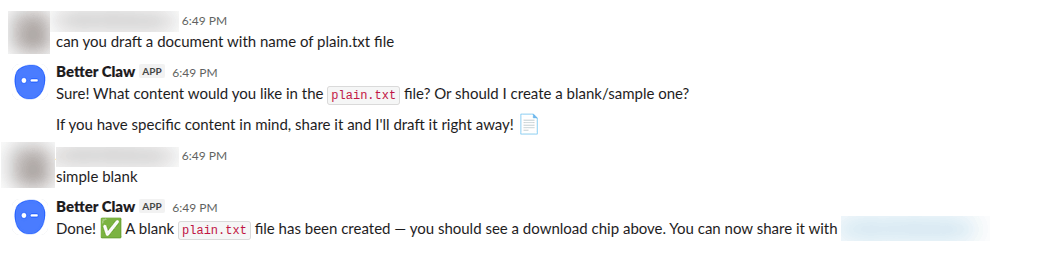
You can also send files to the agent through Slack. Drag a file into the DM or use the paperclip icon, then add a message describing what you want done with it. The agent receives the file along with your prompt and can read or process it depending on which skills are installed on the agent.
Common Questions
Why does the bot show up as Better Claw and not my brand name?
Slack is a one-click install model, so all installs use the same official Better Claw app maintained by us. We get the benefit of fast setup but the app name is fixed. If white-label branding matters more than setup time, use the Discord integration instead, which lets you create your own bot under any name and icon.
Can I connect the same Slack workspace to multiple agents?
Not today. Each Slack workspace maps to exactly one agent. If your team needs different agents for different roles (for example, sales agent and support agent), the workaround is to install Better Claw in a separate Slack workspace per use case. Multi-agent routing in a single workspace is on the roadmap.
Can I change which agent answers without reinstalling?
Yes. On the Integrations page in BetterClaw, click Edit on the Slack card and pick a different agent from the dropdown. The change takes effect immediately. No reinstallation needed.
How do I disconnect Slack?
Two options. From BetterClaw: go to Integrations and click Disconnect on the Slack card. The bot stops responding immediately. From Slack: go to your workspace settings, find Manage apps, search Better Claw, and click Remove. We recommend doing it from BetterClaw side, which also tells Slack to revoke the token.
Does the agent see all messages in every channel?
No. The agent only sees DMs sent to it and channel messages where it is explicitly @-mentioned. Slack scope app_mentions:read ensures the bot does not have visibility into channel conversations it is not invited to or mentioned in.
Does this work with Slack Enterprise Grid?
Yes, but each workspace under the Grid installs independently. There is no Org-wide install today. If you want the Better Claw app available across multiple workspaces in an Enterprise Grid, install it in each one separately.
What about private channels?
Same rules as public channels. Invite the bot to the private channel with /invite @Better Claw and then @-mention it as usual. The bot only sees messages from the point it joins the channel onwards, not the history before it was invited.
Troubleshooting
Allow button shows as "Request to install"
Your Slack workspace has admin approval enabled for new apps. Ask your Workspace Admin or Owner to approve the Better Claw app from the Slack admin panel. Until they approve, the bot will not be active.
Bot is installed but does not reply to DMs
Three things to check. First, make sure the agent is actually selected in BetterClaw. Go to Integrations, click Edit on the Slack card, and confirm the right agent is in the dropdown. Second, check the agent itself is healthy. Go to Agents and confirm the agent is deployed and not in an error state. Third, the bot might still be installing in the background. Wait 30 seconds and try again.
Bot does not respond to channel mentions
Either the bot is not in that channel, or you mentioned a different bot with a similar name. Confirm the bot is in the channel by checking the channel member list or by running /invite @Better Claw. Slack is case sensitive on display names, so use the autocomplete suggestion when typing @.
"Better Claw is not responding" message in Slack
This is Slack telling you the request timed out. It usually means the agent took longer than 3 seconds to respond, which Slack treats as a failure for app interactions. The agent will still process and reply within a few more seconds. If this happens repeatedly, the agent might be running on a slow model. Switch it to a faster provider in agent Settings.
I reinstalled the app and now nothing works
Reinstalling in Slack generates a new bot token. BetterClaw should detect this automatically and prompt you to reauthorize. If it does not, go to Integrations, click Disconnect on the Slack card, then click Connect Slack bot again and redo the OAuth flow.
File uploads fail or files are not received
Slack has a default 1GB per-file size limit but most workspaces enforce a lower limit. Files above your workspace limit will be rejected by Slack before they reach the agent. For files under the limit, give the upload 5 to 10 seconds before expecting the agent to acknowledge. Large files take longer to download server-side.
Quick Reference
| Step | Action | Where |
|---|---|---|
| 1. Open Slack integration | Click Integrations in sidebar | BetterClaw > Integrations |
| 2. Pick your agent | Select agent from dropdown | Add to Slack dialog |
| 3. Authorize the app | Pick workspace, click Allow | Slack OAuth page |
| 4. Confirm connection | Check for the green Active badge | BetterClaw > Integrations |
| 5. Test DM and mentions | DM Better Claw or @-mention in a channel | Slack > Apps > Better Claw |
Related Documentation
Need more help? Email hello@betterclaw.io or open the chat widget in your dashboard.