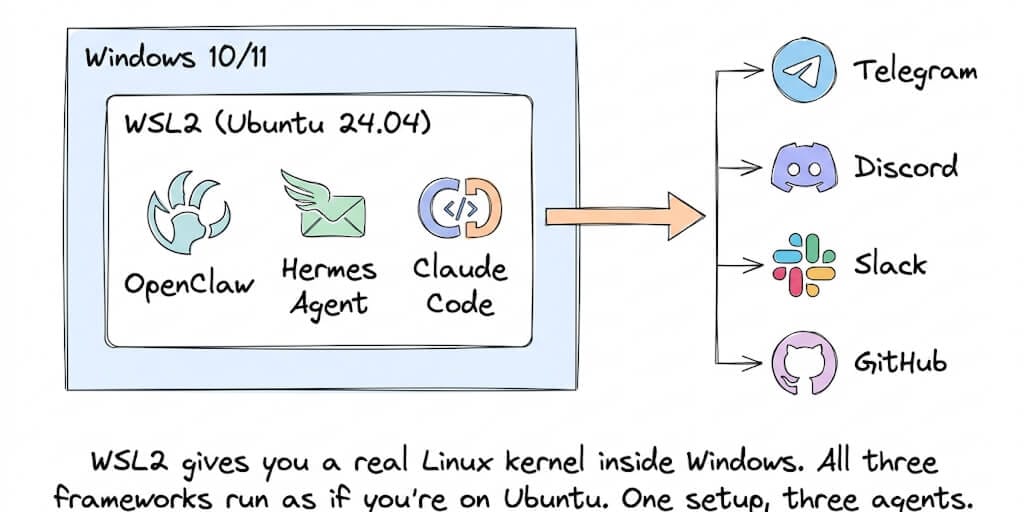
All three major agent frameworks recommend WSL2 as the primary Windows path. Here's the unified setup that works for all of them, the 4 Windows-specific traps that break your agent, and the option that skips WSL2 entirely.
A developer on the Blink blog summarized it perfectly: "You just read through Docker setup, WSL2 configuration, systemd, Node.js version management, firewall rules, CVE patches, security hardening, and three different auto-start strategies. None of that is the agent. All of it is infrastructure."
That's the Windows AI agent experience in one paragraph.
OpenClaw's official docs say: "WSL2 is recommended. Native Windows might be trickier." Hermes calls WSL2 "our most battle-tested Windows path." Claude Code requires a Unix terminal. On Windows, that means WSL2.
Here's the unified setup that gets all three frameworks running on Windows, the four traps that will waste your afternoon if you don't know about them, and the alternative that makes all of this unnecessary.
The WSL2 setup (10 minutes, one command to start)
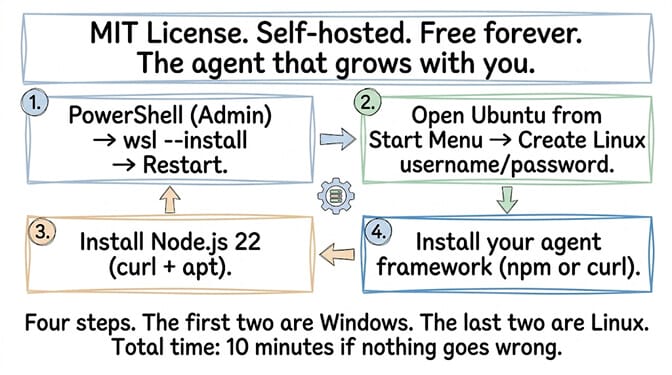
Step 1: Enable WSL2. Open PowerShell as Administrator. Run:
wsl --install
This enables WSL2 and installs Ubuntu 24.04. Restart when prompted. After restart, Ubuntu launches automatically. Create a Linux username and password (separate from your Windows login).
Step 2: Verify WSL version. In PowerShell:
wsl --list --verbose
You should see Ubuntu with VERSION 2. If it shows VERSION 1, upgrade: wsl --set-version Ubuntu 2.
Step 3: Install Node.js 22. Inside Ubuntu (open from Start Menu):
curl -fsSL https://deb.nodesource.com/setup_22.x | sudo -E bash -
sudo apt-get install -y nodejs
Verify: node --version (should show v22.x).
Step 4: Install your framework. This is where the paths diverge.
For OpenClaw: npm install -g clawdbot then openclaw setup
For Hermes: curl -fsSL https://raw.githubusercontent.com/NousResearch/hermes-agent/main/scripts/install.sh | bash
For Claude Code: npm install -g @anthropic-ai/claude-code then set your API key
The unified WSL2 advantage: One Linux environment runs all three. Install OpenClaw for always-on messaging, Hermes for goal-tracked automation, and Claude Code for coding. They share the same Ubuntu, the same Node.js, the same filesystem. No conflicts.
The 4 Windows-specific traps (read this before debugging for 3 hours)
Trap 1: Cross-filesystem I/O is 10-20x slower
What happens: You store your agent data on your Windows drive (accessible inside WSL as /mnt/c/Users/...). Every file read and write is 10-20x slower than native Linux filesystem access. Your agent feels sluggish. Memory file access crawls.
The fix: Always work in your WSL home directory (/home/yourusername/). Never store agent data on /mnt/c/. The speed difference is dramatic and invisible unless you know to look for it.
For the general OpenClaw troubleshooting guide, our guide covers the broader diagnosis including WSL-specific issues.
Trap 2: WSL IP changes on every restart
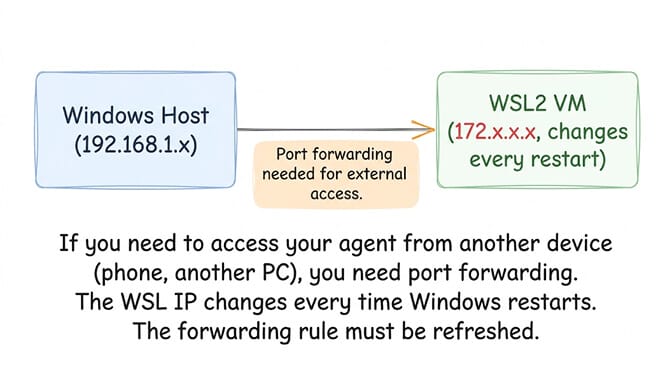
What happens: WSL2 uses a virtual network adapter. The IP address changes after every Windows restart. If you set up port forwarding to access your agent from your phone, the forwarding rule breaks after reboot.
The fix: Create a PowerShell script that detects the current WSL IP and updates the forwarding rule. Run it at startup. Or use Tailscale inside WSL2 for persistent access without port forwarding.
Trap 3: WSL2 eats your RAM
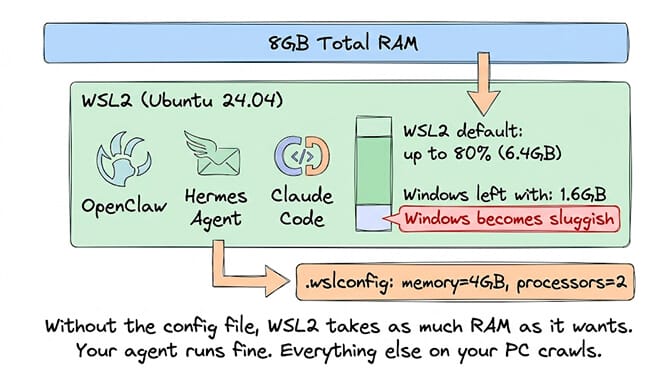
What happens: By default, WSL2 can use up to 80% of your system RAM. Your Windows machine becomes sluggish while your agent runs. Background tasks slow to a crawl.
The fix: Create .wslconfig in C:\Users\YourName\:
[wsl2]
memory=4GB
processors=2
This limits WSL2 to 4GB RAM and 2 CPU cores. Enough for one agent. Adjust based on your hardware.
Trap 4: systemd isn't always enabled
What happens: OpenClaw's daemon mode (--install-daemon) and Hermes's gateway need systemd to auto-start. Some older WSL2 versions don't enable systemd by default.
The fix: Add [boot] systemd=true to /etc/wsl.conf inside Ubuntu. Restart WSL: wsl --shutdown then reopen.
If setting up WSL2, configuring systemd, managing RAM limits, refreshing port forwarding on every reboot, and debugging cross-filesystem performance sounds like more Windows infrastructure work than building agent workflows, BetterClaw eliminates the WSL2 requirement entirely. No WSL2. No Linux kernel. No PowerShell scripts. The agent runs in the cloud. You access it from any browser on any operating system. Free tier with 1 agent and BYOK. $49/month for Pro. 60-second deploy.
Which framework to install first (the decision)
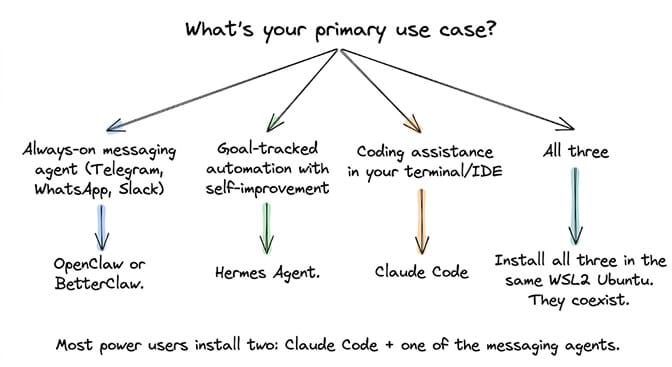
OpenClaw if you want a messaging agent with 50+ channel support and the largest skill ecosystem (230K+ stars). Self-hosted. You manage updates, security (540+ CVEs), and infrastructure.
Hermes if you want goal tracking, multi-agent Kanban, and self-maintaining skills. Fewer channels (20) but more durable task completion. Reportedly more stable than OpenClaw.
Claude Code if you want a coding agent in your terminal. Different category entirely (coding vs life automation). Most developers run Claude Code alongside one of the other two.
All three coexist in the same WSL2 Ubuntu without conflicts. OpenClaw uses npm. Hermes uses Python (uv). Claude Code uses npm with a separate global package. No collisions.
For the detailed comparison of OpenClaw vs Claude Code, our comparison covers the category distinction.
The honest question (do you actually need WSL2?)
Here's the take nobody else gives you.
WSL2 is a workaround. The frameworks need Linux. Your machine runs Windows. WSL2 bridges the gap. But the gap exists because you're running a server workload on a desktop operating system.
The always-on agent use case (gateway running 24/7, responding to messages while you sleep) doesn't belong on a Windows laptop with WSL2. It belongs on a server. Your laptop sleeps. Your agent stops. Your gateway loses its websocket connections. Your cron jobs miss their schedules.
WSL2 is excellent for development and testing. It's fragile for production. The RAM limits, the IP changes, the systemd quirks, the cross-filesystem penalty. All of these exist because WSL2 is a compatibility layer, not a native runtime.
If you want a production always-on agent, you have three options: a VPS ($5-10/month, you manage everything), dedicated hardware ($80-700, always on at home), or a managed platform ($0-19/month, no infrastructure). If you're leaning toward your own box, our OpenClaw hardware guide compares mini PC, Mac Mini, and VPS for always-on agents.
If the managed path interests you, give BetterClaw a try. Free tier with 1 agent and BYOK. $49/month for Pro. No WSL2. No Linux. No Windows infrastructure. The agent runs on our servers. You interact through your chat apps. The operating system on your laptop doesn't matter.
Frequently Asked Questions
Do I need WSL2 to run AI agents on Windows?
For OpenClaw and Hermes, WSL2 is the recommended path. OpenClaw's docs call WSL2 "recommended for best performance." Hermes calls it "our most battle-tested Windows path." Claude Code requires a Unix terminal (WSL2 on Windows). Native Windows support exists for OpenClaw and Hermes but with known bugs and limited features. BetterClaw doesn't need WSL2 at all (cloud-based).
How long does WSL2 setup take for AI agents?
The WSL2 installation itself takes 5-10 minutes (one command + restart + Node.js install). Installing an agent framework adds 2-5 minutes. The traps (filesystem performance, RAM limits, systemd, port forwarding) can add hours of debugging if you don't know about them. Total with traps avoided: 15-20 minutes. Total without knowing the traps: potentially an afternoon.
Can I run OpenClaw and Hermes in the same WSL2 instance?
Yes. They use different runtimes (OpenClaw uses Node.js, Hermes uses Python/uv) and don't conflict. Claude Code also coexists as a separate npm global package. Many power users run all three in the same Ubuntu WSL2 environment for different purposes: OpenClaw for messaging, Hermes for goal-tracked automation, Claude Code for coding.
Does WSL2 work for always-on agents?
For testing: yes. For production: not recommended. WSL2 shuts down when Windows sleeps. The IP address changes on restart. RAM is shared with Windows. A VPS ($5-10/month), dedicated hardware (Pi or mini PC), or a managed platform like BetterClaw ($0-19/month) is more reliable for 24/7 always-on agents.
What's the alternative to WSL2 for Windows AI agent users?
BetterClaw runs entirely in the cloud. No WSL2, no Linux, no local installation. The agent runs on managed infrastructure accessible from any browser. Free tier with 1 agent and BYOK. $49/month for Pro. For users who want self-hosted without WSL2, Docker Desktop on Windows is an option but adds its own complexity (Hyper-V, container management, port mapping).