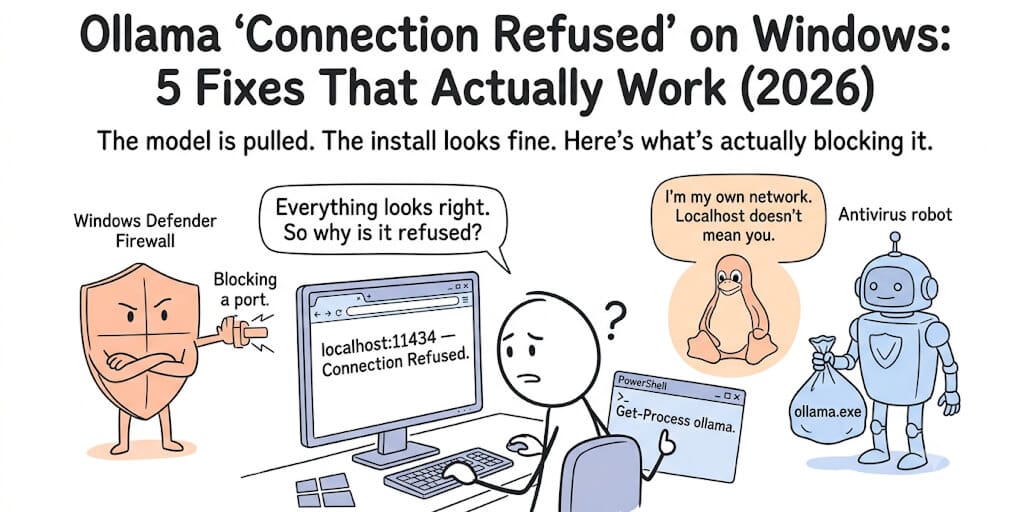
Ollama says "connection refused" on Windows 11. The model is pulled. The install looks fine. But curl localhost:11434 returns nothing. Here are the 5 Windows-specific causes, sorted by how often they're the actual problem, with the PowerShell fix for each.
Skip the Windows networking rabbit hole.
Connect your model by API or your own endpoint and let BetterClaw handle the plumbing. BYOK across 28+ providers, zero markup. Free forever, not a trial. Start free → No credit card · No firewall rules · No WSL2 host IPs
Sunday afternoon. I installed Ollama on my Windows 11 machine. ollama pull qwen3.6:35b-a3b worked. The model downloaded. I opened my browser and went to localhost:11434. Nothing. Connection refused.
I checked Task Manager. Ollama.exe was running. The system tray icon was there. The model was pulled. Why can't anything connect to it?
Windows Defender Firewall. It blocked port 11434 silently. No notification. No warning. Just... connection refused.
This is the most common Ollama connection refused on Windows issue, and it's the one that wastes the most time because everything looks right. Here are all 5 Windows-specific causes with the exact PowerShell fix for each.
The 30-second diagnostic (run this first)
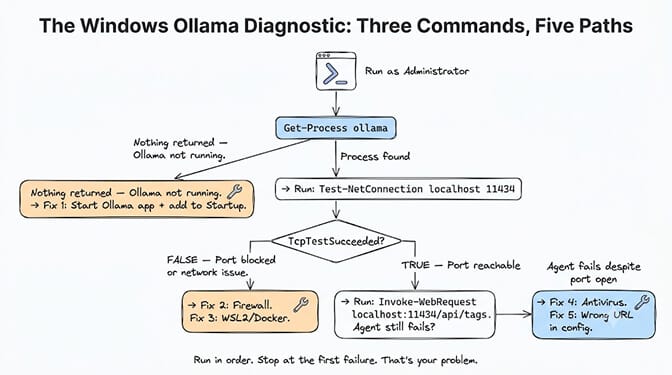
Open PowerShell (as Administrator):
# 1. Is Ollama running?
Get-Process ollama -ErrorAction SilentlyContinue

# 2. Is it listening on port 11434?
Test-NetConnection -ComputerName localhost -Port 11434

# 3. Can you reach the API?
Invoke-WebRequest -Uri http://localhost:11434/api/tags -UseBasicParsing
- If
Get-Processreturns nothing: Ollama isn't running. Go to Fix 1. - If
Test-NetConnectionsaysTcpTestSucceeded: False: The port is blocked. Go to Fix 2 or Fix 3. - If
Invoke-WebRequestreturns a response but your agent can't connect: Go to Fix 4 or Fix 5.
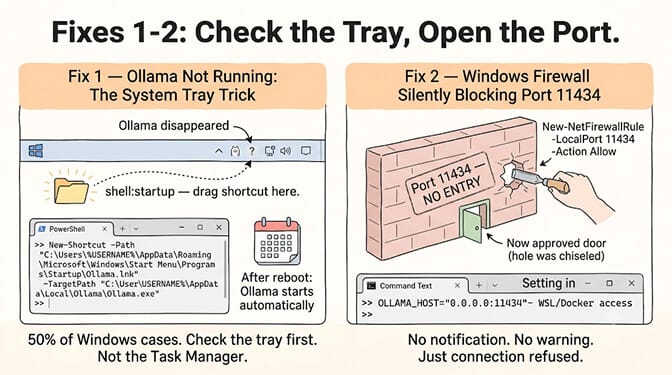
Fix 1: Ollama isn't actually running (the system tray trick)
Symptoms: Get-Process ollama returns nothing. No Ollama icon in the system tray. localhost:11434 returns "connection refused."
Why it happens on Windows: Unlike Linux (where Ollama runs as a systemd service), Windows Ollama runs as a desktop application. If you close the window, it minimizes to the system tray. If you right-click the tray icon and select "Quit," Ollama stops completely. After a reboot, Ollama only auto-starts if it's in your Startup programs.
The fix:
# Start Ollama from PowerShell
Start-Process "C:\Users\$env:USERNAME\AppData\Local\Programs\Ollama\ollama app.exe"

# Verify it's running
Start-Sleep -Seconds 5
Test-NetConnection -ComputerName localhost -Port 11434
Make it auto-start on boot: Press Win+R, type shell:startup, press Enter. Drag the Ollama shortcut into the Startup folder. Or via PowerShell:
$WshShell = New-Object -comObject WScript.Shell
$Shortcut = $WshShell.CreateShortcut("$env:APPDATA\Microsoft\Windows\Start Menu\Programs\Startup\Ollama.lnk")
$Shortcut.TargetPath = "$env:LOCALAPPDATA\Programs\Ollama\ollama app.exe"
$Shortcut.Save()
50% of "Ollama connection refused" on Windows is just Ollama not running. It doesn't auto-start on boot unless you add it to Startup. Check the system tray first.
Fix 2: Windows Firewall blocking port 11434
Symptoms: Ollama is running (Get-Process confirms it). But Test-NetConnection localhost 11434 returns TcpTestSucceeded: False. Or it works on localhost but your agent (running in WSL or Docker) can't reach it.
Why it happens: Windows Defender Firewall blocks inbound connections on port 11434 by default. Ollama doesn't automatically create a firewall rule during installation. If your agent framework runs in WSL2 or Docker Desktop, it needs to reach Ollama through the Windows firewall, not just localhost.
The fix (PowerShell as Administrator):
# Add firewall rule for Ollama
New-NetFirewallRule -DisplayName "Ollama API" -Direction Inbound -Protocol TCP -LocalPort 11434 -Action Allow

# Verify
Get-NetFirewallRule -DisplayName "Ollama API" | Get-NetFirewallPortFilter
If your agent is in WSL2 or Docker: You also need to set Ollama to listen on all interfaces, not just localhost:
# Set environment variable for Ollama to bind to all interfaces
[Environment]::SetEnvironmentVariable("OLLAMA_HOST", "0.0.0.0:11434", "User")

# Restart Ollama for the change to take effect
Then restart Ollama. From WSL or Docker, connect using the Windows host IP (usually 172.x.x.1 for WSL or host.docker.internal for Docker Desktop).
For the complete guide covering every Ollama connection error across Windows, macOS, and Linux (including "could not connect to ollama app", Docker networking and context overflow), see our Ollama connection refused and fetch failed guide.
Fix 3: WSL2 or Docker Desktop network conflict
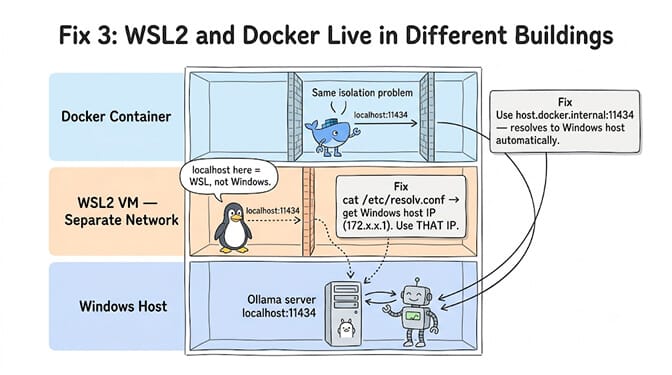
Symptoms: Ollama works in native Windows (localhost:11434 responds in PowerShell). But from WSL2 or Docker containers, it's "connection refused."
Why it happens: WSL2 runs in a lightweight VM with its own network stack. localhost inside WSL2 means the WSL VM, not your Windows host. Docker Desktop on Windows has the same issue. Your agent in Docker can't reach localhost:11434 on the Windows side.
The fix for WSL2:
# From inside WSL, get the Windows host IP:
cat /etc/resolv.conf | grep nameserver | awk '{print $2}'
# This returns something like 172.28.80.1

# Use this IP instead of localhost:
curl http://172.28.80.1:11434/api/tags
In your agent's config, replace localhost:11434 with the Windows host IP.
The fix for Docker Desktop:
# Use host.docker.internal instead of localhost
baseUrl: "http://host.docker.internal:11434/v1"
host.docker.internal resolves to the Windows host from inside any Docker container. This works on Docker Desktop for Windows without additional configuration.
For OpenClaw and Hermes running in Docker, our Ollama fetch failed guide covers the full connection chain, including the right base URL for each framework.
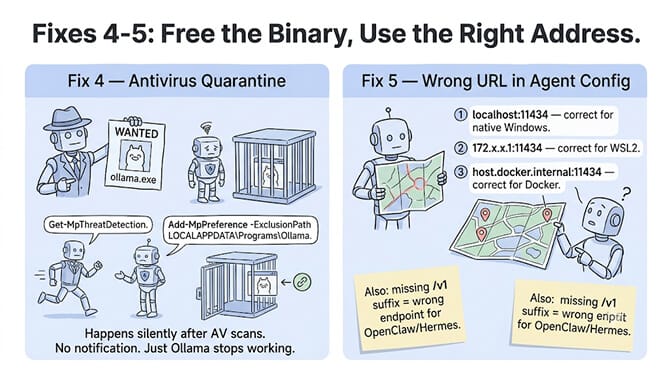
Fix 4: Antivirus or security software quarantine
Symptoms: Ollama was working. Then it stopped after a Windows update or antivirus scan. ollama.exe exists in the file system but won't start or can't listen on the port.
Why it happens: Some antivirus products (Norton, Kaspersky, Bitdefender, occasionally Windows Defender itself) flag ollama.exe or its model files as suspicious because they look like large binaries performing network operations. The antivirus quarantines the executable or blocks its network access without obvious notification.
The fix:
# Check if Windows Defender has quarantined Ollama
Get-MpThreatDetection | Where-Object {$_.Resources -like "*ollama*"}

# If quarantined, add exclusion
Add-MpPreference -ExclusionPath "$env:LOCALAPPDATA\Programs\Ollama"
Add-MpPreference -ExclusionPath "$env:USERPROFILE\.ollama"

# For third-party antivirus: add the same paths to the exclusion list in the AV's UI
After adding the exclusion, reinstall Ollama if the executable was removed. Or restore from quarantine in the antivirus UI.
Fix 5: Agent config pointing to the wrong URL
Symptoms: Ollama is running. Firewall is open. Test-NetConnection succeeds. But your agent framework (OpenClaw, Hermes, n8n) says "connection refused" or "fetch failed."
Why it happens: Your agent is pointing to the wrong URL. Common mistakes on Windows:
- Using
http://localhost:11434when the agent is in WSL2 (needs the Windows host IP). - Using
http://localhost:11434when the agent is in Docker (needshost.docker.internal:11434). - Missing the
/v1suffix. OpenClaw and Hermes expecthttp://localhost:11434/v1(OpenAI-compatible endpoint), not the native Ollama API. - Using
https://instead ofhttp://. Ollama serves HTTP, not HTTPS.
The fix: Match the URL to your agent's runtime:
# Agent running natively on Windows:
baseUrl: "http://localhost:11434/v1"

# Agent running in WSL2:
baseUrl: "http://172.28.80.1:11434/v1"  # Replace with your actual Windows host IP

# Agent running in Docker Desktop:
baseUrl: "http://host.docker.internal:11434/v1"
For the complete tool-calling fix for every provider (including the Ollama model compatibility check), see our Ollama tool calling support guide.
If debugging Windows Firewall rules, WSL2 networking, antivirus exclusions, and Docker host resolution is more infrastructure work than you want to maintain, BetterClaw handles model connections at the platform level. Connect your API key via BYOK. No Ollama to manage. No firewall to configure. 28+ providers supported. Free plan with 1 agent and 100 credits a month. $49/month on Pro.
The quick-reference table (screenshot this)
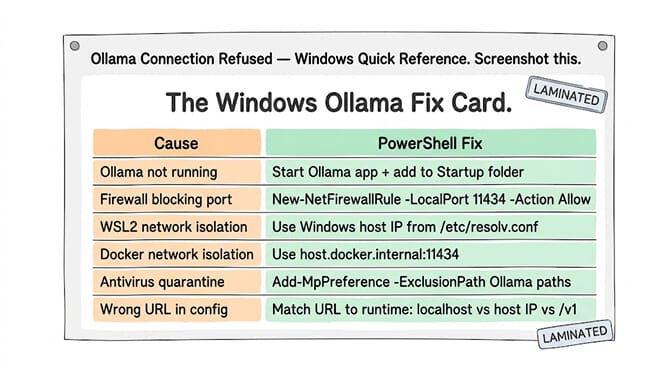
| Cause | Diagnostic | Fix |
|---|---|---|
| Ollama not running | Get-Process ollama returns nothing | Start Ollama app, add to Startup folder |
| Firewall blocking port | Test-NetConnection → TcpTestSucceeded: False | New-NetFirewallRule for port 11434 |
| WSL2 network isolation | Works on Windows, fails in WSL | Use Windows host IP from /etc/resolv.conf |
| Docker network isolation | Works on Windows, fails in Docker | Use host.docker.internal:11434 |
| Antivirus quarantine | Ollama won't start after AV scan | Add exclusion for Ollama paths |
| Wrong URL in config | Ollama works, agent doesn't | Match URL to runtime (localhost vs host IP vs /v1) |
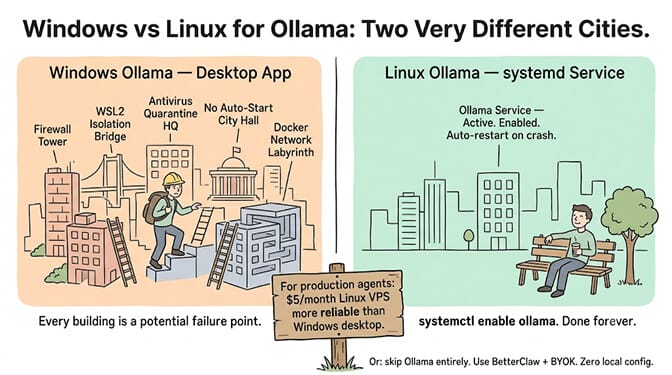
Windows adds three layers of complexity that macOS and Linux don't have: Windows Defender Firewall (blocks ports silently), WSL2 network isolation (separate VM with separate IP), and antivirus quarantine (removes binaries without warning). Every one of these looks like "connection refused" from the agent's perspective. The error message is the same. The fix is different every time.
If you've spent an hour configuring Windows Firewall rules, WSL2 host IPs, and antivirus exclusions just to classify emails locally, consider the alternative: BetterClaw runs your agent in the cloud. No Ollama. No firewall. No Windows Defender quarantining your inference server at 2 AM. Connect your API key, pick a model, deploy. Works identically on Windows, Mac, Linux, and your phone. Free to try. $49/month for Pro.
Frequently Asked Questions
Why does Ollama say "connection refused" on Windows?
The 5 most common causes on Windows: (1) Ollama isn't running because it doesn't auto-start on boot (50% of cases), (2) Windows Defender Firewall blocks port 11434 by default, (3) WSL2 or Docker has a separate network stack that can't reach localhost on the Windows host, (4) antivirus quarantined ollama.exe after a scan, (5) your agent config uses the wrong URL format. Run Get-Process ollama and Test-NetConnection localhost 11434 in PowerShell to narrow it down in 30 seconds.
How do I make Ollama auto-start on Windows?
Add an Ollama shortcut to your Windows Startup folder. Press Win+R, type shell:startup, and drag the Ollama shortcut into that folder. Alternatively, use PowerShell to create the shortcut programmatically. Unlike Linux (where Ollama runs as a systemd service with enable), Windows Ollama runs as a desktop application and requires explicit Startup folder configuration.
How do I connect Ollama on Windows to WSL2 or Docker?
From WSL2, get the Windows host IP with cat /etc/resolv.conf | grep nameserver (returns something like 172.28.80.1). Use that IP instead of localhost in your agent config. From Docker Desktop, use host.docker.internal:11434 which automatically resolves to the Windows host. In both cases, you also need to set OLLAMA_HOST=0.0.0.0:11434 as a Windows environment variable so Ollama listens on all interfaces, not just localhost.
Does Windows Firewall automatically block Ollama?
Yes. Windows Defender Firewall blocks inbound connections on port 11434 by default. Ollama's installer doesn't create a firewall rule automatically. You need to add one manually: New-NetFirewallRule -DisplayName "Ollama API" -Direction Inbound -Protocol TCP -LocalPort 11434 -Action Allow in PowerShell as Administrator. This only matters when connections come from outside localhost (WSL2, Docker, other machines on the network).
Does Ollama work better on Windows or Linux?
Linux is more reliable for Ollama in production. Ollama runs as a systemd service (auto-start, auto-restart). No Windows Firewall issues. No antivirus quarantine. No WSL2 network isolation. On Windows, Ollama runs as a desktop app with manual startup and the five failure modes described above. If you're deploying Ollama for a production agent, a $5/month Linux VPS (DigitalOcean, Hetzner) with Ollama as a systemd service is more reliable than a Windows desktop.
Can I run Ollama in WSL2 instead of native Windows?
Yes, and many developers prefer this. Install Ollama directly inside WSL2 (the Linux install script works). This avoids the Windows Firewall issue entirely. Your agent running in WSL2 connects to Ollama at localhost:11434 without network translation. The trade-off: WSL2 doesn't have GPU passthrough for all GPU models (NVIDIA works, AMD support is limited). Check nvidia-smi inside WSL2 to confirm GPU access before pulling large models.
Build agents, not firewall rules.
BetterClaw handles model connections at the platform level - BYOK across 28+ providers, 200+ verified skills, zero markup. Free forever, not a trial. Start free →