Connect your Hermes agent to Slack using Socket Mode. Step-by-step: app creation, OAuth scopes, gateway config, channel-specific prompts, and every common error fixed.
The message showed up at 3 PM on a Thursday. Someone in the #support channel tagged the Hermes bot. Nothing happened. No response. No error in Slack. Just silence.
I checked the gateway logs. "Connection refused." Checked the Slack app config. The bot token was set, but I'd forgotten to subscribe to app_mention events. Classic.
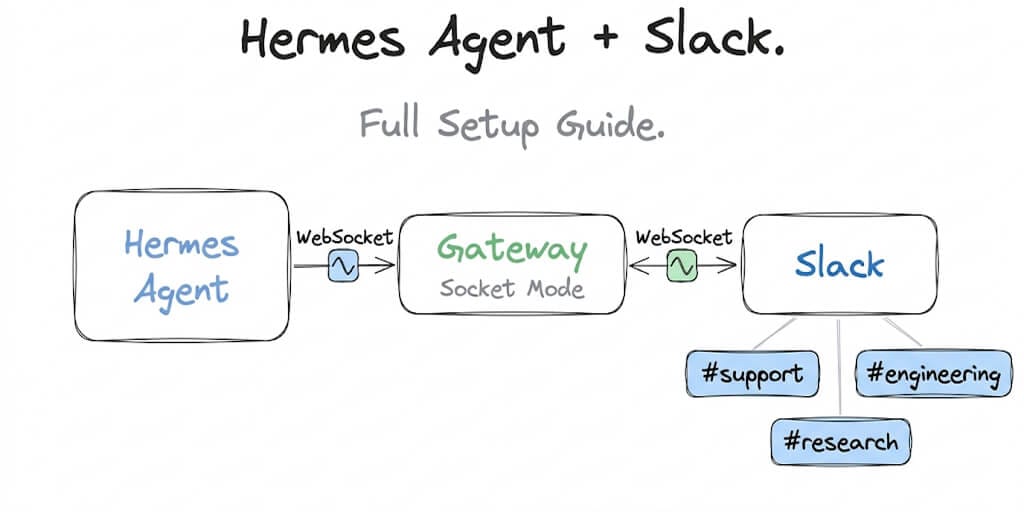
Hermes Agent's Slack integration is genuinely one of the better implementations in the AI agent space. Socket Mode means no public URL, no webhook endpoint, no load balancer. Your agent connects outbound to Slack over WebSocket, which simplifies everything from firewall rules to deployment topology. When it works, it feels like magic. Your team talks to an AI agent with persistent memory, tool access, and scheduled automations without leaving the app they already live in.
But getting from "installed Hermes" to "Slack bot actually responding" has a few steps where things go wrong silently. This guide covers every one of them.
What you need before starting
Hermes Agent installed and running (v0.5.0+). If you haven't done this yet, run curl -fsSL https://hermes-agent.nousresearch.com/install.sh | bash and then hermes setup to configure your model provider. Verify it works in the CLI first. If Hermes doesn't respond in your terminal, it won't respond in Slack either.
A Slack workspace where you have admin permissions to create apps. Free Slack workspaces work fine for testing.
About 10 to 30 minutes. If you use the manifest generator (recommended), closer to 10. If you configure the Slack app manually, closer to 30.
Step 1: Create the Slack app
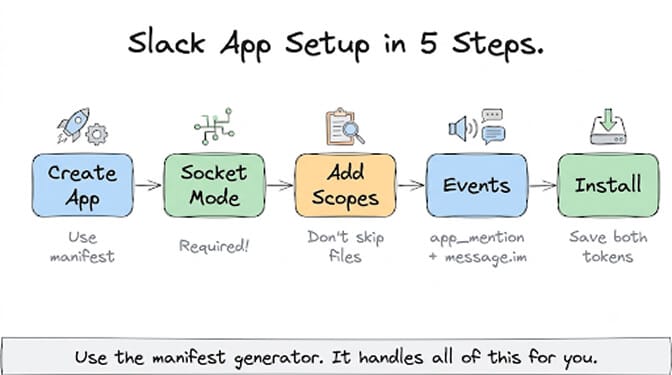
Hermes includes a manifest generator that pre-configures every required scope, event subscription, and slash command. This is the fast path.
hermes gateway manifest slack
This outputs a JSON manifest. Copy it, go to api.slack.com/apps, click "Create New App," select "From an app manifest," paste the JSON, and click through the prompts.
If you'd rather configure manually (or if the manifest generator gives you trouble), create a new Slack app from scratch at api.slack.com/apps. Then configure these settings:
Enable Socket Mode in the app's settings under "Socket Mode." This is the critical step most guides bury in a footnote. Without Socket Mode, Hermes needs a public URL and webhook configuration, which adds a ton of complexity.
Add Bot Token Scopes under "OAuth & Permissions." The minimum required scopes:
chat:write (lets the bot post messages), channels:history (read messages in public channels), im:history (read DMs), app_mentions:read (detect @mentions), files:read and files:write (handle attachments).
Subscribe to Events under "Event Subscriptions." Add: app_mention (respond when tagged), message.im (respond to DMs), and message.channels (monitor channel messages if you want proactive responses).
Install the App to your workspace. You'll get a Bot Token (xoxb-...) and an App-Level Token (xapp-...). You need both.
Step 2: Configure the gateway
Set the environment variables Hermes needs to connect. You can do this in your shell profile, a .env file, or directly in ~/.hermes/config.yaml.
export SLACK_BOT_TOKEN="xoxb-your-bot-token"
export SLACK_APP_TOKEN="xapp-your-app-level-token"
export SLACK_ALLOWED_USERS="U01ABCDEF,U02GHIJKL"
The SLACK_ALLOWED_USERS setting is a security gate. Without it, Hermes denies all incoming messages by default. This isn't a bug. It's intentional. You need to explicitly list the Slack member IDs of people authorized to interact with the agent.
To find member IDs: click a user's profile in Slack, select "View full profile," then the overflow menu (three dots), and "Copy member ID." Platforms that connect Slack over OAuth skip this step, so if hand-collecting member IDs is the part you want gone, BetterClaw does the authorisation through Slack's own consent screen.
Optionally, set a home channel for scheduled messages and cron output:
export SLACK_HOME_CHANNEL="C01ABCDEF"
Step 3: Start the gateway
hermes gateway run
Watch the logs. You should see a WebSocket connection confirmation. If it connects, invite the bot to a channel with /invite @Hermes Agent, then @mention it with a test message.
If the test works, install the gateway as a persistent service:
hermes gateway install
This sets it up as a system service that survives reboots. Check status anytime with hermes gateway status.
The whole point of Socket Mode is that Hermes connects outbound to Slack. No inbound firewall rules. No public IP. No reverse proxy. It works behind corporate firewalls, inside private VPCs, even from a home server.
The errors you'll hit (and how to fix them)
"Not responding" when mentioned
Slack requires a response acknowledgment within 3 seconds. If Hermes takes longer (which it will, for any non-trivial query), Slack shows the bot as unresponsive. Enable async response mode in your config:
# ~/.hermes/config.yaml
slack:
  async_response: true
  reply_to_mode: "first"
This makes Hermes acknowledge the message immediately, then follow up with the full response. Problem solved.
OAuth scopes error when reinstalling
If you add scopes after the initial install, you need to reinstall the app to your workspace. Slack doesn't pick up scope changes automatically. Go to "OAuth & Permissions," click "Reinstall to Workspace," and authorize again.
Bot not receiving messages in private channels
Hermes needs to be explicitly invited to private channels. The channels:history scope only covers public channels. For private channels, add the groups:history scope and reinstall.
Gateway connects but no messages arrive
Check that you subscribed to the right events. The most common miss: subscribing to message.channels but forgetting app_mention. Without app_mention, the bot can read messages but doesn't know when it's being addressed.
If you've migrated from OpenClaw and are used to how OpenClaw handles Slack webhooks, the architecture is different. OpenClaw uses HTTP webhooks (inbound). Hermes uses Socket Mode (outbound). Different failure modes, different debugging approaches.
Channel-specific agent behavior
Here's where Hermes gets interesting. A single agent instance can behave differently depending on which Slack channel it's in.
# ~/.hermes/config.yaml
channels:
  C_SUPPORT_ID:
    system_prompt: "You are a customer support assistant. Be helpful and concise."
    skills: [ticket_lookup, knowledge_base]
  C_ENGINEERING_ID:
    system_prompt: "You are a senior engineer. Review code, suggest improvements."
    skills: [code_review, git_operations]
The support channel gets CRM tools. The engineering channel gets code review skills. Same agent, different personas per channel. Skills are part of Hermes's self-improving system, so the agent generates new skills from solved problems and reuses them in future conversations.
For multi-workspace setups (if your org uses multiple Slack workspaces), a single gateway instance can serve all of them with comma-separated bot tokens.
This setup is powerful but it's a lot of configuration. If you're thinking I just want my AI agent in Slack without managing a server, OAuth scopes, and YAML files, that's a fair reaction. BetterClaw has one-click Slack integration that handles OAuth, message routing, threading, and channel configuration through a visual builder. No gateway process, no Socket Mode setup, no YAML. Slack webhooks are a Pro feature at $49/month. Your agent is in Slack in about 60 seconds.
Message forwarding and scheduled delivery
Once the Slack gateway is running, you can set up scheduled messages using Hermes's built-in cron system. This is where the integration becomes genuinely useful for teams.
# In a Hermes conversation (CLI or Slack):
/cron add "daily standup summary" "0 9 * * 1-5" --deliver slack:#engineering
This runs a task every weekday at 9 AM and delivers the output to the #engineering Slack channel. You can chain these with tool access: pull data from an API, summarize it, and post the summary to Slack on a schedule.
Hermes also handles file attachments bidirectionally. Team members can upload files to the agent through Slack, and the agent can send generated files back. One caveat: files live on the host machine's filesystem. If you're running in Docker, mount a persistent volume or those files disappear on container restart.
What Hermes does well (and where it gets hard)
Hermes Agent's Slack implementation is legitimately solid for a self-hosted framework. Socket Mode is the right architectural choice. The manifest generator saves real time. Per-channel configuration is flexible. The skill system means the agent actually gets better at recurring tasks.
But running it in production for a team means you're also running:
A server (VPS, home server, or cloud VM). The gateway process (monitoring, restarts, updates). Security configuration (allowed users, scope management). Infrastructure for persistent files and memory. Ongoing model provider management.
Gartner projects that 40% of enterprise applications will embed AI agents by end of 2026. For many teams, the question isn't whether to add an AI agent to Slack but whether to self-host the infrastructure or use a managed platform.
If you like Hermes's approach and want the setup flexibility, this guide gives you everything you need. If you've read through this and thought that's a lot of moving parts for what should be a simple integration, you're not wrong. And you're exactly who we built BetterClaw for.
Give BetterClaw a look. Free plan with 1 agent and 100 credits a month. $49/month for Pro with all 15+ chat platforms including Slack, Telegram, WhatsApp, Discord, and Teams. 200+ verified skills, 25+ OAuth integrations, 28+ model providers. Your first deploy takes about 60 seconds, and the Slack connection is one click. We handle the infrastructure. You handle the interesting part.
Frequently Asked Questions
What is the Hermes Agent Slack setup process?
Hermes Agent connects to Slack through its messaging gateway using Slack's Socket Mode (WebSocket). You create a Slack app, enable Socket Mode, add bot token scopes, subscribe to events, set environment variables with your tokens and allowed user IDs, and run hermes gateway run. The manifest generator (hermes gateway manifest slack) automates most of the Slack app configuration. Total setup time is 10 to 30 minutes.
How does the Hermes Slack integration compare to BetterClaw's?
Hermes requires you to create a Slack app, configure OAuth scopes, manage a gateway process on your own server, and maintain the infrastructure. BetterClaw's Slack integration is one click through a visual builder with OAuth handled automatically, no server or gateway process needed. Hermes gives you more low-level control (per-channel YAML config, custom skills per channel). BetterClaw gives you faster setup and zero infrastructure overhead. Hermes is free but self-hosted. BetterClaw starts at $0/month with a free plan.
How do I fix Hermes Agent not responding in Slack?
The most common cause is Slack's 3-second response timeout. Enable async response mode in ~/.hermes/config.yaml so Hermes acknowledges immediately and follows up with the full answer. Other causes: missing app_mention event subscription, missing SLACK_ALLOWED_USERS configuration (Hermes denies all messages by default without it), or the bot not being invited to the channel. Check gateway logs with hermes gateway status for specific error messages.
How much does it cost to run a Hermes Agent Slack bot?
The Hermes framework itself is free and open-source (MIT license). You pay for the server (a $5 to $20/month VPS works for light usage) and model inference (free with DeepSeek V4 through Nous Portal, or pay-per-token with other providers). Total cost can be as low as $5/month for a VPS plus free inference. BetterClaw's managed alternative includes Slack integration, hosting, and all infrastructure at $0/month on the free plan or $49/month on Pro.
Is the Hermes Slack integration secure enough for team use?
Socket Mode is inherently more secure than webhook-based integrations because it uses outbound-only connections, requiring no public URL or inbound firewall rules. Hermes requires explicit SLACK_ALLOWED_USERS configuration, which prevents unauthorized users from interacting with the agent. For sensitive deployments, you can restrict bot scopes to read-only in specific channels and run inference locally to keep data off third-party servers. BetterClaw adds additional security layers including AES-256 encrypted credentials, secrets auto-purge after 5 minutes, and isolated Docker containers per agent.