Last time you updated, your cron jobs vanished. This time, you'll back up first, update safely, and know exactly how to roll back if anything goes wrong.
I updated OpenClaw on a Tuesday afternoon. By Tuesday evening, my customer support agent had stopped responding on Telegram, three cron jobs had silently deactivated, and my gateway was binding to a different port than before.
The update itself took 30 seconds. The debugging took four hours. The worst part: I could have prevented all of it with a 5-minute backup before hitting the update command.
OpenClaw releases multiple updates per week. Some are minor fixes. Some change config behavior without clear documentation. With 7,900+ open issues on GitHub and the project transitioning to an open-source foundation after Peter Steinberger's move to OpenAI, the pace of change is high and the communication about breaking changes is inconsistent.
Here's how to update OpenClaw safely every time. Bookmark this page. You'll need it again.
Check your current version first
Before you update anything, know what version you're running right now. This matters for two reasons.
First, if something breaks after the update, you need to know which version to roll back to. If you don't know your current version, you can't roll back precisely. You're guessing.
Second, the changelog between your current version and the latest version tells you what changed. If a breaking change happened between your version and the new one, you'll know before you update instead of discovering it through broken behavior.
Run the version check command in your terminal. OpenClaw will report its current version number. Write it down or screenshot it. You'll need this if rollback becomes necessary.
Also check which version is the latest available. Compare the two. If you're one version behind, the risk is low. If you're ten versions behind, read the changelogs for each version in between. Multiple small breaking changes stack up.
For the complete OpenClaw setup sequence and where updates fit, our setup guide covers the full installation and configuration flow.
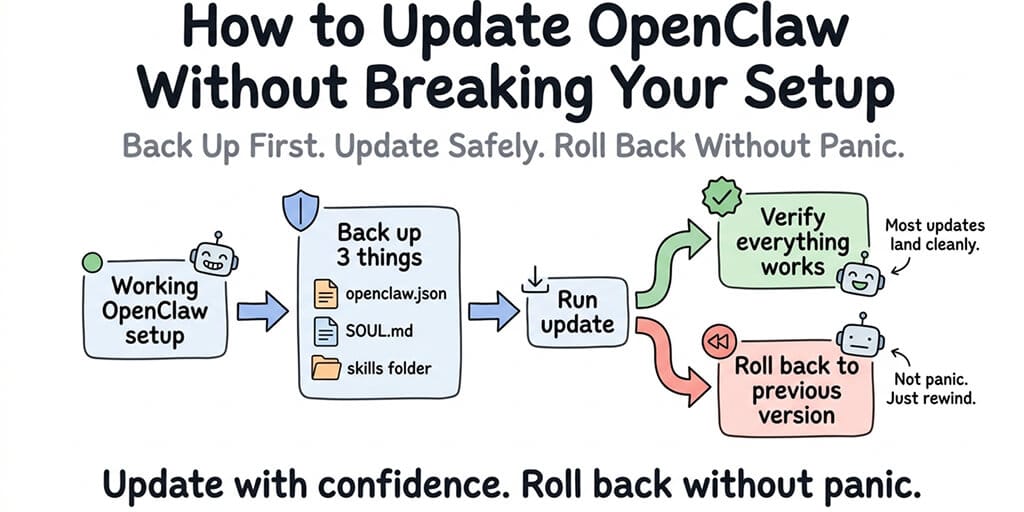
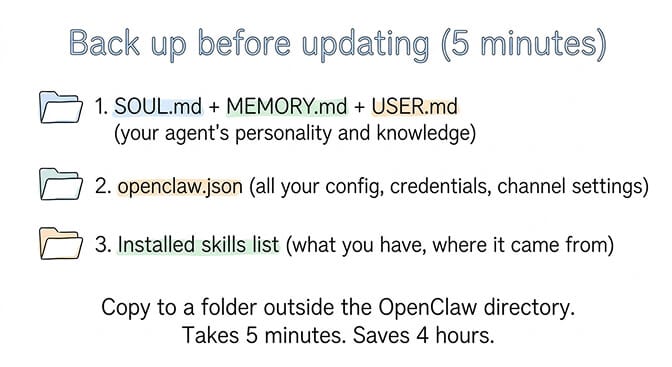
Back up these four things before you update
This takes 5 minutes. It saves hours of debugging if something goes wrong.
Your personality and memory files
Copy your SOUL.md, MEMORY.md, and USER.md (if it exists) to a safe location outside the OpenClaw directory. These files define your agent's personality, accumulated knowledge, and user preferences. They're the files you've spent the most time crafting. Losing them means recreating your agent's personality from scratch.
Your config file
Copy your openclaw.json (or wherever your configuration lives) to the same backup location. This file contains your model providers, API credentials, channel connections, gateway settings, and every customization you've made. If the update changes config key names or structure, you'll need the original to compare and migrate.
Your installed skills list
Note which skills you have installed and where they came from. After an update, skills can go inactive or need reinstallation. If you don't know which skills you had, you won't notice they're missing until the agent fails to perform a task it used to handle fine.
Your cron jobs and scheduled tasks
Export or write down anything running on a schedule: morning briefings, hourly checks, heartbeat automations. Scheduled jobs are the easiest thing to lose track of, because a missing one fails silently. Nothing errors, the agent simply stops doing something it used to do, and you notice a week later when you realise the briefing stopped arriving.
The 5-minute backup rule: copy SOUL.md, MEMORY.md, USER.md, and your config file to a separate folder before every update. This single habit prevents 90% of update disasters.
What changed about backups in 2026.9.2
Two things worth knowing if you are on 2026.9.2 or later. Backup integrity got stricter: corrupt archive headers are now rejected outright rather than accepted as a partial backup, and Skill Workshop backups refuse incomplete directory snapshots. That is the right behaviour, but it means a backup that used to appear to work may now fail loudly instead. Better to find that out before you need it.
Restoring also needs free temporary disk space, because the restore prepares a safe copy first and fails if it cannot. If you are restoring onto a nearly full disk, clear space before you start rather than halfway through. The built-in openclaw backup create command, and the two-step restore it pairs with, are covered in how to back up and restore an OpenClaw agent. The rest of that release, including two defaults that changed, is in our 2026.9.2 breakdown.
The actual update process
Once you've backed up, the update itself is straightforward.
Run the npm global update command for OpenClaw. This pulls the latest version and replaces the OpenClaw binary. The process typically takes 30-60 seconds depending on your internet speed.
What "success" looks like: The terminal shows the new version number with no error messages. If you see warnings about deprecated dependencies, those are usually harmless. If you see actual errors (permission denied, EACCES, npm ERR!), the update didn't complete and you're still on the old version.
After the update completes, restart your gateway. The new version only takes effect after a gateway restart. If you update but don't restart, you're running the old code with the new binary sitting idle.
Two flags worth knowing as of the 2026.9 releases.
openclaw update --no-restart skips the automatic Gateway restart after a successful update. Use it only when you have already stopped the Gateway yourself, and restart it manually afterwards. Otherwise you get the idle-binary problem described above, just with extra steps. There is one specific case where it is the documented path rather than an option: if you are on 2026.8.2 on a machine with no service manager (common on bare Linux installs), run openclaw update --no-restart once to get past it.
openclaw update --no-restart
openclaw update status reports where your install actually sits without changing anything. On extended-stable package installs it runs the same public-selector and exact-package verification the foreground update does, and it will tell you when your installed version is ahead of extended-stable rather than behind. When it fails it returns a registry.reason in its JSON (selector_missing, selector_query_failed, exact_package_mismatch, or unsupported_git_channel), which is usually faster to act on than the update command's own output.
openclaw update status
The 2026.9 line also made the update itself considerably safer to run: a failed post-update Doctor check now rolls the npm candidate back, config and secret references survive a failed upgrade, failures are handed to a built-in triage agent, and the updater waits for plugin readiness before restarting. If you have been holding off on updating because a previous one stranded you, that is the change that matters.
What to check immediately after updating
Don't assume the update worked just because the terminal didn't show errors. Check three things within the first 5 minutes.
Is your agent responding? Send a test message through your primary channel (Telegram, WhatsApp, whatever you use). If the agent responds normally, the core system is working.
Are your memory files intact? Check that SOUL.md and MEMORY.md are still present and contain the expected content. Some updates have been reported to reset or modify these files. If they've changed, restore from your backup.
Are your skills still installed and active? Ask your agent to perform a task that requires a specific skill (web search, file operation, calendar check). If the skill fails, it may have been deactivated by the update. Reinstall it.
Are your cron jobs still running? This is the one people miss. Cron jobs can silently deactivate after updates. Check your cron configuration and verify the schedules are still active. If your morning briefing doesn't arrive tomorrow, this is probably why.
For the seven practices every stable OpenClaw setup should follow, our best practices guide covers ongoing maintenance including update hygiene.
What commonly breaks between versions (and the quick fix)
Three things break more often than everything else combined.
Config key renames
OpenClaw occasionally renames config keys between versions. A field that was called one thing in the old version might have a slightly different name in the new version. When this happens, the gateway either ignores the old key (silently dropping your setting) or throws a validation error.
Quick fix: Compare your backed-up config file with the default config for the new version. Look for keys that exist in your backup but not in the new default. They've probably been renamed. Update the key names and restart.
Skills going inactive
Updates can change how skills are loaded or validated. A skill that worked in the previous version might fail validation in the new one due to changed schema requirements, missing fields, or updated security checks.
Quick fix: Reinstall the affected skills. If reinstallation fails, check if the skill has been updated on ClawHub to match the new OpenClaw version. If not, the skill may need an update from its maintainer. For the skill vetting and installation guide, our skills post covers the safe installation process.
Gateway binding changes
Some updates change the default gateway binding behavior. If your gateway was bound to a specific port or address, an update might reset it to the default. This breaks channel connections and API access.
Quick fix: Check your gateway config after updating. Verify the bind address and port match what you had before. Restore from your backup if they've changed.
If managing updates, config migrations, and skill compatibility sounds like more maintenance than you want, BetterClaw handles updates automatically. Your config is preserved. Your skills stay active. Your memory files are intact. $49/month for Pro, BYOK. You never touch any of this.
How to roll back if something goes wrong
This is the section you'll bookmark.
If the update broke something and you can't fix it quickly, rolling back to the previous version is the fastest path to a working agent.
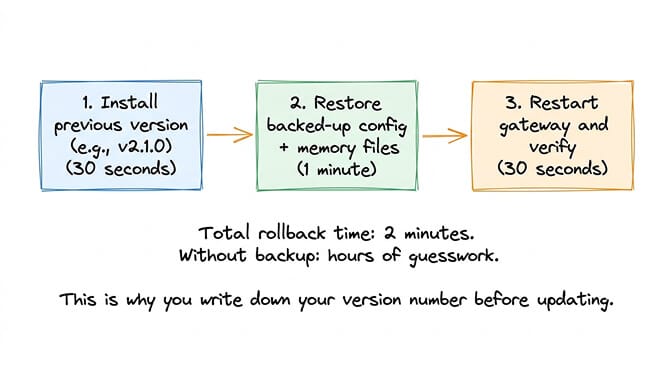
Install the specific previous version of OpenClaw by specifying the exact version number in the npm install command. Use the version number you wrote down before the update. This replaces the new version with the old one.
After installing the old version, restore your backed-up config file and memory files. Restart the gateway. Your agent should be back to its pre-update state.
The rollback takes about 2 minutes if you have your backup. It takes much longer if you don't, because you'll be trying to recreate settings from memory. This is why the backup step isn't optional.
Rolling back is not failure. It's the smart response when an update introduces problems you can't fix immediately. Update again later when the community has identified and resolved the breaking changes.
The update schedule that actually works
Here's what nobody tells you about updating OpenClaw: you don't need to update every time a new version drops.
OpenClaw releases multiple times per week. Most updates are minor. Unless the changelog specifically mentions a security fix (like the CVE-2026-25253 patch for the CVSS 8.8 vulnerability) or a feature you need, waiting a few days lets the community find breaking changes first.
Check the GitHub issues and Discord after a new release. If people report problems, wait for the fix. If the community is quiet, the update is probably safe.
Security updates are the exception. When a CVE is published, update immediately. The one-click RCE vulnerability (CVE-2026-25253) demonstrated why: 30,000+ instances were found exposed without authentication. Delaying security patches creates real risk.
The managed vs self-hosted comparison covers how updates are handled across different deployment approaches, including which platforms apply security patches automatically.
For everything else, update weekly or biweekly. Back up first. Check after. Roll back if needed. That's the whole process.
If you'd rather never think about updates again, give Better Claw a try. $49/month for Pro, BYOK with 28+ providers. Updates are automatic. Config is preserved. Security patches land same-day. Your agent stays current while you focus on what it does, not how it runs.
Frequently Asked Questions
How do I update OpenClaw to the latest version?
Run the npm global update command for OpenClaw in your terminal. Before updating, back up your SOUL.md, MEMORY.md, USER.md, and config file. After updating, restart the gateway and verify your agent is responding, memory files are intact, skills are active, and cron jobs are running. The update takes about 30-60 seconds. The backup and verification add 10 minutes of safety.
What breaks when I update OpenClaw?
The three most common issues are: config key renames (your settings silently stop working), skills going inactive (changed validation requirements), and gateway binding changes (connection settings reset to defaults). All three are fixable by comparing your backed-up config with the new defaults and restoring any changed values. The backup before updating is what makes these fixable instead of catastrophic.
How do I roll back an OpenClaw update?
Install the previous version by specifying the exact version number in the npm install command. Restore your backed-up config file and memory files. Restart the gateway. The rollback takes about 2 minutes if you have your backup ready. This is why writing down your current version before updating is essential. Without it, you're guessing which version to roll back to.
How often should I update OpenClaw?
For most users, weekly or biweekly updates are sufficient. Wait a day or two after each release to let the community identify breaking changes. The exception is security updates: when a CVE is published (like CVE-2026-25253, a CVSS 8.8 vulnerability), update immediately. On managed platforms like BetterClaw, updates are applied automatically with config preservation, so you never need to manage this manually.
Is it safe to skip OpenClaw updates?
Skipping non-security updates for a few weeks is generally fine. Skipping security updates is risky. With 30,000+ exposed instances found without authentication and the ClawHavoc campaign targeting 824+ malicious skills, running outdated versions increases your exposure. The safest approach: apply security patches immediately, delay feature updates by a few days to let the community test them first.
Related Reading
- OpenClaw Gateway Won't Start After Updating — Ten post-update failures, each matched to the log line it prints
- OpenClaw Setup Guide: Complete Walkthrough — Full installation and configuration flow
- OpenClaw Best Practices — Seven practices for ongoing maintenance and stability
- Best OpenClaw Skills (Tested & Vetted) — Safe skill installation after an update breaks them
- OpenClaw Security Risks Explained — Why security patches can't be delayed
- BetterClaw vs Self-Hosted OpenClaw — How updates are handled across deployment approaches