
Overview
Telegram bots are special accounts that run without a phone number. They are created and managed through BotFather, which is Telegram's official bot for registering new bots and managing existing ones.
When you create a bot through BotFather, you receive a bot token. This token is a long string that acts as your bot's authentication key. BetterClaw uses this token to send and receive messages on your bot's behalf.
The entire process takes about 2 minutes.
Prerequisites
- A Telegram account (requires a phone number for initial registration)
- Telegram app installed on your phone, desktop, or access via web.telegram.org
Step 1: Open BotFather
Open Telegram and search for @BotFather in the search bar at the top.
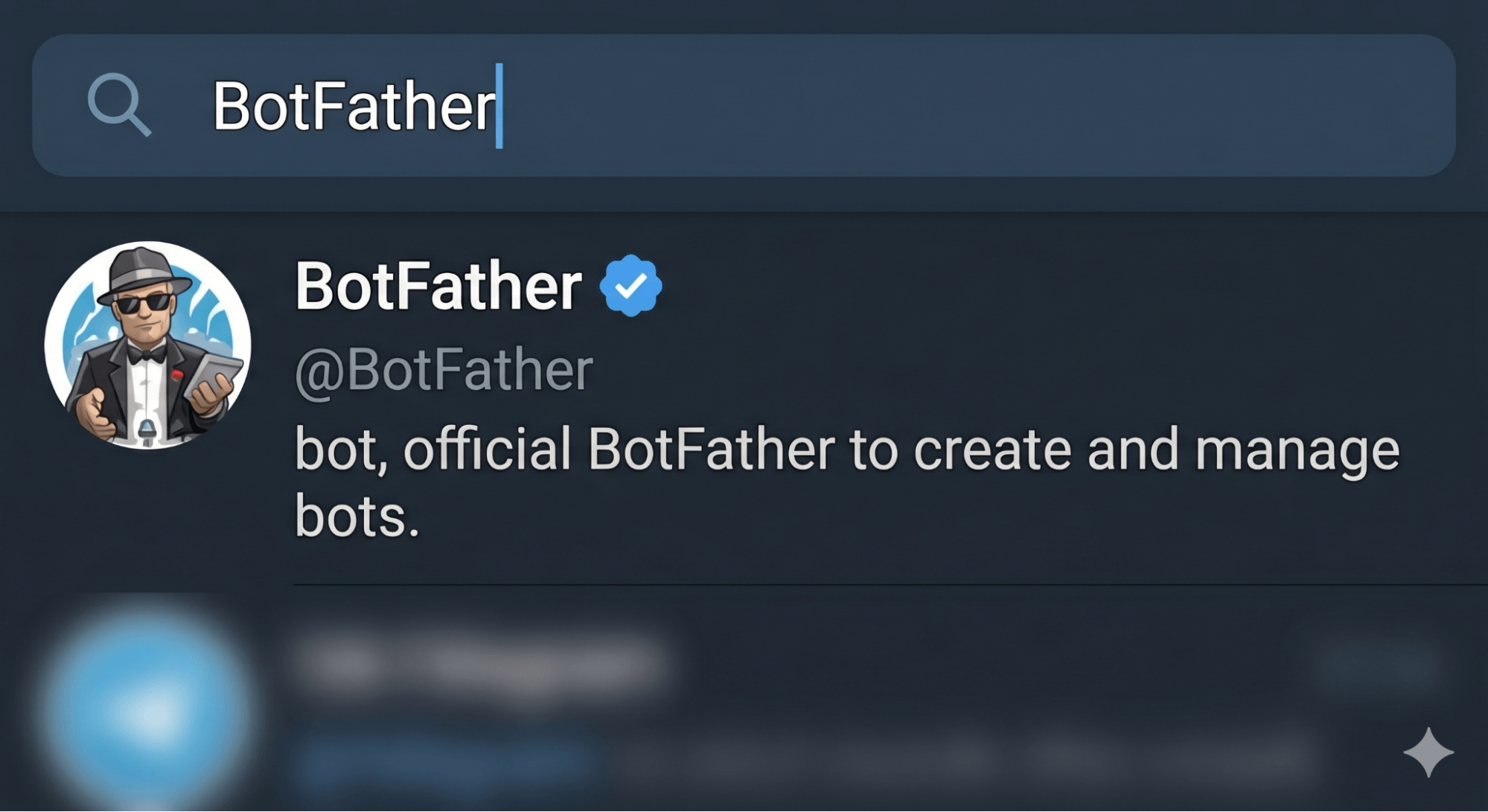
Make sure you select the verified BotFather account. It has a blue checkmark next to its name and the handle is exactly @BotFather. There are fake accounts with similar names. If the account does not have the blue verification badge, do not use it.
Click on BotFather to open the chat. If this is your first time, click Start or type /start to begin. BotFather will respond with a list of available commands.
Step 2: Create a New Bot
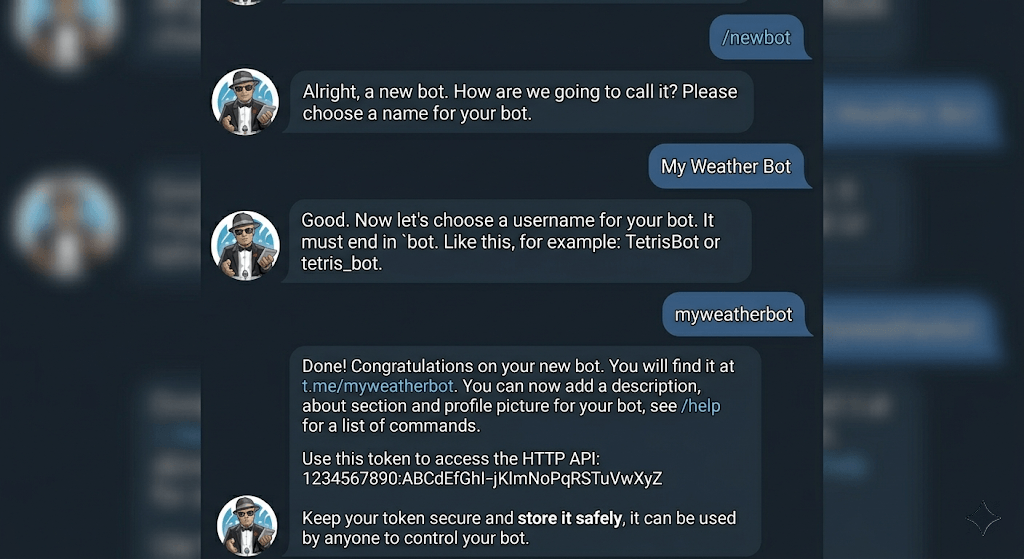
Type or tap /newbot and send the message. BotFather will ask you two questions, one at a time.
Choose a Display Name
First, BotFather asks: "Alright, a new bot. How are we going to call it? Please choose a name for your bot."
This is the display name that users will see in their chat list and at the top of the conversation. It can be anything you want. For example: "My Assistant", "Support Bot", or "Acme AI Agent".
Type your chosen name and send it.
Choose a Username
Next, BotFather asks: "Good. Now let's choose a username for your bot. It must end in 'bot'. Like this, for example: TetrisBot or tetris_bot."
The username is the unique handle for your bot. It must end with "bot" (case-insensitive). For example: "acme_support_bot" or "MyAssistantBot". If the username is already taken, BotFather will ask you to try another one.
Type your chosen username and send it.
Step 3: Copy Your Bot Token
Once you provide a valid username, BotFather responds with a success message that includes your bot token. The message will say something like:
Done! Congratulations on your new bot. You will find it at t.me/your_bot_username.

Use this token to access the HTTP API:
123456789:ABCDefgh-IJKLmnopQRSTuvwxyz1234567

Keep your token secure and store it safely.
The token is the long string that looks like 123456789:ABCDefgh-IJKLmnopQRSTuvwxyz1234567. It consists of two parts separated by a colon: a numeric bot ID and an alphanumeric authentication hash.
Copy the entire token, including the colon and everything after it. You will paste this into BetterClaw in the next step.
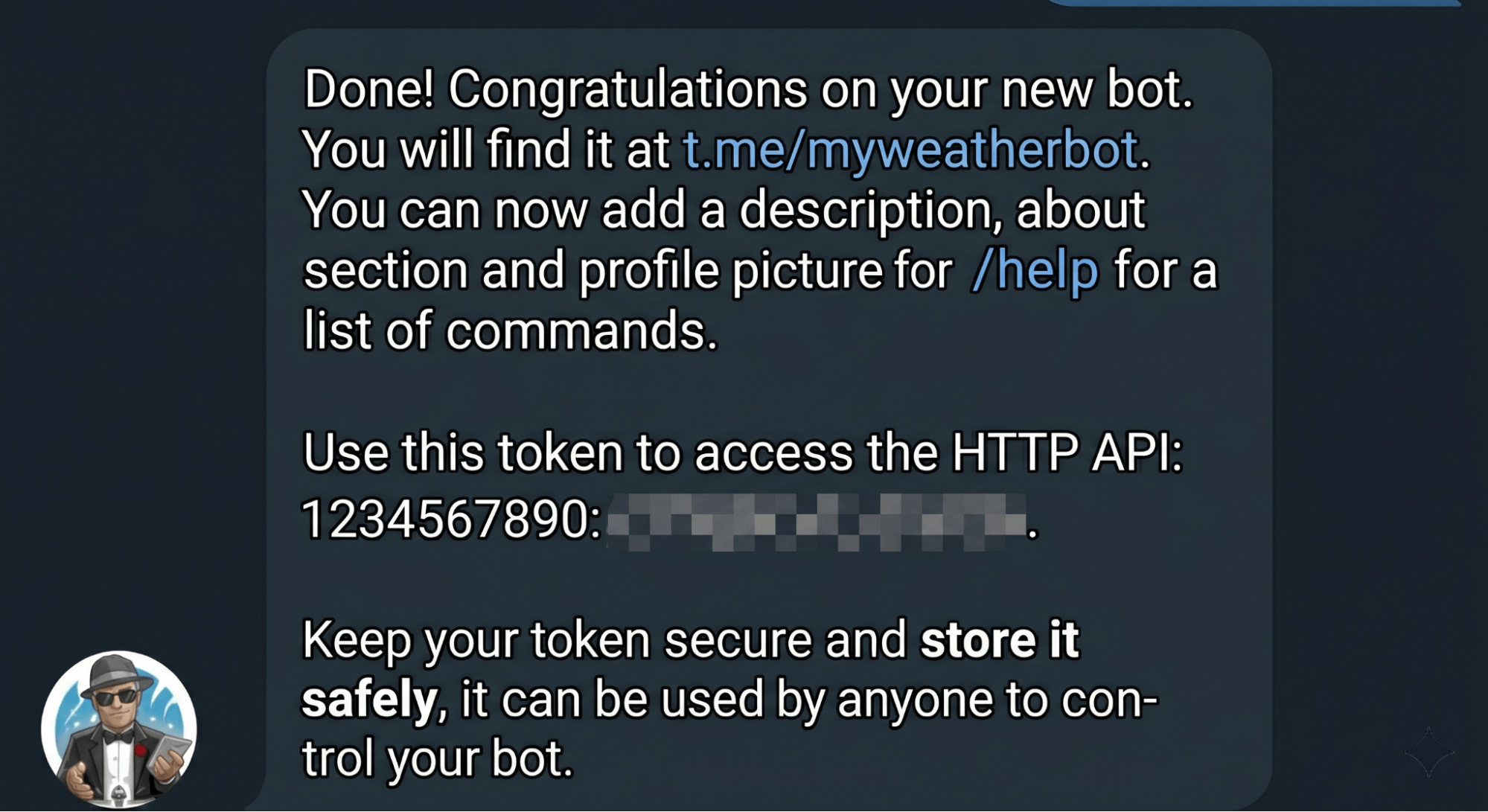
Do not share your bot token publicly. Anyone with the token can control your bot, read messages, and send messages on its behalf. If your token is ever exposed, use the /revoke command in BotFather to generate a new one immediately.
Step 4: Add the Token to BetterClaw
Now that you have your bot token, you need to store it in your BetterClaw workspace so your agent can use it.
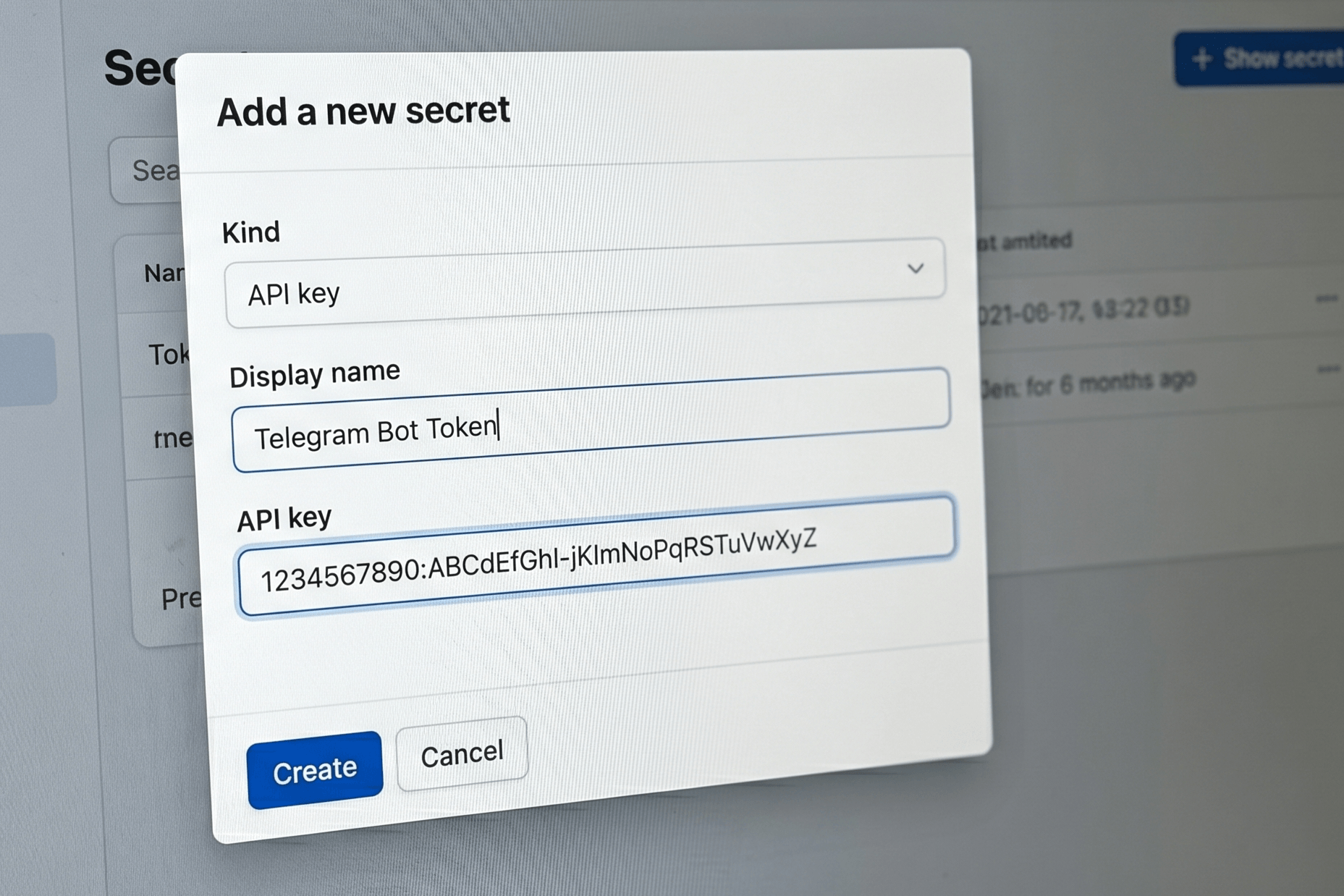
- Go to Secrets in the left sidebar of your BetterClaw workspace.
- Click + Add secret.
- Set Kind to "API key".
- Set Display name to something recognizable, like "Telegram Bot Token".
- Paste your bot token into the API key field.
- Click Create.
Your Telegram bot token is now securely stored and encrypted. When you enable Telegram as a channel on your agent, BetterClaw will use this token to authenticate with the Telegram Bot API.
Optional: Customize Your Bot
Before connecting your bot to BetterClaw, you can optionally customize its appearance in Telegram. All of these commands are sent to BotFather.
| Command | What It Does | Example |
|---|---|---|
/setname | Changes the bot's display name | "Acme AI Support" |
/setdescription | Sets the text users see before starting a chat | "AI assistant for Acme Corp" |
/setabouttext | Sets the short bio in the bot's profile | "Powered by BetterClaw" |
/setuserpic | Uploads a profile picture for the bot | Upload a 512x512 PNG image |
/setcommands | Defines the command menu users see in the chat | help - Show available commands |
/revoke | Generates a new token (invalidates the old one) | Use if your token is compromised |
Understanding the Token Format
A Telegram bot token always follows this format:
<bot_id>:<auth_hash>- Bot ID: The numeric part before the colon. This is your bot's unique identifier on Telegram.
- Auth Hash: The alphanumeric string after the colon. This authenticates API requests.
When pasting the token into BetterClaw, always include both parts with the colon. A common mistake is accidentally cutting off the beginning or end of the token when copying.
Troubleshooting
BotFather says the username is taken
Telegram bot usernames must be globally unique. Try adding a prefix or suffix that is specific to your organization. For example, instead of "support_bot", try "acme_support_bot" or "support_bot_2026".
Token not working after pasting into BetterClaw
Make sure you copied the full token, including the colon. Check for extra spaces at the beginning or end. If the token still does not work, go back to BotFather and use /mybots to view your bot, then click "API Token" to see the current valid token.
Bot is not responding to messages
After storing the token in BetterClaw, make sure you have also enabled Telegram as a channel on your agent. The token alone does not activate the connection. You also need to open Telegram, find your bot by its username, and click Start to initiate the first conversation.
I accidentally shared my token
Go to BotFather immediately and send /revoke. Select the affected bot. BotFather will generate a new token and the old one stops working instantly. Then update the secret in your BetterClaw workspace with the new token.
I need multiple bots
You can create as many bots as you want through BotFather. Each bot gets its own token. In BetterClaw, store each token as a separate secret and assign them to different agents or channels.
Quick Reference
| Step | Action | Where |
|---|---|---|
| 1. Open BotFather | Search @BotFather in Telegram | Telegram app or web |
| 2. Create bot | Send /newbot, choose name and username | BotFather chat |
| 3. Copy token | Copy the full token from BotFather's response | BotFather chat |
| 4. Store in BetterClaw | Add as API key secret | Sidebar → Secrets → + Add secret |
Next Steps
Once your bot token is stored in BetterClaw, you can:
- Enable Telegram as a messaging channel on your agent
- Customize your bot's profile picture and description through BotFather
- Configure DM and group messaging policies
- Test by opening your bot in Telegram and sending a message
For the full Telegram channel configuration, see the Integrate Telegram with BetterClaw guide.